
Add-ons explained: turn features on and off
What this does
Section titled “What this does”Add-ons are optional features you switch on when you need them, such as Online Booking, online payments, calendar sync, video-call links, a password vault or a team. Each one has a monthly price per company, not per person: one price covers your whole team.
Before you start
Section titled “Before you start”Everyone on your team can see the Add-ons page, but only the account owner can turn add-ons on or off, add extra storage or buy extra AI usage. Administrators can’t either. Anyone else sees the same cards with Enabled on the add-ons you already have, and a Request button on the features you don’t have yet (see Ask the owner for an add-on, below). Extra storage and extra AI usage have no Request button.
Look at what’s available
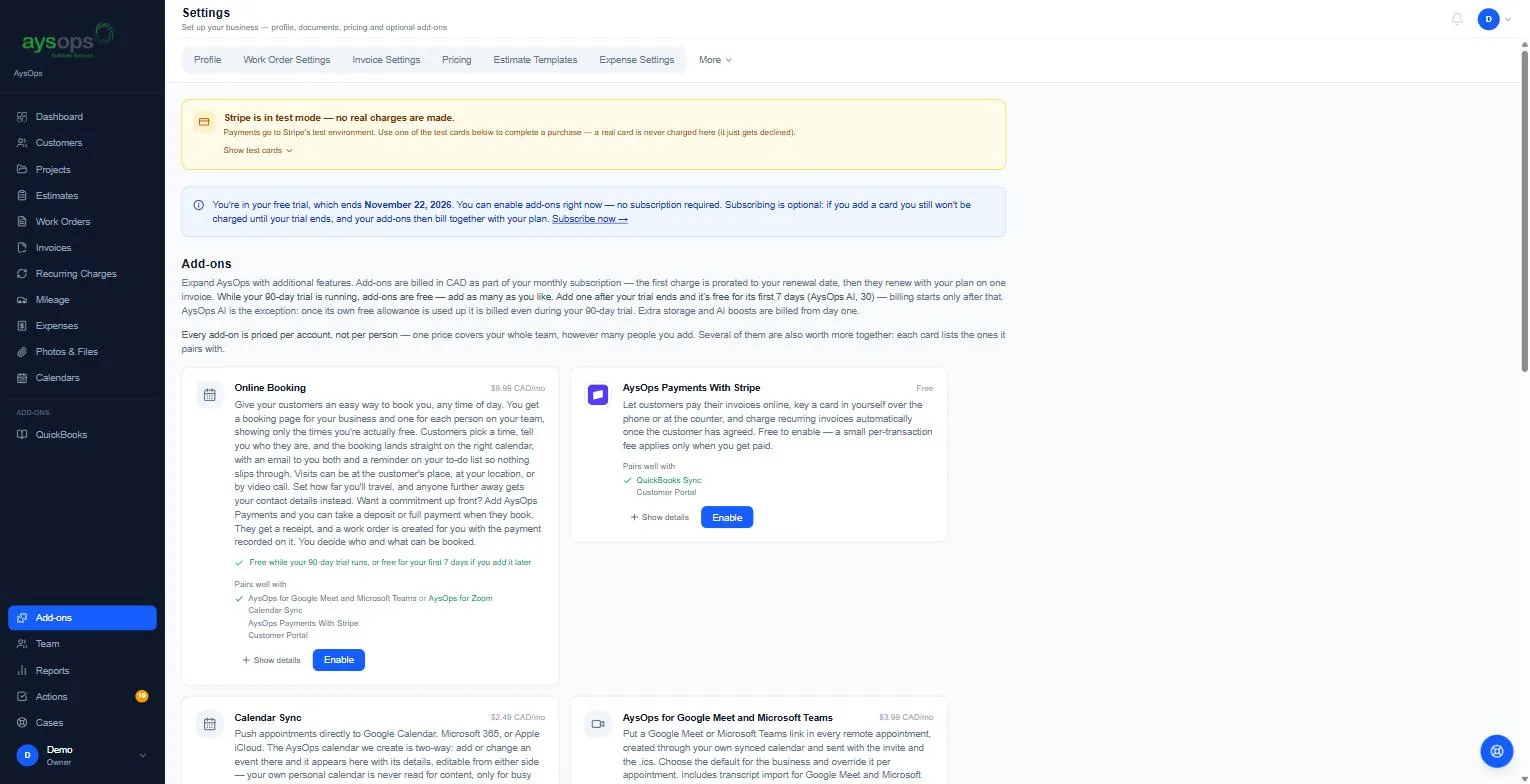
Section titled “Look at what’s available”- Click Add-ons in the left menu.
- Each card shows the price, a short description, and:
- Show details: the full list of what it does.
- Requires: other add-ons it needs first, for example “Requires Online Booking (not added yet)”.
- Pairs well with: add-ons that work well with it. A green tick means you already have it.
- Coming soon: not available yet. You can’t turn these on.
Turn an add-on on
Section titled “Turn an add-on on”- Click Enable on its card.
- A confirmation shows the price and when billing starts. Click Agree & enable.
- The add-on moves to Enabled Add-ons at the bottom of the page (click Enabled Add-ons to open the list), with its price and Free until [date] (the day billing starts: during your 90-day free trial that is the day the trial ends) or the date it was enabled. Some add-ons then need setting up and show Setup required → (for example QuickBooks Sync, or Google Meet and Microsoft Teams, which takes you straight to the Calendar Sync page).
Turn an add-on off
Section titled “Turn an add-on off”- In Enabled Add-ons, click Cancel on the add-on.
- The confirmation explains that you keep full access until the date you’ve already paid through (or your trial ends), with no further charges after that. Click Yes, cancel add-on, or Keep it to leave it on.
- The card then shows Ends [date] and “Cancelled · paid through [date], no further charges”. If nothing was ever charged for it (you cancelled during your free trial or its own free days), it says “Cancelled · free until [date], nothing charged” instead.
- Changed your mind? Click Resume on the card. It’s free any time before it ends, and you stay on the Add-ons page.
Turning off Calendar Sync also disconnects your team’s calendars (the popup lets you do it right away or when the add-on ends). See Connect your calendar.
Turning off AysOps Payments With Stripe also stops automatic payments from customers’ saved cards until you turn it back on. The confirmation says how many customers this affects. See Autopay for recurring charges.
Ask the owner for an add-on
Section titled “Ask the owner for an add-on”If you aren’t the owner:
- Click Add-ons in the left menu.
- On the add-on you’d like, click Request. The button changes to Requested.
The owner sees a count on that add-on’s card (for example 1 request). Clicking it shows who asked and when. Nothing is turned on or charged until the owner enables it.
When you pay for add-ons
Section titled “When you pay for add-ons”- During your 90-day free trial, add-ons are free. Add as many as you like. Nothing is charged before your trial ends, even for an add-on whose own 7 free days end sooner, so its card says Free until your trial’s end date.
- Added after your trial? Most add-ons are free for their first 7 days, then billing starts. AysOps AI has its own trial: 30 days from first use or 2,000 credits, whichever comes first, then it switches itself off until you turn it back on (see AysOps AI).
- Add-ons are billed with your plan, on one monthly invoice. The first charge is prorated to your renewal date.
- Extra storage and AI boosts are billed from day one, even during the trial.
- The Monthly cost list at the bottom shows exactly what you’ll pay. See Billing and your subscription.
If something goes wrong
Section titled “If something goes wrong”-
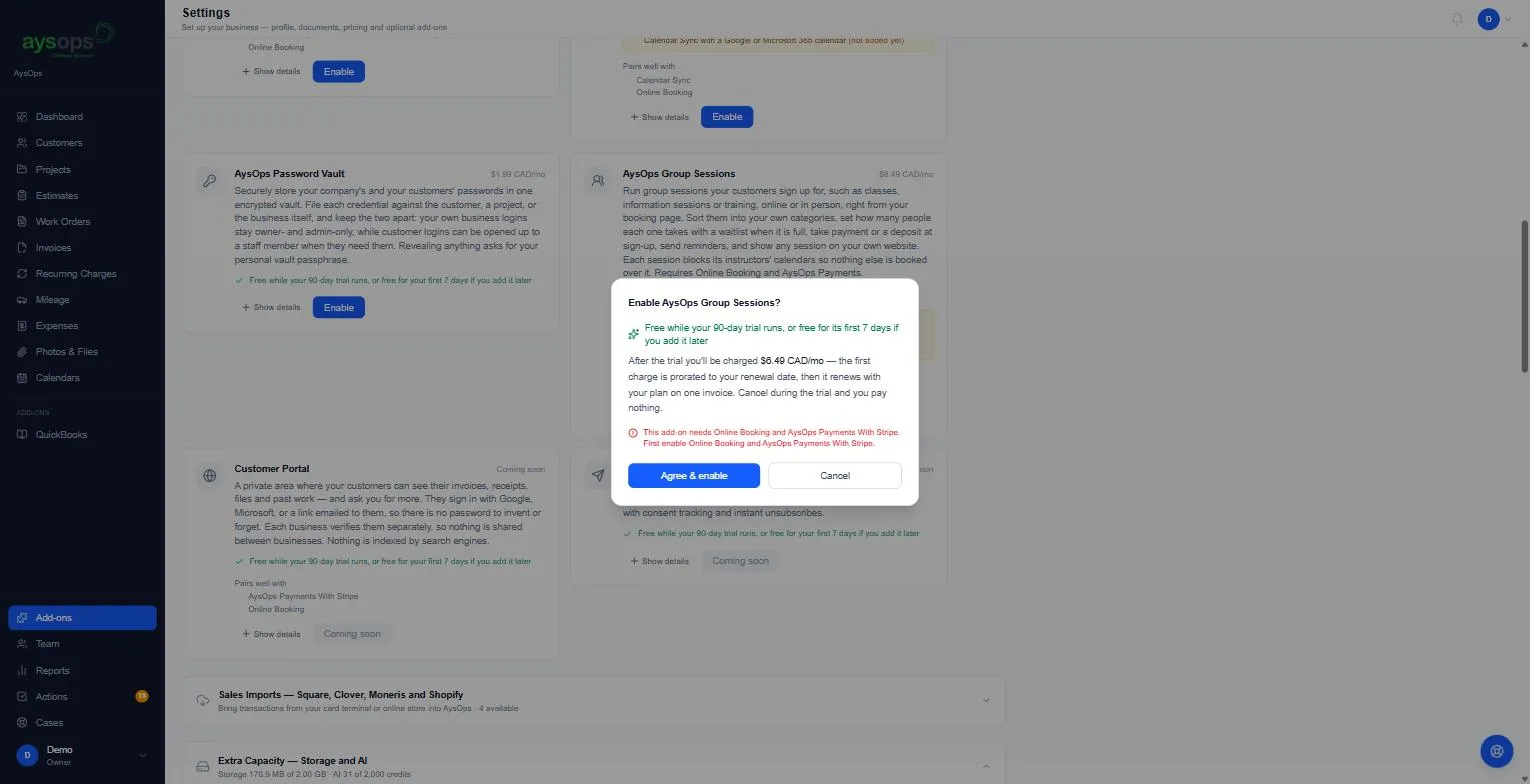
Enabling shows “This add-on needs …”: the card’s Requires line lists what it needs. Turn that on first. For example, AysOps Group Sessions needs Online Booking and AysOps Payments With Stripe. Nothing is enabled until you do.
-
I cancelled an add-on that another one needs: the one that depends on it is switched off with it (it keeps working until the end of any time already paid for). When you turn the first one back on, AysOps asks whether to turn the other back on too. Choose Not now to leave it off.
-
“You need an active subscription before enabling add-ons”: your free trial has ended or your subscription was cancelled. Click Subscribe now in the message (it opens Billing), then turn the add-on on. See Billing and your subscription.
-
There’s no Enable or Cancel button, only Request: only the account owner can manage add-ons. Click Request to let them know.
Related articles
Section titled “Related articles”- Billing and your subscription
- File storage
- Invite a team member (needs the AysOps Teams add-on)