
The work calendar (and dragging appointments)
What this does
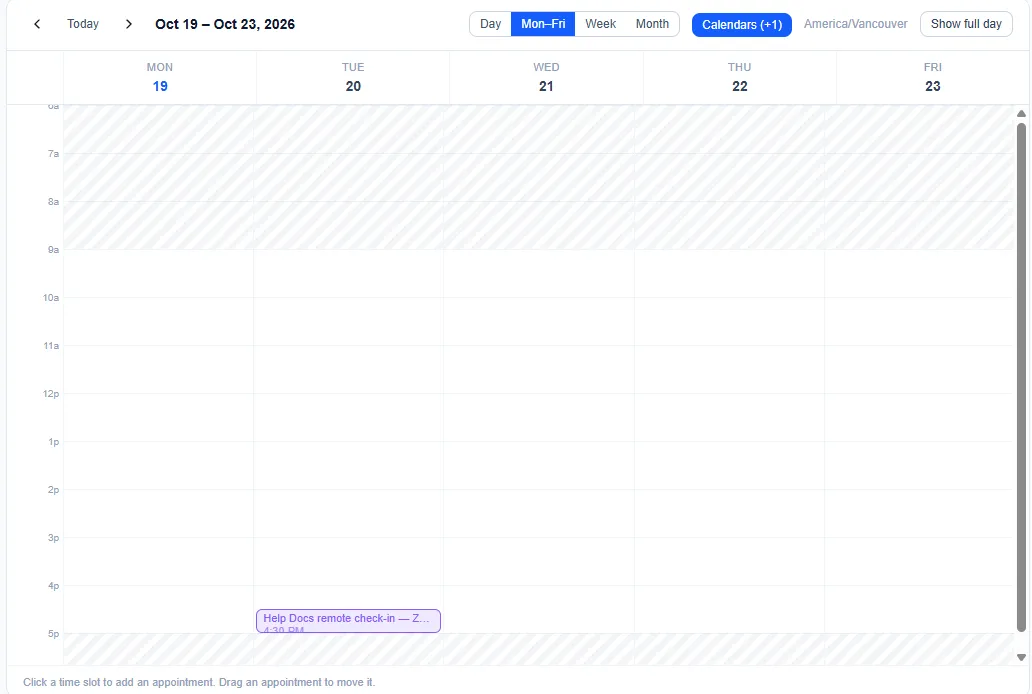
Section titled “What this does”Shows your appointments for a day, a work week (Monday to Friday), a week or a month. Click an empty time to book something, click an appointment to see it, or drag it to a new time.
- Click Calendars in the left menu. On a phone, tap Calendar on the bar at the bottom.
- Choose a view: Day, Mon–Fri (Monday to Friday), Week (Sunday to Saturday) or Month. The arrows move one day in Day, one week in Mon–Fri and Week, and one month in Month; Today comes back to today. On a phone the calendar opens on Day; the view you pick last is remembered on that device. The time zone you’re seeing is shown beside them (for example America/Vancouver). Show full day shows hours outside your usual day (click Business hours (6–6) to go back). It isn’t shown in Month, which has no hours. If an appointment in the days shown falls outside the hours shown, a note above the calendar says so, with a Show full day link. Calendars (with a count, for example Calendars (+1)) chooses whose calendars are shown: everyone’s starts selected, and you can untick any, including your own.
- Hatched (striped) hours are outside your working hours. You can still book them; you’ll be asked to confirm. Set your hours in Working hours.
Add an appointment
Section titled “Add an appointment”Click an empty time slot. See Create an appointment.
See an appointment
Section titled “See an appointment”Click it. You’ll see the title, date and time, who it’s for, who’s invited (INVITED), and Edit / Cancel appointment. Cancel appointment asks “Cancel this appointment?” first; anyone invited is sent a cancellation.
Move an appointment (drag)
Section titled “Move an appointment (drag)”- Drag the appointment to the new day and time. Dragging works in Day, Mon–Fri and Week, not in Month.
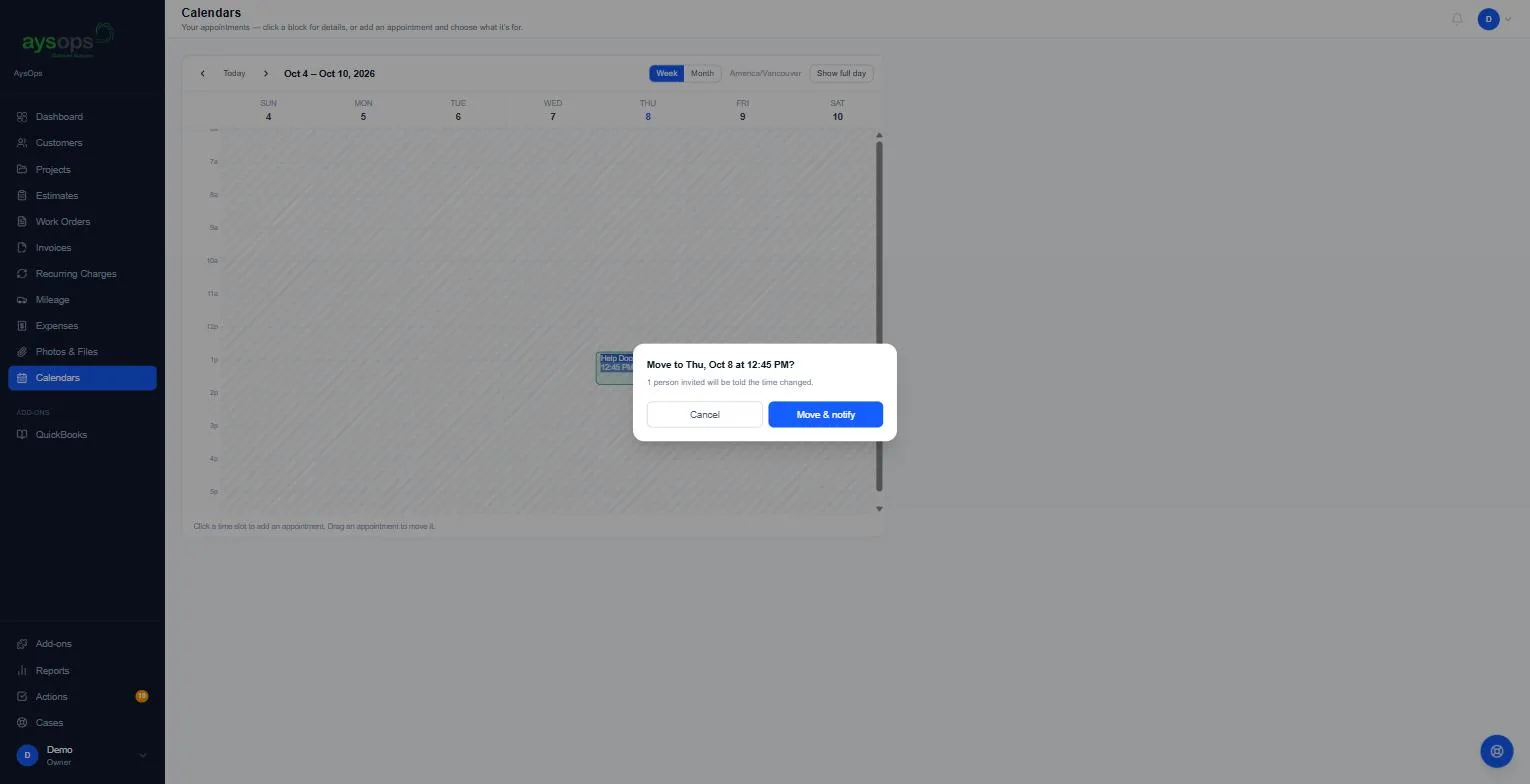
- If nobody is invited, it moves straight away. If people were invited, you’re asked first: “Move to [day] at [time]?” says how many will be told the time changed. Click Move & notify, or Cancel to leave it where it was.
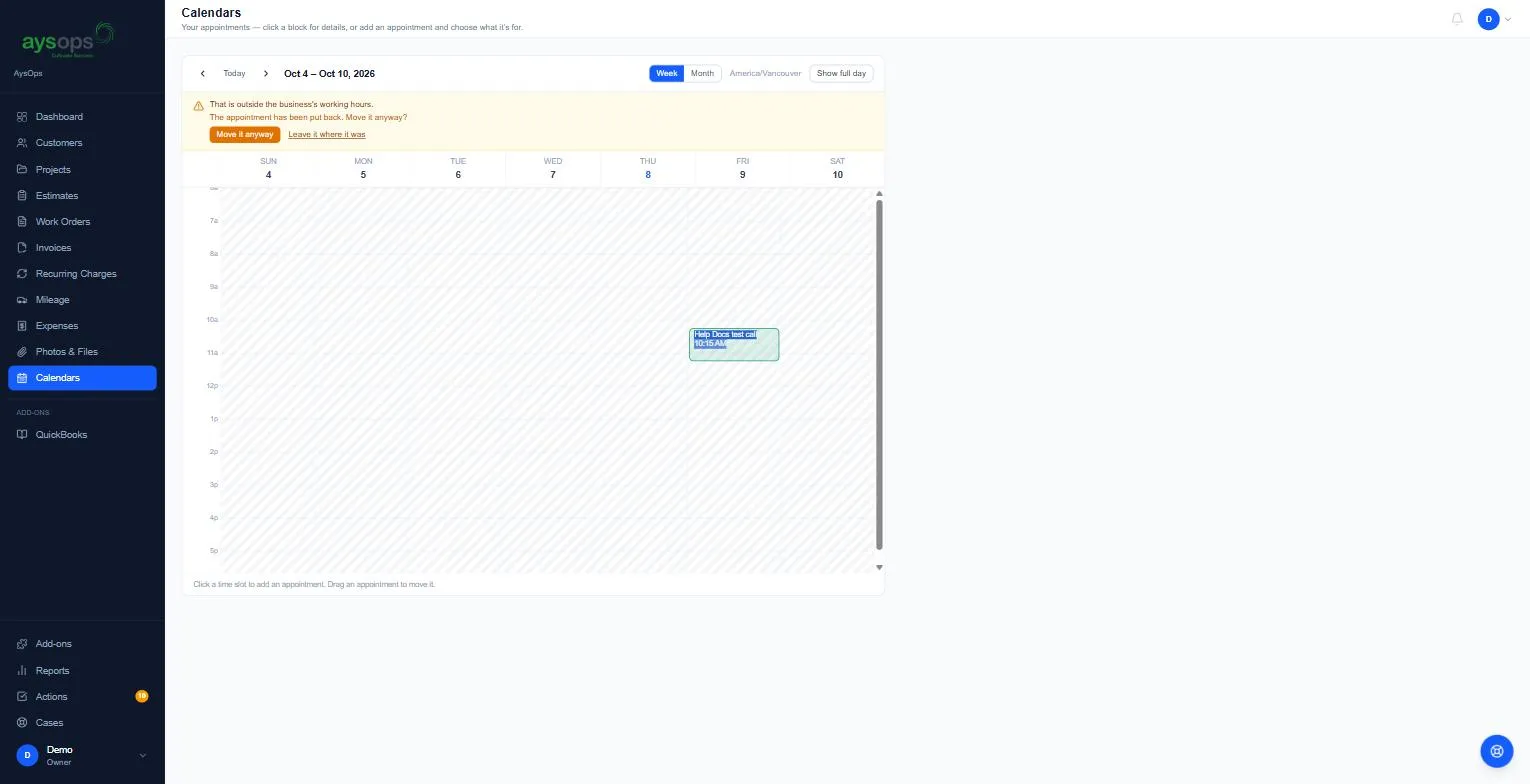
- If the new time is outside working hours, the appointment is put back and you’re asked “Move it anyway?”: click Move it anyway or Leave it where it was.
If something goes wrong
Section titled “If something goes wrong”- I can’t drag: dragging needs permission to manage appointments, and works in the Day, Mon–Fri and Week views (not Month).
Related articles
Section titled “Related articles”calendar, work calendar, week view, month view, schedule, appointments, drag to reschedule, move appointment, reschedule, show full day, time zone, closed hours, greyed out