
Set up AysOps Payments (connect Stripe)
What this does
Section titled “What this does”AysOps Payments With Stripe lets customers pay you by card online: invoices through a pay link, bookings at the time they book, and recurring invoices automatically once the customer agrees. You can also key in a card yourself over the phone or at the counter. The money goes straight to your own Stripe account.
What it costs
Section titled “What it costs”- The add-on is free to enable.
- AysOps charges 0.4% per payment, with no minimum. New accounts pay no AysOps fee for their first 3 months.
- Stripe’s own processing fees apply on top, and are logged as an expense for you automatically.
- Referring another business lowers your AysOps fee.
Before you start
Section titled “Before you start”- Only the owner and administrators can set this up. You’ll be asked for your password again.
- Stripe will ask for your business details and the bank account for payouts. Have them ready.
-
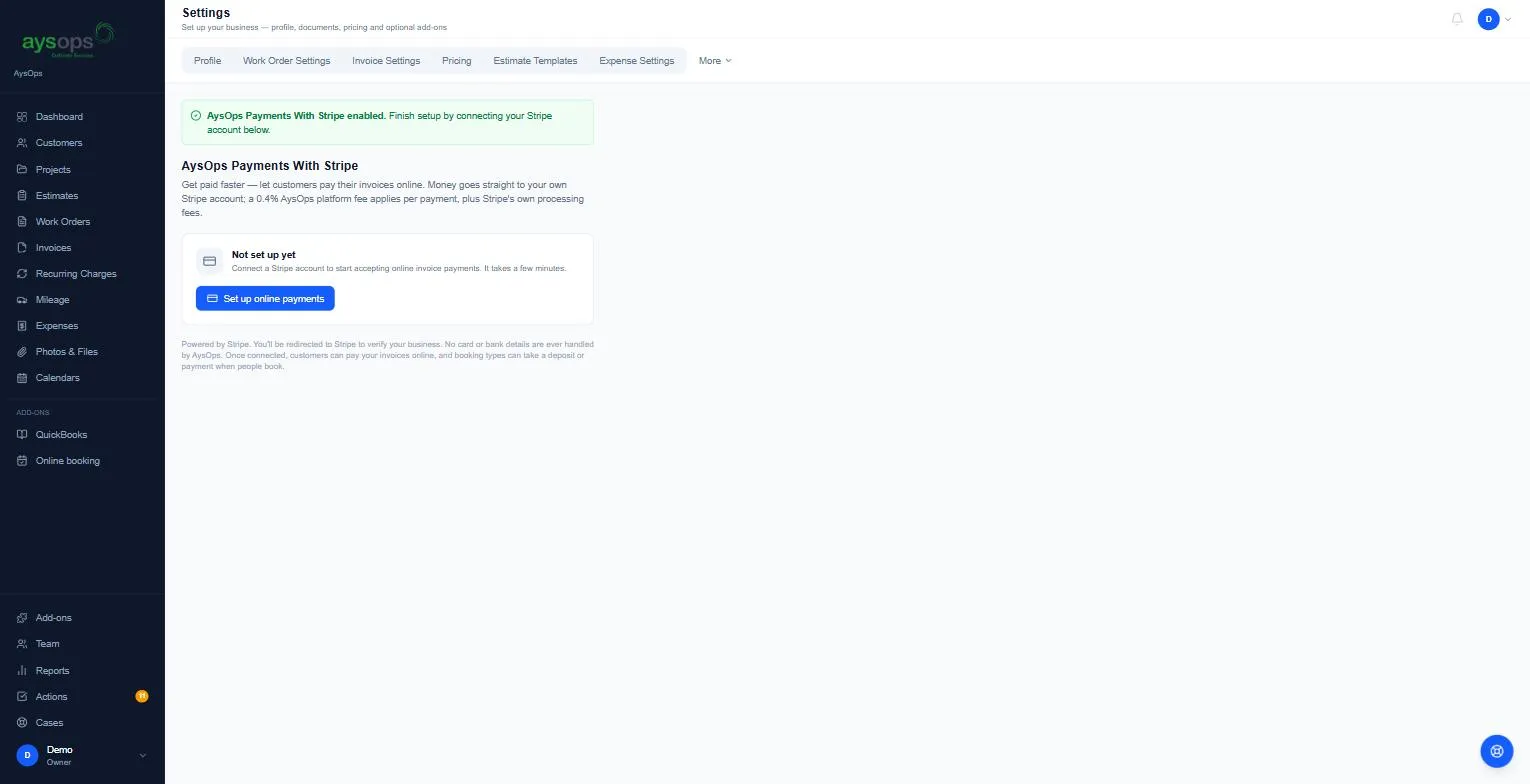
Click Add-ons, then Enable on AysOps Payments With Stripe, then Agree & enable. You’re taken to the payments settings page (also at Settings → More → Integrations).
-
The page shows Not set up yet. Click Set up online payments.
-
Confirm your password if asked. You’re sent to Stripe to verify your business. AysOps never sees your card or bank details.
-
When you finish, you come back to AysOps. The page shows Connected: ready to accept payments, and whether payouts are enabled.
-
If you stopped part-way, the page shows Setup in progress. Click Continue setup to carry on where you left off.
After you’re connected
Section titled “After you’re connected”- Open Stripe dashboard takes you to your Stripe account to see payouts and payments.
- 🔴 Avoid sending customers two receipts: AysOps emails a receipt for every online payment. To stop Stripe sending its own as well, in your Stripe dashboard go to Settings → Business → Customer emails and turn off Successful payments.
- Your invoice emails now include a pay link. See Let customers pay invoices online.
- Booking services can ask for a deposit or full payment. See Take a deposit or full payment when customers book.
- You can sell from your own website: a Buy button for any product or service, or a plan that bills the customer every period. See Sell online.
If something goes wrong
Section titled “If something goes wrong”- Payouts pending: Stripe still needs details. Click Open Stripe dashboard and finish them.
- Invoices still go out without a pay link: check the conditions in Let customers pay invoices online.