
Invoice settings (logo, payment terms, footer, receipts)
What this does
Section titled “What this does”Sets what your invoices look like and the terms they’re sent with.
Before you start
Section titled “Before you start”You need permission to manage settings (owners and admins by default).
- Click your initial or photo → Settings → Invoice Settings.
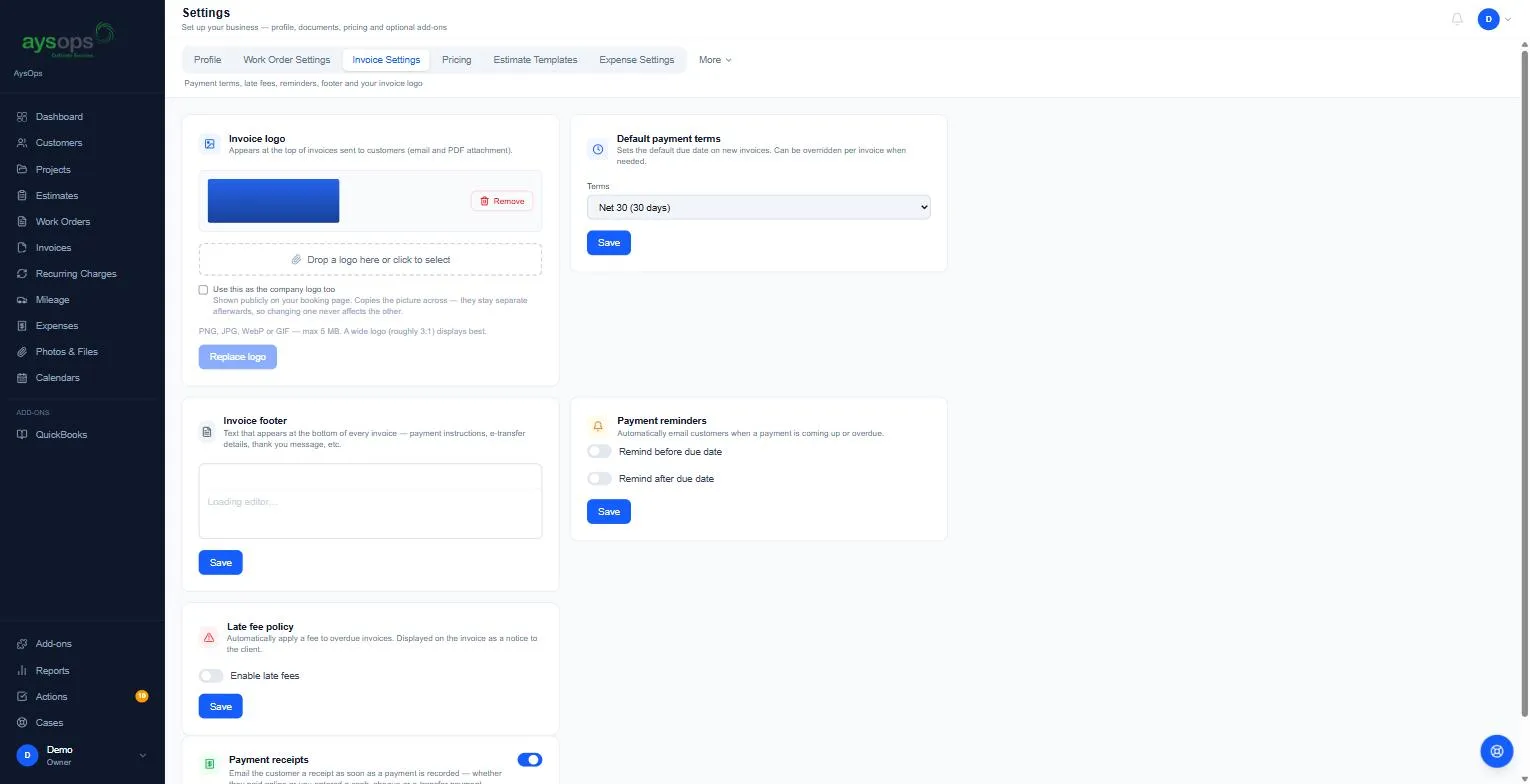
Each card has its own Save button.
Invoice logo
Section titled “Invoice logo”Shown at the top of invoices (in the email and the PDF). Drop a picture on Drop a logo here or click to select (PNG, JPG, WebP or GIF, up to 5 MB; a wide logo, about 3:1, looks best), then click Upload logo (Replace logo when you already have one). Tick Use this as the company logo too to copy it to your public booking page as well. Remove takes it off.
Default payment terms
Section titled “Default payment terms”When invoices are due: Due on receipt, Net 15 (15 days), Net 30 (30 days), Net 60 (60 days) or Custom (then fill in Days until due). You can choose different terms each time you convert a work order. The due date counts from the day you send the invoice.
Invoice footer
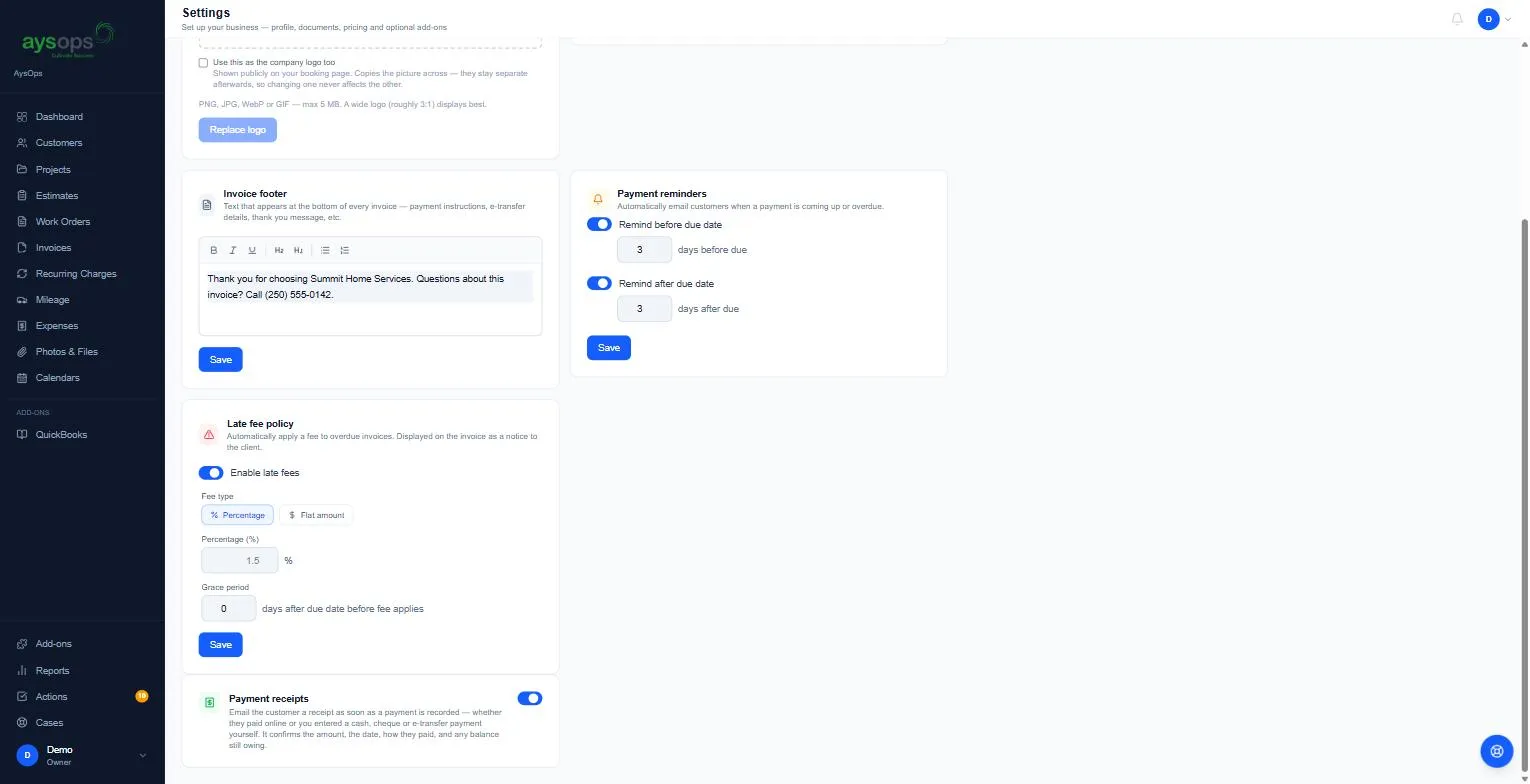
Section titled “Invoice footer”Text at the bottom of every invoice: payment instructions, your e-Transfer address, a thank-you.
Payment receipts
Section titled “Payment receipts”When on, the customer is emailed a receipt as soon as a payment is recorded (online, or entered by you), showing the work from the invoice (each line, with its date and hours when you entered them), then the amount, date, method and any balance still owing.
Payment reminders and Late fee policy
Section titled “Payment reminders and Late fee policy”Both cards are marked Coming soon and can’t be changed yet: AysOps doesn’t send reminder emails or add late fees at the moment. Chase overdue invoices yourself for now (the Overdue group on the Invoices page lists them).
Where is the business name on invoices set?
Section titled “Where is the business name on invoices set?”The From name on invoices comes from your business details, not from this page. See Business profile.