
Create an appointment (and invite people)
What this does
Section titled “What this does”Books time in your calendar for a customer visit, a call or anything else, and (optionally) emails invitations to the people involved.
Before you start
Section titled “Before you start”You need permission to create appointments (everyone except Limited members by default).
- Click Calendars, then click an empty time slot on the day you want.
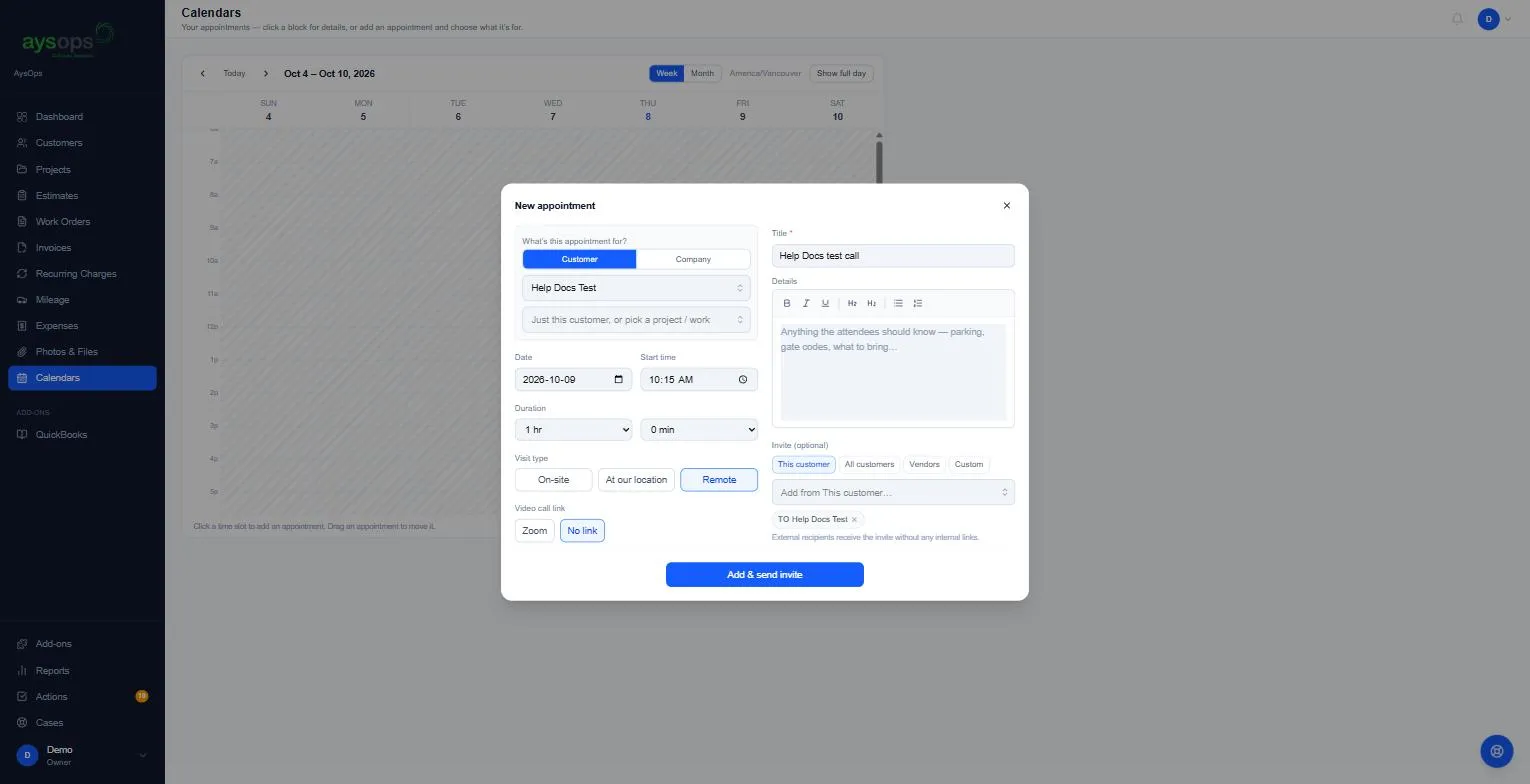
- Fill in New appointment:
- What’s this appointment for?: Customer (pick one, and optionally one of their projects or work orders) or Company (internal). A customer who isn’t in AysOps yet can be added from the list with + Add new customer….
- Date, Start time and Duration (hours and minutes).
- Visit type:
- On-site: you go to them (and you may get a mileage reminder afterwards).
- At our location: they come to you.
- Remote: a call. Choose a Video call link: Zoom, Google Meet or Microsoft Teams if you’ve connected one (each is an add-on), or No link.
- Add to calendar: whose calendar it goes on. My calendar is yours; pick a team member’s or a shared calendar to book it for them.
- Title (required) and Details (parking, gate codes, what to bring).
- Invite (optional): pick people from This customer (their contacts), All customers, Vendors, Team (your colleagues), Address book (people you’ve saved), or type any address with Custom. A list with nobody in it isn’t shown. If you can manage expenses, Vendors also has Add new vendor… to save a new vendor and invite them in one go (the appointment itself is not saved until you add it). People outside your company get the invitation by email without any internal links; your team’s copy links to the work.
- Click Add appointment (it reads Add & send invite when someone is invited).
Outside working hours
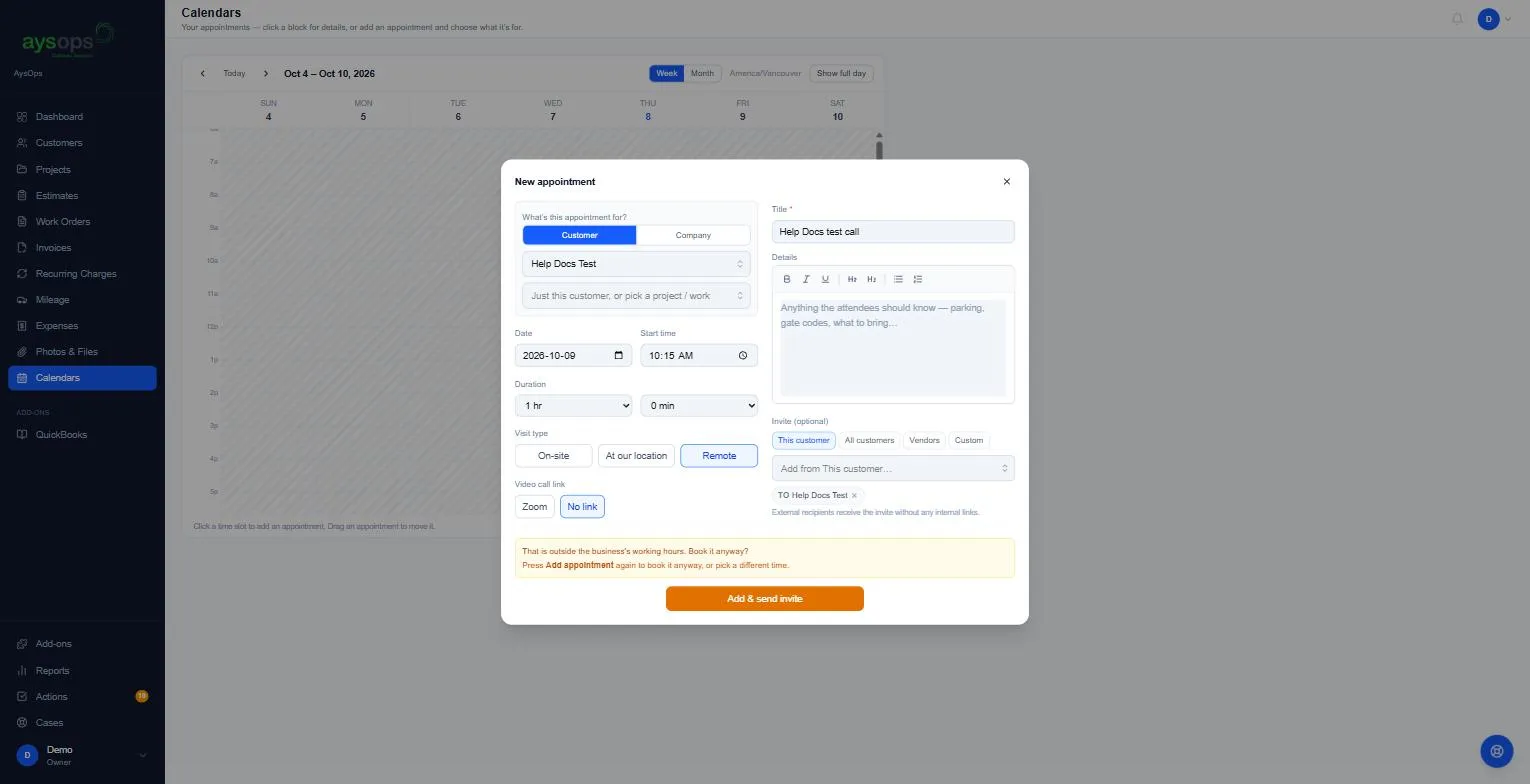
Section titled “Outside working hours”If the time is outside the working hours of the person whose calendar it goes on, you’ll see “This is outside [their name]’s working hours. Book it anyway?”. Nothing is saved yet: press Add appointment again to book it anyway, or pick a different time.
What happens next
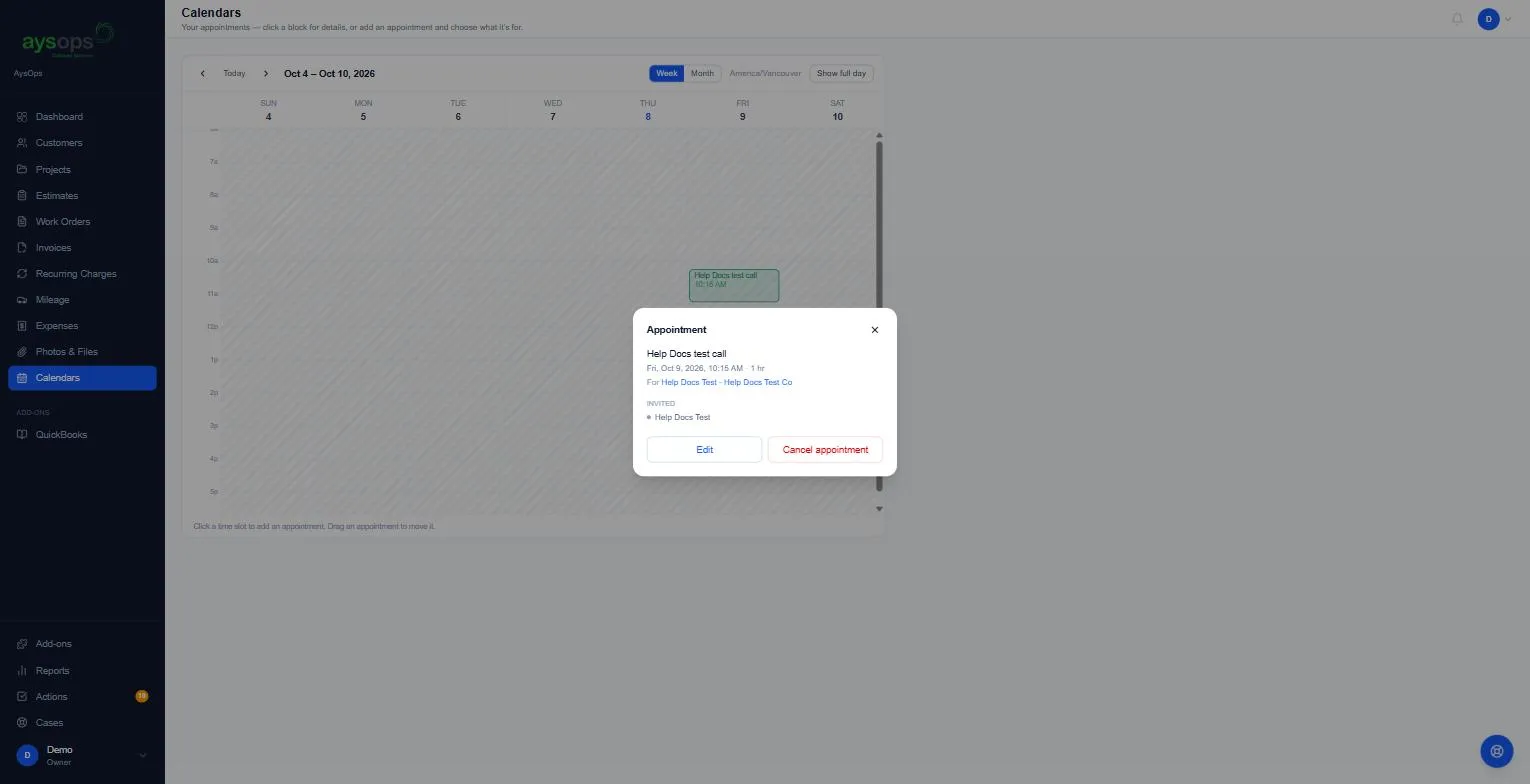
Section titled “What happens next”The appointment appears on the calendar and, on the day, as a to-do on your Actions list (where you can turn it into a work order). Click it to see the details, Edit it or Cancel appointment (confirm with Cancel appointment again). Moving or cancelling it tells the invited people.
Meeting ended early
Section titled “Meeting ended early”For a video call you organised, the appointment shows Meeting ended early as soon as you press Start the video call (even before the booked start), and otherwise during the booked time. Press it to record that the call is over: if you import meeting transcripts, the transcript button appears straight away instead of waiting for the booked end. The invitation’s time isn’t changed.