
Change your password
What this does
Section titled “What this does”Changes the password you sign in with, while you’re signed in. You confirm your current password first. Your other devices are signed out, and you get an email saying the password was changed.
Forgot your password? Use Reset your password instead.
Before you start
Section titled “Before you start”- You need to have finished your two-step sign-in for this session.
- If you only sign in with Google or Microsoft, you don’t have an AysOps password yet. To add one, sign out and use Forgot password? on the sign-in page.
- Click your initial or photo at the top right → Settings, then More → Security.
- In the Password box, click Change password.
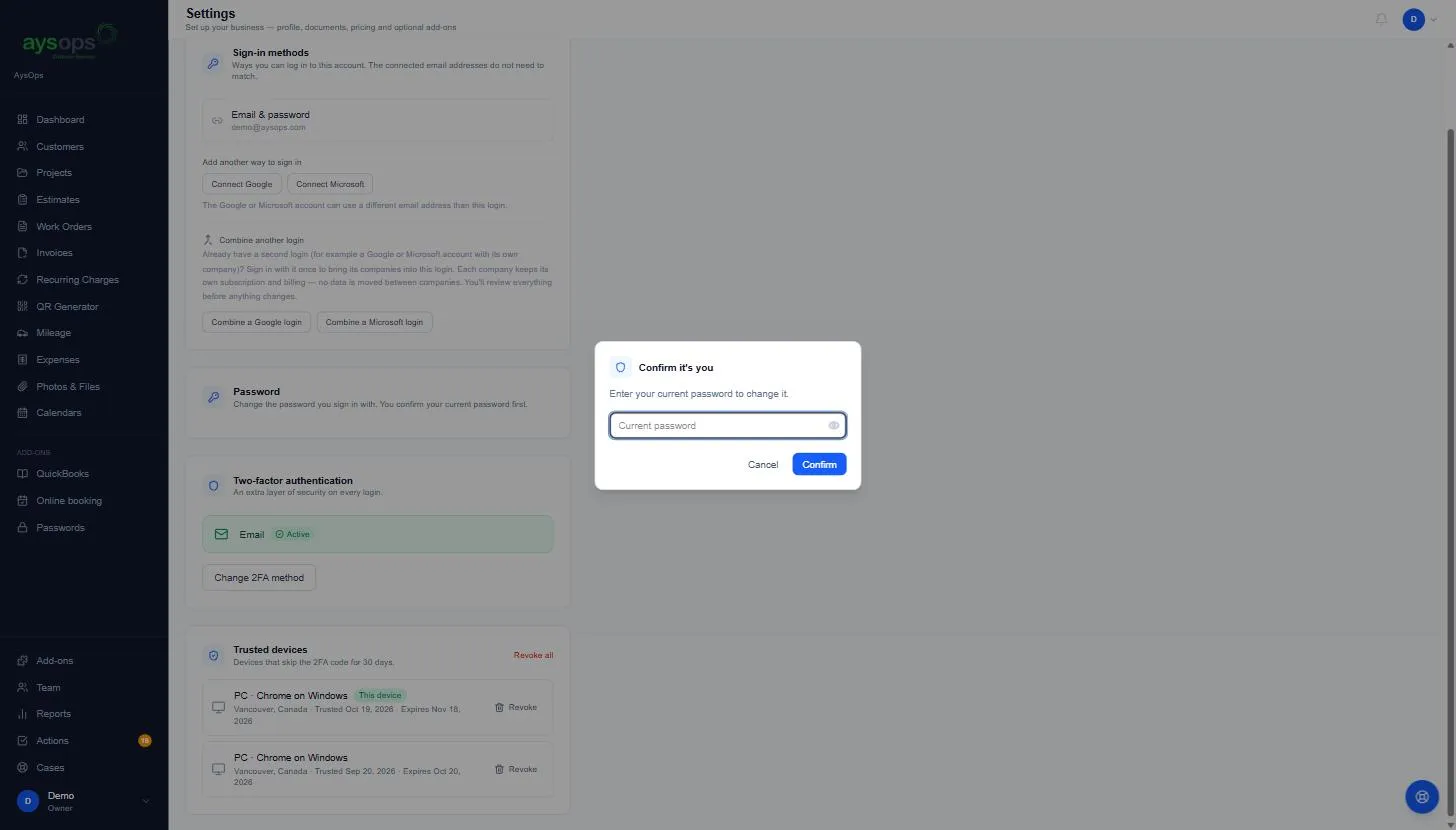
- A Confirm it’s you window asks for your Current password. Type it and click Confirm. (A small security check may appear; tick it if asked.)
 4. Type your New password (at least 12 characters) and type it again in Confirm new
password. Use the eye button to see what you typed.
5. Click Save new password.
4. Type your New password (at least 12 characters) and type it again in Confirm new
password. Use the eye button to see what you typed.
5. Click Save new password.
What happens next
Section titled “What happens next”You see “Password changed. Your other devices were signed out, and we emailed you to confirm.” You stay signed in on this device. Next time you sign in anywhere else, use the new password.
If something goes wrong
Section titled “If something goes wrong”- “Incorrect password.”: the current password you typed is wrong. Try again, or cancel and use Reset your password.
- “Passwords do not match.”: the two new passwords are different. Type them again.
- “Password must be at least 12 characters.”: choose a longer password.
- “That is already your password.”: choose a different one.
- The current-password box comes back after a while: the confirmation lasts 10 minutes. Enter your current password again; what you typed as the new password is kept and saved.
- “Too many attempts”: wait a few minutes and try again.
Related articles
Section titled “Related articles”change password, new password, update password, password settings, security settings, sign out other devices