
Tax rates (GST, HST, PST, sales tax, VAT)
What this does
Section titled “What this does”Sets up the sales taxes you charge. Every rate, product and service you create can carry one or more taxes, and they’re added automatically to your estimates, work orders and invoices. Nothing can be taxed until at least one tax rate exists, so do this first.
Before you start
Section titled “Before you start”- Only the account owner can add, change, archive or delete tax rates. Everyone else who can open Pricing sees the list with the note “Only the account owner can add or change tax rates. You can view them here.”
- Have your tax registration number ready (for example your GST/HST number): every new tax needs one.
- Click your initial or photo → Settings → Pricing → Tax Rates.
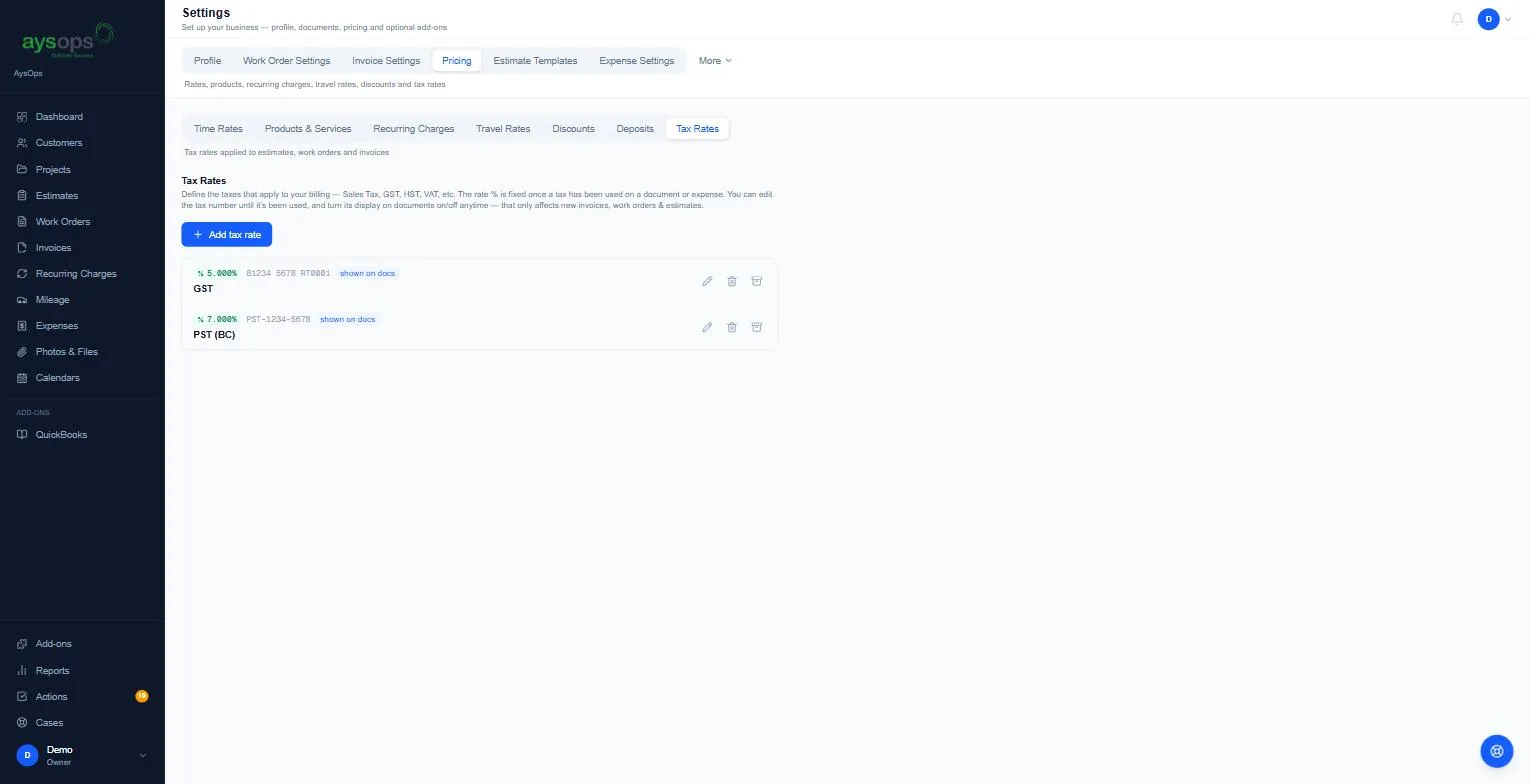
Add a tax
Section titled “Add a tax”- Click Add tax rate.
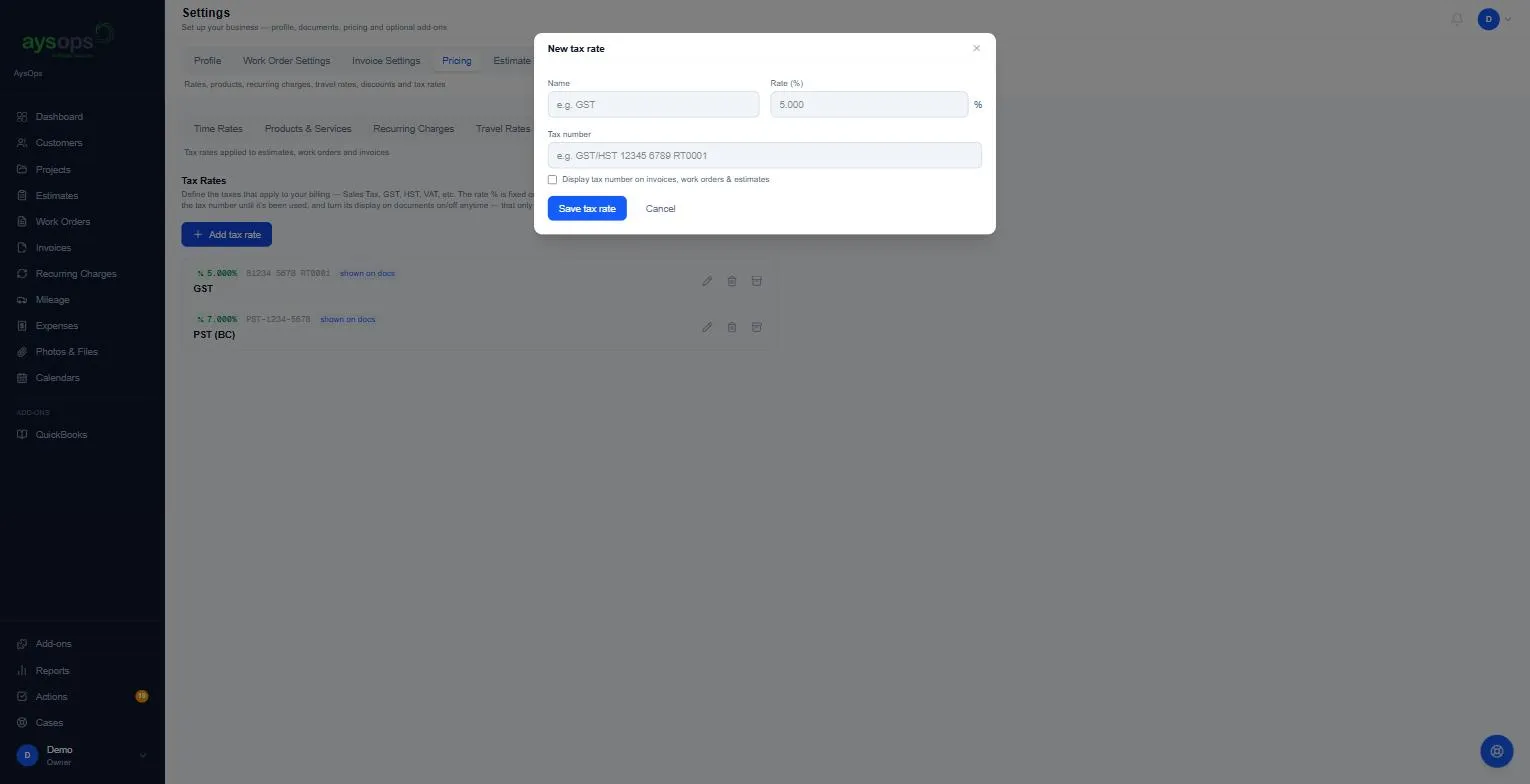
- Enter:
- Name: for example GST, HST, PST (BC) or Sales Tax.
- Rate (%): for example 5 for 5%.
- Tax number (required): your registration number for this tax.
- Tick Display tax number on invoices, work orders & estimates to print it on documents.
- Click Save tax rate.
The tax appears in the list with its rate, its number, and shown on docs when the number is displayed.
Charge two taxes (for example GST and PST)
Section titled “Charge two taxes (for example GST and PST)”Add each one separately, then tick both on the rates and products they apply to.
Edit, archive or delete a tax
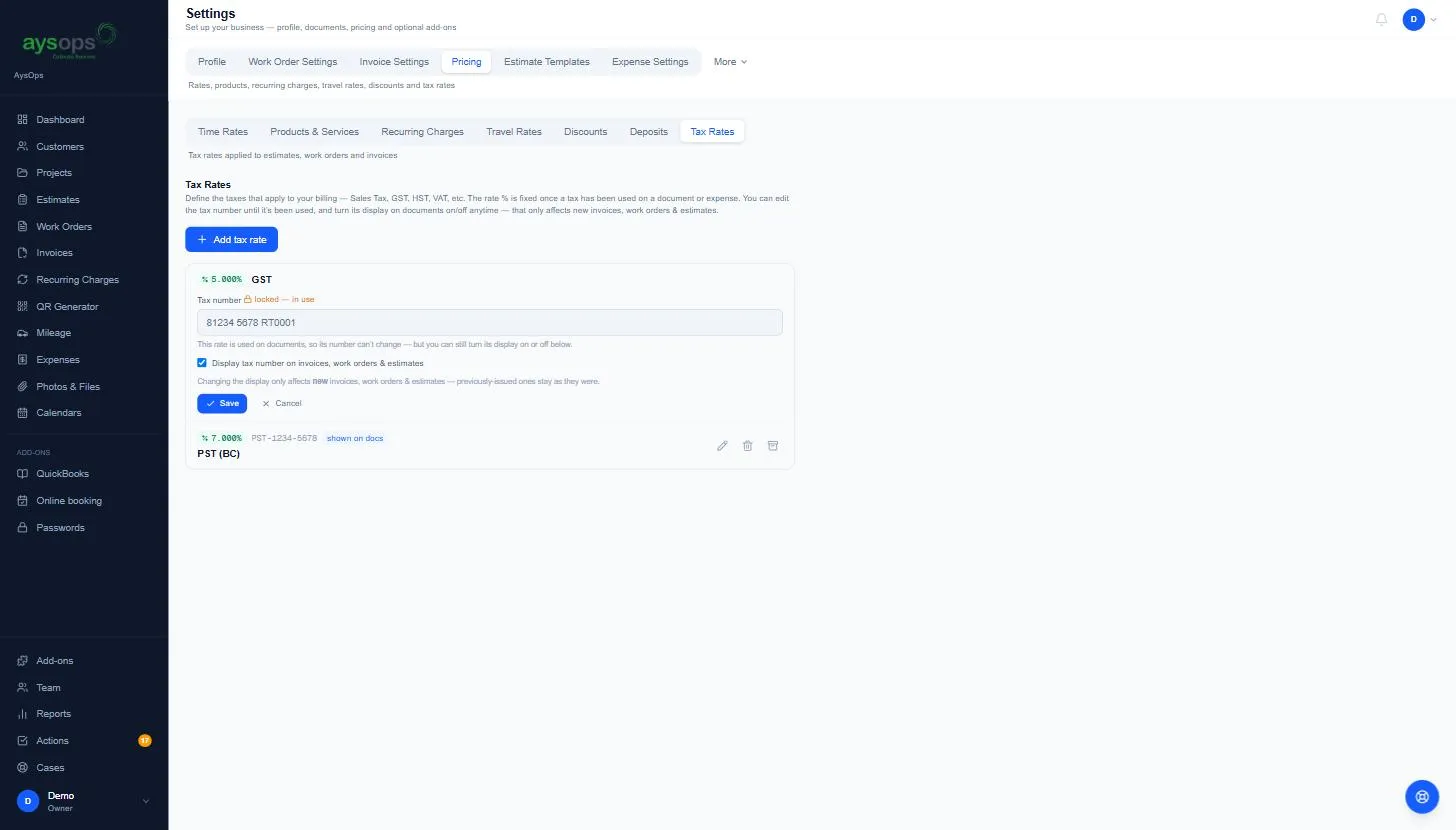
Section titled “Edit, archive or delete a tax”Use the icons on the right: pencil (edit the tax number and its display), bin (delete), box (archive). The bin only appears on a tax that has never been used on a document or expense; a used tax can only be archived.
-
The name and rate % can’t be edited. To charge a new rate (for example when a tax changes), archive the old tax and add a new one.
-
The tax number can be changed until the tax has been used. After that you’ll see “The tax number can’t be changed once the rate has been used on a document or expense. You can still change whether it displays.”
-
Showing the number on documents can be turned on or off any time. It only affects new invoices, work orders and estimates.
-
Delete asks you to confirm on the row (Delete / Cancel), and is only offered for a tax that’s never been used. If the tax was used in the meantime (for example from another tab), you’ll see “This tax rate has been applied to documents and cannot be deleted. Archive it instead.”
-
Archive also asks you to confirm on the row (Archive / Cancel). Archived taxes are listed under [number] archived tax rates below the list; click Restore to bring one back.
What happens next
Section titled “What happens next”New rates and products show your taxes as tick boxes under Applicable taxes. ⚠️ A rate’s or product’s taxes can’t be changed once it has been used on a document, so add your taxes before your rates and products.
If something goes wrong
Section titled “If something goes wrong”- My first invoice had no tax: the rate or product on it was created without taxes. Archive it and create a new one with the taxes ticked.
- “…used by an online booking type…”: remove the tax from the booking type first, or archive the tax instead.
- There’s no Add tax rate button: only the account owner can add taxes. Ask the owner.