
Create a recurring charge
What this does
Section titled “What this does”Sets up something you bill on a schedule, for example “Monthly Remote Monitoring, CA$50 a month”.
Before you start
Section titled “Before you start”- You need the Create & stop recurring charges permission (owners, admins and managers by default).
- Add your tax rates first: a recurring charge’s taxes are locked when it’s created. See Tax rates.
Where to create it
Section titled “Where to create it”- For one customer: open the customer → Pricing → Recurring Charges. Only this form has a First bill date.
- Company-wide: your initial or photo → Settings → Pricing → Recurring Charges. Use this for a plan you sell to several customers. Each time you bill a customer with it, that customer gets their own copy with its own billing dates, and the company-wide charge stays in Settings, ready for the next customer.
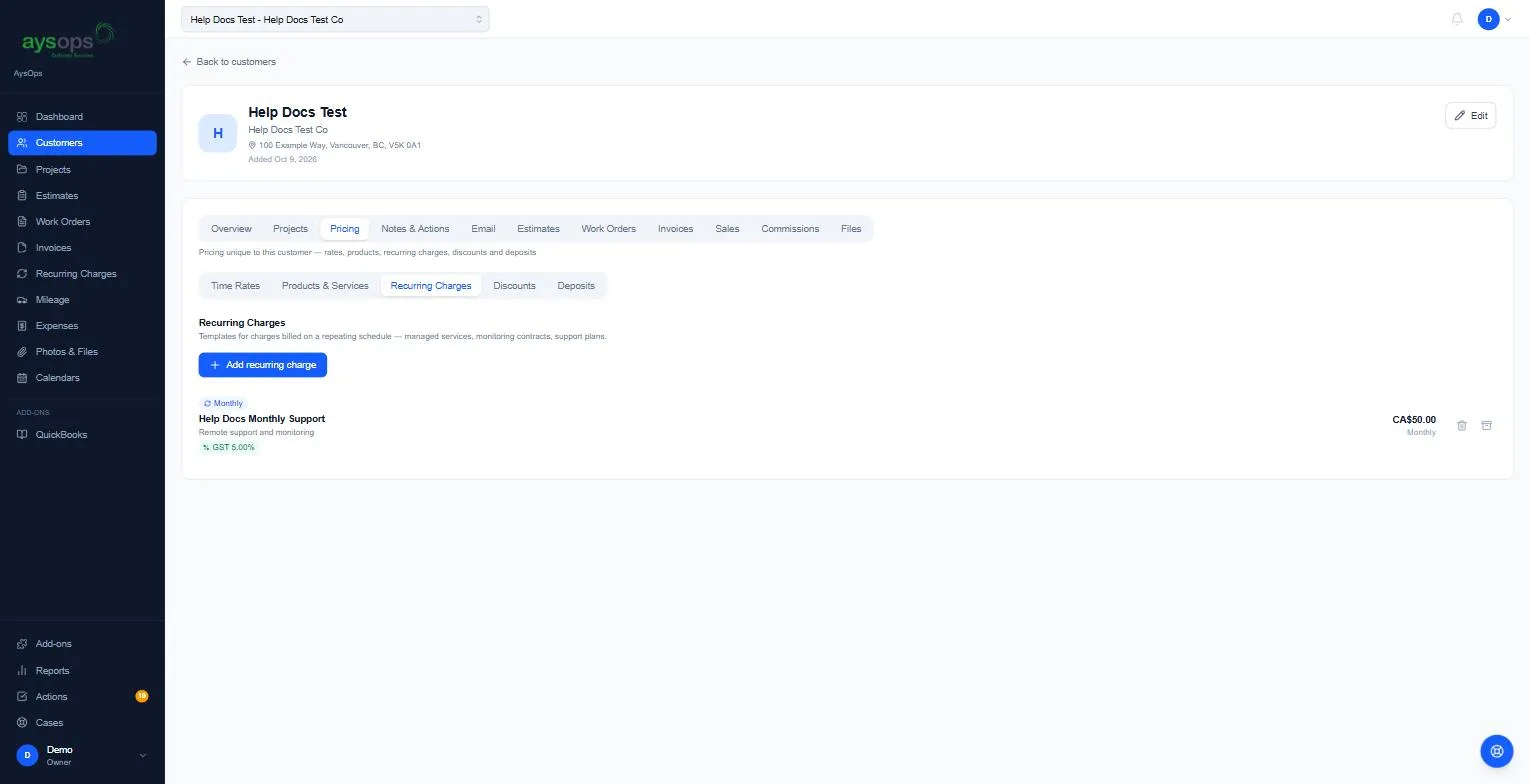
- Click Add recurring charge.
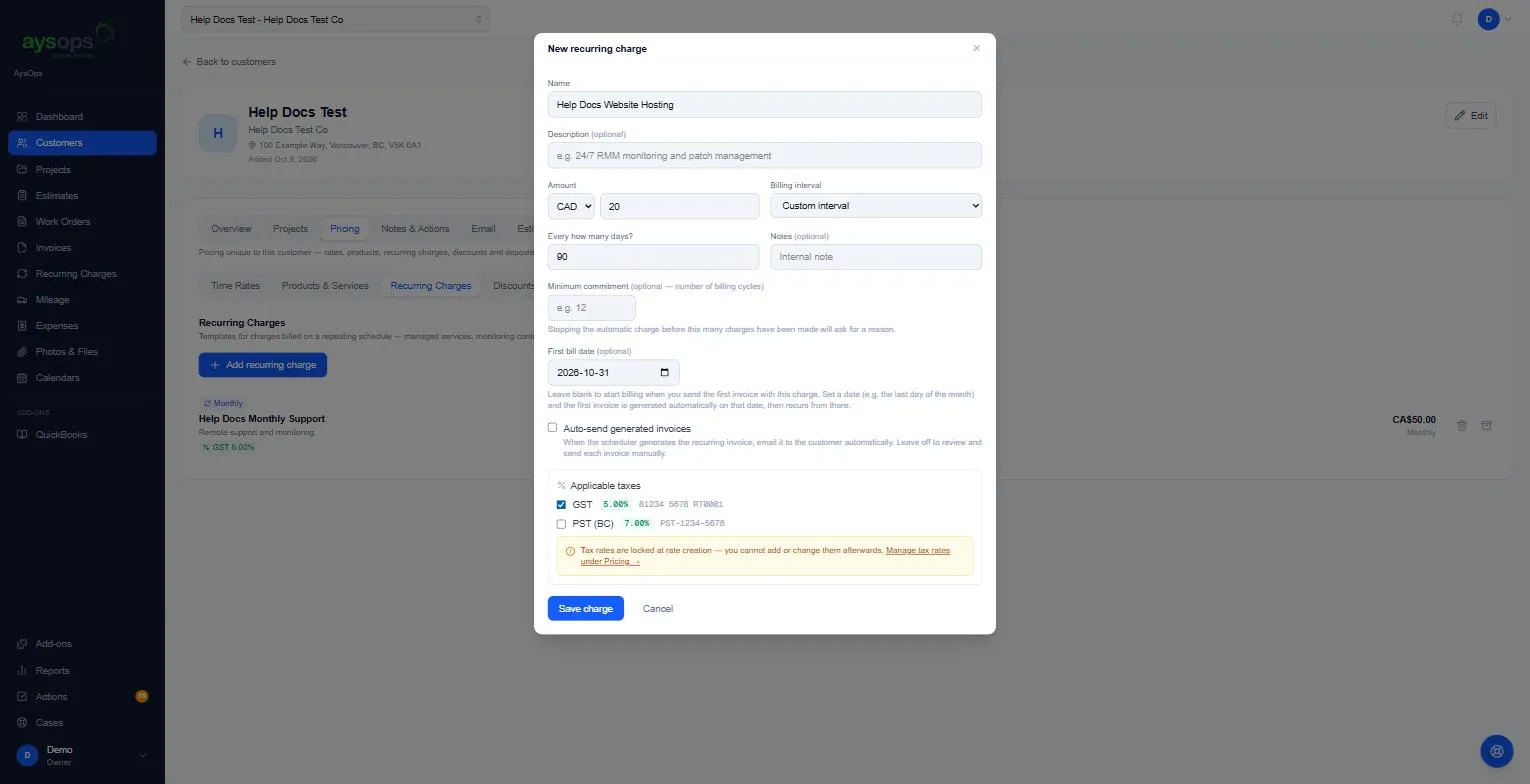
- Fill in New recurring charge:
- Name: for example “Monthly Remote Monitoring”. This appears on the invoice.
- Description (optional): for example “24/7 monitoring and patch management”.
- Amount: the currency (CAD or USD) and the price per cycle, before tax.
- Billing interval: Weekly, Every 2 weeks, Monthly, Quarterly, Yearly or Custom interval. For a custom interval, fill in Every how many days? (for example 90).
- Notes (optional): for you only.
- Minimum commitment (optional): the number of charges the customer has agreed to, for example 12. Stopping before then asks you for a reason, and the charge shows a Contract end date.
- First bill date (optional, customer charges only): leave blank to start billing when you send the first invoice with this charge. Set a date (for example the last day of the month) and the first invoice is created automatically on that date, then repeats from there. It can’t be in the past: the date box won’t accept a day before today.
- Auto-send generated invoices: tick to email each new invoice to the customer automatically. Leave it off to check and send each one yourself.
- Applicable taxes: tick the taxes that apply.
- Click Save charge. If something needs fixing, a message tells you what, and everything you typed stays in the form so you only change that one thing.
What happens next
Section titled “What happens next”- With a first bill date: the charge appears straight away on the Recurring Charges page with that date as the Next charge.
- Without one: the charge waits until you bill it. Add it to a work order and send the invoice. See Start recurring billing from a work order.
If something goes wrong
Section titled “If something goes wrong”- “Custom interval requires a number of days greater than 0.”: fill in Every how many days?.
- Your browser says the date must be today or later (its own wording, for example “Value must be … or later”) when you click Save charge: choose today or a later date.
- “The first bill date can’t be in the past.” under the form: the date was before today (for example it was typed in before the box had loaded). Choose today or later and click Save charge again; the rest of the form is still filled in.
- A tax is missing: taxes can’t be added later. Archive the charge and create a new one.
Related articles
Section titled “Related articles”new recurring charge, create subscription, monthly plan, support plan, retainer, billing interval, custom interval, every 90 days, minimum commitment, contract, first bill date, start date, auto-send