
Contracts: terms, customer details and quantities the customer sets
What this does
Section titled “What this does”A contract is an estimate with three extras:
- Terms: your contract wording. The customer reads it and must agree to it before they can approve.
- Details the customer fills in: questions you write yourself, such as “Event date” or “Number of guests”.
- Quantities the customer sets: for a price per person or per item. The customer enters the number (within limits you choose), and the total follows.
Everything else works like any estimate: lines, sections, taxes, discounts, sending, signing, converting to a work order and asking for a deposit.
Before you start
Section titled “Before you start”- You need permission to manage estimates.
- A contract is made from an estimate template. See Estimate templates and quote validity.
Set up a contract template
Section titled “Set up a contract template”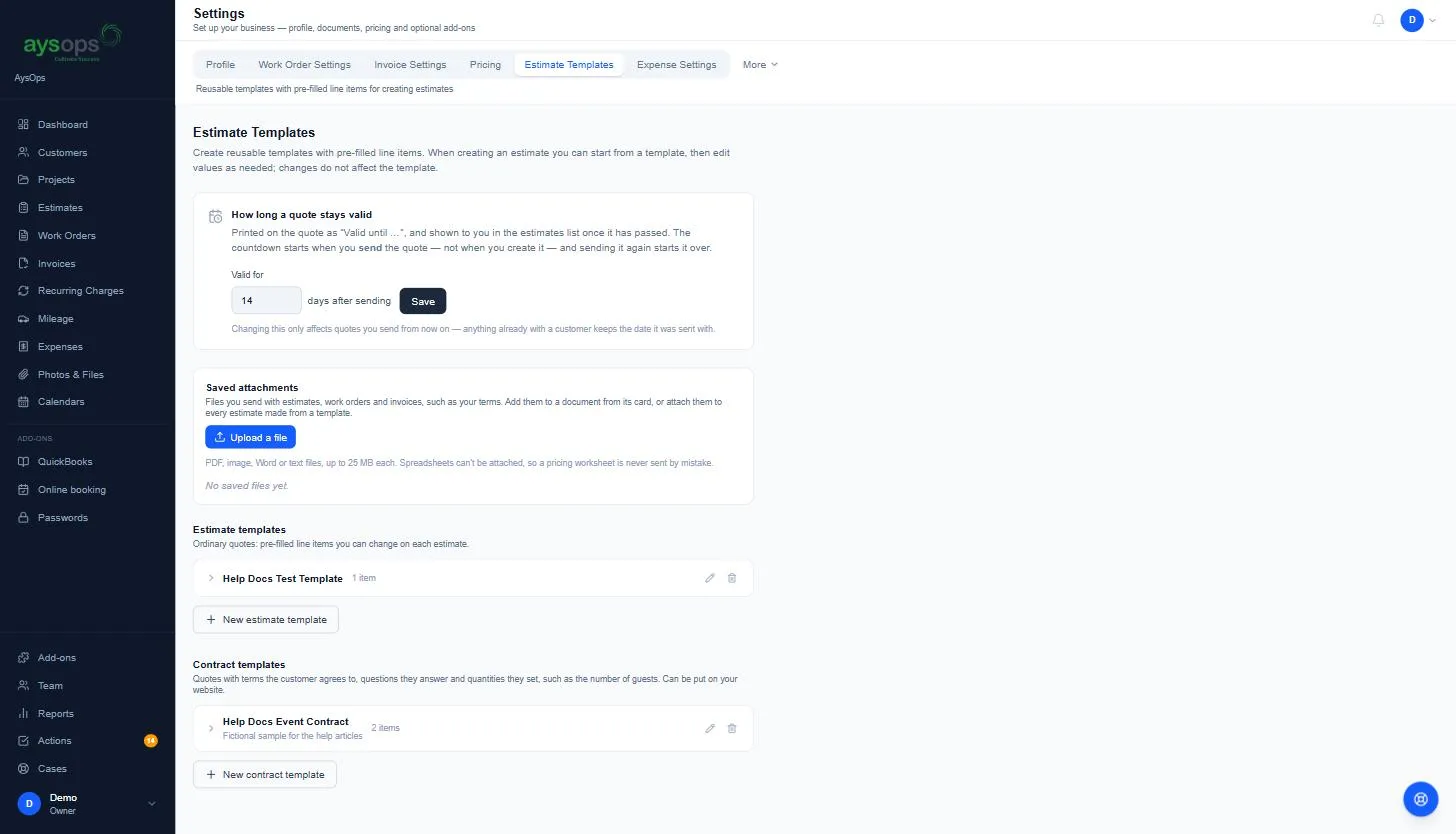
- Click Settings, then Estimate Templates. Under Contract templates, click New contract template (or open one you already have). An ordinary template can also become a contract: tick This template is a contract on it and it moves to the Contract templates list.
- Add its lines as usual, for example “Venue rental” and “Catering per person”.
- Check that This template is a contract is ticked.
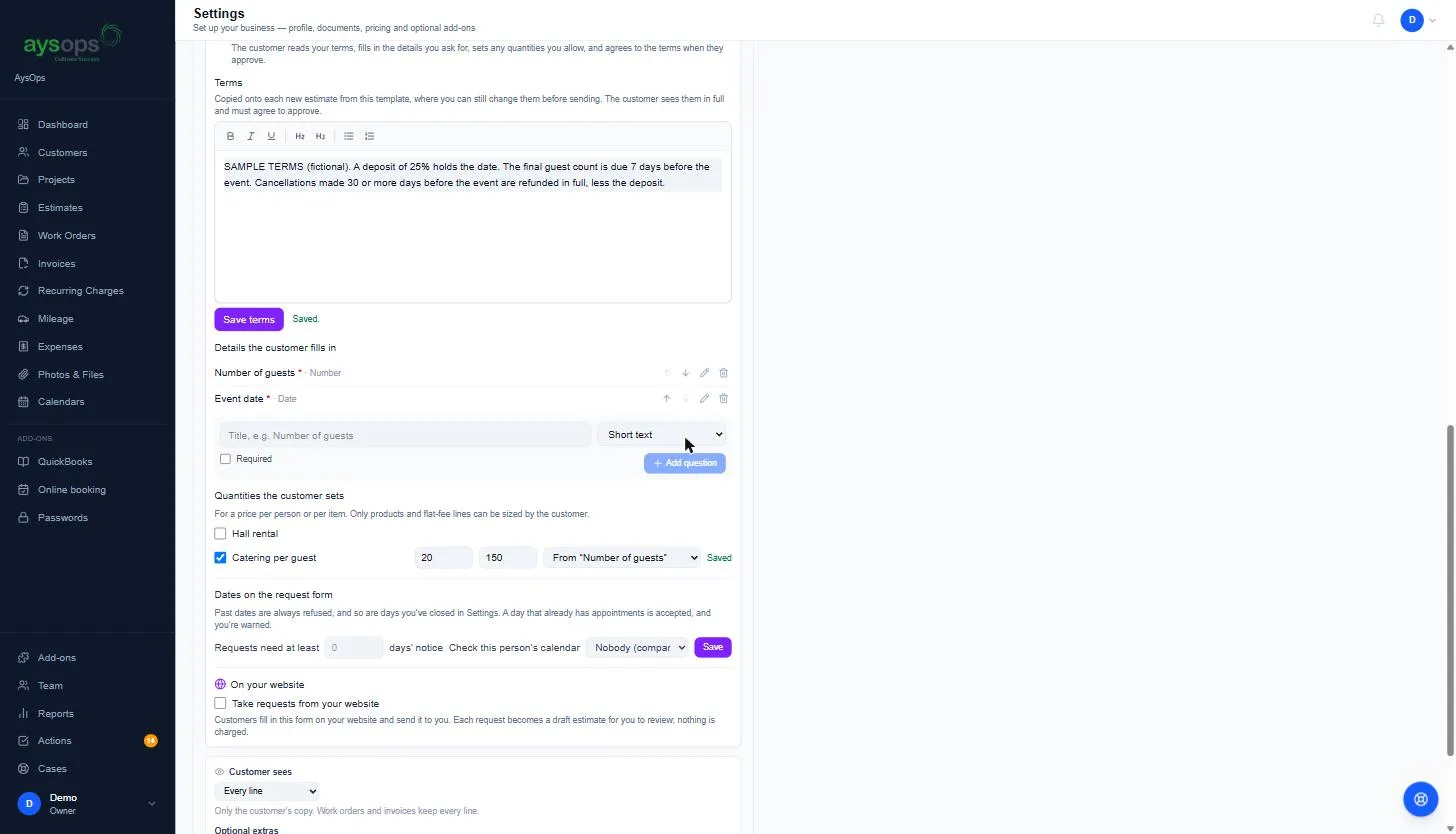
- Write the Terms and click Save terms.
- Under Details the customer fills in, type a title, pick the type of answer (Short text,
Long text, Number, Date, Date & time, Yes / no or Pick from a list), tick
Required if it must be answered, and click Add question. For a list, type one choice per line.
- Use Date for the day of the event, and Date & time for times such as “Start time” and “End time”. Times are shown exactly as the customer enters them.
- Use the up and down arrows beside a question to change the order the customer sees. A new question is added at the end, so move it up if it belongs earlier. Quotes you have already made keep the order they had.
- Under Quantities the customer sets, tick each line the customer sizes. Add a Min and Max
if you want limits. If you asked a Number question such as “Number of guests”, choose From
“Number of guests” so that answer sets the line’s quantity.
- Only products and flat-fee lines can be sized by the customer.
- A line that sells a prepaid pack needs a Min of 1 or more, and the customer can only choose whole numbers (1, 2, 3 …).
- If that question already has an answer, the line takes it as its quantity straight away.
- Fill in Min, wait for Saved, then fill in Max. Typing in both boxes one straight after the other can lose the first number, even though it still shows on the screen.
Make and send a contract
Section titled “Make and send a contract”- On the customer, create an estimate from the contract template. The terms, questions and settings are copied onto it.
- Change anything you need. If someone else saved the terms on the same estimate after you opened it,
Save terms asks you to reload the page first, so nobody’s wording is replaced without being
seen. You can edit the terms and fill in any details you already know (for
example, ones you took by phone). The customer can still change their answers.
- When you change an answer that sets a line’s quantity (for example “Number of guests” from 120 to 100), the line changes with it, so the estimate, the email and the PDF show the same total. An answer outside that line’s Min and Max is refused with a message.
- If someone else saved the same answer after you opened the estimate, Save asks you to reload the page first, so nobody’s answer is replaced without being seen.
- Send it as usual. See Send an estimate to your customer.
What your customer does
Section titled “What your customer does”On the quote page they:
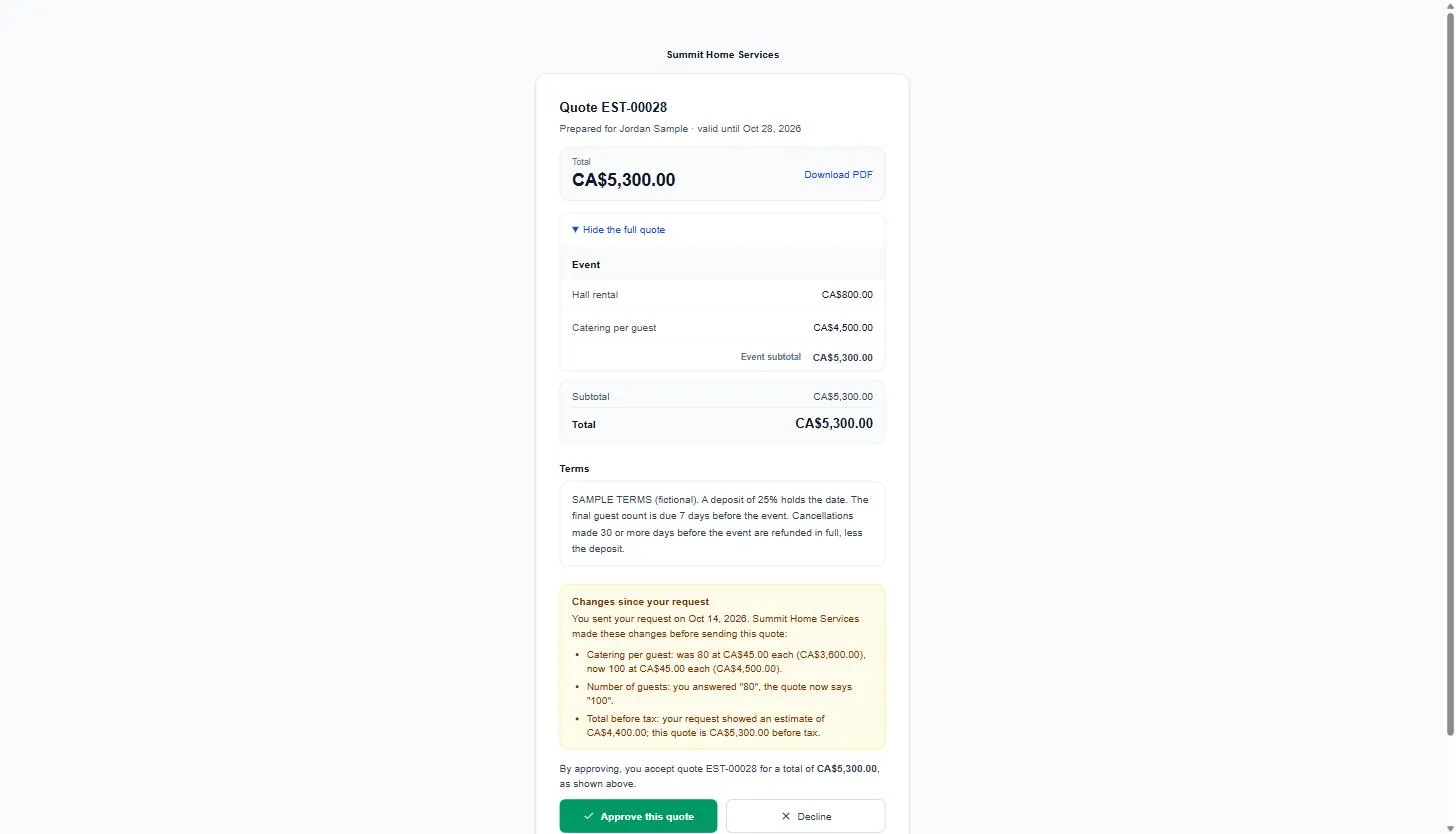
- read the Terms in full, then click Approve this quote;
- fill in Your details and any Quantities (each line shows its price and the amount for the number entered). The Total at the top, each line, the taxes and the amount just above where they sign all change as they enter numbers;
- tick I have read and agree to the terms above, type their name and sign;
- click Approve.
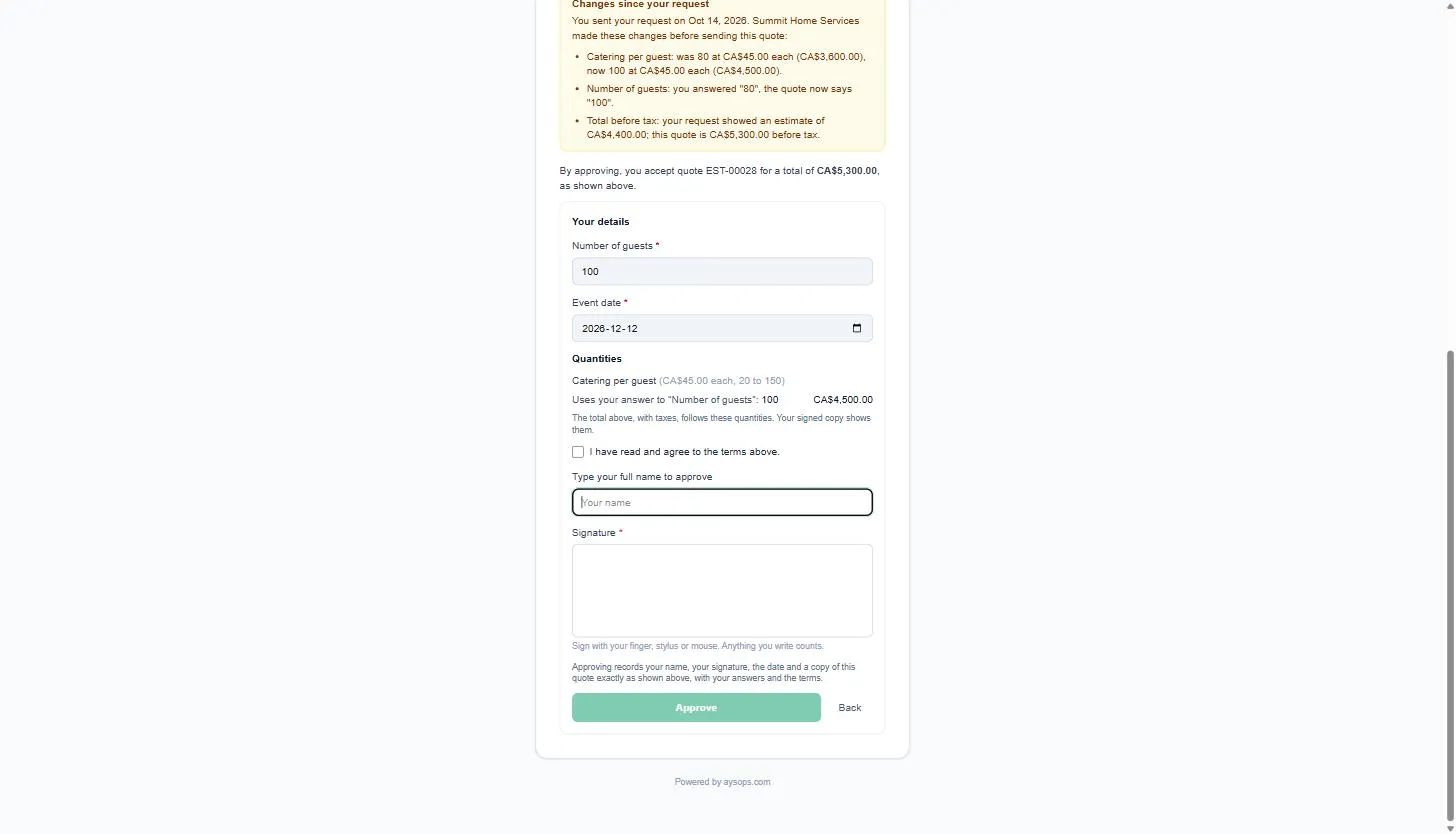
A required detail left empty, a quantity outside your limits, or no tick means the approval is refused with a message saying what to fix. Even with no Max set, a quantity can’t be more than 999,999 or have more than 4 decimal places. The signed copy (PDF) includes the terms, their details and the final quantities and totals. The total they approve is always the total they were shown: if it changed while the page was open (for example, you changed a price), Approve is refused and the page shows the new total so they can check it first.
Take requests from your website
Section titled “Take requests from your website”Customers can fill in a contract form on your website and send it to you. Each request becomes a draft estimate for you to check, so nothing is sent or charged without you.
- Open the contract template (Settings → Estimate Templates → Contract templates).
- Under On your website, tick Take requests from your website.
- Click Embed. Copy the link (for emails and social media) or the code to paste into a page on your website.
- Your website must be on your allowed websites list, or the form will not show on it. The Embed window shows the list; change it under Settings → Website & embeds.
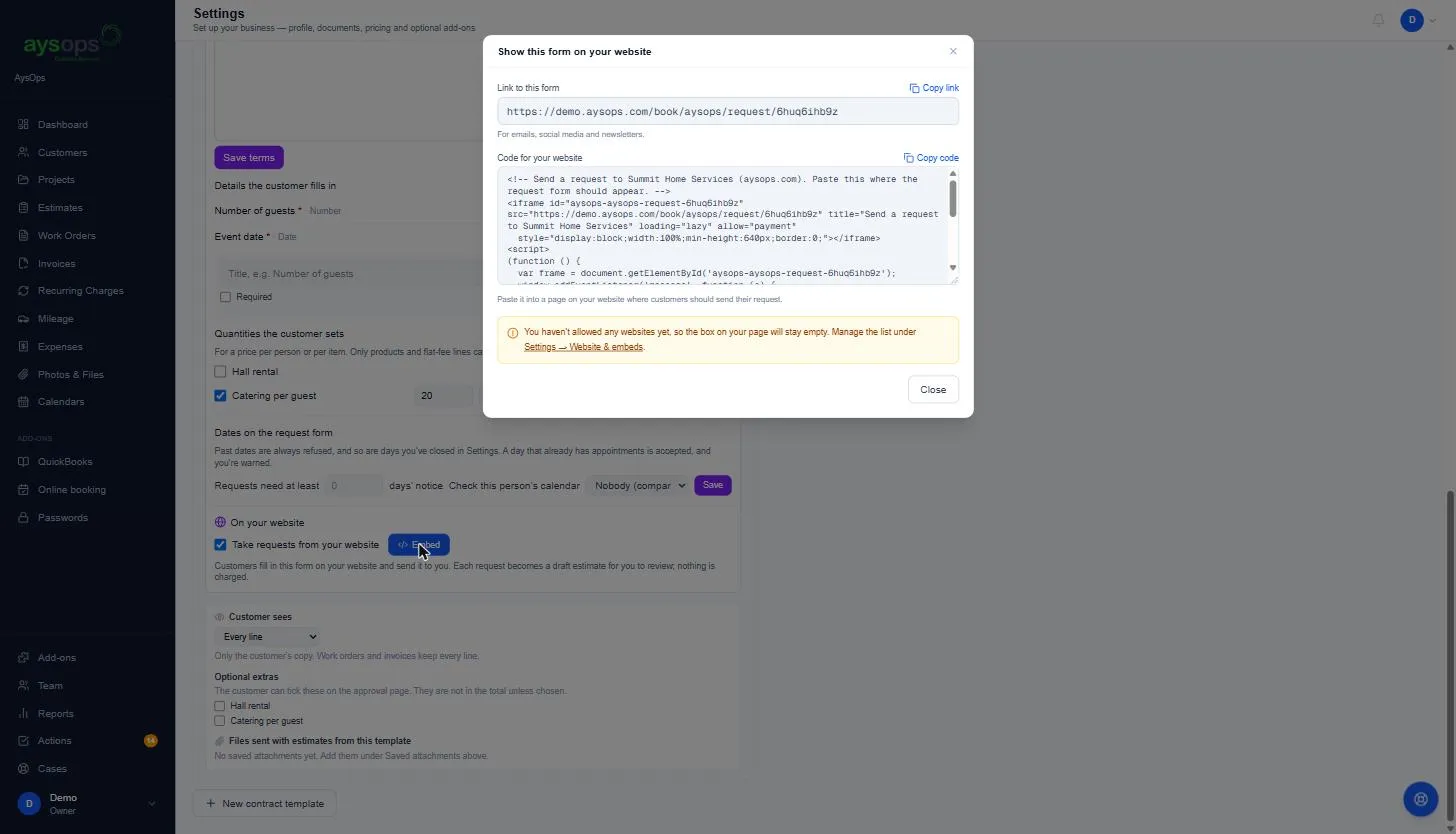
Once the form is on, the template’s header in the list also shows a blue Embed icon (</>), so you can get the code without opening the template. You can also switch the form on under Settings → Website & embeds → Request forms, which has the same Embed button, and use Buttons for your website there for a button that opens the form.
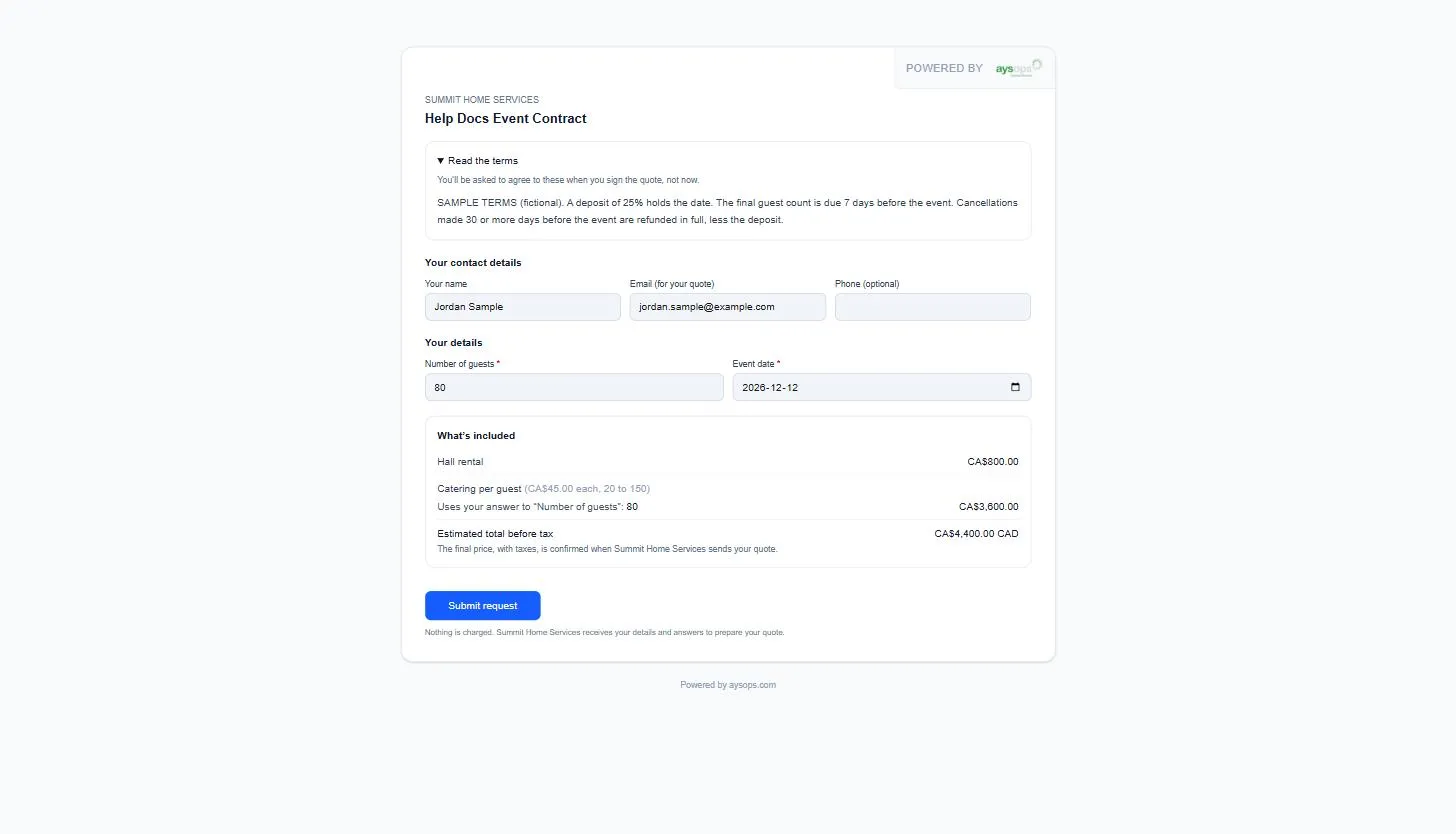
Your customer fills in their name, email, phone (optional), your questions and any quantities. They see each line’s price and an estimated total before tax, and can read your terms. They agree to the terms later, when they sign the quote you send.
A line priced by an answer (for example per guest) shows no price until that question is answered. If a number is outside the limits you set, the form says so under that line (“Must be between 10 and 200.”) and shows no total until it is fixed.
After they click Submit request, they see “Thank you, your request is sent”.
When a request arrives:
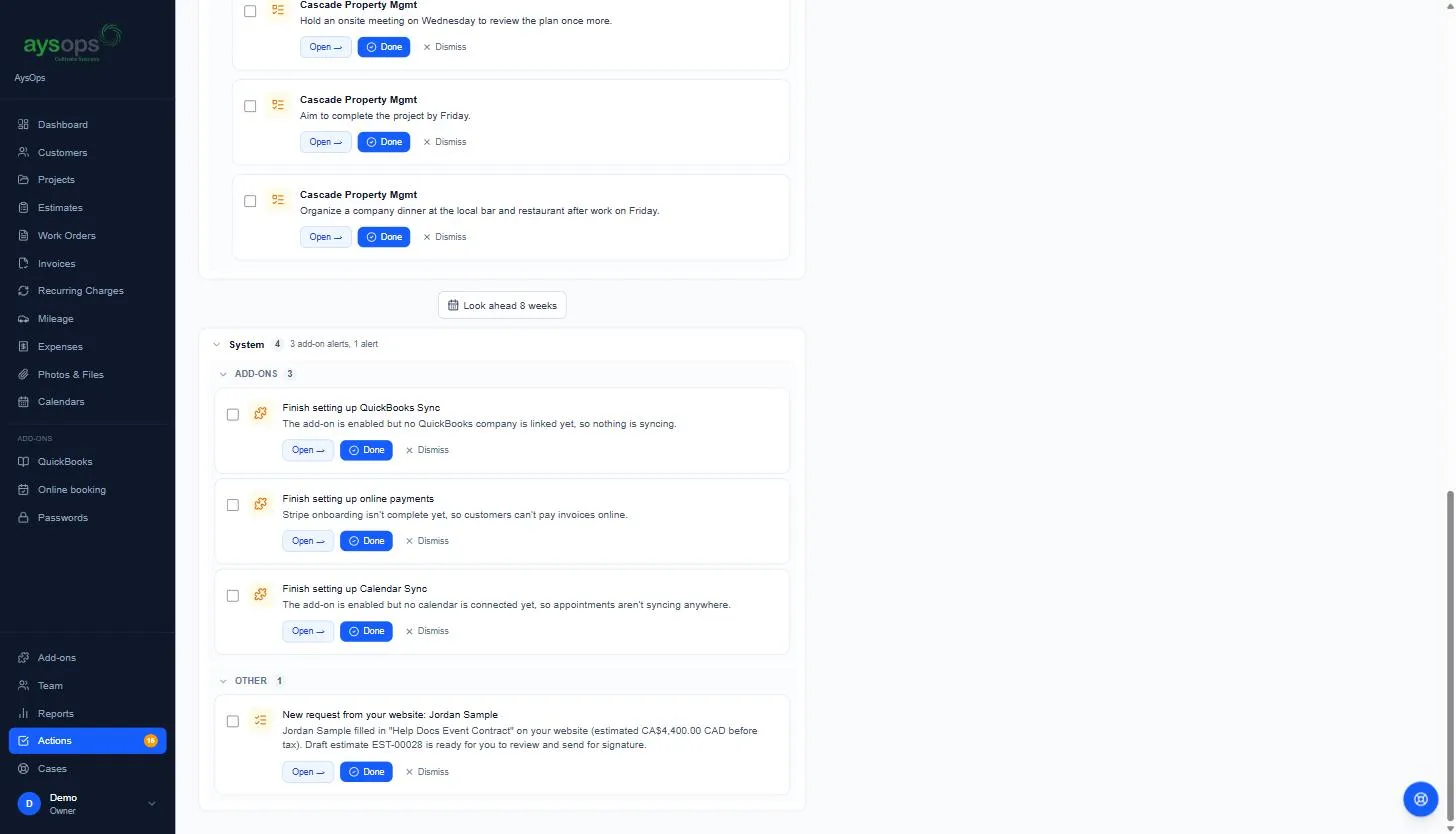
- you get an email, and a to-do on Actions: New request from your website;
- the customer is added with a draft estimate marked as coming from your website, with their answers and quantities filled in;
- review it, change anything you need, and send it as usual.
If your forms receive more than 30 requests in one hour, new requests are turned away until the hour is up. When that happens you get an email and a to-do on Actions: Website request form reached its limit. If you weren’t expecting a rush, check your new requests and switch the form off under Settings → Website & embeds if it continues.
If someone uses an email that already belongs to one of your customers, the request is kept on a new record marked Needs linking, and you get a to-do to link it. Open that record and either pick the right customer (everything moves over) or keep it as a new customer. Anyone can type any email, so this is never done automatically.
Dates and your calendar
Section titled “Dates and your calendar”On the contract template, under Dates on the request form:
- Requests need at least __ days’ notice: dates sooner than that can’t be picked. Leave it blank for no minimum. Dates in the past are always refused.
- Check this person’s calendar: choose who handles these events. Days they or the company have closed (under your calendar’s closures) can’t be picked; the customer is asked to choose another day. If they already have appointments that day, the request is still accepted, and your email, the to-do and the draft estimate warn you.
Click Save after changing either one.
What your customer receives
Section titled “What your customer receives”After sending, your customer gets an email titled “We received your request” with a summary: their dates, numbers and choices, the lines with prices and the estimated total. Text they typed themselves is not repeated in it, so nobody can use your form to send messages to someone else.
What your customer sees when you change a request
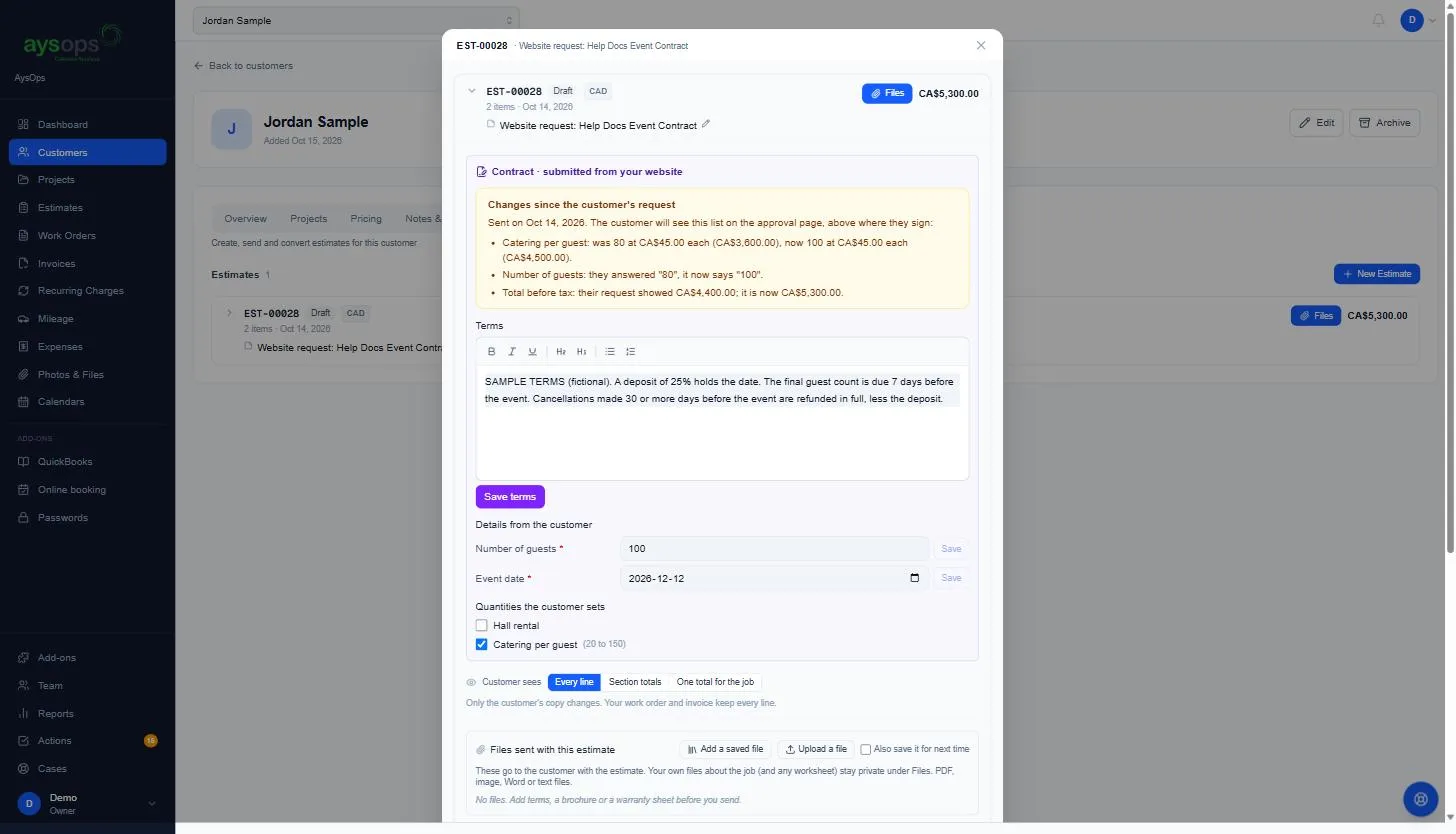
Section titled “What your customer sees when you change a request”You can change anything on the draft before you send it. To be fair to your customer, the quote they sign lists what you changed since they sent their request: lines added or removed, quantities and prices, their answers, the terms and the total before tax. You see the same list on the estimate, under Changes since the customer’s request, before you send it. If you changed nothing, they see “This quote matches the request you sent on” and the date.
An optional extra you add is not listed as a change and not counted in that total, because it is not part of the price unless the customer ticks it.
If you change an answer on the estimate (for example the number of guests), reload the page to see the new total and the updated list.
To stop taking requests, untick the box. The link then shows “This form isn’t available”, and ticking it again brings back the same link.
Afterwards
Section titled “Afterwards”On the estimate you see Details from the customer, and “[Name] agreed to the terms when signing”. View what they approved and View signature show exactly what they signed.
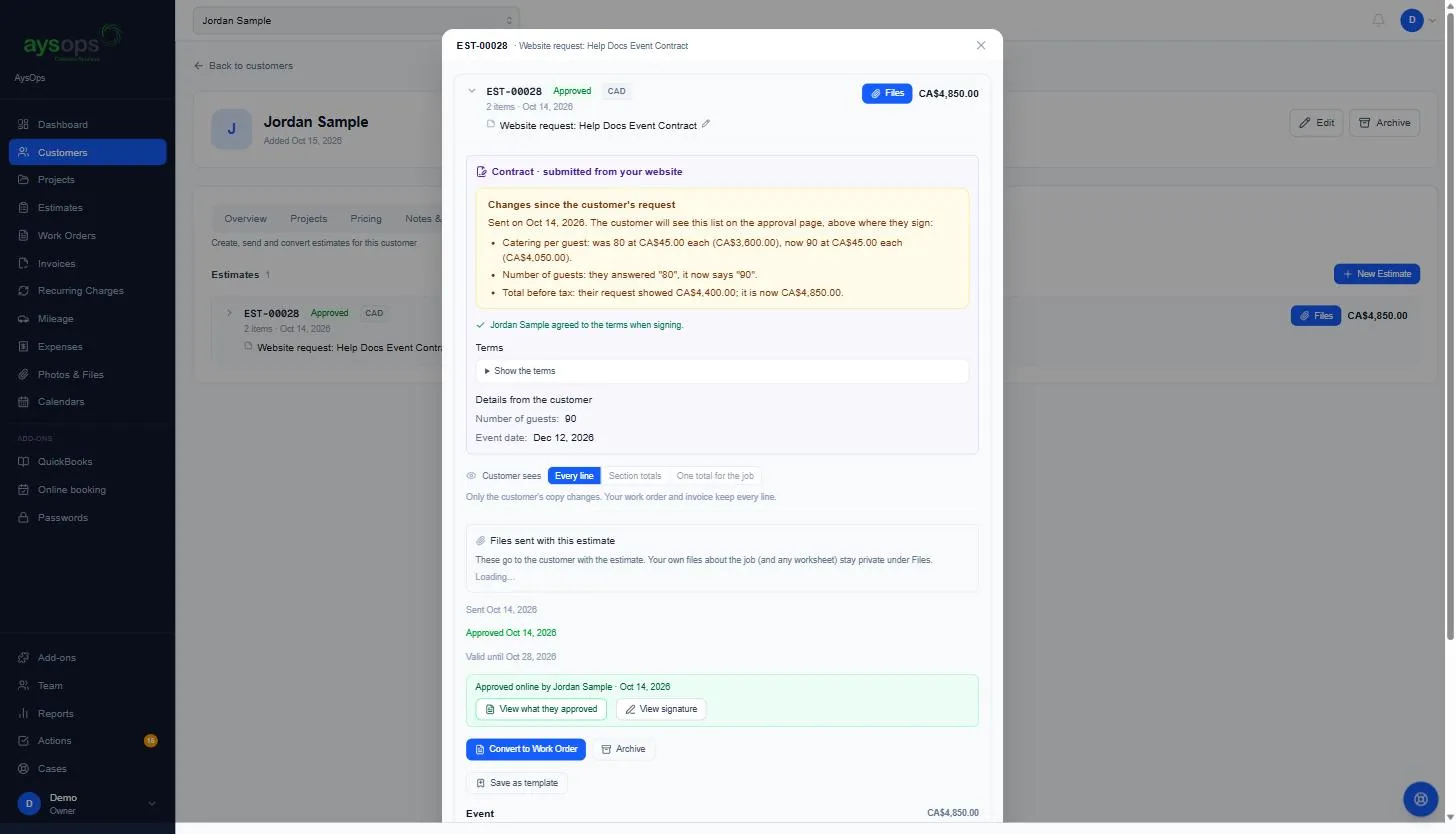 Convert it to a work order and ask for a deposit as usual. See
Request a deposit on an estimate.
Convert it to a work order and ask for a deposit as usual. See
Request a deposit on an estimate.
Related articles
Section titled “Related articles”- Estimate templates and quote validity
- What your customer sees (approving or declining a quote)
- Send an estimate to your customer
- Show booking on your own website (Website & embeds)