
Expense settings (vendors and categories)
What this does
Section titled “What this does”Keeps the lists your expenses pick from: the vendors you buy from, and your expense categories.
Before you start
Section titled “Before you start”- Anyone who can enter expenses (everyone except view-only members by default) can open Expense Settings and add, edit, archive and delete vendors.
- Changing categories, and the switches for expenses added for you, needs permission to manage business settings (owners and admins by default). Others see them but can’t change them.
- Click your initial or photo → Settings → Expense Settings (or Settings under Expenses in the left menu).
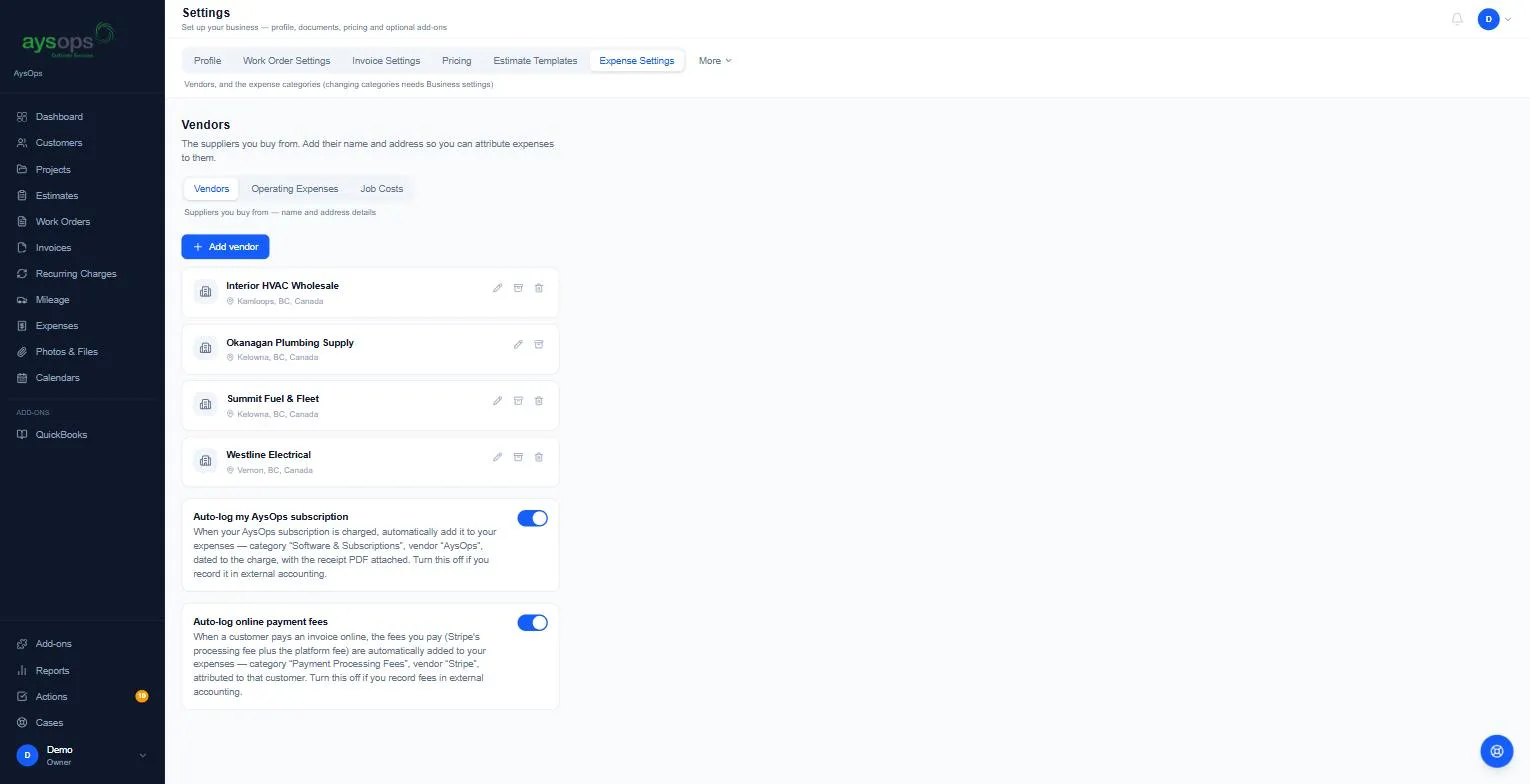
Vendors
Section titled “Vendors”- Click Add vendor and enter their name and address.
- Use the pencil to edit, the box to archive. The bin (delete) only appears for a vendor no expense uses. A few older vendors may still show the bin although expenses use them; pressing it is refused with “can only be archived, not deleted” and the bin then goes away. Archive those instead.
- Archived vendors are listed under Archived at the bottom; use the Restore icon to bring one back.
Categories
Section titled “Categories”There are two kinds, each on its own tab next to Vendors:
- Operating Expenses: running the business (fuel, insurance, software).
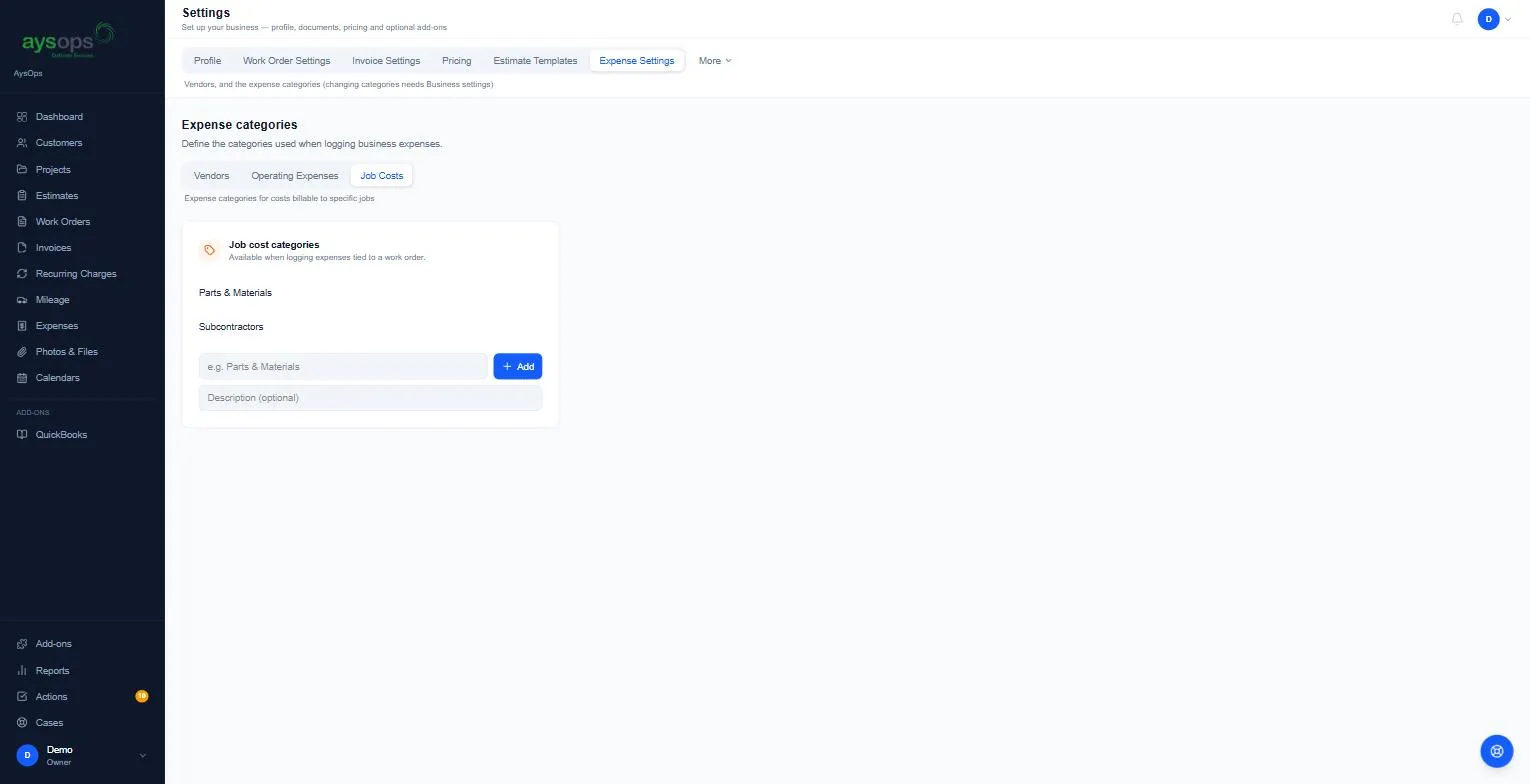
- Job Costs: costs for a specific job (parts, subcontractors). Offered when an expense is tied to a customer, project or work order.
To add your own category, type the name (and an optional description) and click Add. On the Operating Expenses tab this box is under Add a custom category, and your own categories are listed under Your custom categories.
Ready-made operating categories: further down the Operating Expenses tab, Common operating expense types lists ready-made categories (for example Rent / Office Space, Utilities, Internet & Phone), each with a switch. Turn one on to offer it when you record an expense. These can be switched off but not deleted.
To remove one of your own categories, click the bin, then Yes under Delete?. A category that no expense uses is deleted. One that expenses already use is archived instead, so your past expenses keep it: it moves to the archived list under the categories (“used in past expenses, can be restored”), where Restore brings it back.
Expenses added for you
Section titled “Expenses added for you”The Auto-log my AysOps subscription and Auto-log online payment fees switches are here too. See Repeating expenses.