
Send email from your own address (email settings)
What this does
Section titled “What this does”Chooses how AysOps sends your estimates, invoices, receipts and other emails to customers.
- You don’t have to set anything up. Out of the box, AysOps sends from its own mail server (from documents@aysops.com) with your email address as the reply-to, so when a customer replies, it comes to you.
- Optional: connect your own mailbox so emails come from your own address, and a copy sits in your own Sent folder if your provider keeps one.
Before you start
Section titled “Before you start”- Only owners and administrators can change email settings.
- For most providers you need an app password: a special password your email provider creates for apps like AysOps. Your normal password usually won’t work. The page shows a short guide and a link for each provider.
-
Click Settings, then More, then Email.
-
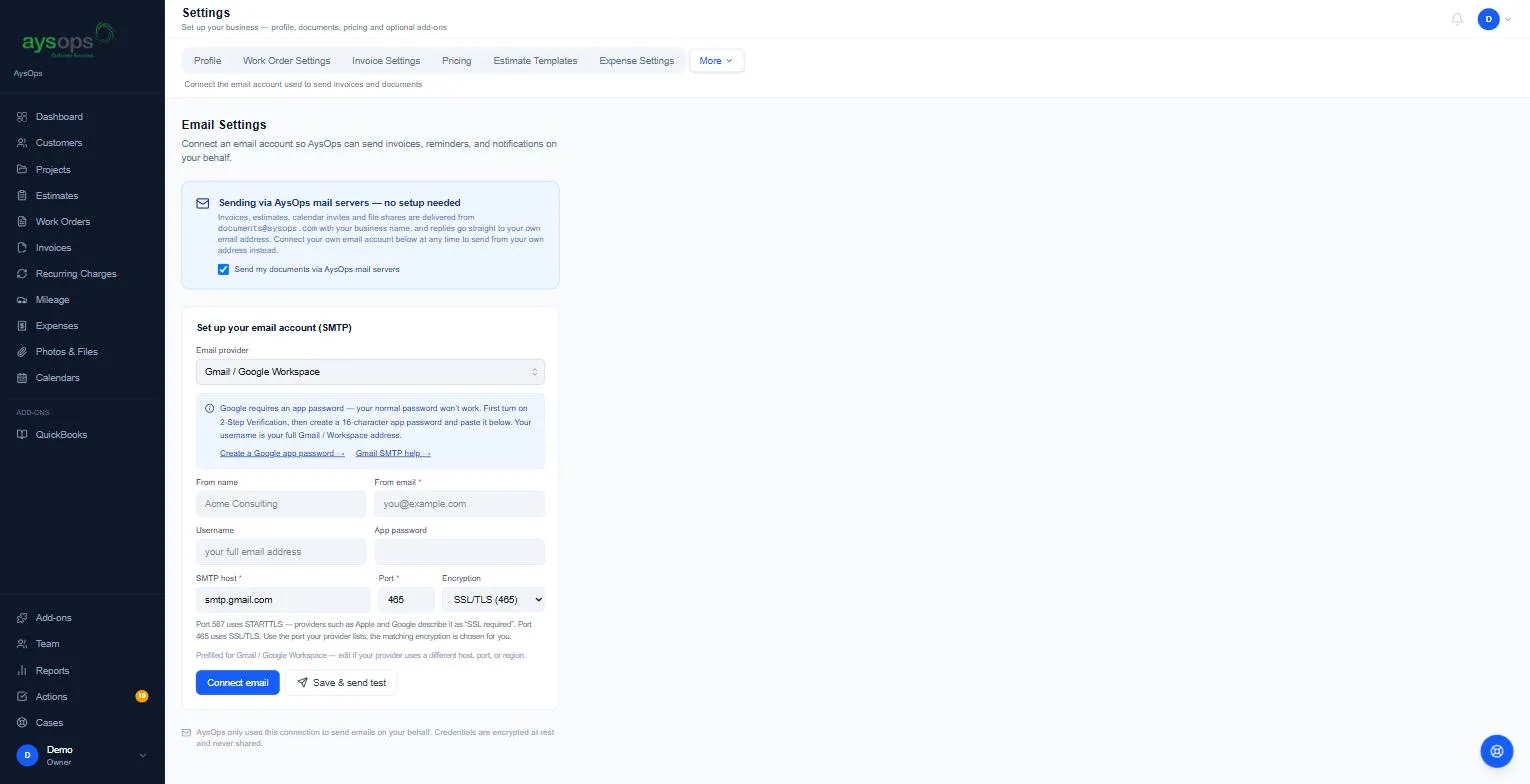
Choose your email provider from the list: Gmail / Google Workspace, Outlook.com / Hotmail / Microsoft 365, Yahoo, iCloud, Zoho, Fastmail, GoDaddy, AOL, Proton Mail, or Other (enter manually). Choosing a provider fills in the server settings for you.
-
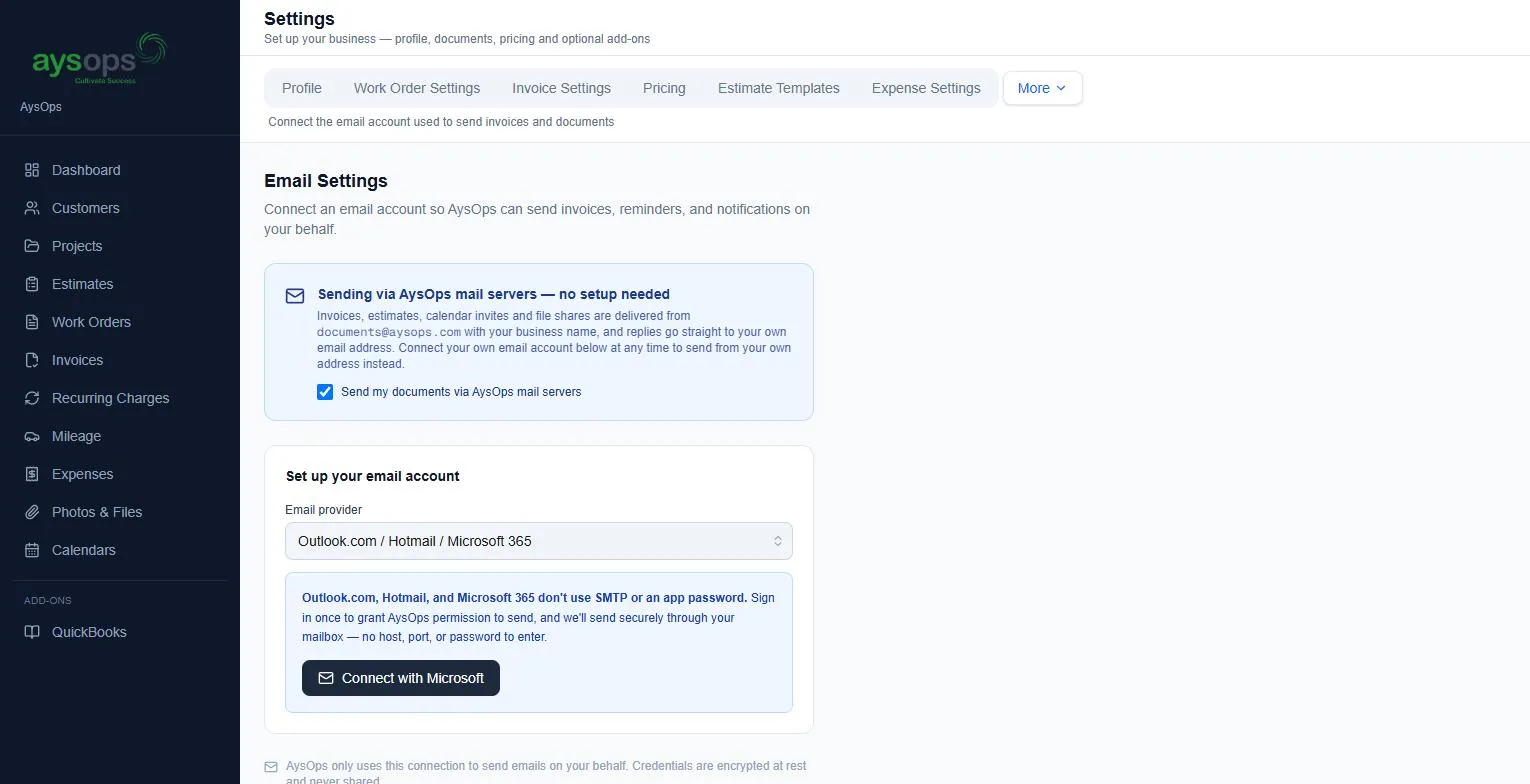
Microsoft (Outlook.com, Hotmail, Microsoft 365): these don’t use an app password. Click Connect with Microsoft and sign in to your Microsoft account. That’s all.
-
Every other provider: fill in
- From name: the name customers see (usually your business name).
- From email: the address emails come from.
- Username: usually your full email address.
- App password: the one you created with your provider (follow the link on the page).
- SMTP host, Port and Encryption are filled in for you. Only change them if your provider says to (SSL/TLS uses port 465, STARTTLS uses port 587).
-
Click Save & send test. AysOps saves the settings and sends a test email to your own sign-in address. Check that it arrived. (Connect email, or Save changes once a mailbox is connected, saves without sending a test.)
Turn off sending through AysOps
Section titled “Turn off sending through AysOps”On the same page, Send my documents via AysOps mail servers is ticked to start with. That’s what lets AysOps send your invoices, estimates, invites and files while you have no mailbox of your own. Your own connected mailbox always comes first, so the checkbox is only shown while no mailbox is connected. Once you connect one, it disappears from the page.
🔴 If you untick it and have no mailbox connected, nothing can be sent: invoices and invites fail until you connect an account or tick it again.
What happens next
Section titled “What happens next”From now on, emails to customers come from your address. If you ever want to go back to the AysOps mail server, click Disconnect and confirm: the saved settings are deleted, and AysOps sends from its own server again with your address as the reply-to.
If something goes wrong
Section titled “If something goes wrong”- The test fails or says the password was rejected: you most likely used your normal password. Create an app password with your provider (Gmail, Yahoo, Fastmail and AOL all need one) and paste that instead.
- Proton Mail: Proton can’t be connected. It has no standard way for outside services to send mail. Use a different sending address, or leave email unconnected and AysOps will send for you.
- Personal Outlook.com / Hotmail accounts: use Connect with Microsoft, not the app password fields.
- A red message says your email settings hit a problem on the last attempt: something changed with your mailbox (for example the app password was removed). Enter a new app password and click Save & send test again.