
Create a work order
What this does
Section titled “What this does”Opens a new job for a customer so you can log time and add charges as you work.
Before you start
Section titled “Before you start”- You need permission to create work orders (owners, admins, managers and staff by default).
- Already have an approved estimate? Don’t start from scratch: convert it, and every line, tax, discount and deposit comes across. See Convert an estimate to a work order.
- Click Work Orders in the left menu, then Create work order (top right). You can also open a customer, click their Work Orders tab and click New work order. If nothing happens, wait a moment for the page to finish loading and click again.
- Fill in the Create work order form:
- Customer (required): choose Customers or Company Projects, then start typing the name and pick it.
- Project (optional): link the job to one of the customer’s projects.
- Prefix (optional): how the number starts, for example WO-2026-. Your default prefix is already chosen. See Work order settings.
- Currency: CAD or USD. It starts on your account default.
- Description (optional): a short label for you, for example “Kitchen remodel, electrical rough-in”. The customer doesn’t see it.
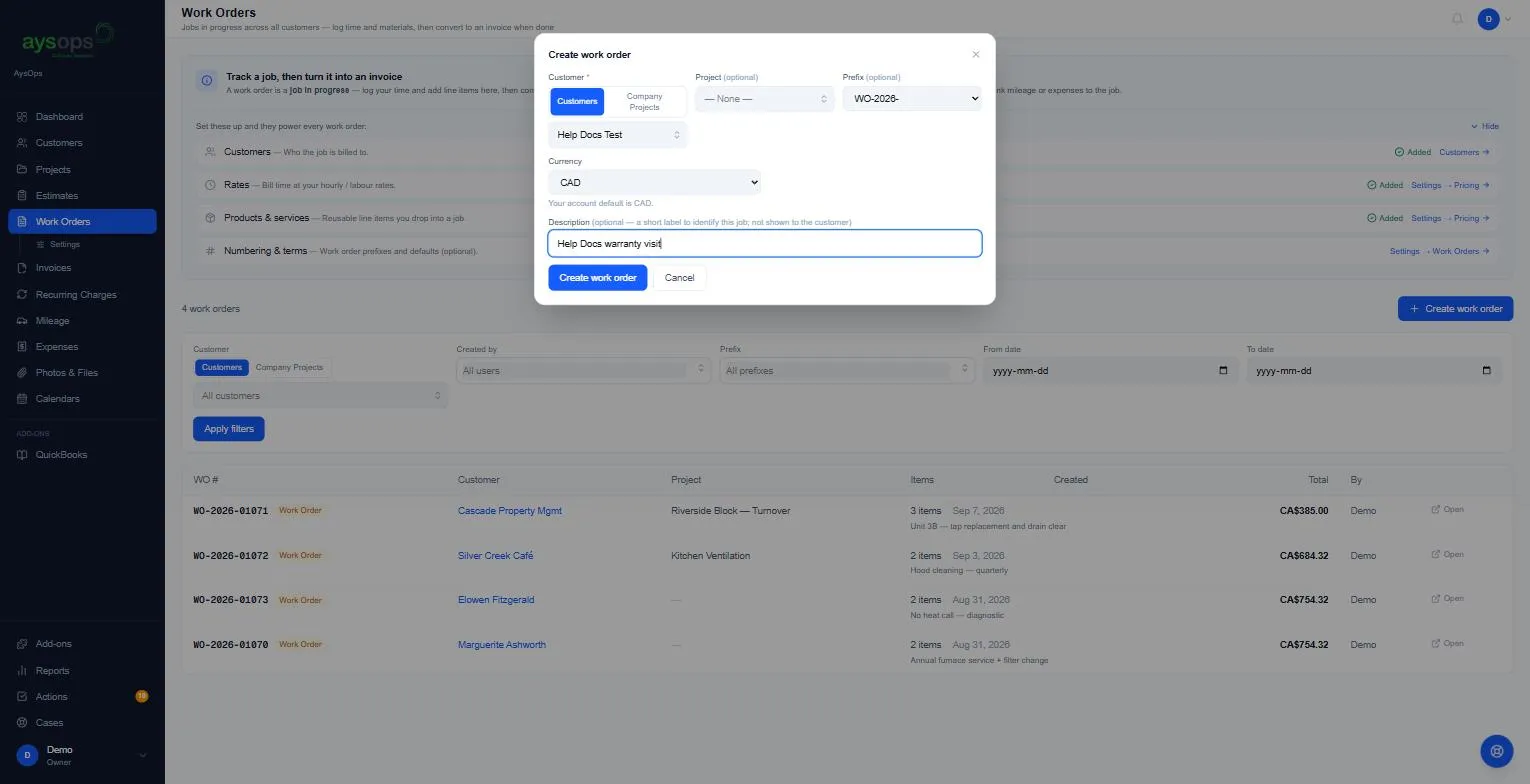
- Click Create work order.
What happens next
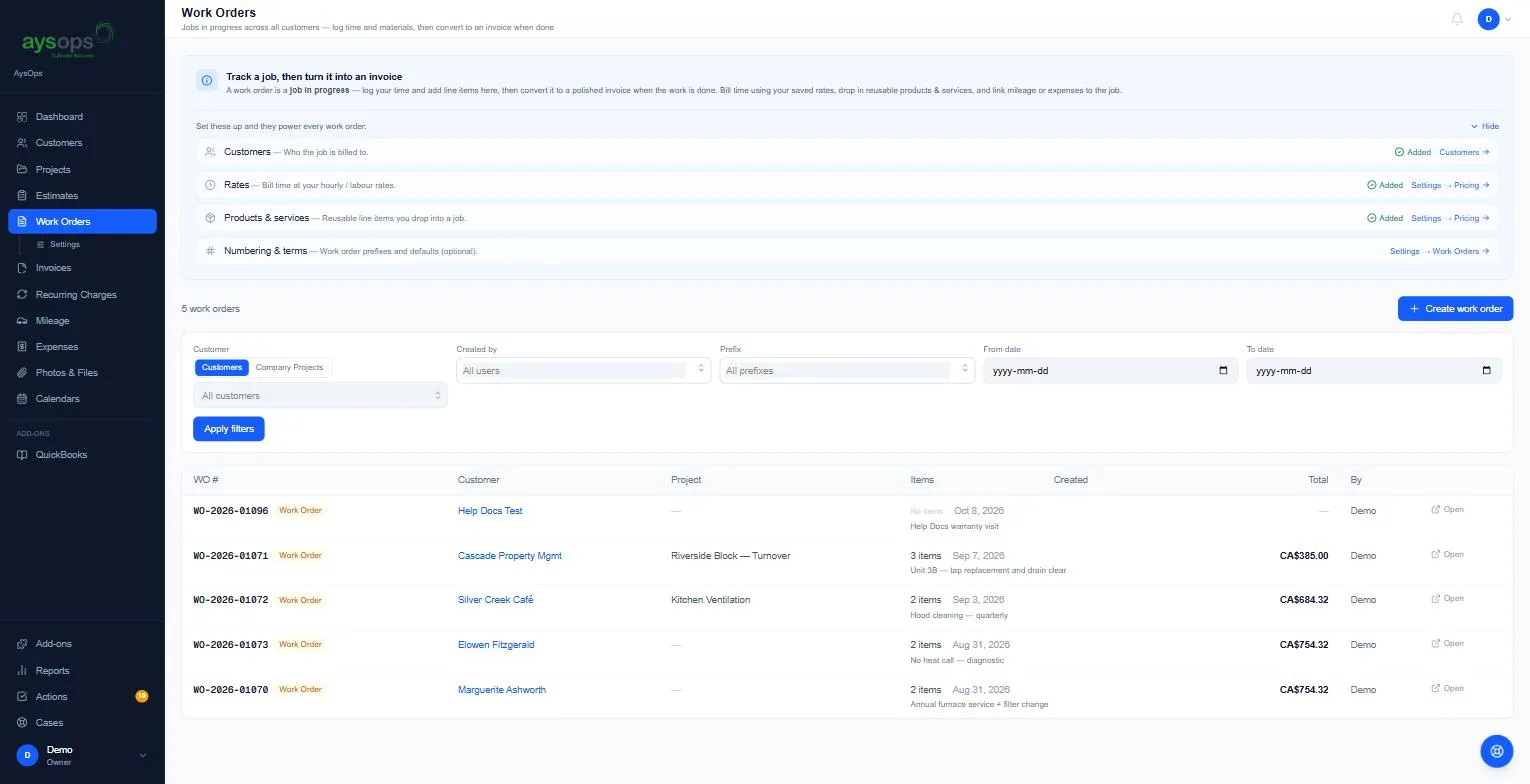
Section titled “What happens next”The new work order appears at the top of the list with its number (for example WO-2026-01096) and No items. Click Open to start adding lines. See Add lines to a work order.
Inside the work order you can also change the Project, Schedule on calendar, attach Files, and change Bill to (who the invoice goes to). See Bill-to destinations.
A customer missing from the Customer list may be archived: restore them first (see Archive a customer).
Archive or delete a work order
Section titled “Archive or delete a work order”Use the box icon (archive) or bin icon (delete) on the work order, and confirm. Deleting asks “Delete work order [number]?”: it disappears from the app and its number isn’t reused (if you delete one by mistake, contact support: deleted work orders can be recovered). Archived work orders move to a collapsed Archived section on the customer’s Work Orders tab, where you can restore them.
- If the work order has a requested but unpaid deposit, AysOps asks first, then cancels the deposit invoice too, so the customer can’t pay for a job that no longer exists.
- If the deposit has already been paid, the work order can’t be removed: “The … deposit on … has already been paid. Refund or reconcile it before removing this work order.”
- Any calendar appointments for the work order are cancelled.