
Send an estimate to your customer
What this does
Section titled “What this does”Emails the quote to your customer with a PDF copy and a link where they can approve it (with a signature) or decline it. The quote is then locked so the price can’t change while the customer is deciding.
Before you start
Section titled “Before you start”- The estimate needs at least one line (a CA$0.00 line is fine). Otherwise you’ll see “Add at least one line before sending this estimate. A $0 line is fine.”
- The customer (or the bill-to contact you choose) needs an email address.
- Check the lines, discount and deposit: you can’t change them after sending without recalling the quote.
- Open the estimate and click Send to Customer.
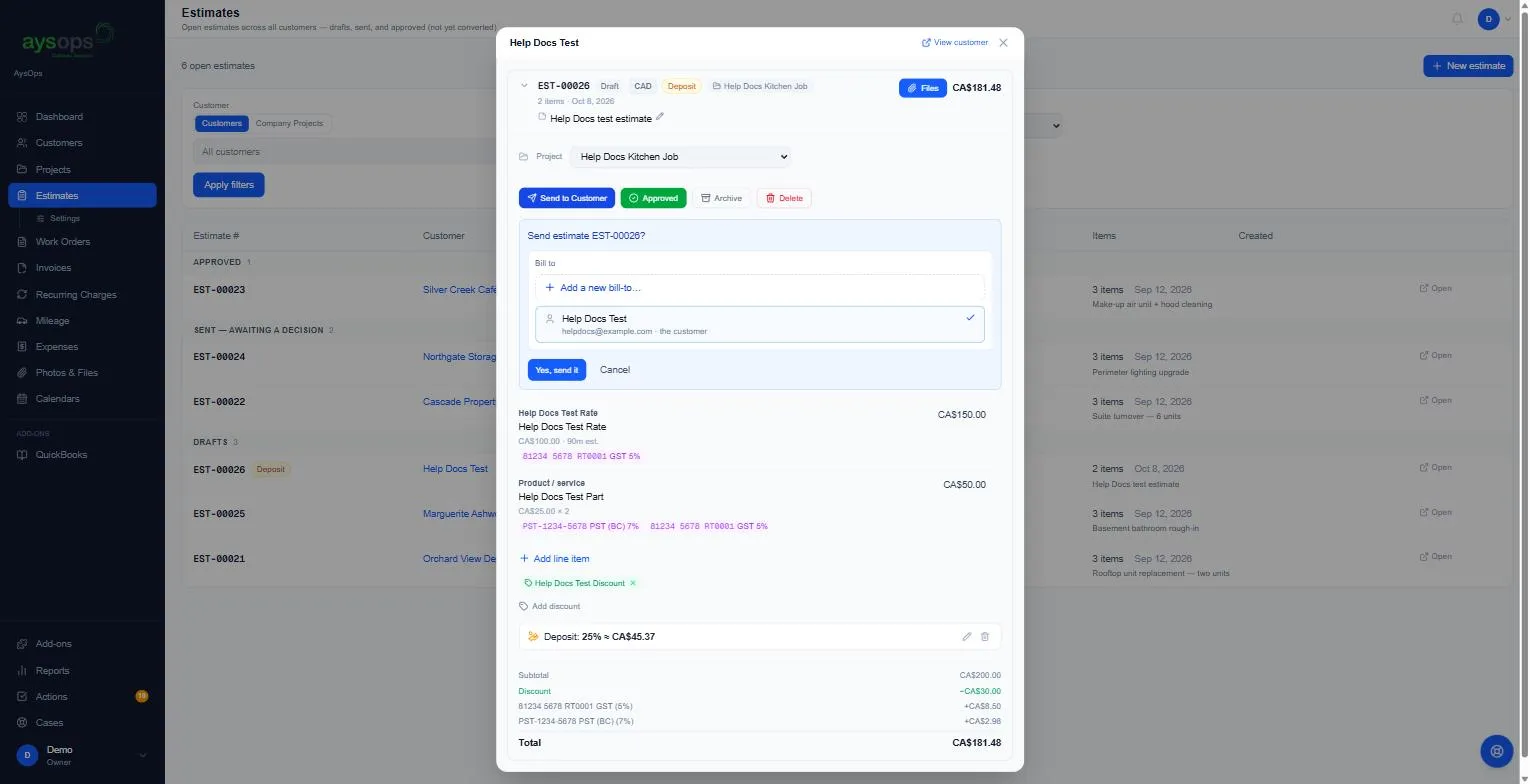
- A box asks “Send estimate EST-…?”. Under Bill to, choose who it’s for:
- the customer (shown with their email and “the customer”), or
- another bill-to destination, for example a property manager or head office, or
- Add a new bill-to… to add one now. See Bill-to destinations.
- Click Yes, send it.
Who receives it: the Send to box shows the address the quote goes to. It starts on the customer’s billing contact when they have one, otherwise the customer’s own email (or the payer when you bill someone else). You can pick another of the customer’s addresses for this send only. See Add a contact.
A customer with no email of their own can still be sent a quote when they have a billing contact: the Send to box shows the billing contact and Yes, send it works. The yellow “has no email address, so there is nowhere to send this quote” box only appears when there is no address at all.
While the quote is being sent the button reads Sending…; wait for it rather than clicking again.
What happens next
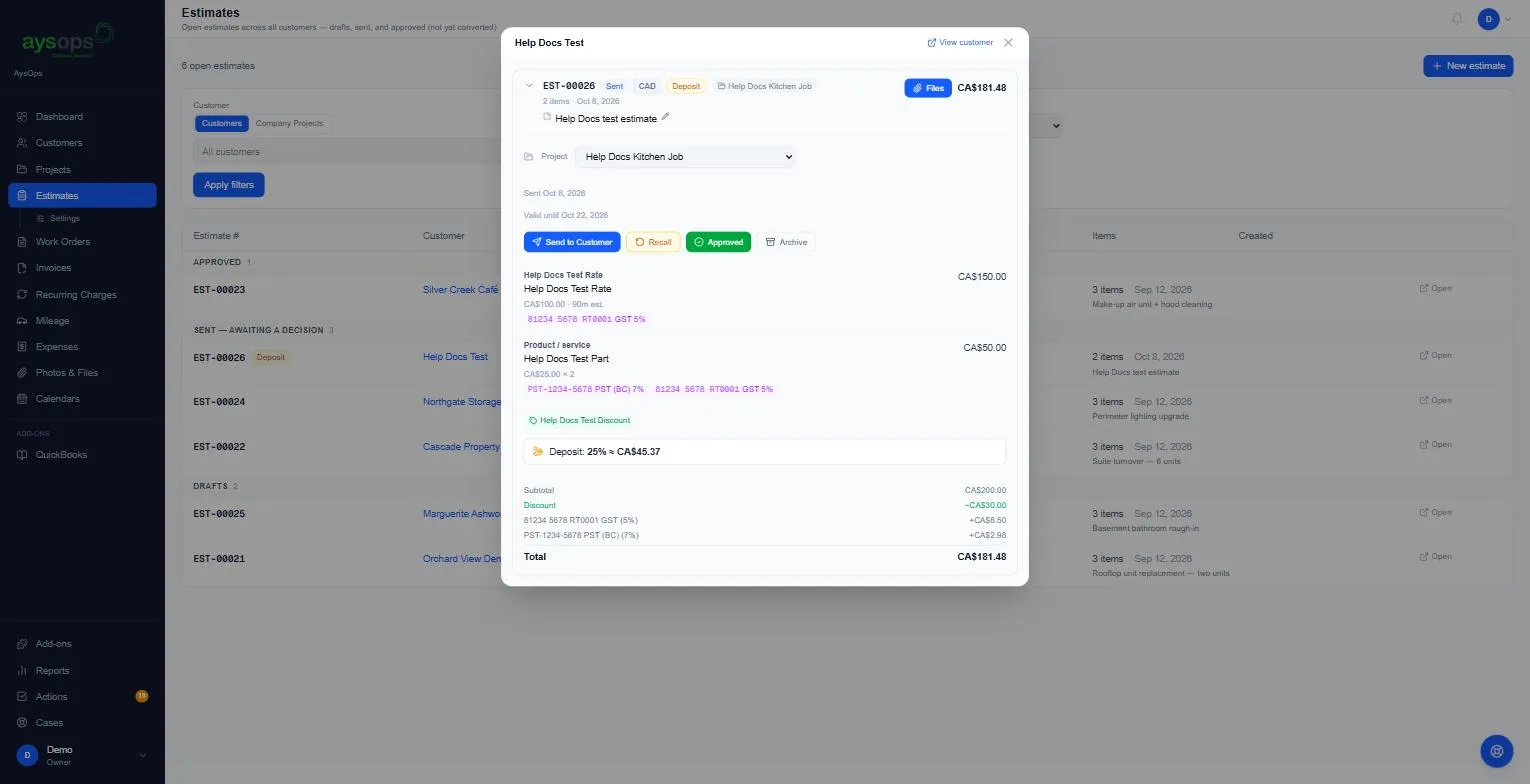
Section titled “What happens next”- The status changes to Sent, and the estimate shows Sent [date] and Valid until [date].
- The buttons change to Send to Customer (send it again), Recall, Approved and Archive. Add line item and Add discount disappear, because a sent quote is locked.
- The customer gets an email with the subject “Estimate EST-… from [your business name]”, the quote as a PDF attachment, and a green Review and approve this quote button at the top (with the total) and again at the bottom. A long quote (more than 25 lines) lists each section’s total in the email instead of every line; every line is in the PDF and on the approval page. See What your customer sees.
- Files you added under Files sent with this estimate go with it: attached, or as a download link when they are too big for the email. See Send files with an estimate.
- Optional extras you offered are listed under Optional extras (not included in the total).
How long the quote is valid
Section titled “How long the quote is valid”The Valid until date is the send date plus your quote validity (14 days unless you change it). Sending again restarts the countdown. Change the number of days in Settings → Estimate Templates, under How long a quote stays valid. See Estimate templates.
Fix a quote you’ve already sent (Recall)
Section titled “Fix a quote you’ve already sent (Recall)”- Open the estimate and click Recall.
- Read the warning, “Recall estimate EST-… from the customer?”, and click Recall it.
What recall does:
- The approval link you sent stops working immediately, so nobody can approve or decline with it, including anyone it was forwarded to.
- The quote goes back to a Draft you can edit and send again (to the same person or a different bill-to).
- ⚠️ The customer is not told automatically. Let them know a corrected quote is coming.
If the customer said yes by phone or in person
Section titled “If the customer said yes by phone or in person”Click Approved, then Mark approved (the box asks Mark this estimate as approved?). The estimate becomes Approved without an online signature, and you can convert it. This works on a draft or a sent quote. A quote the customer declined (or one that expired) can’t be marked approved (you’d see “Cannot approve this estimate.”): send it again first, then mark it approved. See Convert an estimate to a work order.
If something goes wrong
Section titled “If something goes wrong”- “The customer responded while you were recalling this quote, reload to see their decision.”: the customer approved or declined at the same moment. Their decision wins.
- “Only a quote that is currently with the customer can be recalled.”: it’s already approved, declined or expired.
- The customer didn’t get the email: check the address on the customer or bill-to, ask them to check their junk folder, then click Send to Customer again.