
Import customers from a spreadsheet
What this does
Section titled “What this does”Adds many customers at once from a spreadsheet exported from your previous system (a CSV or an Excel .xlsx file). You check everything before anything is created.
Before you start
Section titled “Before you start”- You need permission to manage customers.
- Your file must be .csv or .xlsx, with column headings in the first row. Up to 1,000 customer rows are read per file. (For Excel files, put the customers on the first sheet.)
- Every row needs at least a name.
- Coming from QuickBooks Online? You can bring customers, vendors, items and tax rates across directly instead. See Import your business from QuickBooks.
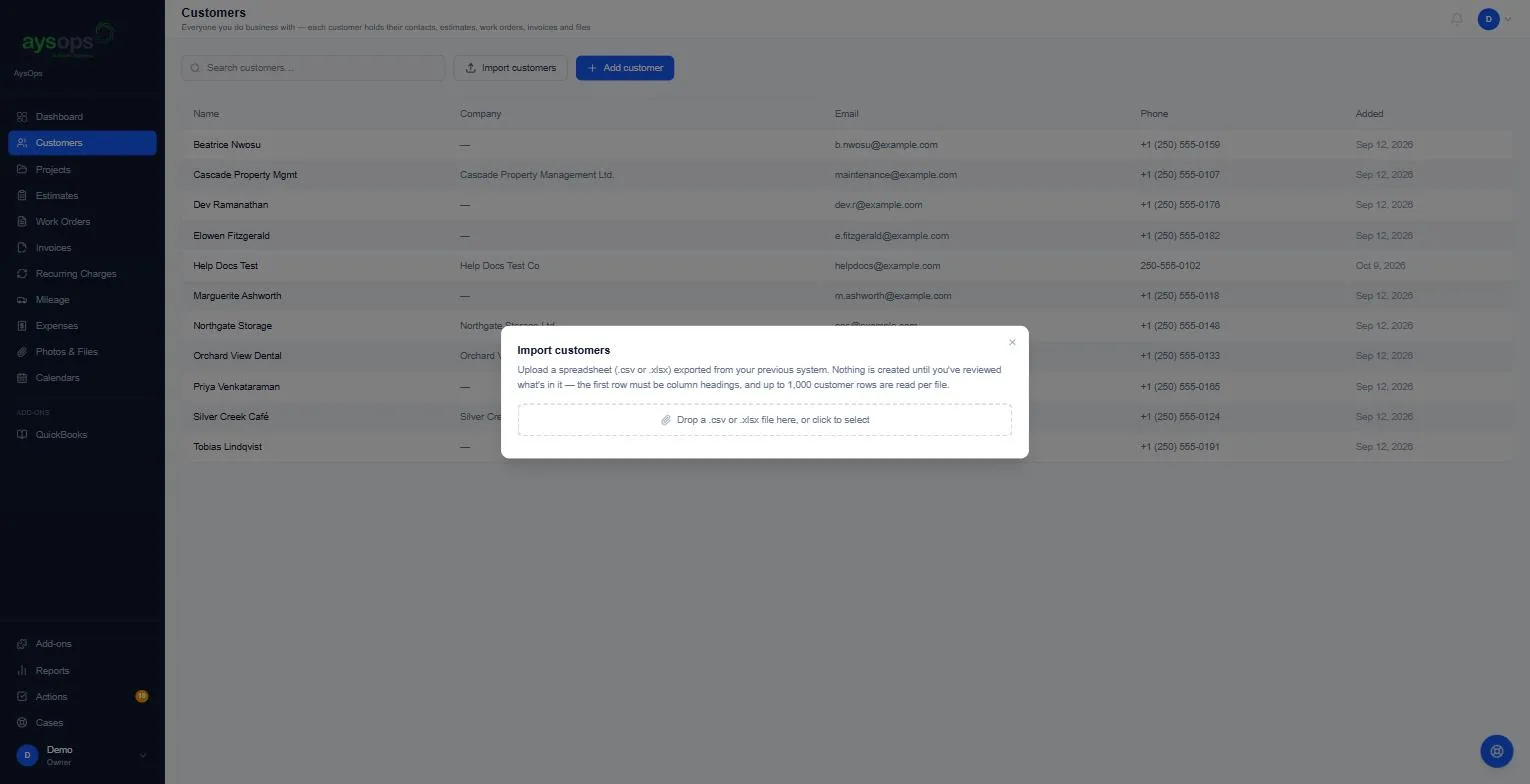
- Click Customers in the menu, then Import customers.
- Drag your file onto Drop a .csv or .xlsx file here, or click to select, or click it to choose the file.
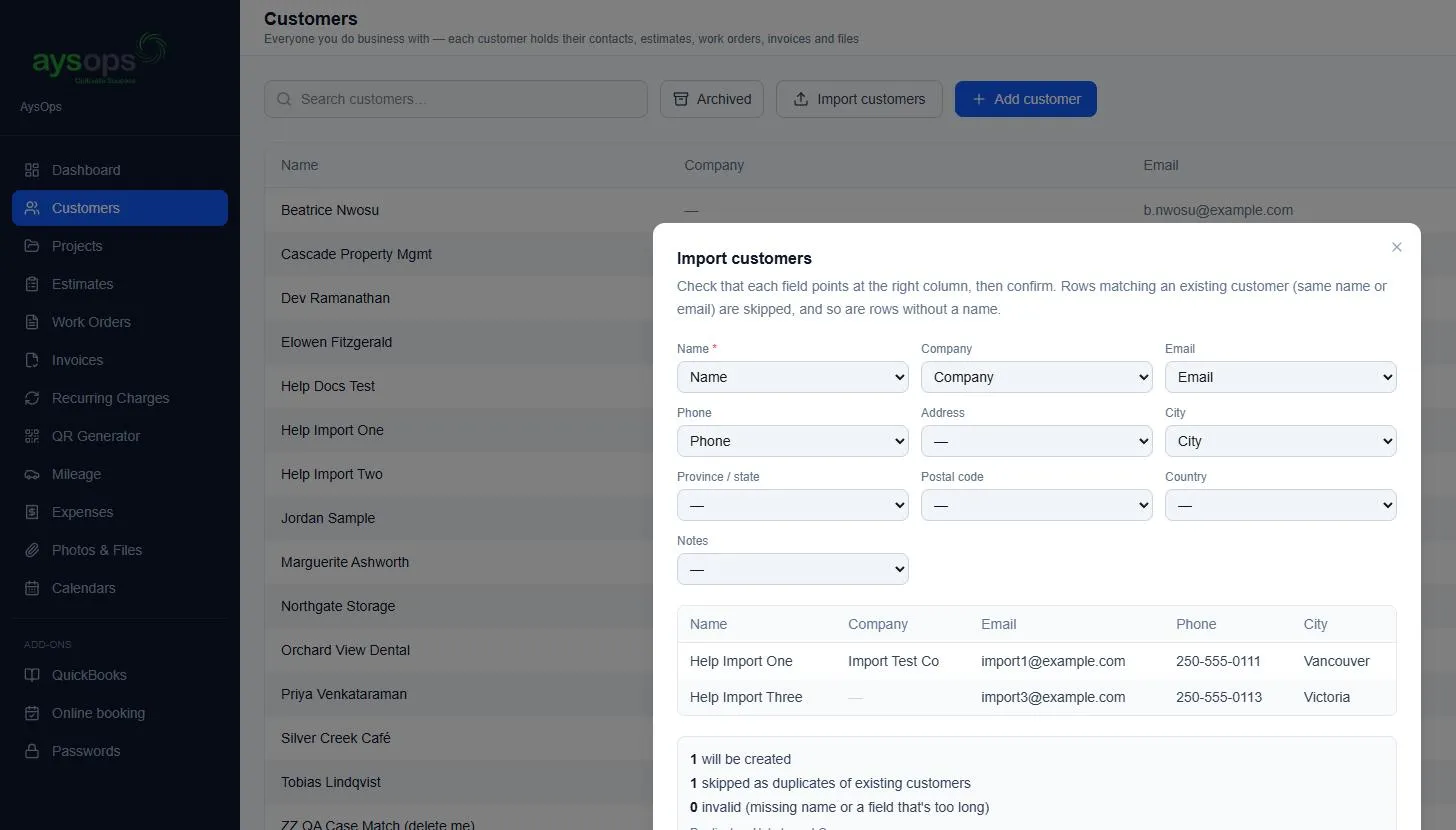
- AysOps matches your columns to its fields: Name (required), Company, Email, Phone, Address, City, Province / state, Postal code, Country and Notes. Check each one points at the right column of your file, and change any that are wrong using its list. Choose — for a field you don’t want to fill.
- Check the preview of your rows, and the summary underneath:
- will be created,
- skipped as duplicates of existing customers (the names are listed), and
- invalid (missing a name, or a field that’s too long).
- Click Import [number] customers. (Or Choose a different file to start again.)
- When it finishes, the window says, for example, “2 customers imported”, with how many were skipped. Click Done.
What happens next
Section titled “What happens next”The new customers appear in your customer list straight away, with their address as the primary address.
If something goes wrong
Section titled “If something goes wrong”- Rows were skipped as duplicates: a customer with the same name or email already exists. Duplicates are never imported twice, so it’s safe to re-import a file.
- Rows are invalid: they have no name, or a value is too long. Fix them in your spreadsheet and import the file again; customers already imported are skipped.
- Only some of my customers were read: only the first 1,000 rows (and, for Excel, the first sheet) are read. Split larger lists into several files.
- The counts changed after importing: the numbers before you import are an estimate from the detected columns; the final numbers are confirmed after the import runs.
Related articles
Section titled “Related articles”import customers, import, upload customers, csv, excel, xlsx, spreadsheet, bring customers across, migrate, bulk add, duplicates