
Make QR codes with the QR Generator
What this does
Section titled “What this does”Make a QR code for any web page: your website, a review page, a menu, a sign-up form. Someone points their phone camera at it and the page opens. Your codes are saved, so you can download them again later.
Before you start
Section titled “Before you start”- You need permission to use the QR Generator. Everyone has it unless the owner changed it.
- The address must start with https://.
Plain or tracked
Section titled “Plain or tracked”There are two kinds of code:
- Plain holds the web address itself. It works for good, even without AysOps, but it can’t be changed after printing and you don’t see how many people scanned it.
- Tracked counts how many people scan it, and you can change where it goes at any time, even after it is printed. It goes through a short aysqr.com link, so it only works while it runs through AysOps. Tracked codes need the Tracked QR Codes add-on ($2.99 USD or $3.99 CAD a month). It is free while your 90-day trial runs, or free for its first 7 days if you add it later. Turn it on in Add-ons (bottom of the left menu): click Enable, then Agree & enable. Without it, Tracked shows a lock and a See add-ons link.
Make a code
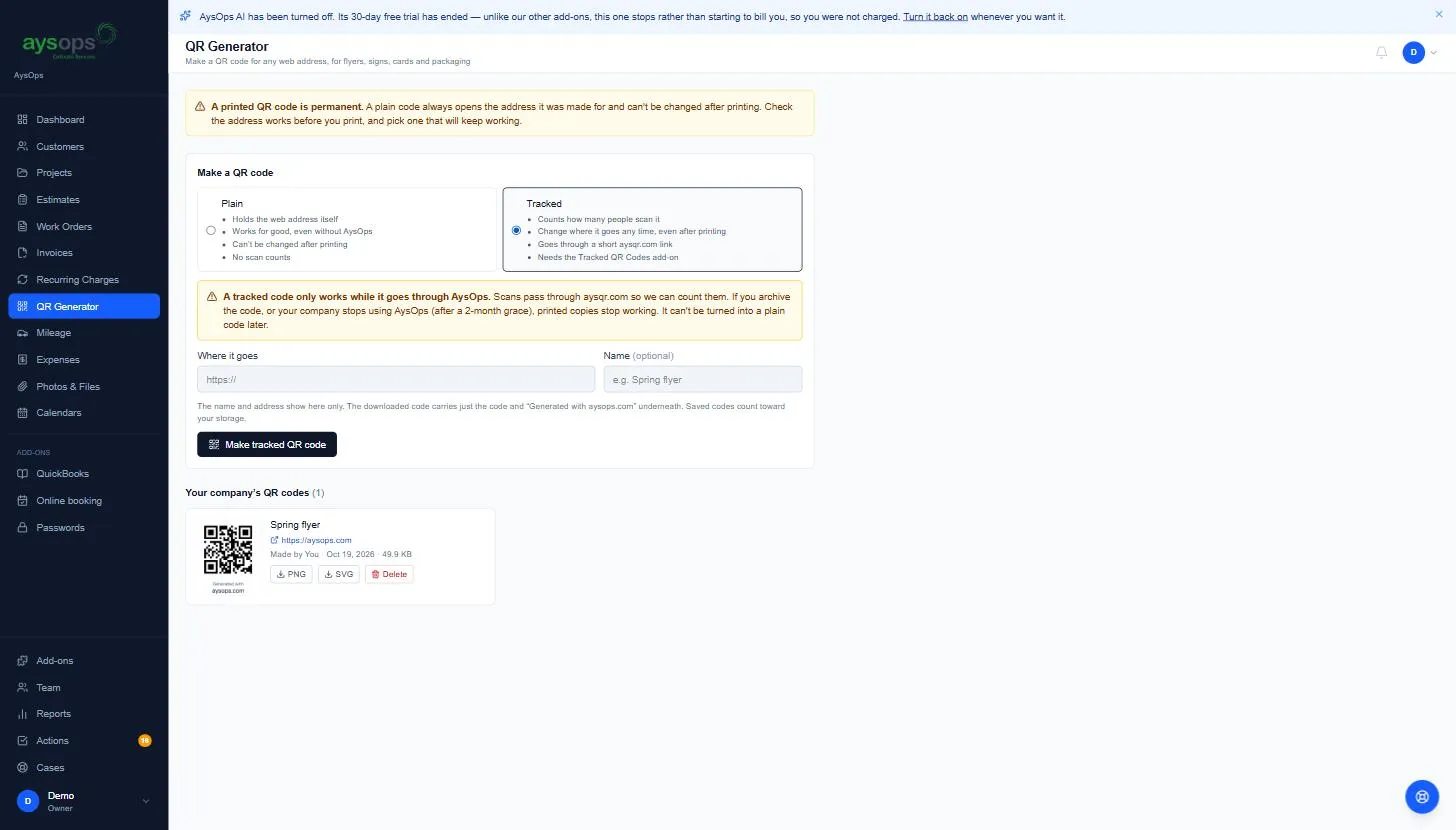
Section titled “Make a code”- Click QR Generator in the left menu (under Recurring Charges).
- Choose Plain or Tracked. If you choose Tracked, read the note that appears: archiving the code, or your company leaving AysOps, stops printed copies from working.
- In Web address (Where it goes for a tracked code), paste the page’s address.
- Optionally, type a Name, for example “Spring flyer”, so you can find it later.
- Click Make QR code (or Make tracked QR code). It appears in the list below.
Download it
Section titled “Download it”Click PNG for a picture to use on flyers, cards and websites, or SVG for a file that stays sharp at any size (print shops usually prefer it). The downloaded code shows Generated with aysops.com underneath. The name and the address are not printed on it.
Before you print: plain codes are permanent
Section titled “Before you print: plain codes are permanent”A printed plain code always opens the address it was made for, and it can’t be changed. Open the address first to check it works, and choose one that will keep working.
What you see in the list
Section titled “What you see in the list”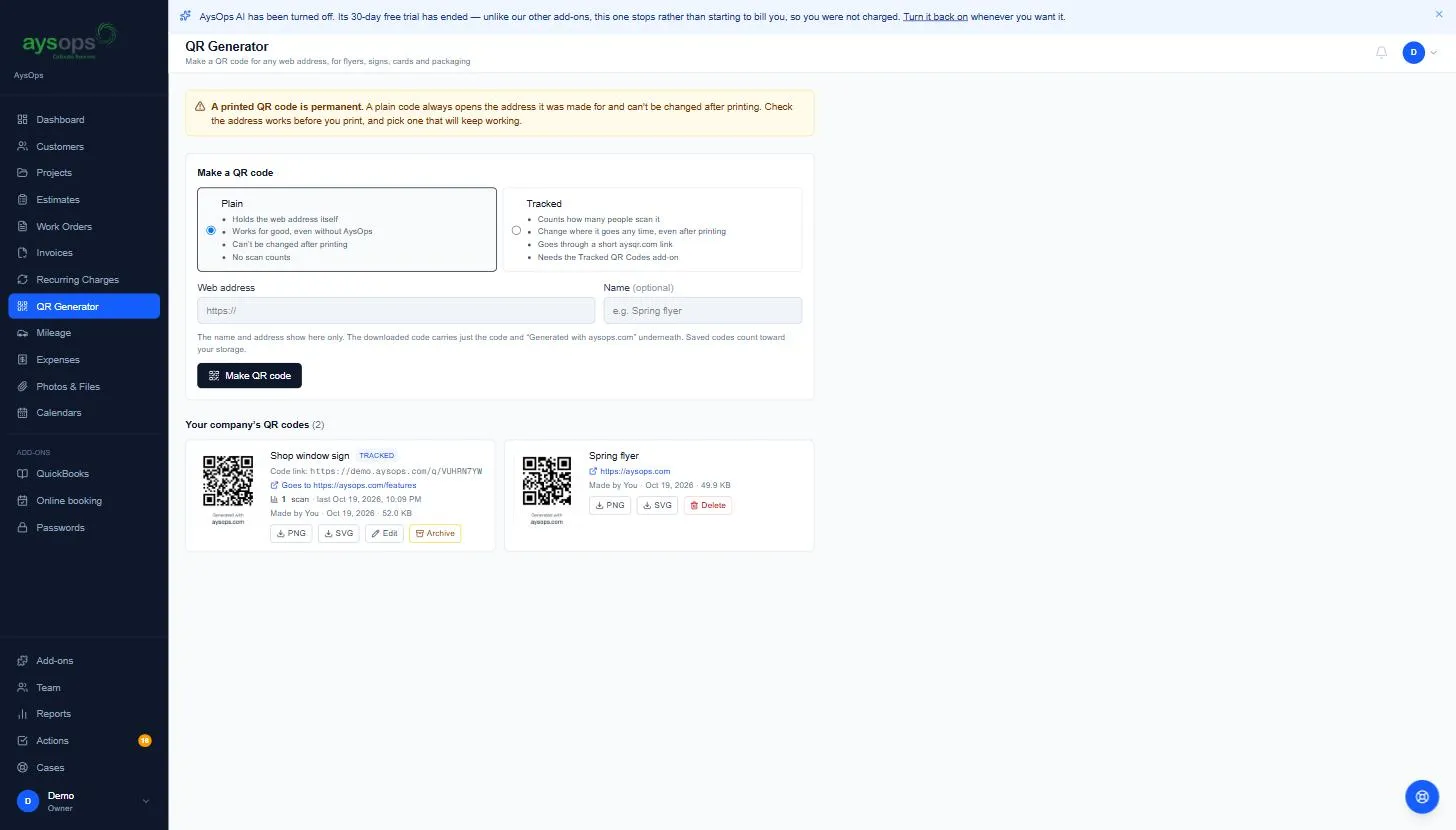
Each code shows its name, the address it opens (click it to check), who made it, when, and how much storage it uses. Codes count toward your company’s storage.
Owners, administrators and managers see everyone’s codes. Other team members see their own, unless the owner gives them access to everyone’s.
Delete a plain code
Section titled “Delete a plain code”Click Delete, then Delete again to confirm. The code leaves the list and stops using storage. Copies you’ve already printed or shared keep working, because the code holds the address itself.
Tracked codes
Section titled “Tracked codes”A tracked code’s card shows a Tracked label, its Code link (the aysqr.com address the code holds), where it goes, how many times it was scanned and when it was last scanned. Scans by link previews and search engines aren’t counted, and someone scanning twice in a row counts once.
- Change where it goes: click Edit, change Where it goes (and the name if you like), then click Save. Printed copies go to the new address straight away.
- Switch it off: click Archive, then Archive again in the box that asks Archive this tracked QR code?. Anyone who scans it sees a “no longer active” page. Archived codes move to Archived tracked codes.
- Switch it back on: in Archived tracked codes, click Restore.
- Delete it for good: an archived code can be deleted 90 days after it was archived. Its card says the date. After that, printed copies never work again.
Every address a code opens is checked against Google’s list of unsafe websites. If an address is listed, the code can’t be made, or an existing code is switched off and you’re emailed. AysOps support can also switch a code off after someone reports the address it goes to, and you’re emailed then too. A switched-off code shows “flagged as unsafe”: contact AysOps support, because only AysOps can switch it back on. When they do, you get an email saying it’s working again, and it stays on while it goes to the same address.
If the Tracked QR Codes add-on ends
Section titled “If the Tracked QR Codes add-on ends”Your tracked codes keep working for 2 months, and a red note at the top of the page says until when. Every 2 weeks you get an email saying how many times they were scanned (only if someone scanned one; the email has a link to stop them). After 2 months the codes are archived, not deleted. Turn the add-on back on and you can Restore them.
If something goes wrong
Section titled “If something goes wrong”- “Enter a web address starting with https://.” Add
https://to the front, or copy the address from your browser’s address bar. - “Remove the name or password from the address”: the address has a part before an @; take it out.
- “Storage limit reached”: delete files you no longer need, or add storage in Settings → Add-ons.
- “…the most it can keep”: your company has 200 plain codes. Delete one you no longer use.
- “…100 tracked QR codes in use”: archive a tracked code you no longer use. Archived codes don’t count.
- “Google lists this address as…”: the address is on Google’s list of unsafe websites. Check you copied the right address.
- “This needs the Tracked QR Codes add-on.”: the add-on isn’t on for your company.