
Repeating expenses (subscriptions)
What this does
Section titled “What this does”Keeps track of bills you pay on a schedule (software, insurance, rent) and reminds you when one is due but hasn’t been entered, so nothing is missed at tax time.
- When you add the expense, set Repeats to how often it’s charged: Every week, Every 2 weeks, Twice a month, Every month, Every 2 months, Every 3 months (quarterly), Every 6 months, Every year, Every 2 years or Custom…. See Add an expense.
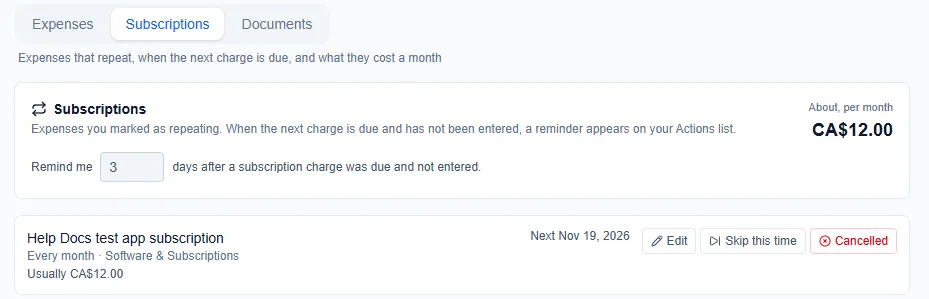
- Click Expenses → Subscriptions to see every repeating expense, when the next charge is due and what they cost a month.
- Set Remind me [3] days after a subscription charge was due and not entered. A Save button appears beside it once you change the number; click it (people who can manage business settings; owners and admins by default). The top of the tab also shows what your subscriptions cost About, per month.
When you enter the next charge, choose the subscription under Repeats (A charge of an existing subscription) so AysOps knows it has been paid. A new expense from the same vendor is counted as that period’s charge for you, and the form says so; change Repeats if it isn’t. If an expense looks like a subscription, the form suggests choosing how often it repeats. Custom… lets you choose every so many days, weeks or months.
What happens next
Section titled “What happens next”When a charge is due and you haven’t entered it within that many days, a reminder appears on your Actions list. AysOps checks once a day, in the morning, so a reminder can take up to a day to appear. The Subscriptions tab shows Not entered: due … right away.
Change, skip or cancel a subscription
Section titled “Change, skip or cancel a subscription”On Expenses → Subscriptions, each subscription shows how often it repeats, what it usually costs (and what it was before, if the price changed), and when the next charge is due. Its buttons:
- Edit: change the Name, how often it Repeats, the Next charge expected on date (later charges count on from it), and Give me a heads-up before it renews with how many days before.
- Skip this time: no reminder for the next charge; the one after it is expected instead. A box asks you to confirm (for example “Skip the Nov 19, 2026 charge?”): click Skip this time.
- Mark cancelled: stops the reminders once you’ve cancelled with the supplier (confirm with Cancel subscription). Past expenses stay as they are. Cancelled subscriptions are listed under [number] cancelled. To restart one, add its next charge and choose it under Repeats (Restart a cancelled subscription).
Yearly and two-yearly subscriptions get a heads-up on your Actions list 14 days before they renew, in case you want to cancel first. Change or turn it off with Edit.
Expenses AysOps adds for you
Section titled “Expenses AysOps adds for you”In Settings → Expense Settings (both on by default):
- Auto-log my AysOps subscription: each AysOps charge is added as an expense (category “Software & Subscriptions”, vendor “AysOps”) with the receipt PDF attached.
- Auto-log online payment fees: when a customer pays online, the Stripe processing fee plus the platform fee is added as an expense (category “Payment Processing Fees”, vendor “Stripe”), linked to that customer.
Turn either off if you record them in other accounting software.