
Customer files (upload, preview, download, email)
What this does
Section titled “What this does”Keeps files for a customer in one place: contracts, photos, signed documents, anything. You can preview them in AysOps, download them, and email them to the customer.
Before you start
Section titled “Before you start”- You need permission to manage files.
- Files count toward your account’s storage (the bar at the bottom of the tab shows how much is used). Each file can be up to 50 MB.
- Open the customer and click the Files tab.
Upload files
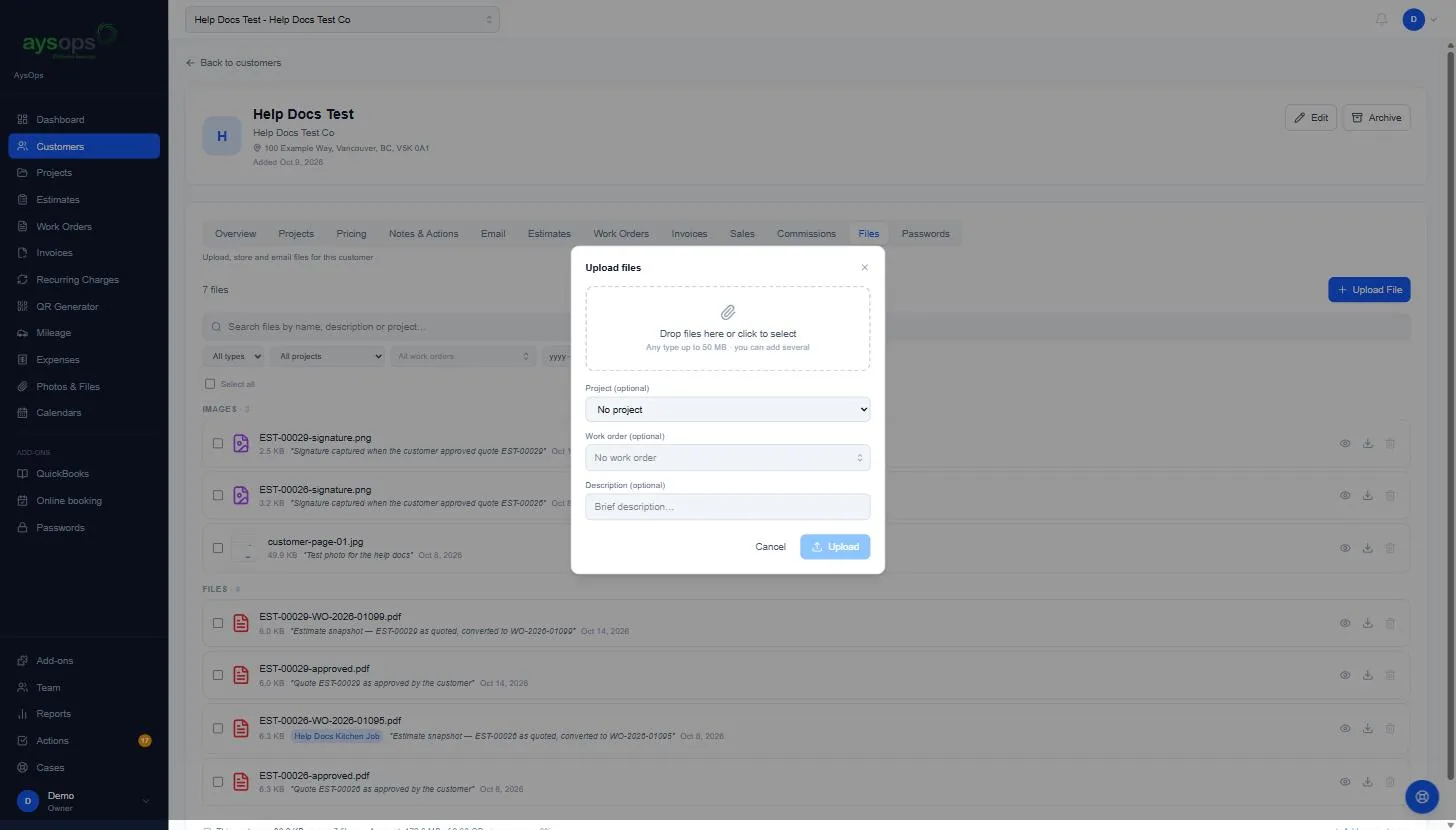
Section titled “Upload files”- Click Upload File. The Upload files window opens.
- Drag files onto Drop files here or click to select, or click it to choose files. Any type, up to 50 MB each; you can add several at once.
- Optional: file it under one of the customer’s projects with Project (optional), or under a work order with Work order (optional) (each is shown only when the customer has one), and add a Description, for example “Signed contract”.
- Click Upload. The button shows Uploading 1/1… while it works.
The files appear in the list, grouped by kind (for example Images), with their size, description and date.
Find, preview and download
Section titled “Find, preview and download”- Use Search files by name, description or project…, the All types, All projects and All work orders lists, or the dates to narrow the list.
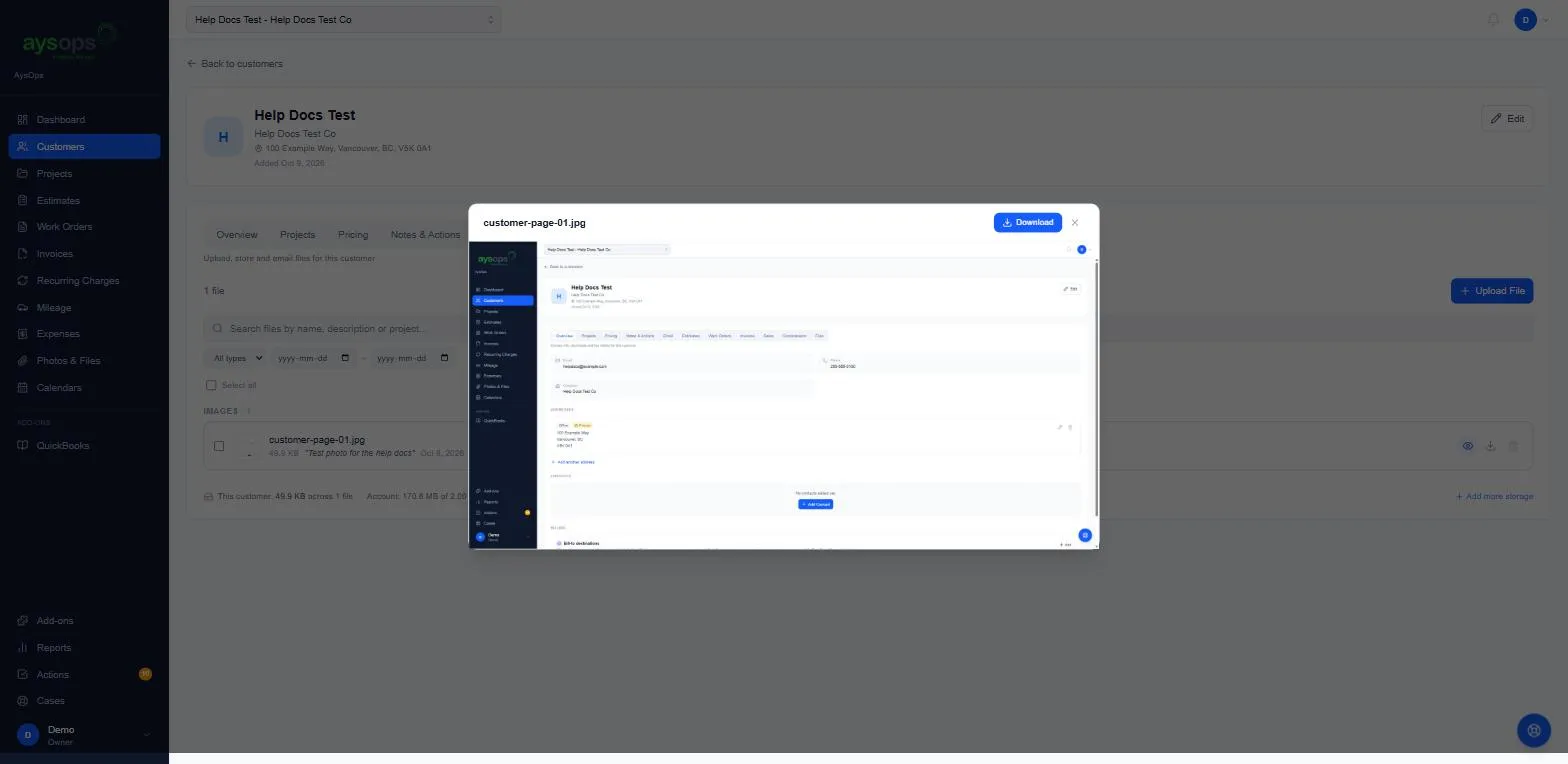
- Click the eye icon to preview a file inside AysOps, with a Download button. Click the download icon to save it straight to your computer.
Email or download several files
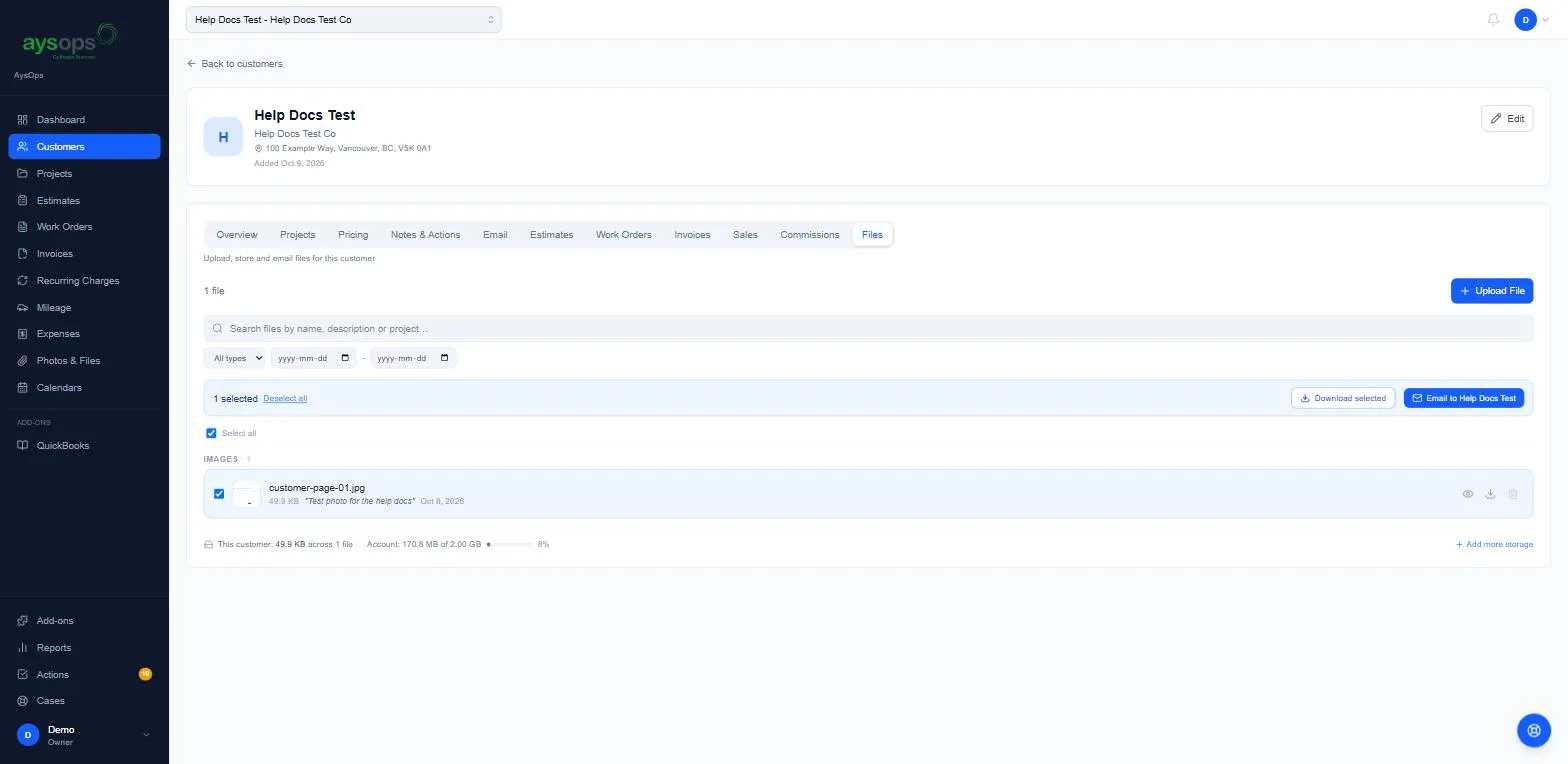
Section titled “Email or download several files”- Tick the files you want (or Select all). A bar shows how many are selected, with Download selected and Email to [customer name].
- Click Email to [customer name]. A box asks you to confirm and shows the address the files will go to. Click Send. A green Emailed to [address] message confirms it went.
What happens next
Section titled “What happens next”- AysOps also files some things here for you: when a customer approves a quote online, the approved quote (PDF), their signature and a copy of the estimate as quoted appear here.
- Uploads and emails are recorded in the customer’s Notes & Actions history (for example “Emailed 1 file to …”), so you can always check whether something was sent.
- The storage bar at the bottom updates: This customer and your whole Account. Click Add more storage if you’re running out.
If something goes wrong
Section titled “If something goes wrong”- Did my email go? A green Emailed to [address] message appears after a send. The customer’s Notes & Actions history also records it (“Emailed … file”).
- “Storage is full” or uploads are refused: free up space or add storage. See Storage.
- The bin icon deletes a file: click it, then Delete beside it to confirm (or Cancel).
Related articles
Section titled “Related articles”files, upload file, attach file, documents, photos, contract, preview, download, email file, send file, storage, customer files