
Edit a customer
What this does
Section titled “What this does”Changes a customer’s name, company, email, phone, primary address, or how soon they count as “quiet”.
Before you start
Section titled “Before you start”You need permission to manage customers.
- Open the customer (Customers → click the name) and click Edit at the top right.
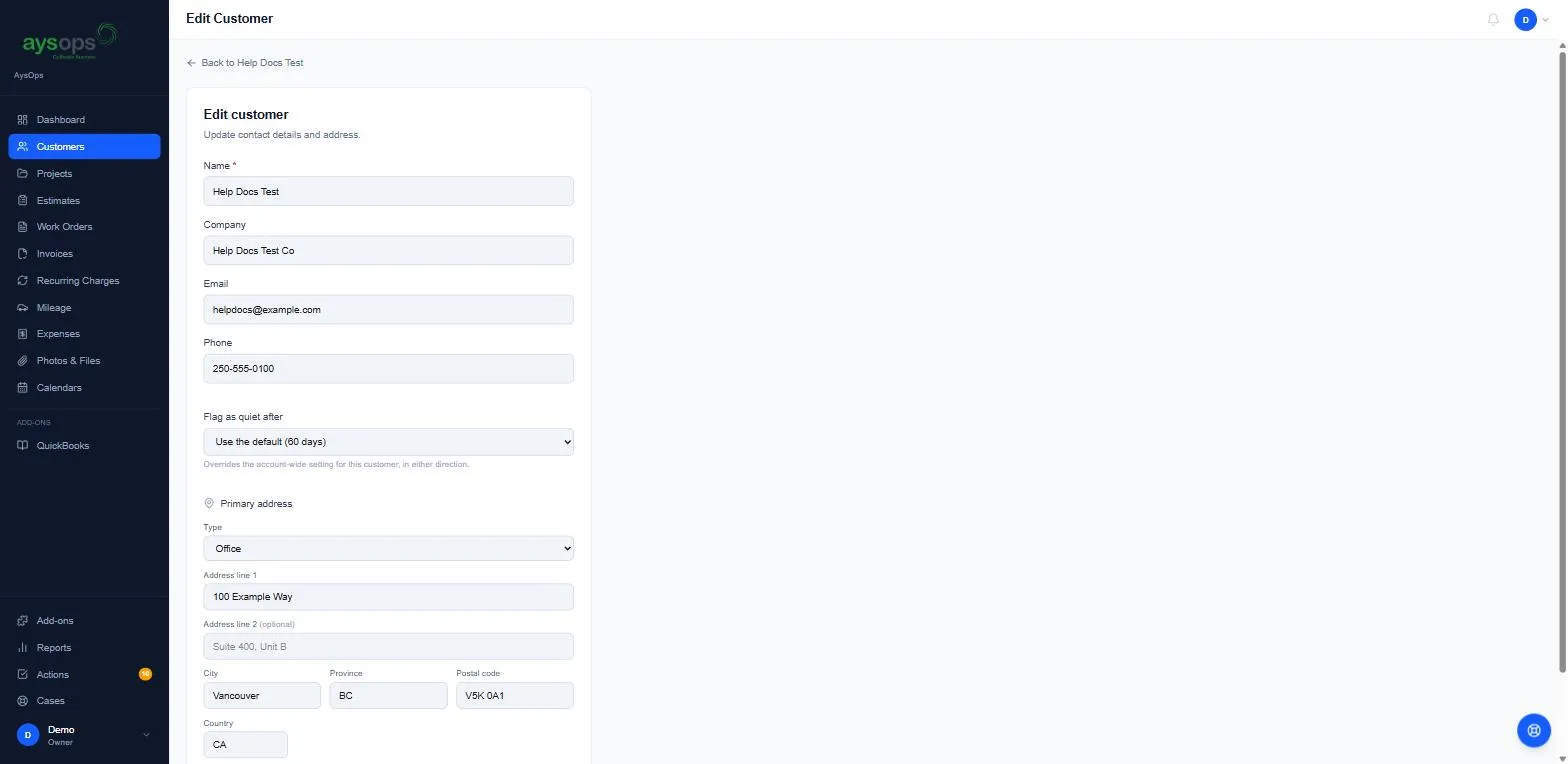
- Change any of: Name (required), Company, Email, Phone.
- Flag as quiet after: how long without contact before this customer shows as quiet on your
dashboard:
- Use the default (the number of days set for the whole business, for example 60),
- A custom number of days for this customer, or
- Never — don’t flag this customer.
- Primary address: change the Type or any address line. Other addresses are managed on the Overview tab.
- Click Save changes.
What happens next
Section titled “What happens next”You’re taken back to the customer’s page with the new details. “Updated customer” is recorded in their Notes & Actions history.
If something goes wrong
Section titled “If something goes wrong”- “Someone else changed this while you were editing it. Reload to see their changes, then try again.”: another person saved this customer while you were editing. Reload the page, then make your change again, so you don’t overwrite theirs.
- To add a second address, use Add another address on the Overview tab instead.
Related articles
Section titled “Related articles”- Tour of a customer’s page
- Business profile (the default “quiet” number of days)
Addresses your customer changed themselves
Section titled “Addresses your customer changed themselves”If you have the Customer Portal and a customer changes or removes one of their addresses, the old one is kept as history, not deleted. It no longer appears in the list here; you can see it on the customer’s page under Customer portal → Changed by the customer.
edit customer, change customer, update customer, change address, change email, change phone, quiet customer, never flag