
Create your AysOps account
What this does
Section titled “What this does”Creates your business’s AysOps account and starts your 90-day free trial. No credit card is needed to start.
Before you start
Section titled “Before you start”- Have your business name and business address ready.
- Decide which email you will sign in with. You can sign up with an email and password, or with your Google or Microsoft account.
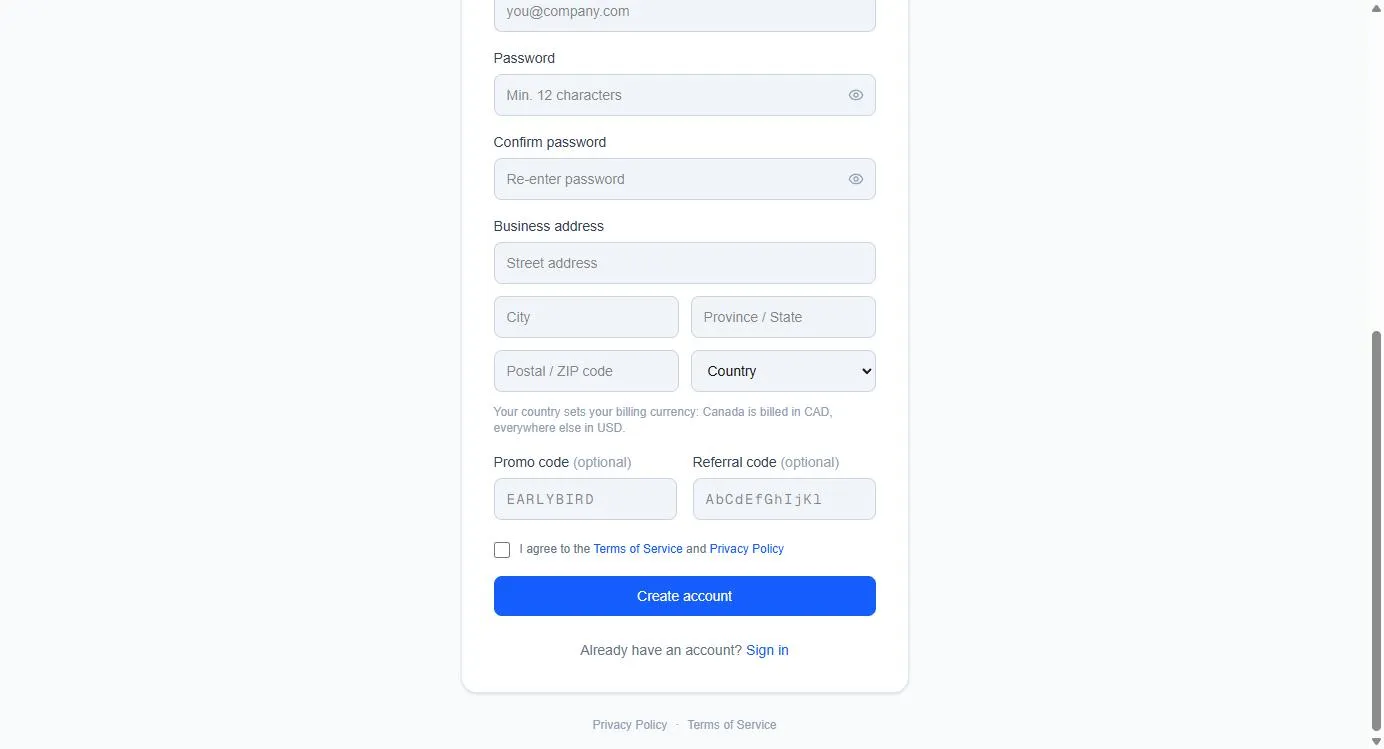
- Your country sets your billing currency: Canada is billed in Canadian dollars (CAD), everywhere else in US dollars (USD).
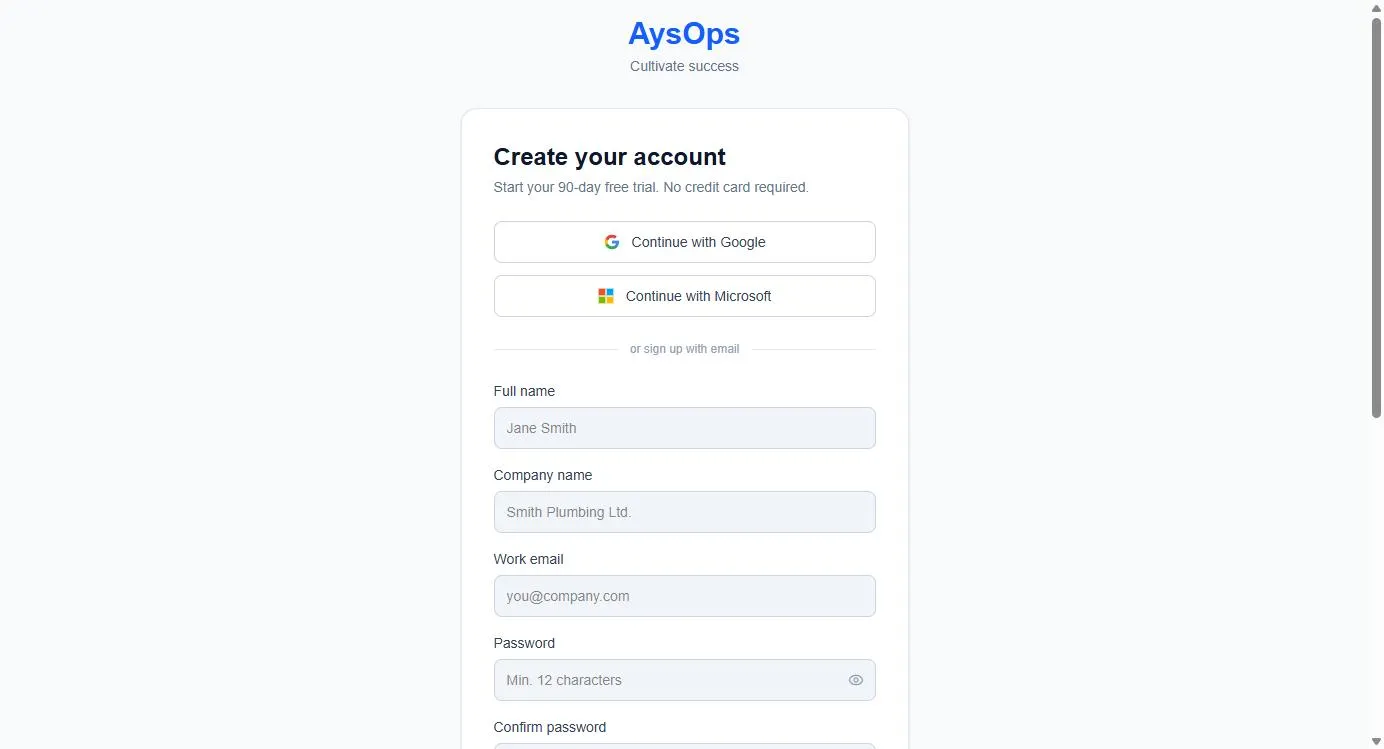
- Go to the AysOps sign-in page and click Sign up free (under the Sign in button). You’ll see Create your account and the line “Start your 90-day free trial. No credit card required.”
- Choose how to sign up:
- Continue with Google or Continue with Microsoft: you’ll be sent to Google or Microsoft to approve, then brought back to AysOps. Skip to “What happens next”.
- Or sign up with email: carry on with step 3.
- Fill in the form:
- Full name: your own name.
- Company name: the name of your business.
- Work email: the email you’ll sign in with.
- Password and Confirm password: at least 12 characters. Click the eye icon to show what you typed.
- Business address: street, City, Province / State, Postal / ZIP code and Country.
- Optional: if someone gave you a code, type it in Promo code or Referral code. Leave them empty if you don’t have one.
- Tick I agree to the Terms of Service and Privacy Policy.
- Click Create account.
What happens next
Section titled “What happens next”- The page says “Check your email to confirm your account.”
- You’ll receive two emails: one to confirm your email address (click the link in it), and a welcome email listing the first setup steps.
- Your company is set up when you confirm your email. Until then nothing is created, so if you never confirm, nothing is kept in your name.
- After confirming, sign in. The dashboard guides you through setup: your company profile, your work order and invoice settings, and your first customer. See First-time setup.
If something goes wrong
Section titled “If something goes wrong”- “Referral code not found. Please check and try again.”: check the code with the person who gave it to you, or remove it and sign up without one.
- “Too many sign-up attempts from this network. Please try again later.”: wait a while and try again.
- The two password boxes don’t match: retype the password in Confirm password.
- “The security check did not complete”: a small security check from Cloudflare runs on this page to keep out automated sign-ups and password guessing. Most of the time you don’t see it. If a box appears, tick it, wait a moment, then try again. If it keeps failing, reload the page, or turn off a browser extension that blocks scripts.
- No confirmation email: check your spam or junk folder. The email comes from AysOps.
- The email is already in use: that email already has an account. Use Sign in, or Reset your password if you forgot it.
Related articles
Section titled “Related articles”sign up, signup, register, create account, free trial, new account, get started, trial