
Products and services
What this does
Section titled “What this does”Your catalogue of things you sell at a set price: parts, software, flat-fee jobs. Each one can be added to an estimate, work order or invoice in one click, with its taxes already applied.
Before you start
Section titled “Before you start”- You need permission to manage rates (owners, admins and managers by default).
- Set up your tax rates first: an item’s taxes can only be changed until the item is first used on a document. See Tax rates.
- Click your initial or photo → Settings → Pricing → Products & Services. Use Currency and Type to filter the list.
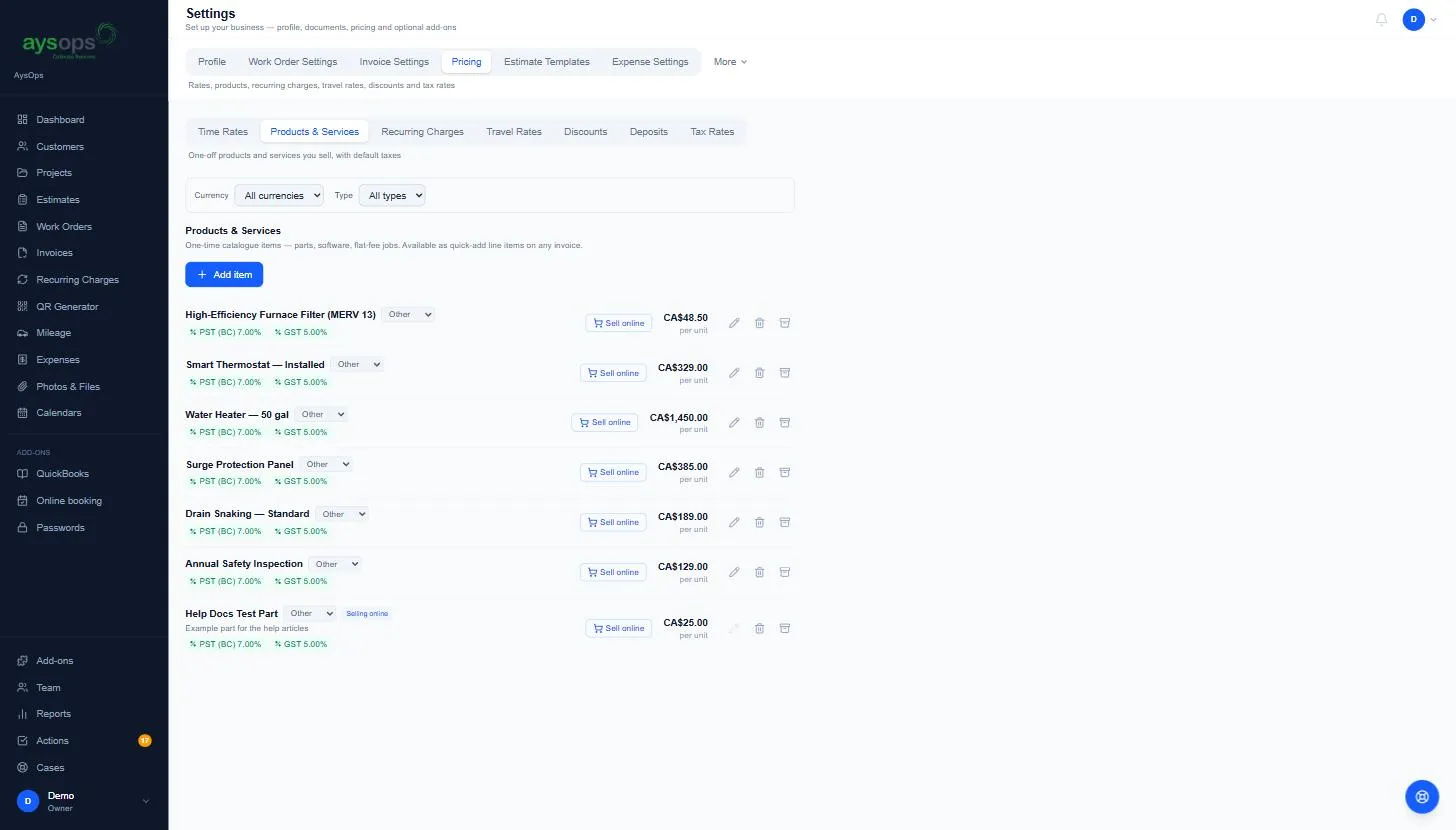
Add an item
Section titled “Add an item”- Click Add item.
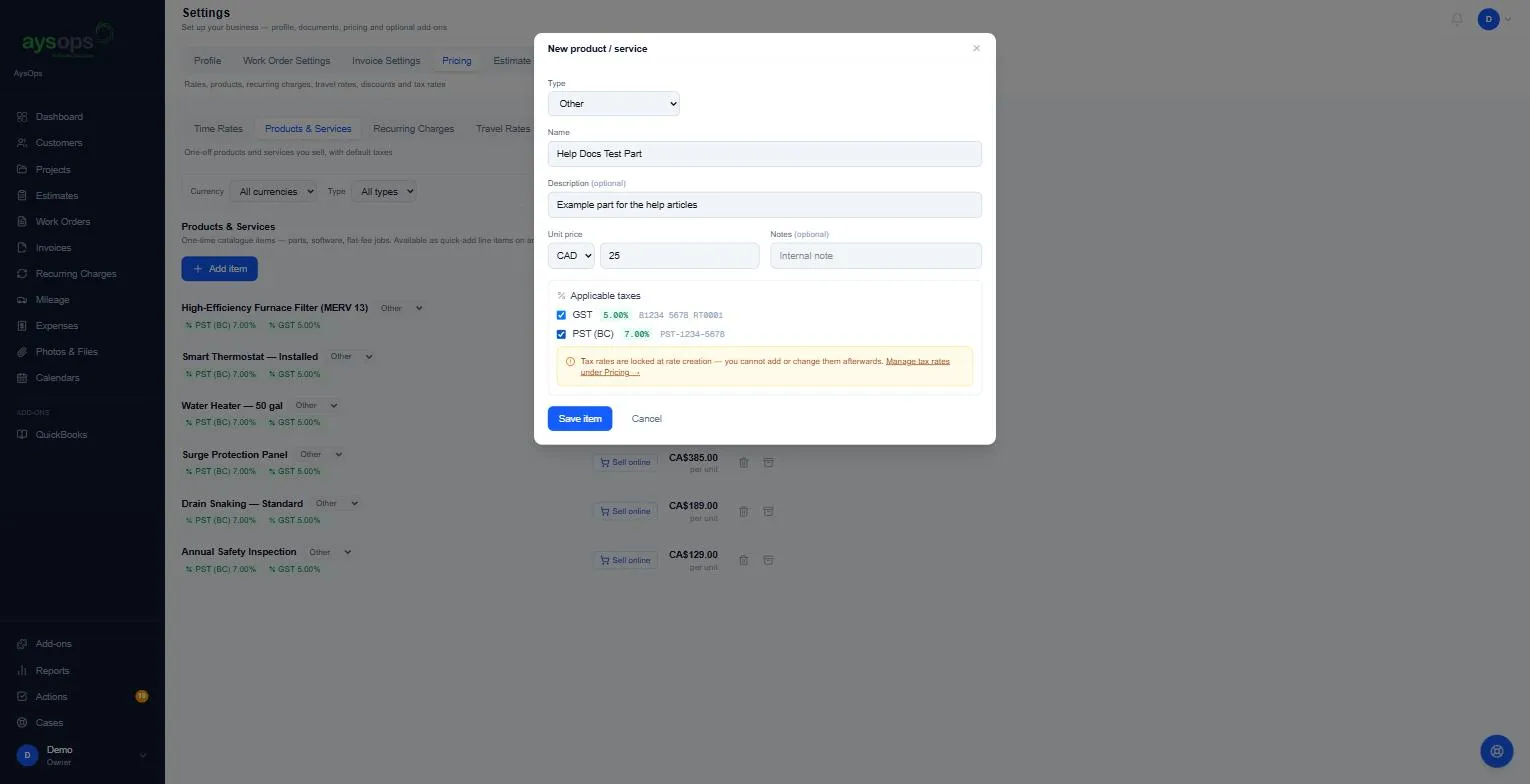
- Fill in:
- Type: Product, Service or Other.
- Name: as it should appear on documents.
- Description (optional): extra detail shown under the name.
- Unit price and its currency (CAD or USD).
- Notes (optional): internal only.
- Applicable taxes: tick the taxes this item charges. You can change them until the item is first used on a document.
- Click Save item.
The item appears in the list with its taxes and price per unit. You can change its Type directly from the list.
Change an item
Section titled “Change an item”Until an item has been used on a document, you can change anything about it:
- Click the pencil on its row.
- Change the Type, Name, Description, Unit price, currency, Notes or Applicable taxes.
- Click Save changes.
Once an item has been used on a document (or bought online), the pencil is greyed out. To change it, archive it (box icon) and add a new one with the new details. Documents that already used the old item keep its old price. You can still change its Type from the list.
Archive or delete an item
Section titled “Archive or delete an item”- Delete (bin icon) only works for an item that has never been used. Otherwise you’ll see “This product/service has been used on documents and cannot be deleted. Archive it instead.”
- An item that’s been bought online, or used to price a group session, also can’t be deleted.
- Archive (box icon) hides it from new documents without losing its history.
Sell an item online
Section titled “Sell an item online”Sell online on an item’s row makes a Buy button for your own website, so customers can pay for it by card. Items being sold this way show a Selling online label. The button is shown to people who can also manage business settings (owners and admins by default). See Sell online with a Buy button on your website.
Prepaid packs
Section titled “Prepaid packs”With the Customer Portal add-on, a Prepaid pack button on each item makes it a pack of hours or group session places that the customer uses later. A pack shows a label such as Prepaid pack: 2 hr or Prepaid pack: 5 places. See Sell prepaid packs of hours or classes.
Items for one customer
Section titled “Items for one customer”Open the customer → Pricing → Products & Services to add items with special pricing for that customer only.
If something goes wrong
Section titled “If something goes wrong”- I need to fix a typo in an item’s name: if it’s never been used, click the pencil and fix it; if it has, archive it and add a corrected one.
- “Someone else changed this while you were editing it”: another person saved the item (or it was just used on a document) while your form was open. Click Reload and try again.
- An item doesn’t appear on a document: it’s in a different currency from the document, or it’s archived.