
Email a customer from AysOps (the Email tab)
What this does
Section titled “What this does”Writes an ordinary email to a customer from inside AysOps, with their files attached if you like. It’s sent from your own email account, so replies come back to you, and it’s recorded on the customer.
Before you start
Section titled “Before you start”- 🔴 You need your own mailbox connected (Settings → More → Email). Until then the tab says Connect your mailbox to write emails here. See Send email from your own address.
- Invoices, estimates and files can still be emailed without a connected mailbox: AysOps sends those for you. Only this tab needs your own account.
- To attach the customer’s files you need access to their files.
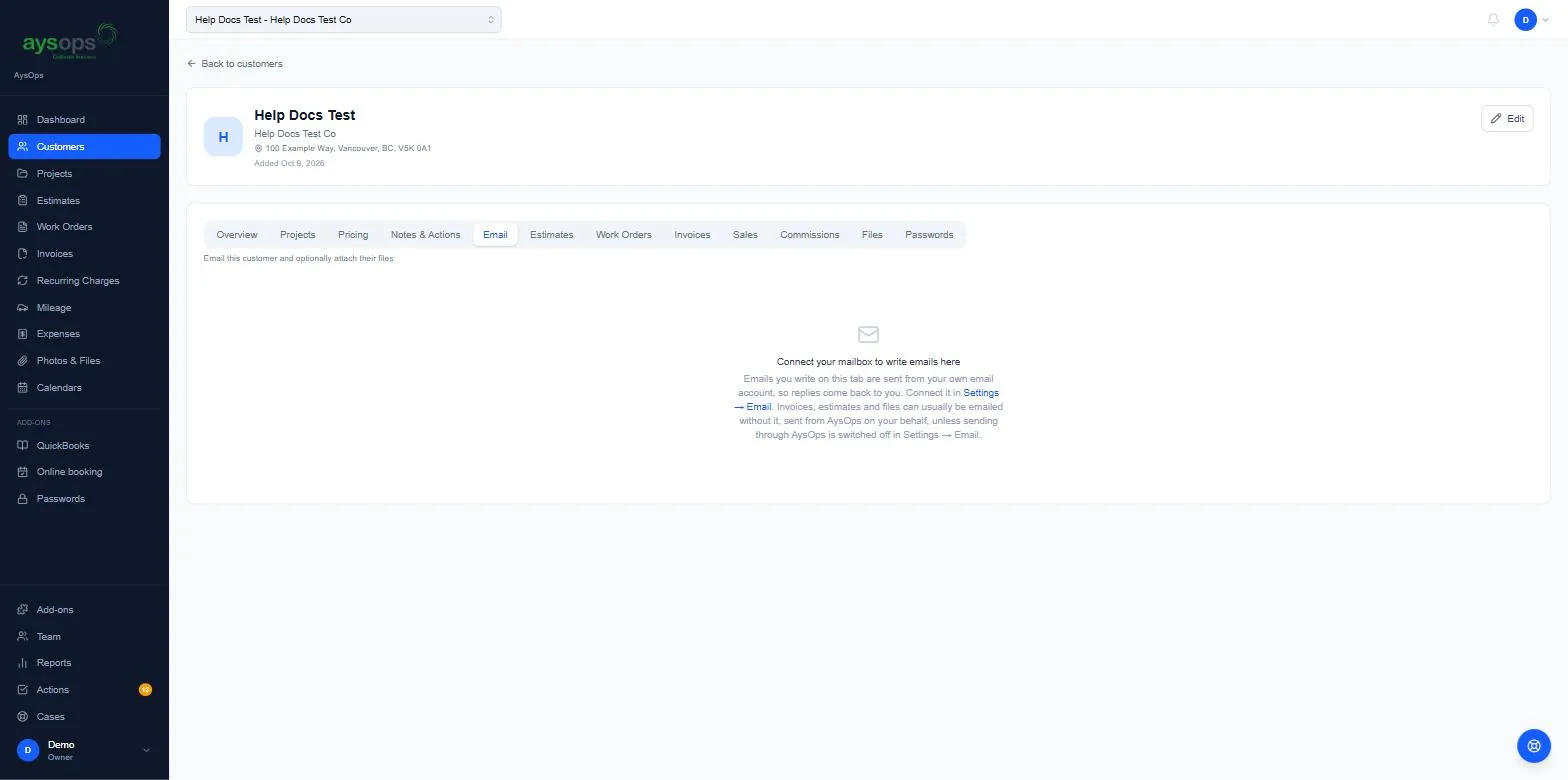
- Open the customer and click the Email tab.
- To: choose who it goes to: one of the customer’s contacts, a vendor, a team member, someone from your Address Book, or type an address. A typed address can be kept with Save to address book.
- Cc (optional): add more people the same way.
- Type the Subject and your Message.
- To attach files, search the customer’s files (Search files to attach…) or upload a new one.
- Click Send email. You’ll see Email sent.
What happens next
Section titled “What happens next”- The email is logged in the customer’s Notes & Actions.
- It counts as contact, so the customer won’t show as quiet. See Quiet customers.
If something goes wrong
Section titled “If something goes wrong”- “Email not configured”: connect your mailbox in Settings → Email.
- “You do not have access to this customer’s files, so they cannot be attached”: send it without attachments, or ask an owner or administrator for file access.
Related articles
Section titled “Related articles”email customer, send email, write email, email tab, compose, attach file, cc, address book, connect your mailbox to write emails here, email history