
Discounts
What this does
Section titled “What this does”Saves discounts you give often (for example “Seniors 10%” or “First-time customer $50 off”) so you can apply them to a line or a whole document in a click, instead of working out the reduction each time.
Before you start
Section titled “Before you start”You need permission to manage rates (owners, admins and managers by default).
- Click your initial or photo → Settings → Pricing → Discounts.
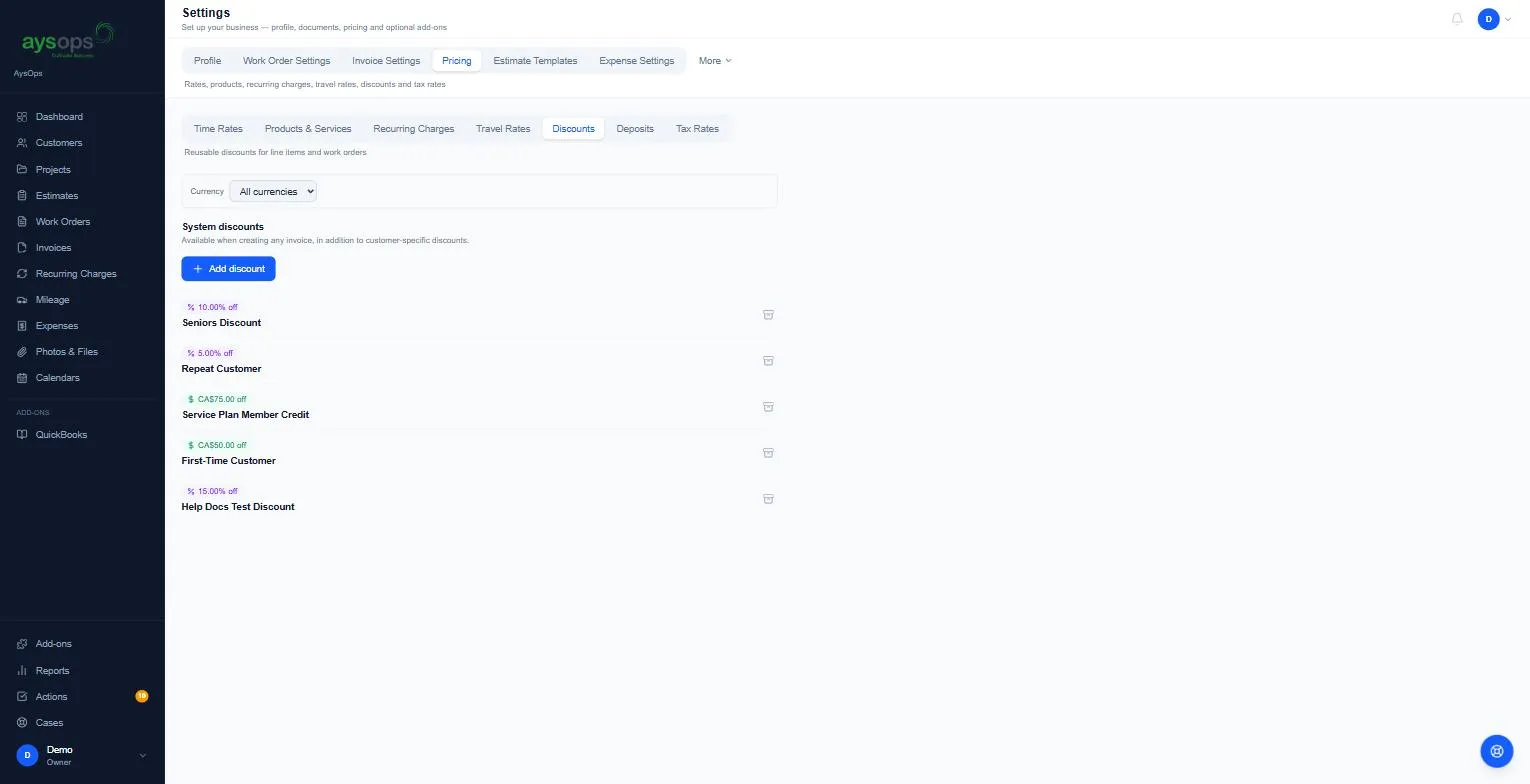
- Click Add discount.
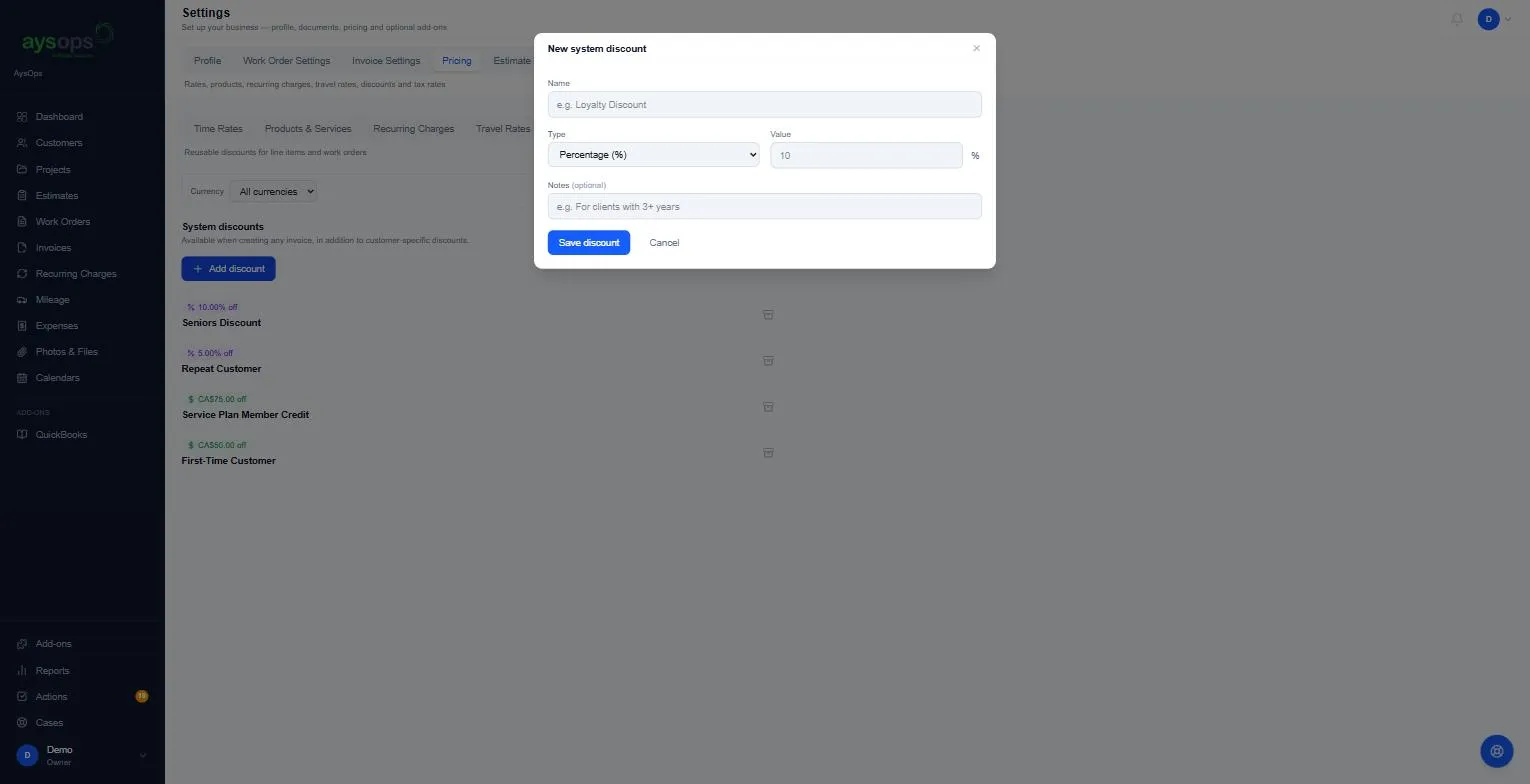
- Fill in:
- Name: for example “Loyalty Discount”.
- Type: Percentage (%) or Fixed amount ($).
- Value: for example 10 (for 10%), or the dollar amount with its currency (CAD or USD). A percentage can’t be more than 100.
- Notes (optional): for example “For clients with 3+ years”.
- Click Save discount.
The discount appears in the list, for example “15.00% off · Help Docs Test Discount”.
Discounts for one customer
Section titled “Discounts for one customer”Open the customer → Pricing → Discounts to add discounts only that customer gets. They’re offered in addition to your system discounts.
Archive or delete a discount
Section titled “Archive or delete a discount”Click the archive icon on a discount, then Archive, to hide it from new documents. Archived discounts are listed under [number] archived below the list, each with Restore and a bin to delete it. A discount that’s been applied to documents can’t be deleted: “This discount has been applied to documents and cannot be deleted. Archive it instead.”
A discount that members get through a membership can’t be deleted either. Open Pricing → Recurring Charges, select Membership on that plan and save without it, then delete it.
An archived discount is no longer offered on new estimates and work orders. Trying to apply one shows “That discount is archived.” Restore it first if you want to use it again.
What happens next
Section titled “What happens next”The discount is offered when you add a discount to a line or a whole estimate or work order. See Add a discount to a document.