
Notes and actions on a customer
What this does
Section titled “What this does”The Notes & Actions tab is the customer’s notebook and history in one place:
- Notes you write for yourself and your team.
- Action items: to-dos for this customer (a task, a phone call or an email), with a due date.
- Calls and contacts you log, which keep the customer from being flagged as quiet.
- The full history of everything done for this customer (created, updated, contacts added, documents sent and so on), added automatically.
Before you start
Section titled “Before you start”You need permission to manage customers to add notes.
- Open the customer and click the Notes & Actions tab.
Add a note
Section titled “Add a note”- Type in Add a note…. You can use bold, italics, headings and lists.
- Optional:
- Important: highlights the note.
- I contacted them: records that you reached out. Choose how (Phone call, In person or Other) and the date in On: (today to start with; you can pick an earlier day if you are logging it late). This is the only kind of note that resets the customer’s “quiet” clock.
- Click Add note.
Add an action item (a to-do)
Section titled “Add an action item (a to-do)”- Type what needs doing, then tick Action item.
- Choose the Type: Task, Phone call or Email, and optionally a Due date. For a Phone call or an Email, pick who in Call: or Email: (the customer or one of their contacts). To use a number or address you don’t have yet, choose Enter a phone number… or Enter an email address…, type it, and use Save to: to keep it on a contact (or leave it on Don’t save to use it for this action only).
- Click Add action (the button changes name when Action item is ticked).
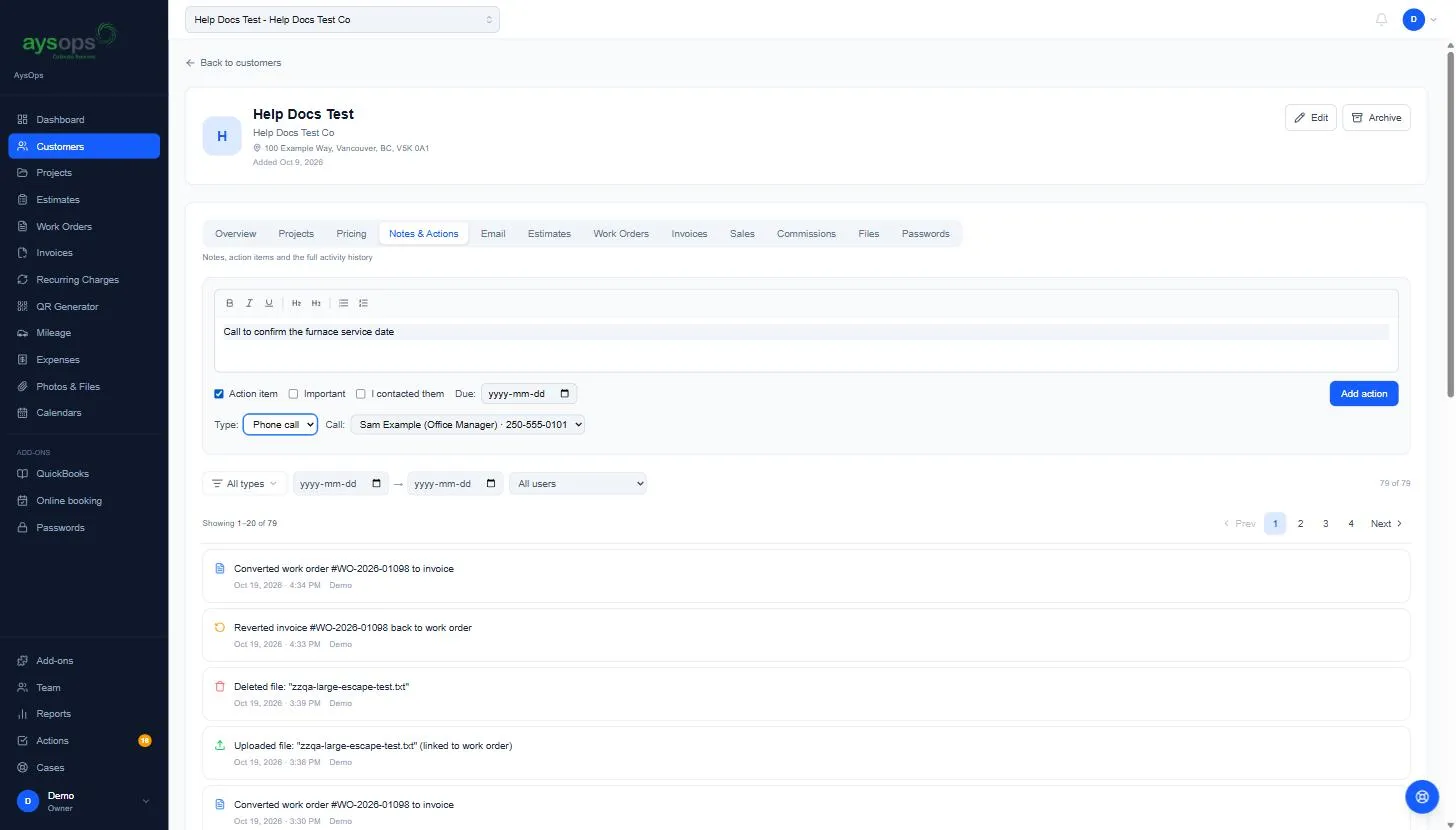
The action item appears in the list with a Mark complete button, and in your to-do list (the Actions count in the menu goes up by one).
Complete an action item
Section titled “Complete an action item”- Click Mark complete on the item. The Complete action window opens.
- Optional: write Details (what happened), and tick Add a follow-up action item if something else needs doing next.
- Click Mark done.
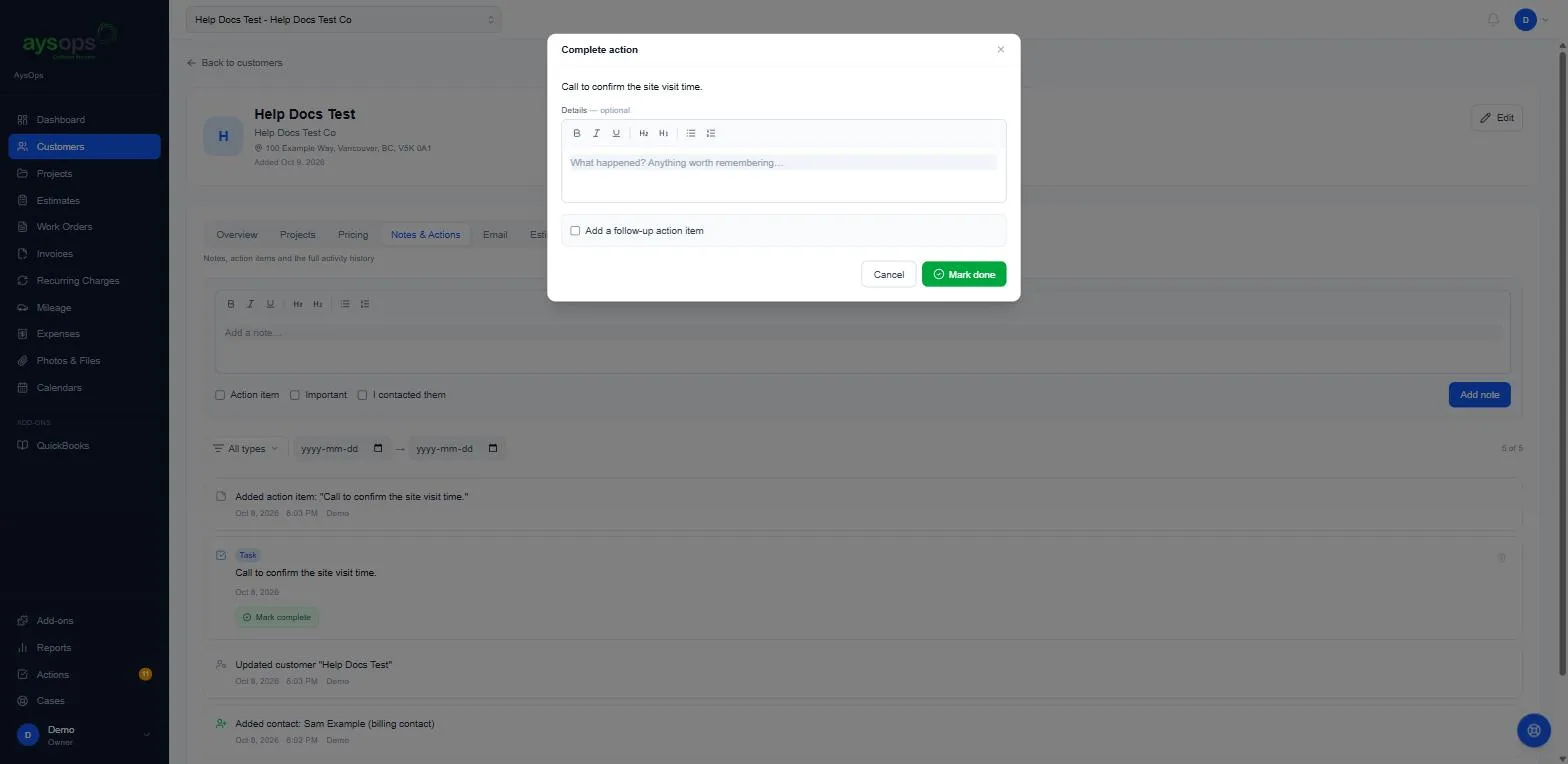
The item is marked Completed, your details are saved as Completion details, and the Actions count goes back down. Click Reopen on a completed item if it isn’t done after all.
Filter the history
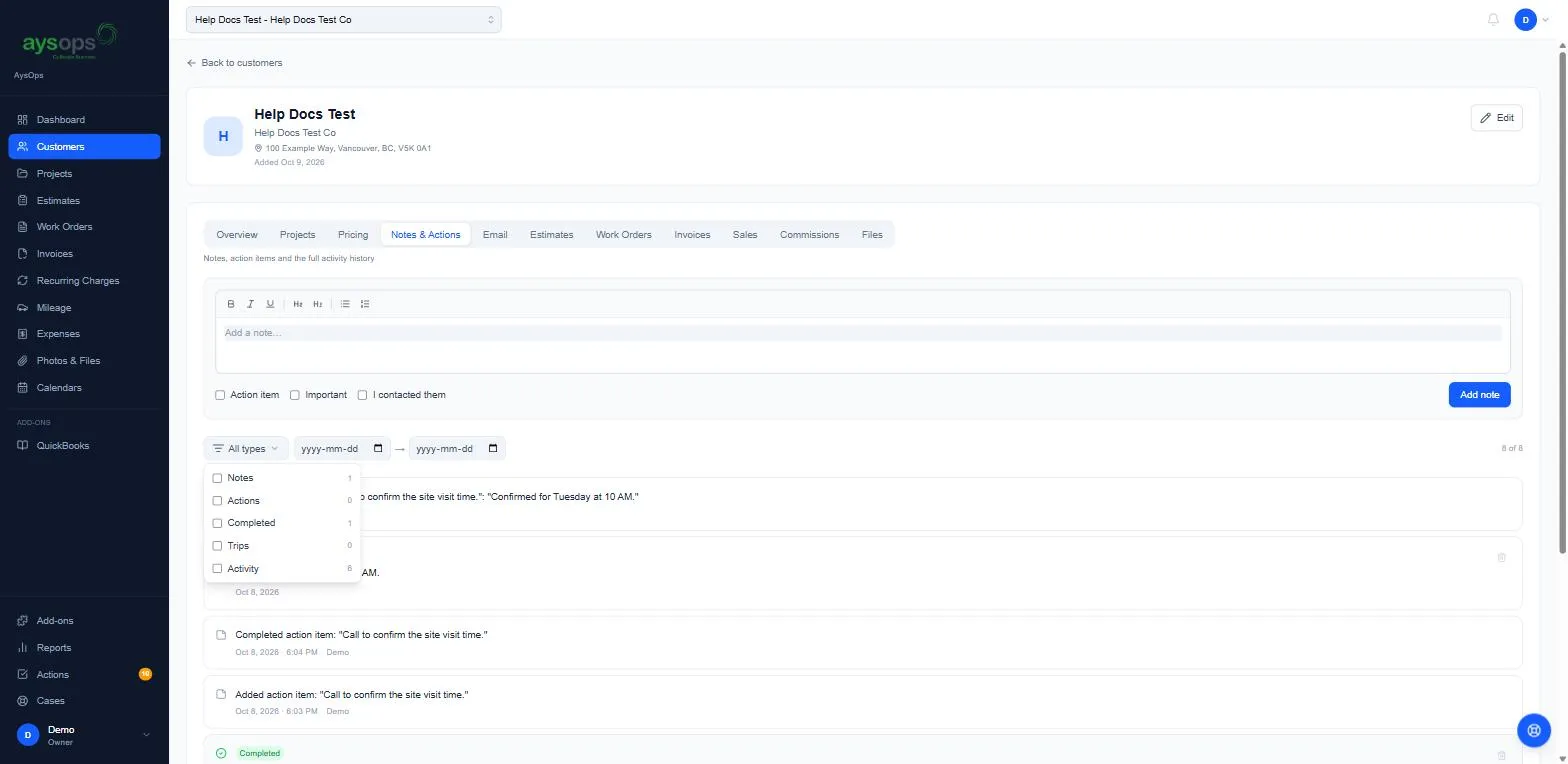
Section titled “Filter the history”- Click All types to show only Notes, Actions, Completed, Trips or Activity (each shows how many there are). Use the two date boxes to show a date range, and All users to show only what one person did.
What happens next
Section titled “What happens next”Everything appears newest first, with the date, time and who did it. The count at the right (for example 79 of 79) shows how many entries match your filter. Twenty show at a time (Showing 1–20 of 79): use Next, Prev or the page numbers to see more.
If something goes wrong
Section titled “If something goes wrong”- The bin icon on a note or action deletes it.
Related articles
Section titled “Related articles”- Your to-do list
- Tour of a customer’s page
- Edit a customer (the “quiet” setting)
Entries from the Customer Portal
Section titled “Entries from the Customer Portal”If you have the Customer Portal, the customer’s own actions appear here too: signing in, changing their details or an address, turning class reminders on or off, and asking for a copy of their data or to be erased. So do the times someone on your team switched their portal access off or back on.