
Collect a deposit on a work order
What this does
Section titled “What this does”Sends the customer a separate deposit invoice for part of the job (for example 25%), and tracks it until it’s paid. The paid deposit is then taken off the final invoice.
Before you start
Section titled “Before you start”- Requesting and marking deposits needs permission to manage invoices (owners, admins and managers by default).
- The work order needs a deposit. It comes across automatically from an estimate that had one (see Request a deposit on an estimate), or add one with Add line item → Deposit.
1. Request the deposit
Section titled “1. Request the deposit”- Open the work order. The deposit box shows the amount and Deposit required.
- Click Request Deposit (orange button).
- The box asks “Request the deposit for WO-… who should it go to?”. Under Bill to, choose the customer or another bill-to.
- Click Send deposit request.
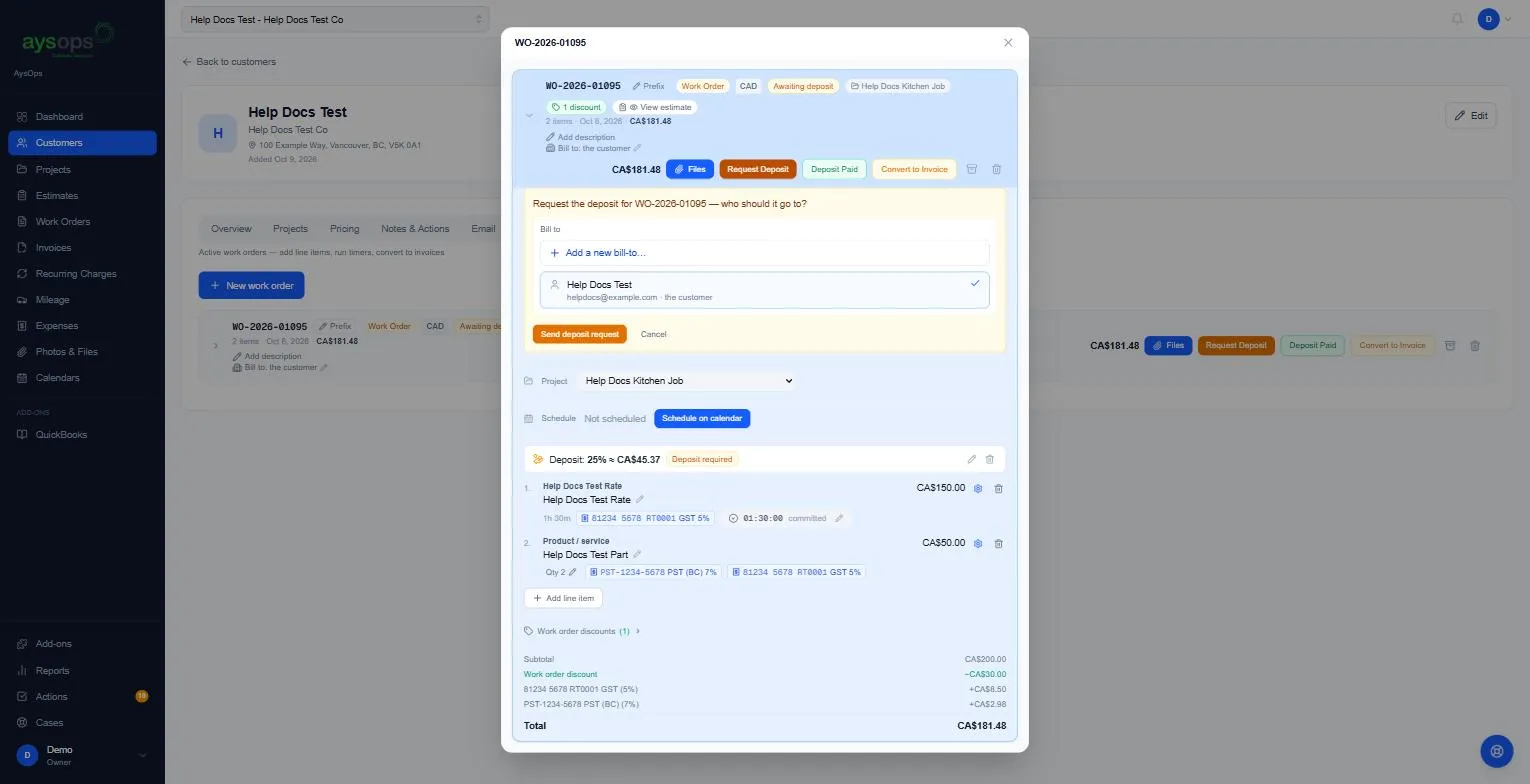
The Send to box shows where the deposit invoice goes: the customer’s billing contact when they have one, otherwise their own email (or the payer). You can pick another of their addresses for this send only.
The customer is emailed a deposit invoice numbered like WO-2026-01095-deposit, and the work order changes to Deposit requested after a few seconds. A customer with no email of their own can still be sent the request when they have a billing contact.
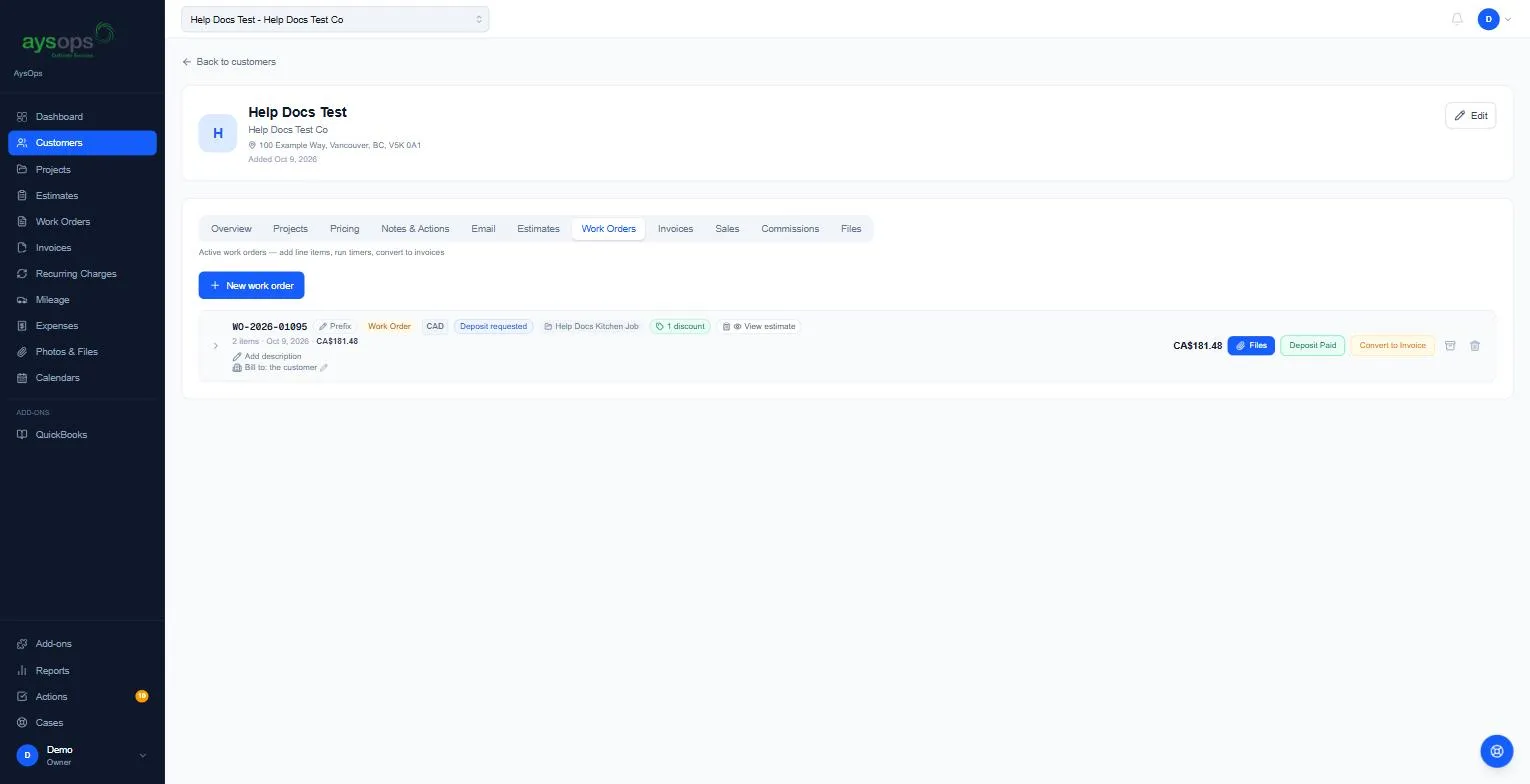
2. Record the deposit when it’s paid
Section titled “2. Record the deposit when it’s paid”- If the customer pays online (with AysOps Payments With Stripe), it’s recorded for you.
- If they pay another way (e-Transfer, cash, cheque), open the customer’s Invoices tab, find the -deposit invoice and click Record Payment. See Record a payment. This keeps the real payment method.
- The Deposit Paid button on the work order is a shortcut: it records the rest of the deposit as paid with the method Other. Use Record Payment instead if you want the method recorded.
- If the customer paid before you sent a request (for example cash at the first visit), click Deposit Paid on the work order without requesting first. AysOps creates the -deposit invoice for you, without emailing it, and records the payment on it, so the money shows in your payments and reports.
What happens next
Section titled “What happens next”The work order shows Deposit paid, and Convert to Invoice becomes available. When you convert, the final invoice includes a Deposit paid line that takes the deposit off. That line is never taxed: the deposit is money already received, so its tax picker is replaced by “The deposit is money already received, so it is not taxed.” See Convert a work order to an invoice.
If something goes wrong
Section titled “If something goes wrong”- Convert to Invoice is greyed out: the deposit isn’t paid yet. Hover over it: “Collect or mark the deposit paid before converting this work order to an invoice.”
- “The deposit invoice has not been sent yet. Re-send the deposit request, then mark it paid.”: request the deposit first.
- The work order still says Deposit required after I sent the request: the screen hasn’t caught up. Reload the page before sending again.