
Set up Online Booking (your booking page and services)
What this does
Section titled “What this does”Online Booking gives your business a booking page where customers pick a service and a free time, and the appointment lands on your calendar. There’s one page for the whole business, where customers choose who they’d like to see, and a personal page for each team member.
Before you start
Section titled “Before you start”- Turn on the Online Booking add-on. See Add-ons explained.
- 🔴 Set your working hours first. Customers only see times inside the hours you’ve set, and with no hours set the booking page says “Nothing available this month” every month. See Set your working hours.
- Prices come from your time rates (Settings → Pricing). Create the rate first if you want a service to have a price.
1. Open the Online booking page
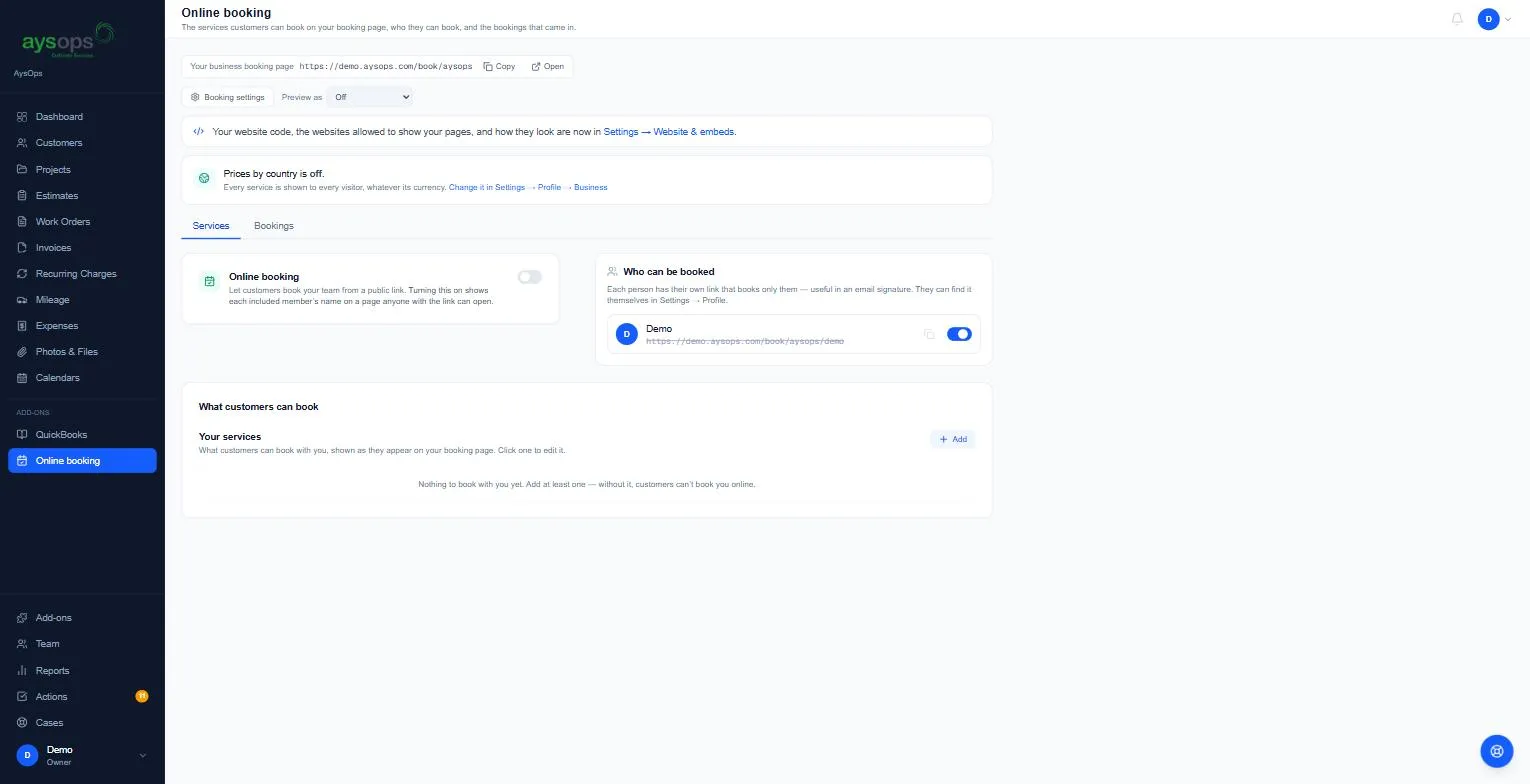
Section titled “1. Open the Online booking page”Click Online booking in the left menu, under Add-ons. At the top there’s a Booking settings button for the rules (see Booking rules). Your booking page’s link is in the Online booking card below, with Copy, Open and its QR code.
2. Add what customers can book
Section titled “2. Add what customers can book”- Under What customers can book, click Add.
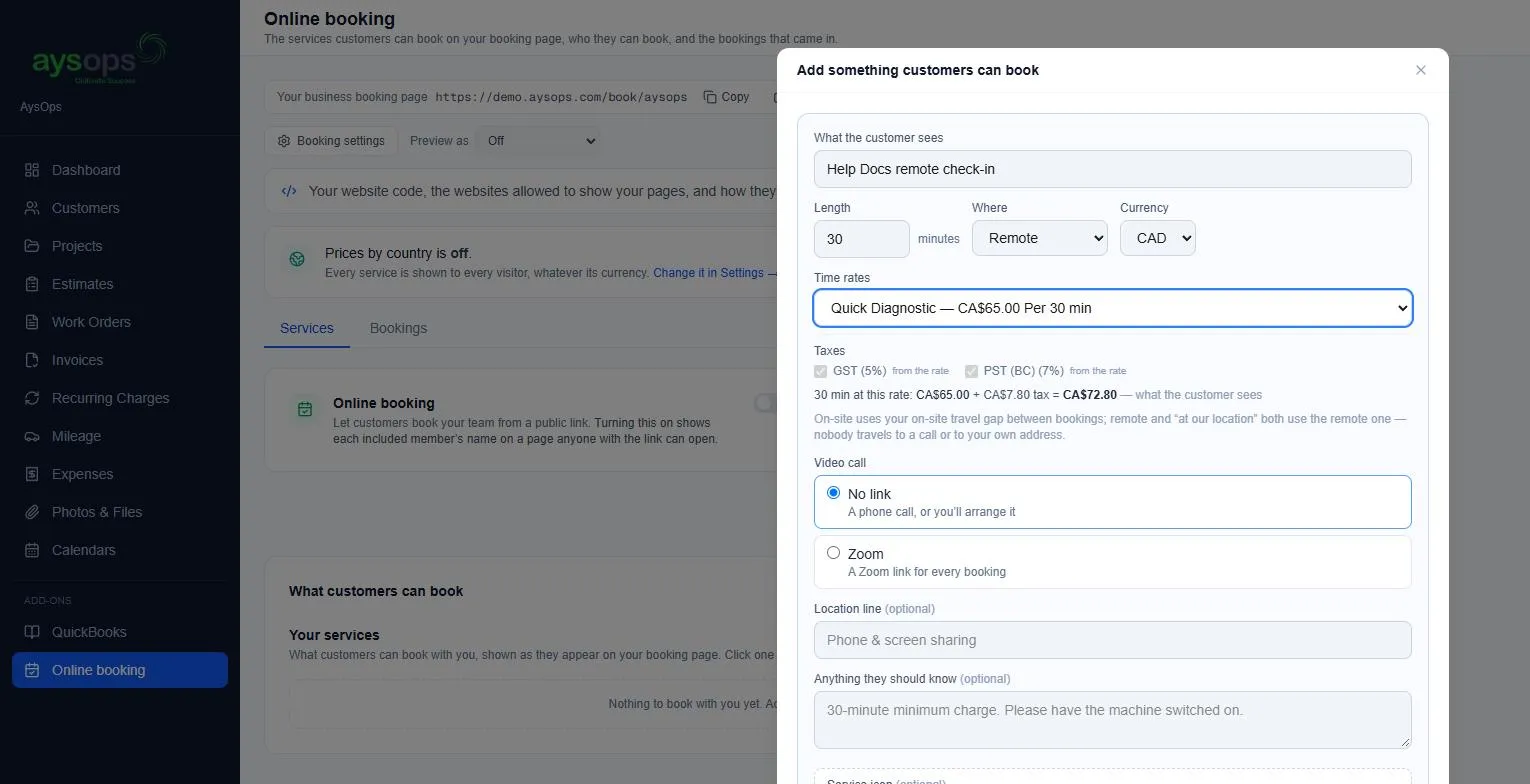
- Fill in:
- What the customer sees: the name of the service, for example “Remote support”.
- Length: in minutes.
- Where: Remote (a call), On-site (you go to them) or At our location (they come to you).
- Currency: CAD or USD.
- Time rates: the price. Choose Nothing: Book for Free ($0) for a free appointment, or one of your time rates. The taxes from the rate are shown, with the total the customer sees (for example “30 min at this rate: CA$65.00 + CA$7.80 tax = CA$72.80”).
- Video call (remote services): No link, or Zoom / Google Meet / Microsoft Teams if you have that add-on, so every booking gets a meeting link.
- Location line and Anything they should know (both optional): shown on the booking page.
- Click Save. A Service icon box opens: pick an icon (Repairs, Computer, Phone call and so on) or upload your own picture, then click Save icon.
A service with a price can also ask for a deposit or full payment when people book. See Take payment when customers book.
3. Switch booking on
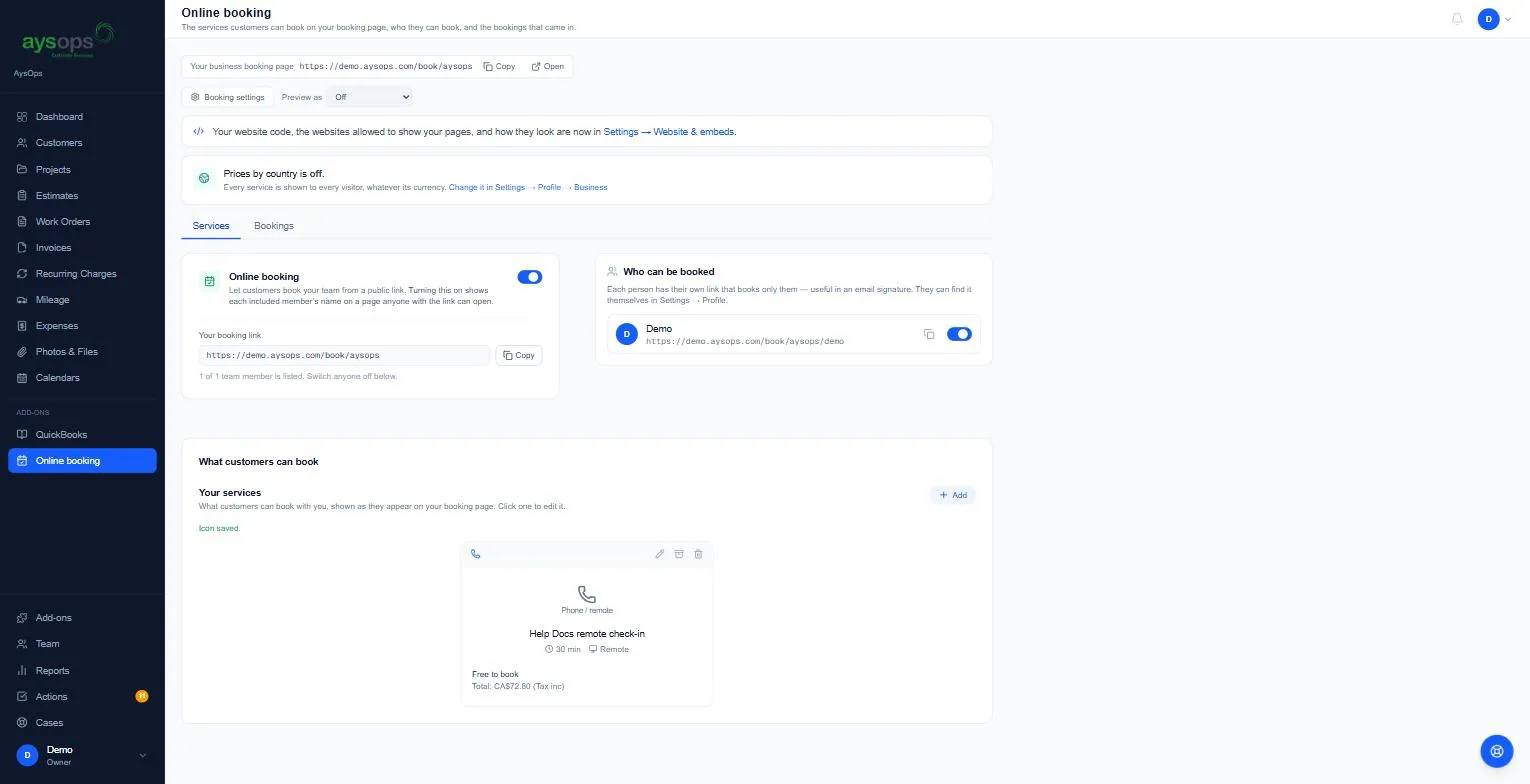
Section titled “3. Switch booking on”- Turn on the Online booking switch. Your booking link appears with Copy, Open and a QR code to download for flyers and cards. See QR codes for your booking links.
- Under Who can be booked, each team member has a switch and their own link. Switch off anyone customers shouldn’t book. Each person’s link books only them, which is handy in an email signature.
4. Check it as a customer
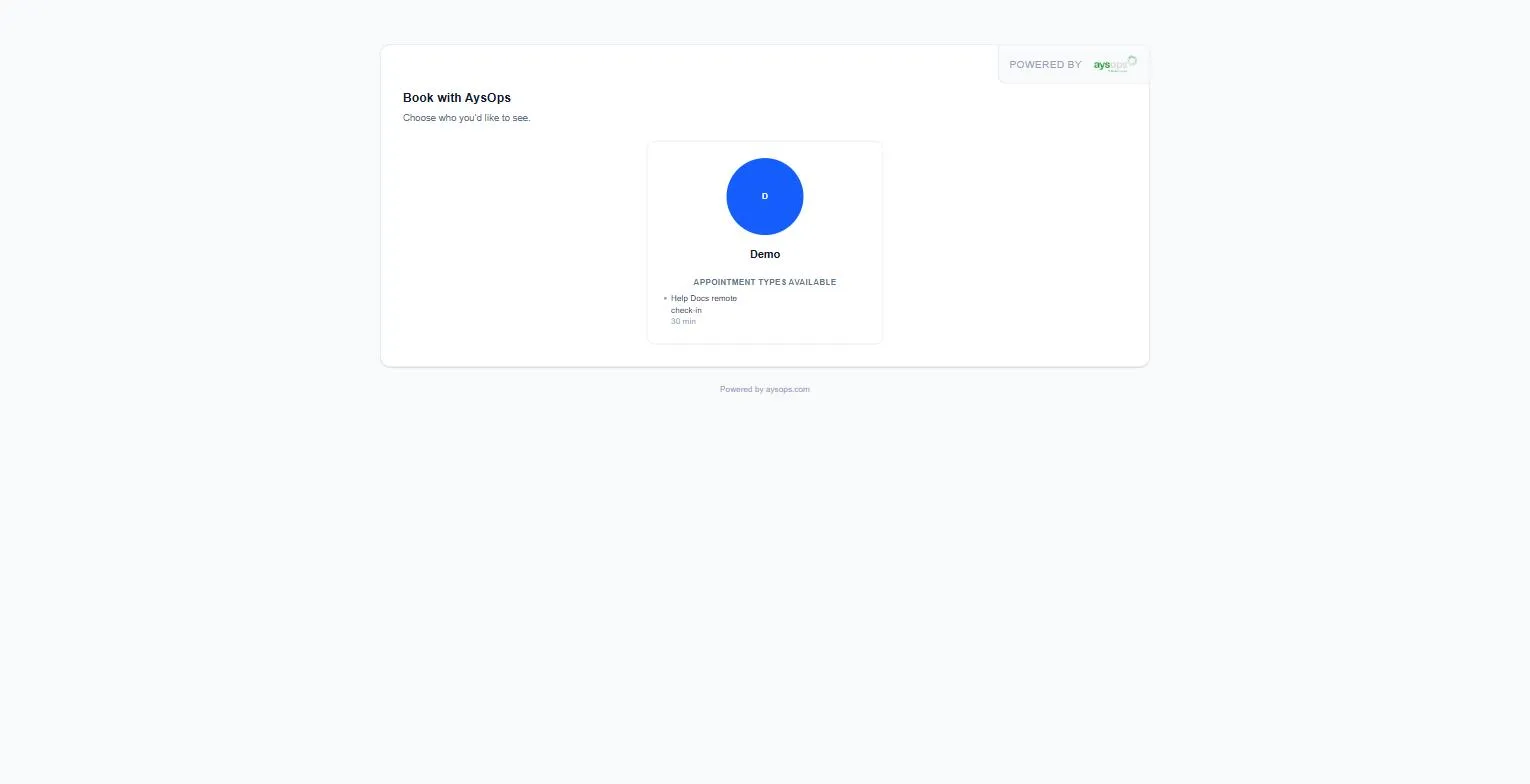
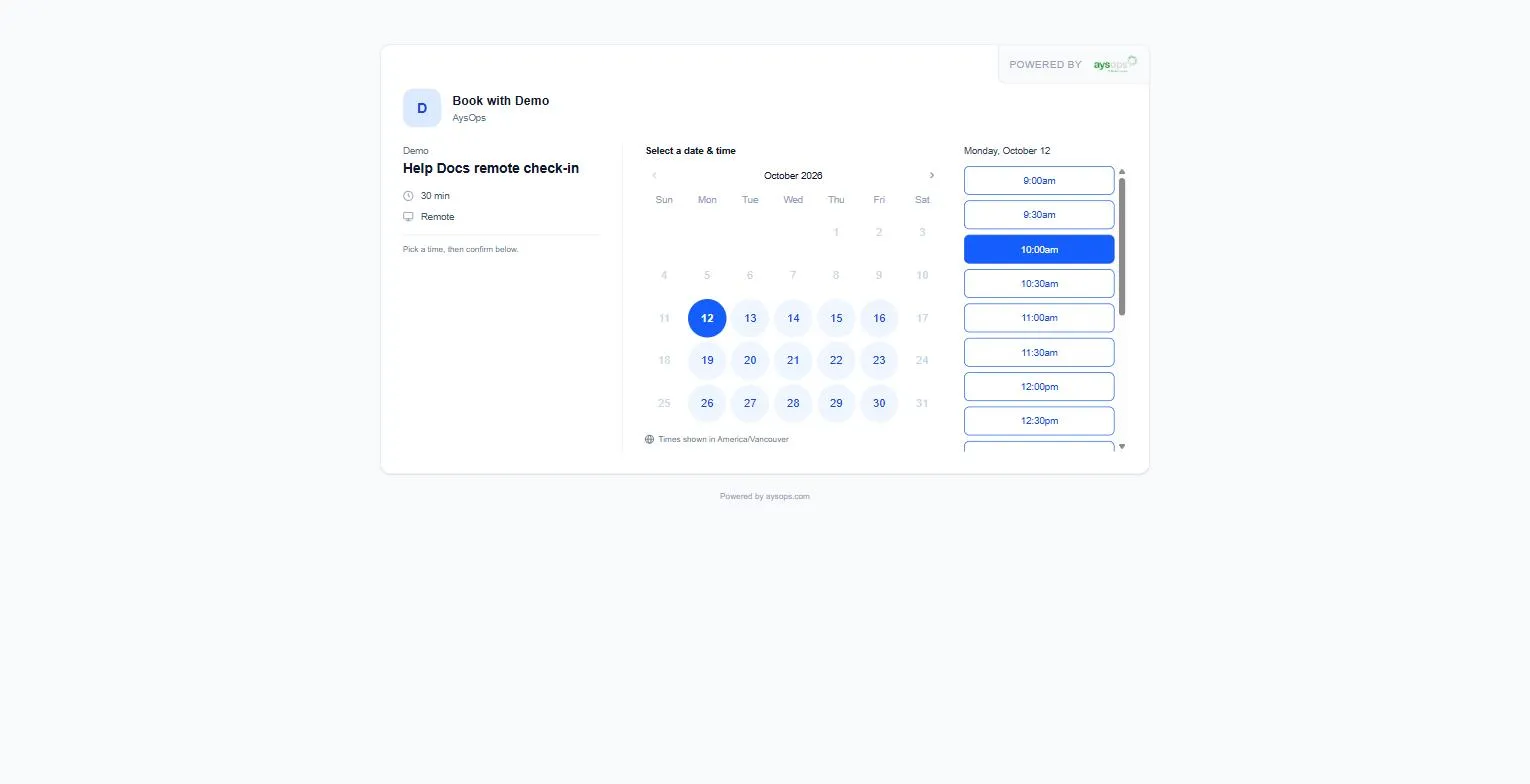
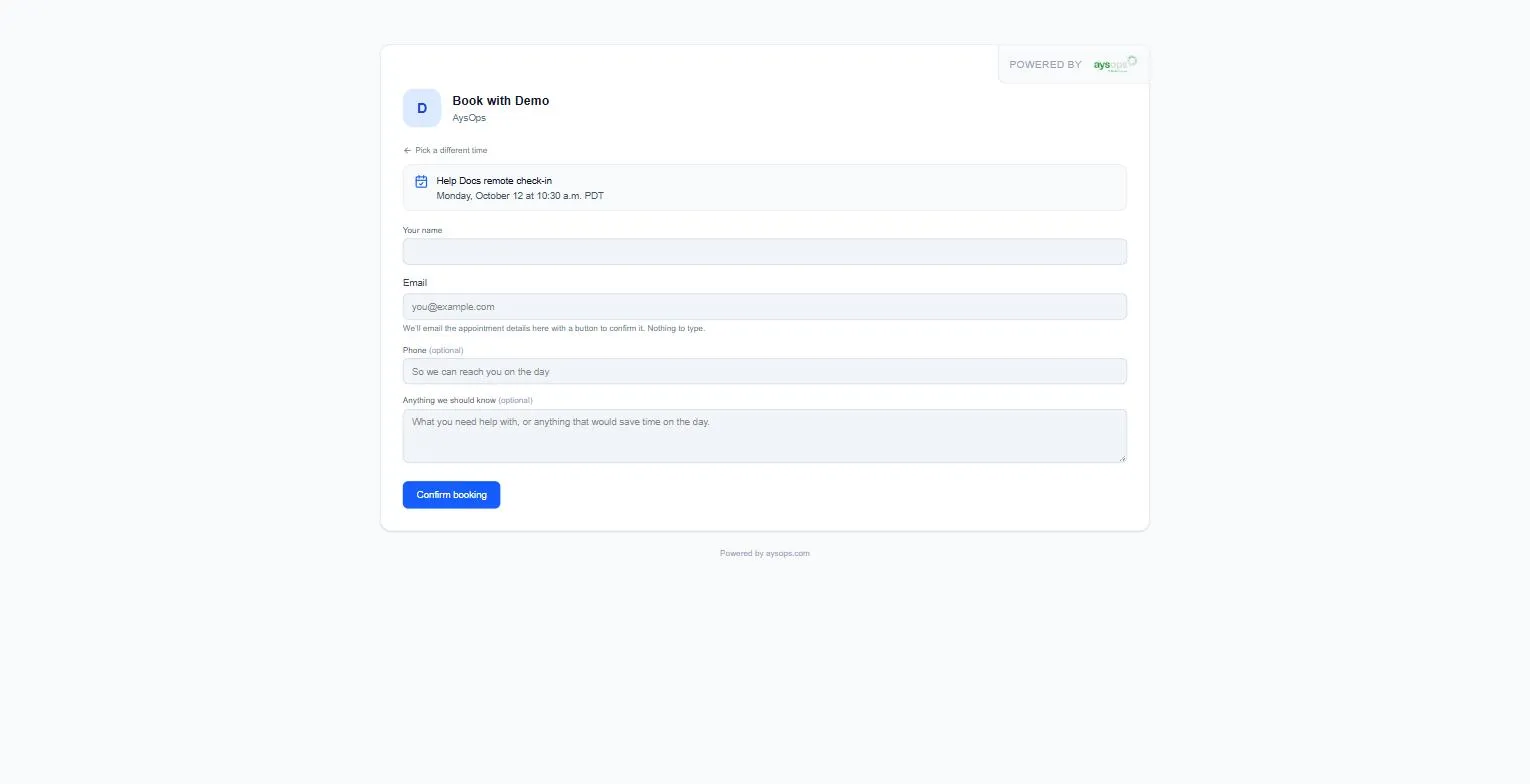
Section titled “4. Check it as a customer”Click Open next to your business booking page. Customers choose a person, then a service, then a day and time (shown in your time zone), then press Continue and fill in their details. See Online bookings and confirmations for what happens next.
Change, archive or delete a service
Section titled “Change, archive or delete a service”On the service’s card:
- Edit (pencil): change any of the details.
- Archive (box): hides it from customers and keeps past bookings readable. Archived services are listed separately with Restore.
- Delete (bin): only shown while the service has never been booked. Once someone has booked it, archive it instead.
Prices by country
Section titled “Prices by country”If you sell in both CAD and USD, Prices by country (Settings → Profile → Business) shows Canadian visitors your CAD services and everyone else your USD ones. Use Preview as (Canada / Outside Canada) on the Online booking page to see what each group sees.
If something goes wrong
Section titled “If something goes wrong”- “Nothing available this month” on every month: no working hours are set for that person (or for the business). Set them in your profile. Also check Least notice you need and Book up to in Booking rules.
- The booking page says the link isn’t available: the Online booking switch is off, or everyone is switched off under Who can be booked.
- A service is missing from the page: it’s archived, or nobody who offers it is switched on.
Related articles
Section titled “Related articles”- Booking rules
- Online bookings and confirmations
- Take payment when customers book
- Show booking on your website
- Set your working hours