
Convert an estimate to a work order
What this does
Section titled “What this does”Turns an approved quote into a work order (the job you’ll do and later invoice), copying every line, tax, discount and deposit so you don’t type anything twice.
Before you start
Section titled “Before you start”- The estimate must be Approved, either by the customer online or by you with Approved → Mark approved. A draft or sent quote can’t be converted: “Only approved estimates can be converted to work orders.”
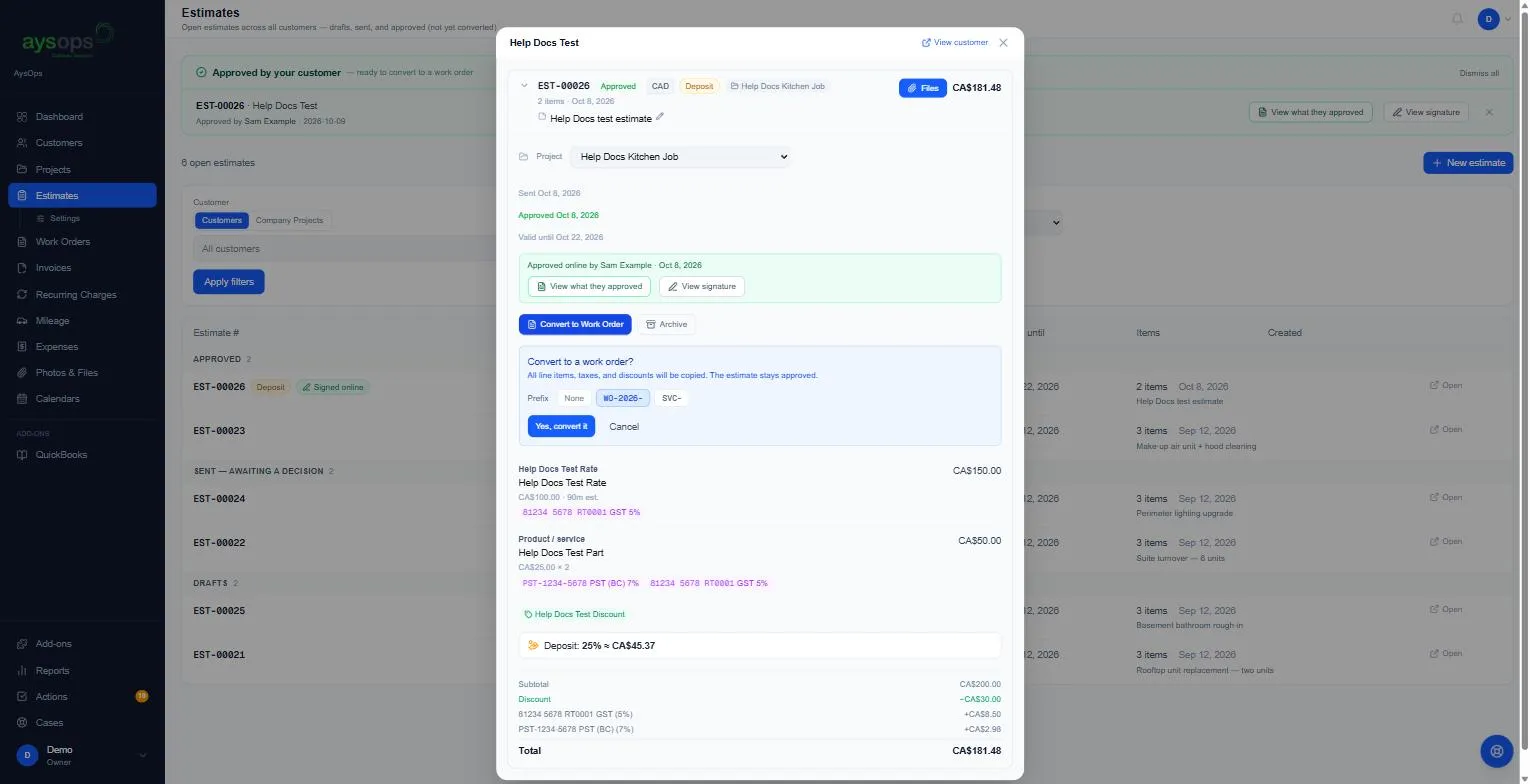
- Open the approved estimate and click Convert to Work Order.
- A box asks “Convert to a work order?” and explains that all line items, taxes and discounts will be copied and the estimate stays approved.
- Under Prefix, choose how the work order is numbered: None or one of your prefixes (for example WO-2026- or SVC-). Your prefixes are set in Settings → Work Order Settings.
- Click Yes, convert it.
What happens next
Section titled “What happens next”- A new work order is created for the same customer and project, for example WO-2026-01095, with the same lines, taxes, discount and deposit.
- The estimate leaves the open estimates list.
- When you convert from the customer’s page, their Work Orders tab opens with the new work order, ready to work on. When you convert from the Estimates list, the popup closes and the work order is under Work Orders in the left menu (and on the customer’s page).
Optional extras and files
Section titled “Optional extras and files”- Only the optional extras the customer chose are copied to the work order. The ones they did not choose stay on the estimate as a record of what was offered.
- Files sent with the estimate come with it, shown under Files sent with this work order as From the estimate.
Related articles
Section titled “Related articles”convert estimate, convert quote, estimate to work order, quote to job, start the job, approved quote, work order from estimate, prefix