
Photos & Files: your file library
What this does
Section titled “What this does”Photos & Files is one place for every file in your company: photos from job sites, receipts, documents, saved reports, and the files attached to each customer. Upload a file here first and decide later where it belongs, or find any file without remembering which customer it’s on.
Before you start
Section titled “Before you start”Everyone can see files by default. Uploading, assigning, editing and deleting need the Upload, email & delete files permission. Files count towards your file storage.
Upload files
Section titled “Upload files”- Click Photos & Files in the left menu.
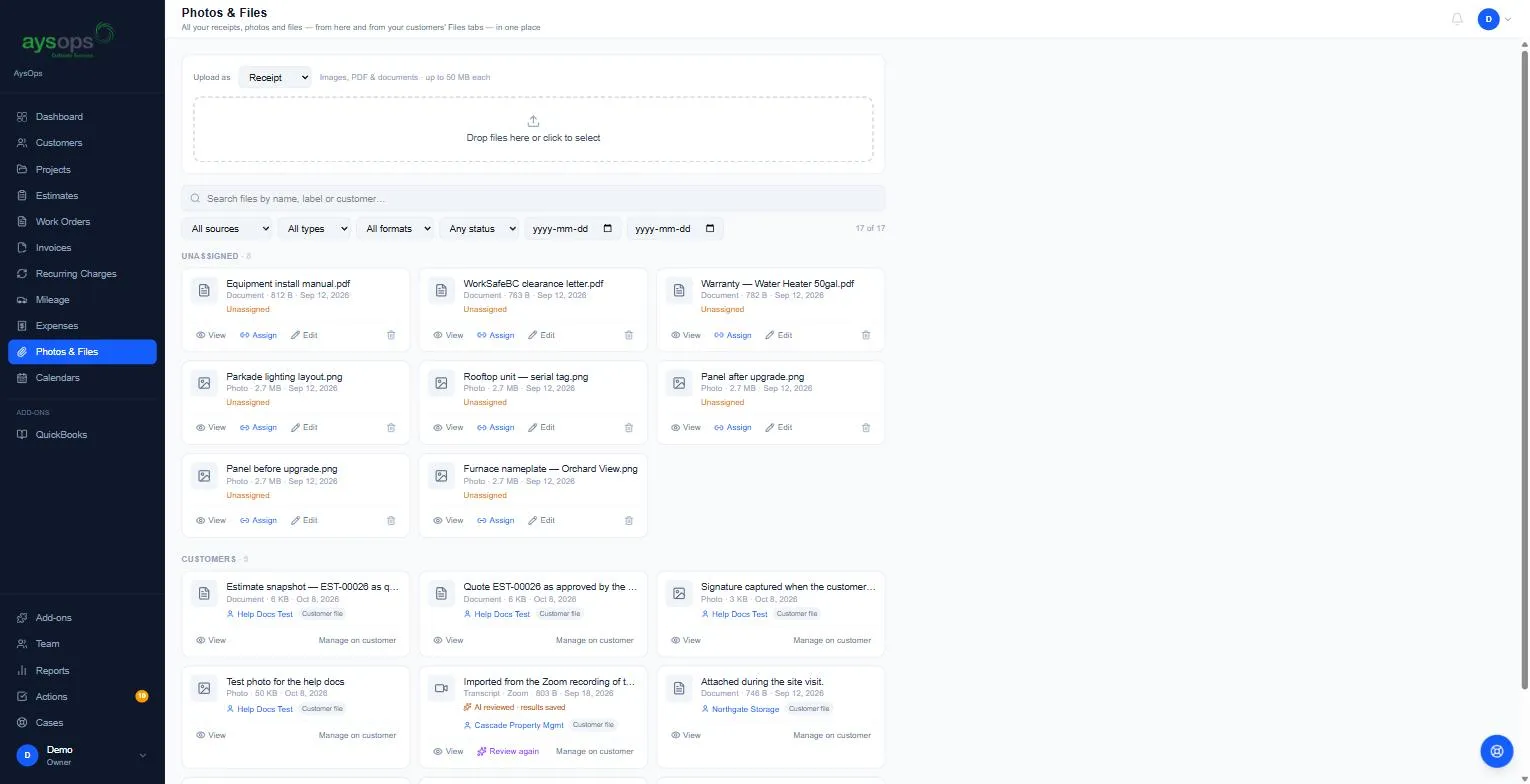
- Upload as starts on Automatic (by file type): pictures are saved as Photo and everything else as Document. To save them as something else, pick Receipt, Photo, Document, Report or Other first; that type is used for every file in the upload. (Receipts for expenses are usually added from Expenses, which saves them as receipts.)
- Drag files onto Drop files here or click to select, or click it to choose files. Images, PDFs and documents up to 50 MB each are accepted.
- New uploads appear under Unassigned.
On a phone, you can also add photos from any page: tap + in the middle of the bar along the bottom, then Take a photo (opens your camera) or Choose photos (pick one or more). They’re saved as photos under Unassigned. See Use AysOps on your phone or tablet.
Assign a file to where it belongs
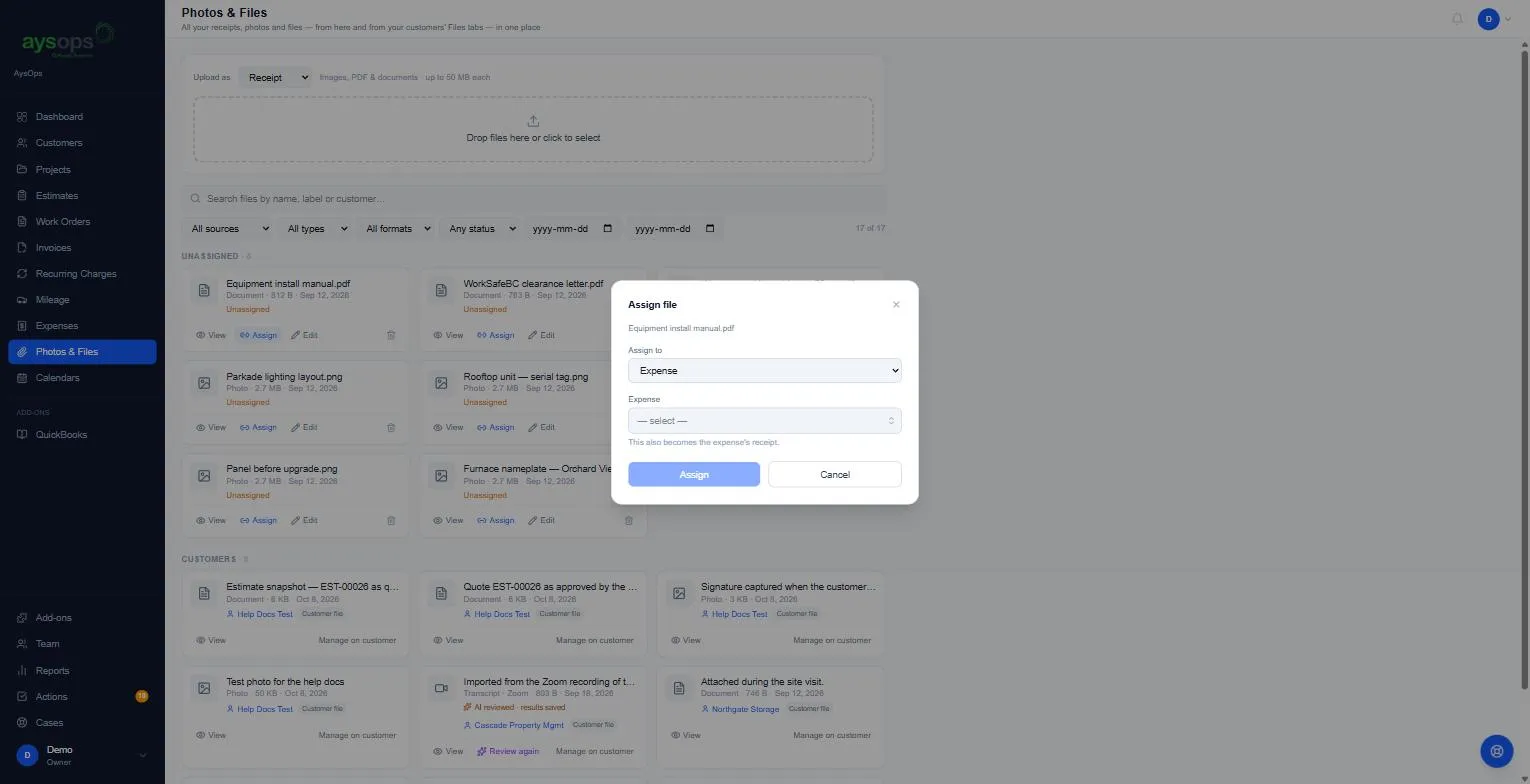
Section titled “Assign a file to where it belongs”- On an unassigned file, click Assign.
- In Assign to, choose Expense, Customer, Company project or Vehicle, then pick
which one.
- Expense: the file also becomes that expense’s receipt.
- Customer: you can also pick a Project or work order (optional). Leave it as Just the customer and the file goes on the customer’s Files tab.
- Click Assign. The file moves to that place and shows as Assigned.
Find a file
Section titled “Find a file”Type in Search files by name, label or customer…, or use the filters:
- All sources / My library / Customer files: your library, or files already on customers.
- All types: Receipt, Photo, Document, Report, Other or Transcript (imported meeting notes).
- All formats: Images, PDF or Documents.
- Any status / Unassigned / Assigned.
Files are grouped as Unassigned and Customers. Click View to open any file.
Rename or delete a file
Section titled “Rename or delete a file”- Edit opens the type and a Label (optional) box (the title shown on the card) right on the file’s card. Click Save, or Cancel.
- Unassign (on an assigned library file) puts it back under Unassigned.
- To delete, click the bin on the file (the last icon, after Edit). “Delete [file name]? This can’t be undone.” appears: click Delete. It frees up storage.
- Files that are already on a customer show Manage on customer: open the customer’s Files tab to change or delete them there.
On a phone, the search box stays at the top and the other filters fold behind Filters: tap Show to open them.
If something goes wrong
Section titled “If something goes wrong”- The upload is refused: the file is over 50 MB, is a type AysOps doesn’t accept (such as a program file), or your storage is full.
- I don’t see Upload, Assign or delete: you don’t have permission to manage files. Ask an owner or administrator.