
Deposit presets
What this does
Section titled “What this does”Saves the deposits you usually ask for (for example “25% up front” or “$500 parts deposit”) so you can add one to an estimate or work order in a click.
Before you start
Section titled “Before you start”Only owners and admins can add, archive or delete deposit presets, even when someone else has permission to manage rates. Everyone else who can see Pricing sees the presets, without the Add deposit preset button.
- Click your initial or photo → Settings → Pricing → Deposits.
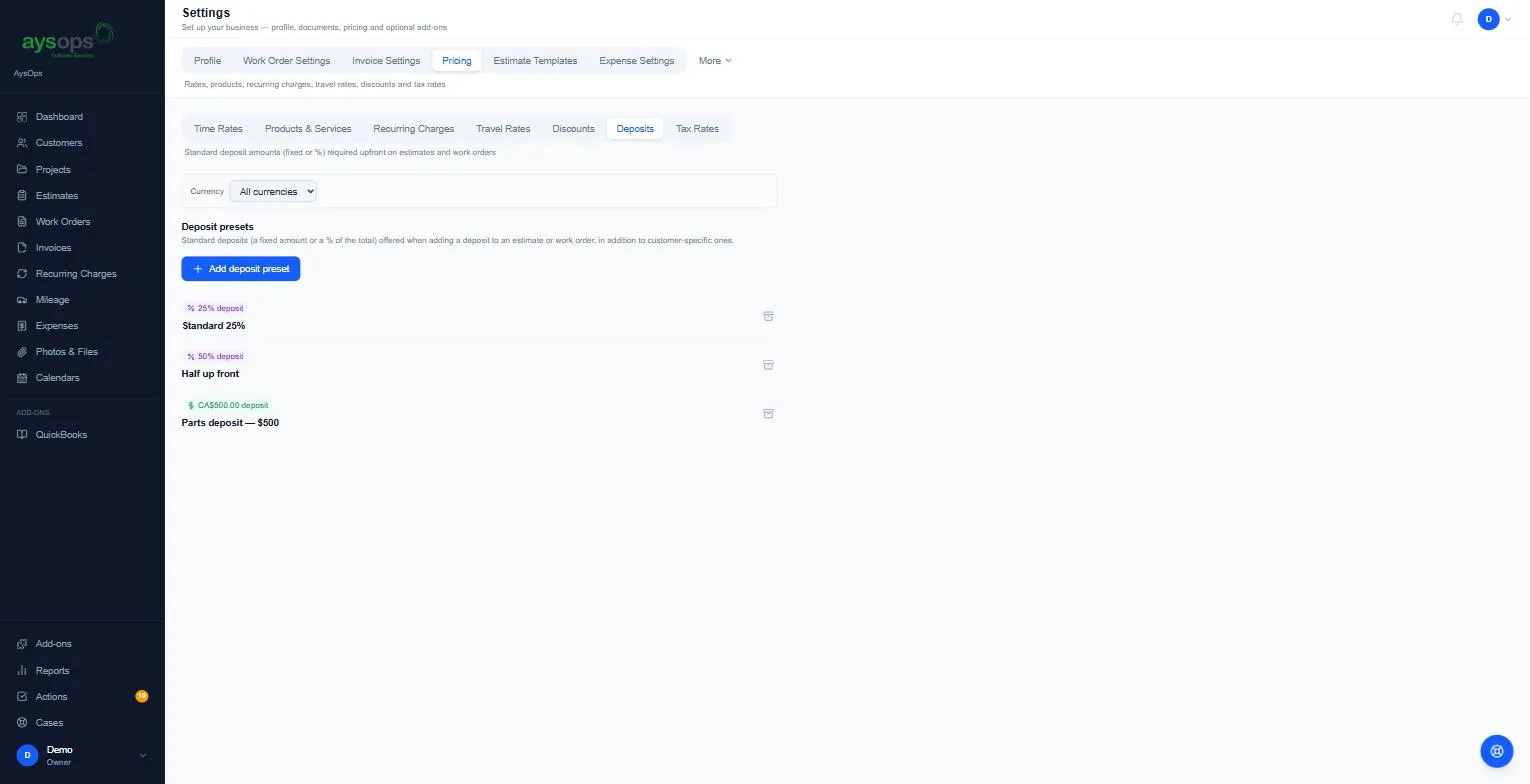
- Click Add deposit preset.
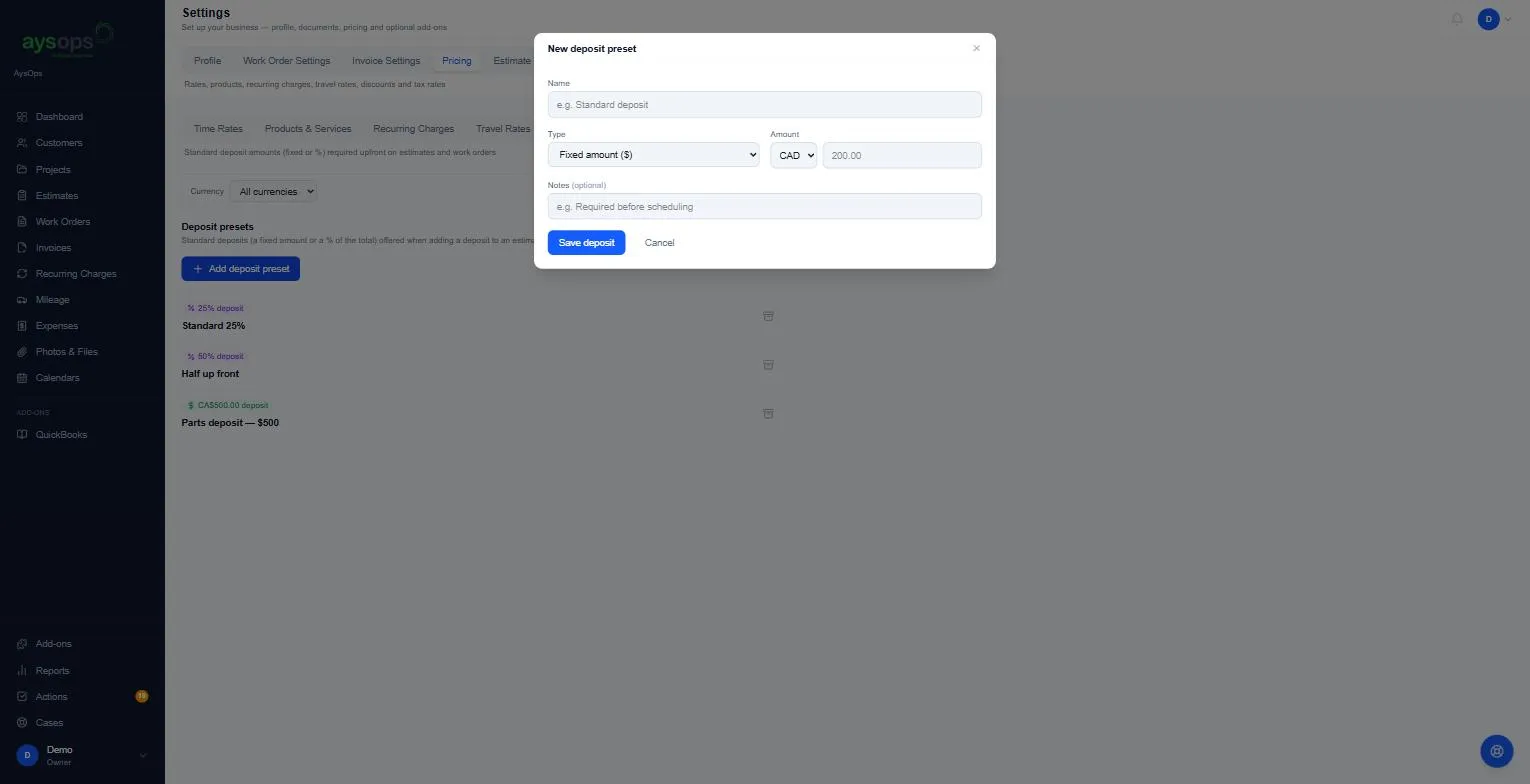
- Fill in:
- Name: for example “Standard deposit” or “Half up front”.
- Type: Fixed amount ($) or Percentage (%) of the document’s total.
- Amount (for a fixed amount, with its currency, CAD or USD) or Percent.
- Notes (optional): for example “Required before scheduling”.
- Click Save deposit.
Deposits for one customer
Section titled “Deposits for one customer”Open the customer → Pricing → Deposits to add presets for that customer only.
Archive, restore or delete a preset
Section titled “Archive, restore or delete a preset”Click the archive icon on a preset, then Archive, to hide it. Archived presets are listed under [number] archived below the list, each with Restore and a bin to delete it. Deleting only works for a preset that’s never been used: “This deposit preset has been used on a document and can only be archived, not deleted.”
What happens next
Section titled “What happens next”Your presets are offered when you add a deposit to an estimate or work order. See Request a deposit.