
Work orders explained
What this does
Section titled “What this does”A work order is a job in progress. You log your time and add parts and charges to it while you work, then convert it to an invoice when the job is done. Nothing goes to the customer until you send that invoice.
The usual path is: estimate (optional) → work order → invoice → payment.
Where to find them
Section titled “Where to find them”- Click Work Orders in the left menu to see the open work orders for all customers.
- Open a customer and click their Work Orders tab to see only theirs.
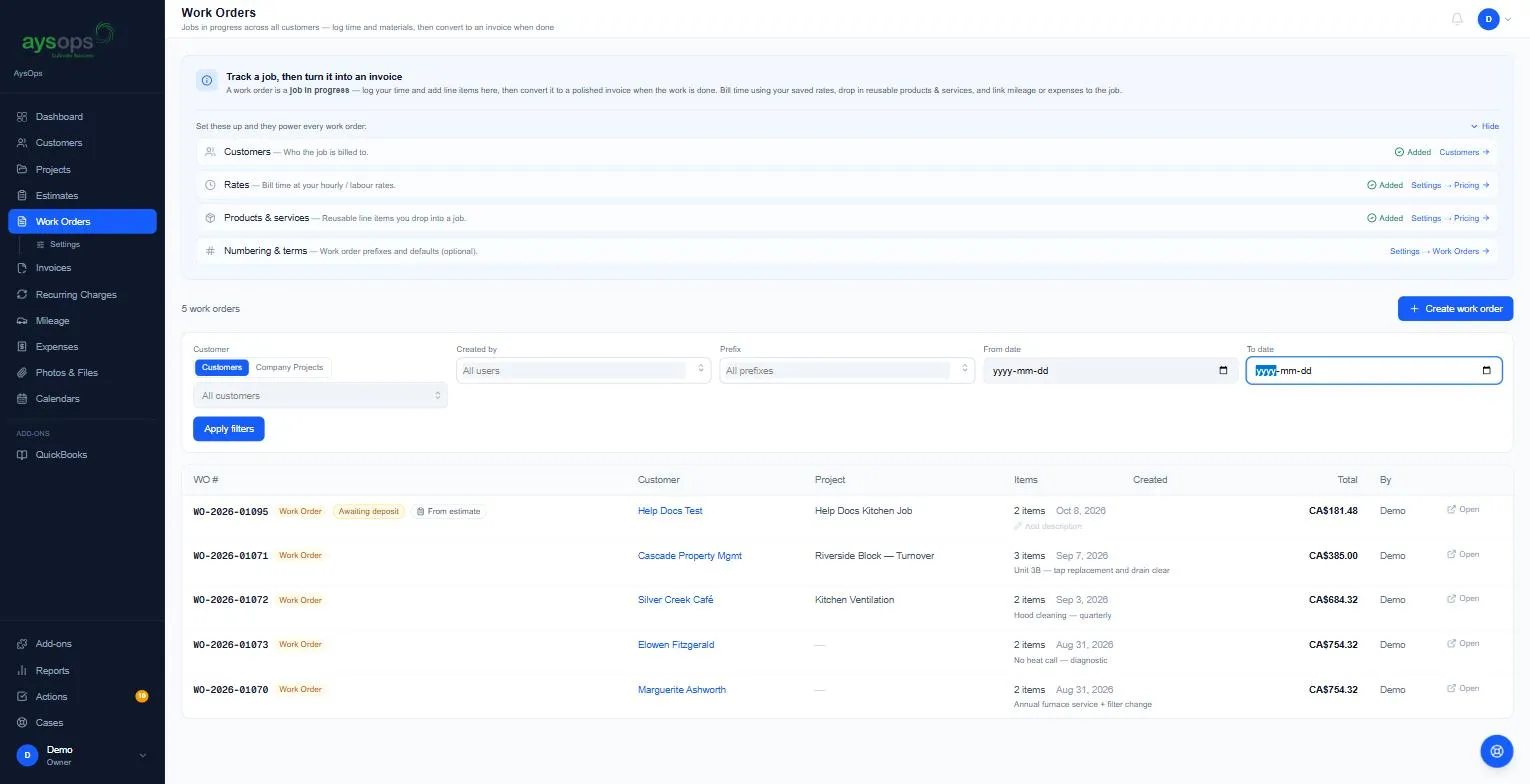
The list shows each work order’s number, customer, project, number of items, date, total and who created it. Click Open to work on it.
Filters: choose Customers or Company Projects, then a customer, Created by, Prefix, and a From date / To date. Click Apply filters.
On a phone or a tablet, each work order is a card with its number, customer, description, date, number of items and total. Tap a card to open it. The filters are folded away: tap Filters to show them. The button to start one is Create.
“Set these up and they power every work order”
Section titled ““Set these up and they power every work order””At the top of the page, click Show to see a short checklist: Customers, Rates, Products & services and Numbering & terms, each with Added once it’s done and a link to set it up.
Labels you’ll see on a work order
Section titled “Labels you’ll see on a work order”| Label | Means |
|---|---|
| Work Order | Still a job in progress (not yet an invoice). |
| From estimate / View estimate | It was converted from an approved estimate. Click to see the estimate. |
| Deposit required / Awaiting deposit | A deposit is set but not requested yet. |
| Deposit requested | The deposit invoice was emailed to the customer. |
| Deposit paid | The deposit has been received. |
| Timer running | A timer is counting on one of its lines. |
| 1 discount | A discount is applied. |
Made with AI
Section titled “Made with AI”If the estimate a work order came from was built with AI (from a worksheet or a conversation), you’ll see Made with AI from [file] with View the review history (every step, question and change) and Download review (PDF). It’s a record of how the prices were worked out. See Create an estimate from a worksheet.
Files sent to the customer
Section titled “Files sent to the customer”Files sent with this work order holds files that go to the customer with the invoice email, such as a warranty sheet. A work order made from an estimate already has the estimate’s files there, marked From the estimate. Your own job files stay under Files and are never sent.