
Tour of a customer's page
What this does
Section titled “What this does”Explains the page you see when you open a customer: everything you hold for that customer, in tabs.
- Click Customers in the menu, then click a customer’s name.
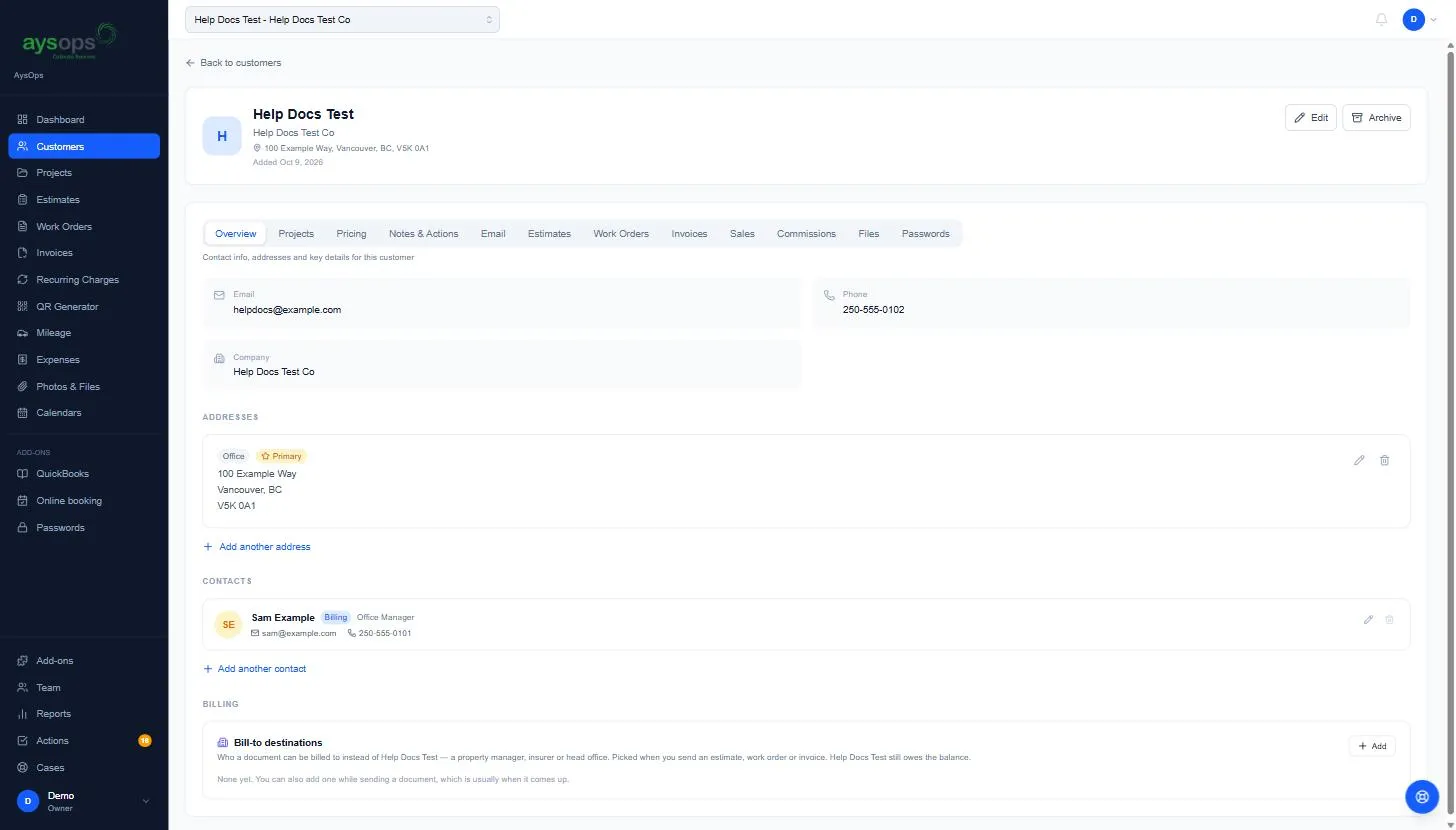
At the top
Section titled “At the top”- A customer picker (top left) shows the current customer. Use it to jump straight to another customer without going back to the list.
- The customer’s name, company, primary address and the date they were added.
- Edit (top right): change their details. See Edit a customer.
- Archive (beside Edit): put away a customer you no longer work with. An archived customer shows a note at the top of their page and a Restore button instead. See Archive a customer.
- Back to customers returns to the list.
On a phone, Edit and Archive sit under the customer’s name.
“Needs linking”
Section titled ““Needs linking””When someone books and pays online, or sends a request from your website, using an email address one of your existing customers already has, AysOps doesn’t add it to that customer by itself (anyone can type anyone’s email). It keeps it on a record of its own, with a yellow Needs linking box at the top of the page. Pick the customer it really is and click Link to this customer: the booking (its appointment, work order and payment) or the request moves onto that customer and the extra record is removed. If it really is someone new, click This is a new customer. Only people who can manage customers can decide.
The tabs
Section titled “The tabs”| Tab | What’s in it |
|---|---|
| Overview | Contact info, addresses, contacts and bill-to destinations. |
| Projects | The customer’s projects. |
| Pricing | Rates and prices for this customer only. See Prices for one customer. |
| Notes & Actions | Your notes, to-dos for this customer, and the full history of what happened. See Notes and actions. |
| Write an email to this customer from your own mailbox. See Email a customer. | |
| Estimates | The customer’s estimates. |
| Work Orders | The customer’s work orders. |
| Invoices | The customer’s invoices. |
| Sales | Direct sales recorded without an invoice, such as daily totals. See Record a direct sale. |
| Commissions | Commission income from this customer, with deductions. See Commissions. |
| Files | Files and photos kept for this customer. See Customer files. |
| Passwords | Logins and passwords kept for this customer. Only with the Password Vault add-on. See Password Vault. |
The line under the tabs describes the tab you’re on. You only see the tabs your role allows.
Related articles
Section titled “Related articles”- Add a customer
- Edit a customer
- Add a contact to a customer
- Bill-to destinations
- Notes and actions
- Archive a customer