
Log a trip (and bill it to a customer)
What this does
Section titled “What this does”Records a drive for your mileage and tax records, with the distance worked out for you. Mark it billable and the travel charge is added to the customer’s work order at your travel rate.
Before you start
Section titled “Before you start”- At least one vehicle. See Add a vehicle.
- To bill it: a travel rate and an open work order for that customer in the same currency.
- Staff and Limited members see and log only their own trips.
- Click Mileage in the left menu. Log a trip is on the page.
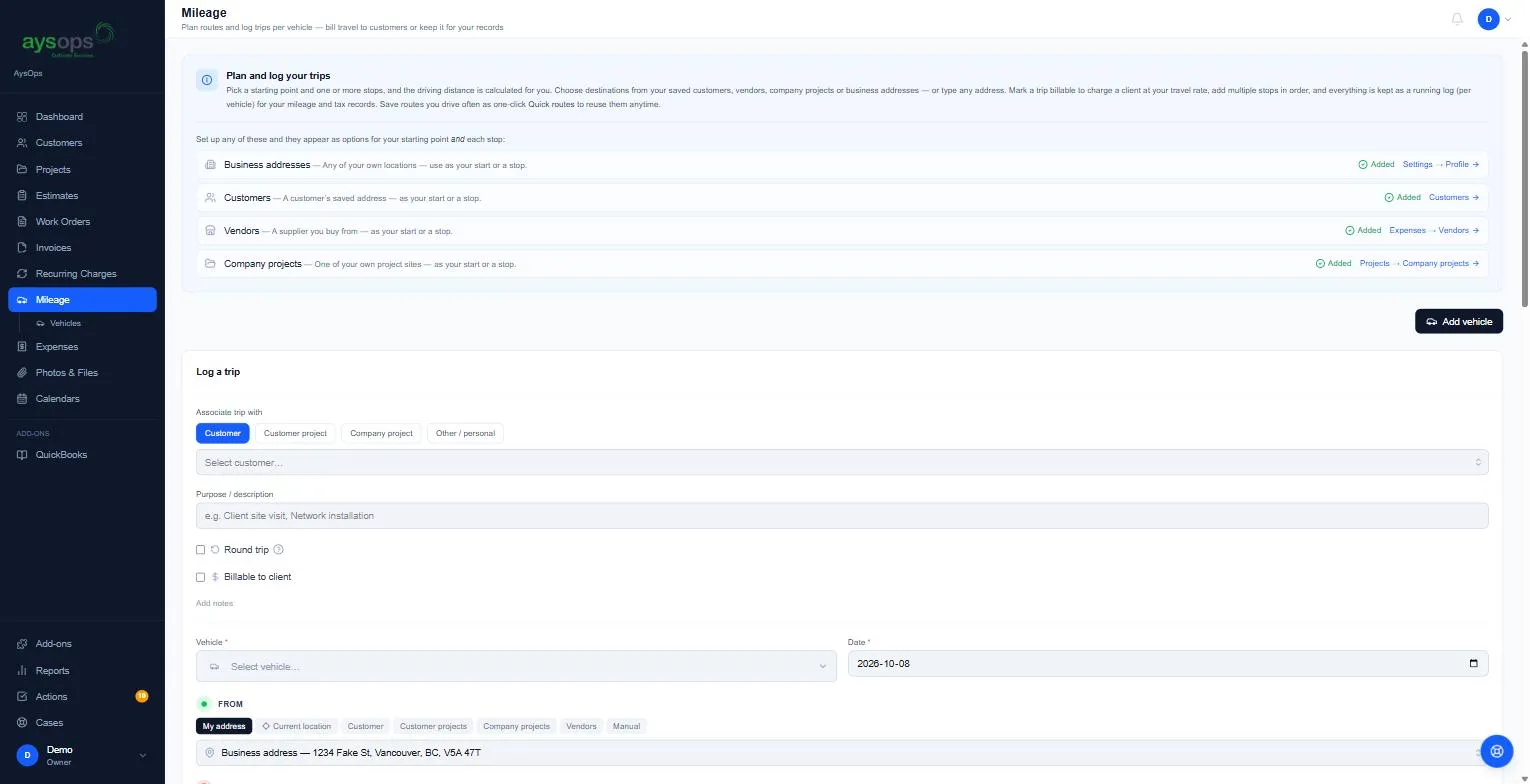
- Associate trip with: Customer, Customer project, Company project or Other / personal, and pick which one.
- Purpose / description: for example “Client site visit”.
- Tick Round trip if you drove back.
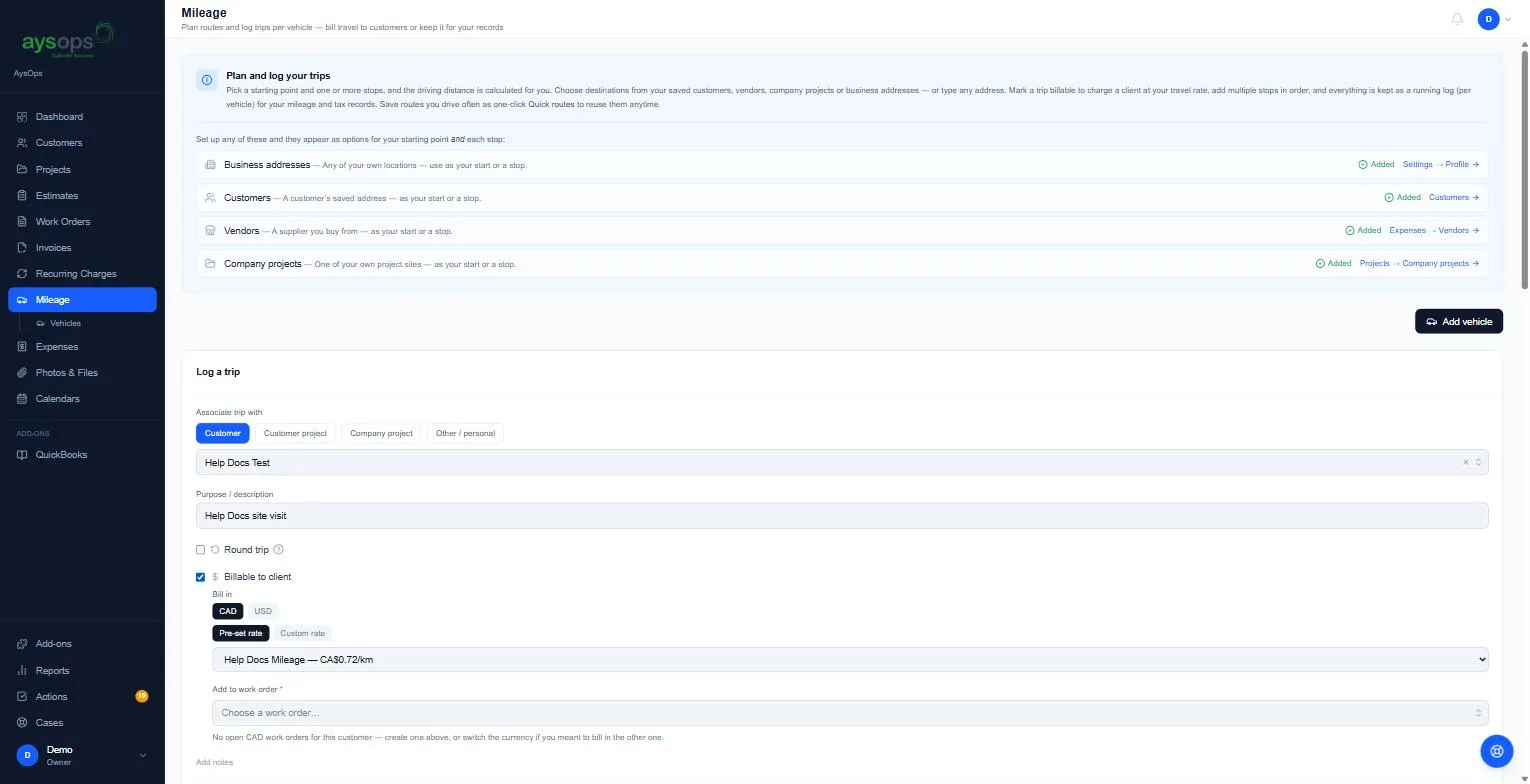
- To charge the customer, tick Billable to client, then:
- Bill in: CAD or USD.
- Pre-set rate (pick your travel rate) or Custom rate.
- Add to work order (required): pick one of the customer’s work orders that is still in progress, or + Create new work order. A work order that has already become an invoice isn’t offered.
- Choose the Vehicle and Date.
- FROM: My address (your business address), Current location, Customer, Customer projects, Company projects, Vendors or Manual (type any address).
- TO: choose the destination the same way. For a customer, pick which of their addresses. Click Add another stop for more stops, in order.
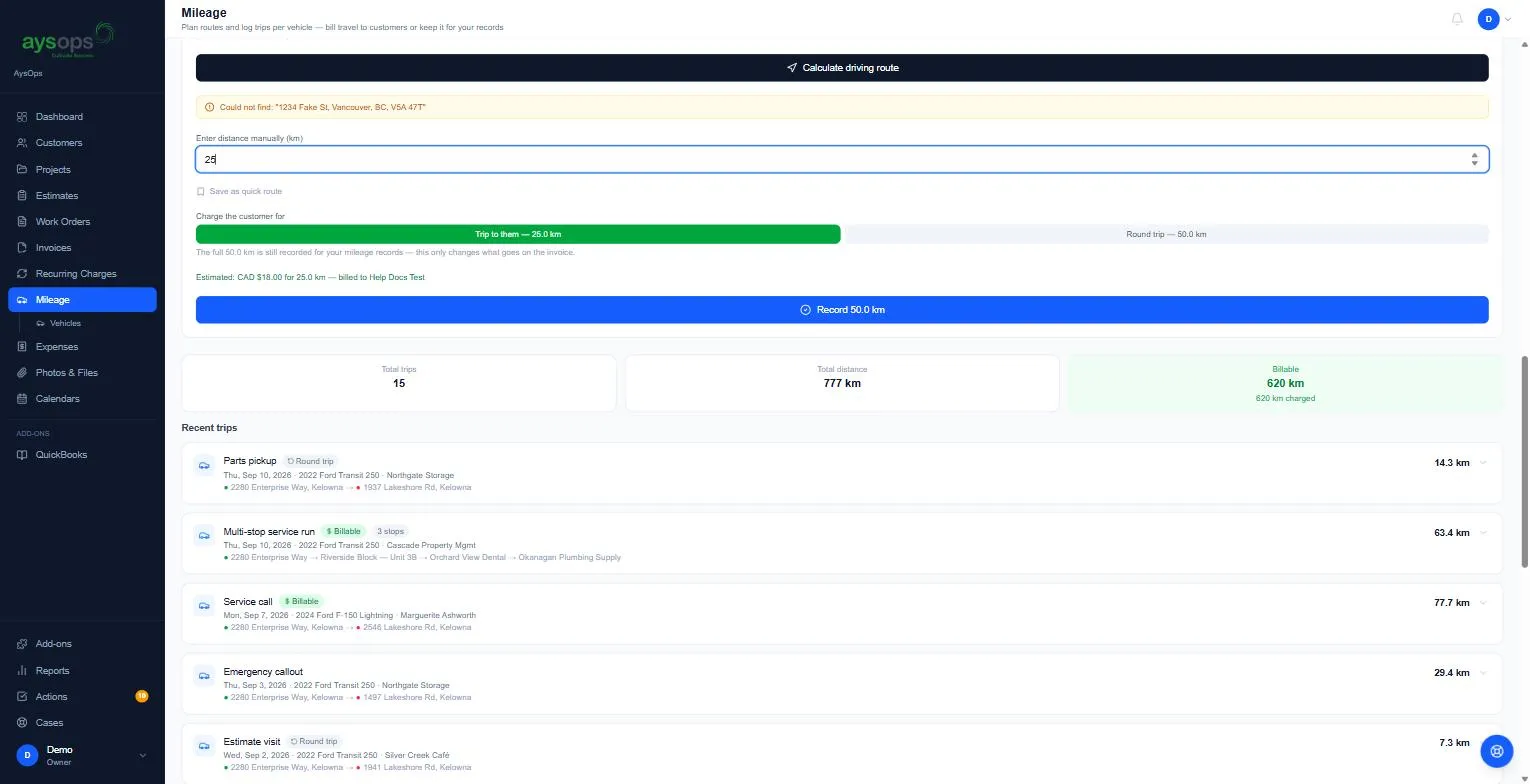
- Click Calculate driving route. If an address can’t be found, type the distance under Enter distance manually (km). On a round trip, type the one-way distance: it’s doubled for you (12 km becomes Record 24.0 km).
- On a billable round trip, choose what to Charge the customer for: Trip to them (the one-way distance, the default) or Round trip. The full distance is still recorded for your mileage records; this only changes the invoice. You’ll see an estimate, for example “Estimated: CAD $18.00 for 25.0 km, billed to [customer]”.
- Optional: tick Save as quick route to reuse this route in one click next time.
- Click Record [distance].
What happens next
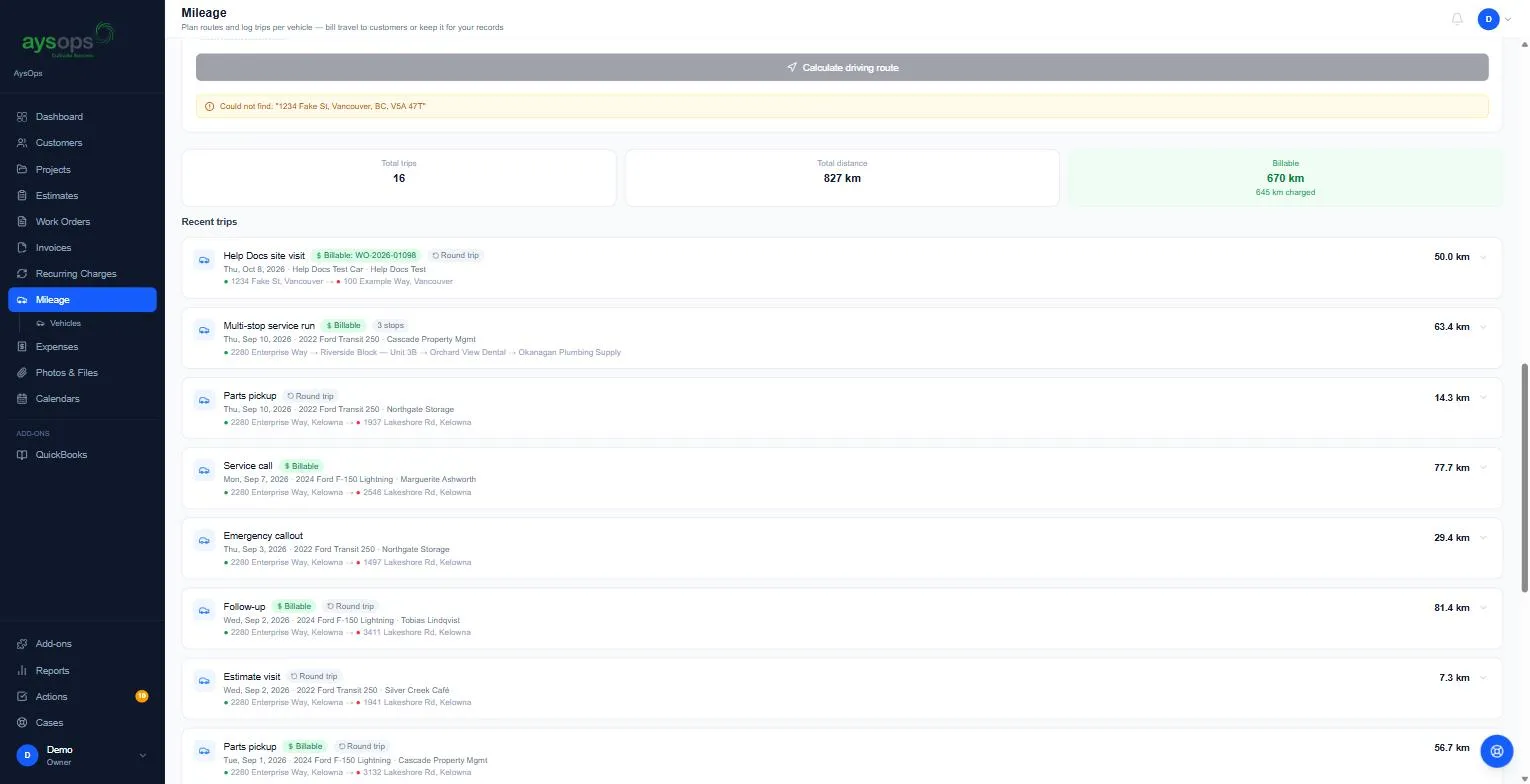
Section titled “What happens next”- The trip appears at the top of Recent trips, for example “Billable: WO-2026-01098”, Round trip, 50.0 km. The totals at the top (trips, distance, billable, charged) update.
- A billable trip adds a line to the work order, for example “Mileage: 25.0 km one way, [from] → [to]”, at your rate and with the rate’s taxes.
Edit a trip
Section titled “Edit a trip”If you entered a trip wrong, click anywhere on the trip in Recent trips, then Edit. An Edit trip window opens with the same form you logged it with. Change what you need and click Save changes.
- If you change where you went or where you started from, click Calculate driving route again so the distance is measured for the new route. Changing FROM, TO or a stop clears the old distance.
- A Custom rate keeps its kind when you edit: a flat fee stays a flat fee, and a per-mile or per-km rate keeps its unit.
- A billable trip’s charge on its work order is updated to match.
- Once that work order has become an invoice, the trip can’t be edited: Edit is greyed out, and pointing at it tells you which invoice it is on.
Delete a trip
Section titled “Delete a trip”Click the trip, then Delete, and answer Yes, delete to “Delete this entry?”. A billable trip’s line is removed from the work order with it. Once that work order has become an invoice, the trip can’t be deleted: “This trip is recorded on invoice … and cannot be deleted. Remove the charge from the invoice first, or leave the trip as the record of it.” If AysOps can’t check or remove the trip’s charge on the work order at that moment, the trip is not deleted either: “The charge for this trip could not be checked. Nothing was changed. Please try again.”
If something goes wrong
Section titled “If something goes wrong”- “No open CAD work orders for this customer”: create a work order for them first (or choose + Create new work order), or switch the currency.
- “Could not find: [address]”: check the address on the customer or your business profile, or enter the distance by hand.