
Scan a receipt with AI (one or a whole folder)
What this does
Section titled “What this does”Upload a photo or PDF of a receipt and AysOps reads the vendor, date, amounts, currency, tax and a description, and suggests a category. You always check it first: nothing is filled in until you accept.
Before you start
Section titled “Before you start”- Needs AysOps AI (it starts with a free trial). If AI is off, the receipt is simply attached.
- A clear, flat photo reads best.
Steps (one receipt)
Section titled “Steps (one receipt)”- Open Add expense and fill in anything you already know.
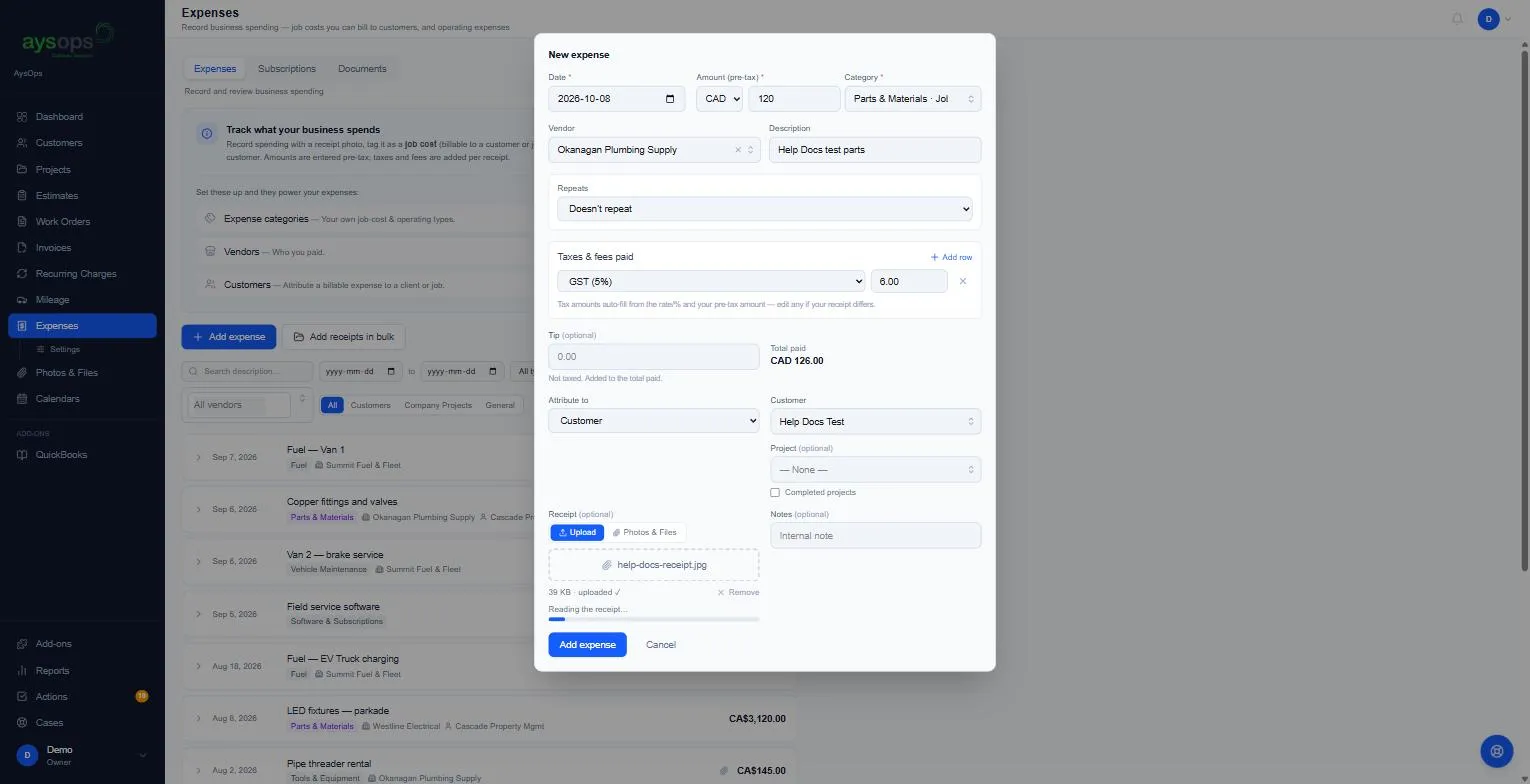
- Under Receipt, click Upload (or drop the file). You’ll see “Reading the receipt…”.
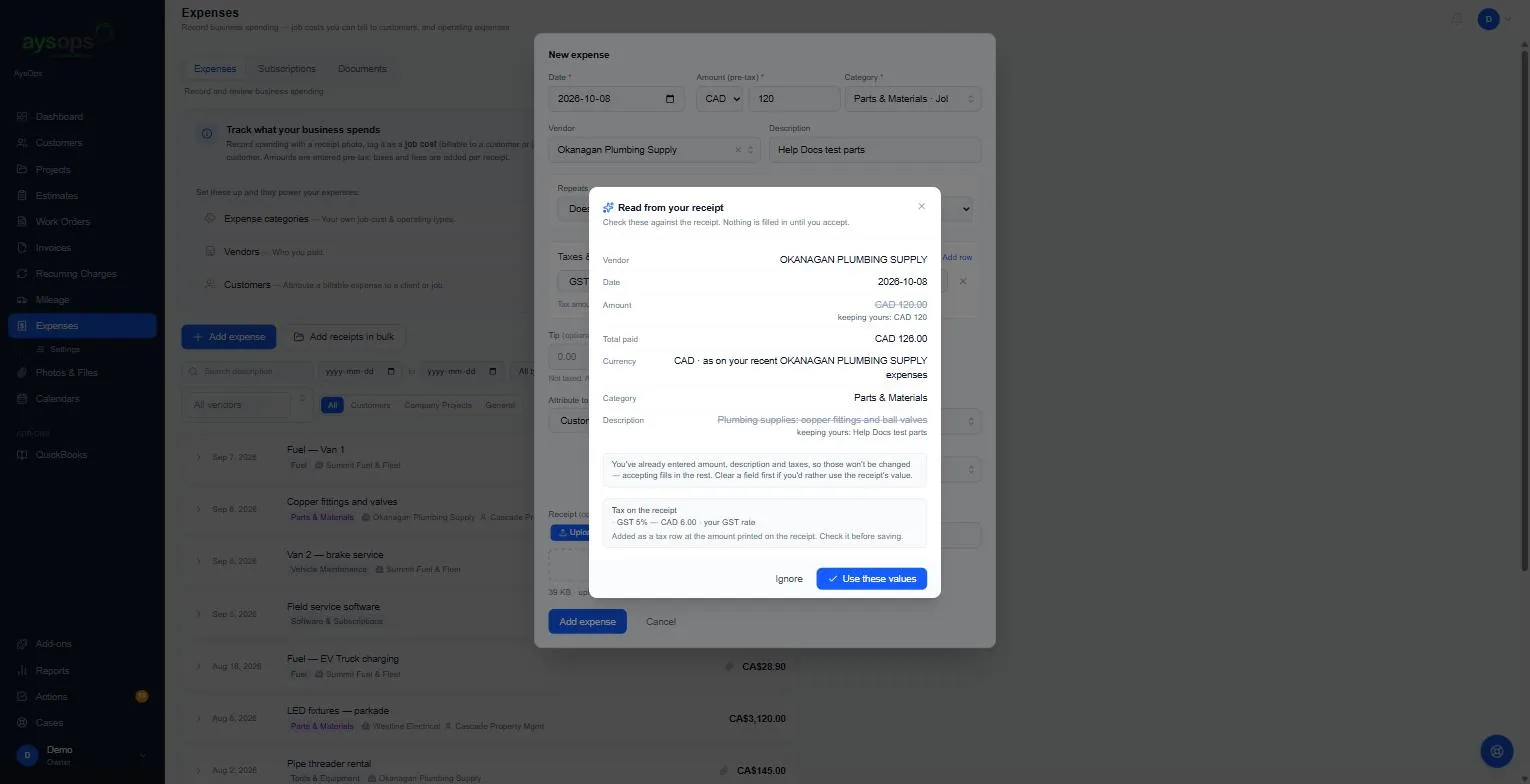
- A box “Read from your receipt” lists what it found. Anything you’d already typed is kept
(shown crossed out with “keeping yours: …”); accepting fills in the rest. The tax it read is
added as a tax row at the amount printed on the receipt.
- Currency: when the receipt shows only “$”, the currency is taken from your recent expenses with the same vendor, if they all agree, and shown as “USD · as on your recent [vendor] expenses” so you know to check it. Otherwise it is left for you to pick. If you already typed an amount or a tip, your currency is kept (shown as “keeping yours”), so a typed amount is never relabelled in another currency.
- Tax: a line printed only as “Tax” or “Sales tax” is matched to one of YOUR tax rates when exactly one has that percentage; if none or several fit, it is left blank for you.
- Click Use these values, or Ignore to keep the form as it is.
- Under the receipt you’ll see “Filled from the receipt, please check it” (with View details). Check the fields, then click Add expense.
If the receipt looks like one you’ve already entered (same pre-tax amount within a few days), AysOps warns you before you save a duplicate.
Steps (a folder of receipts)
Section titled “Steps (a folder of receipts)”- On Expenses, click Add receipts in bulk.
- Choose a folder or several files (up to 50 at a time).
- Each receipt is uploaded and read (three at a time; a folder of 50 takes about a minute). A row per receipt shows what was read, and every field can be changed.
- Rows missing a date, an amount or a category aren’t ticked, and likely duplicates start unticked. A vendor that isn’t in your list shows Add as a vendor.
- Click Create N expenses. They’re saved as general expenses; open one later to link it to a customer, project or work order.
Related articles
Section titled “Related articles”scan receipt, read receipt, AI receipt, photo of receipt, receipt OCR, auto fill expense, bulk receipts, folder of receipts, duplicate receipt, AysOps AI