
What your customer sees (approving or declining a quote)
What this does
Section titled “What this does”Explains the page your customer reaches from the Review and approve this quote button in the email, and what you see once they decide. The customer doesn’t need an account or a password.
The customer’s quote page
Section titled “The customer’s quote page”At the top is your business name. Below it:
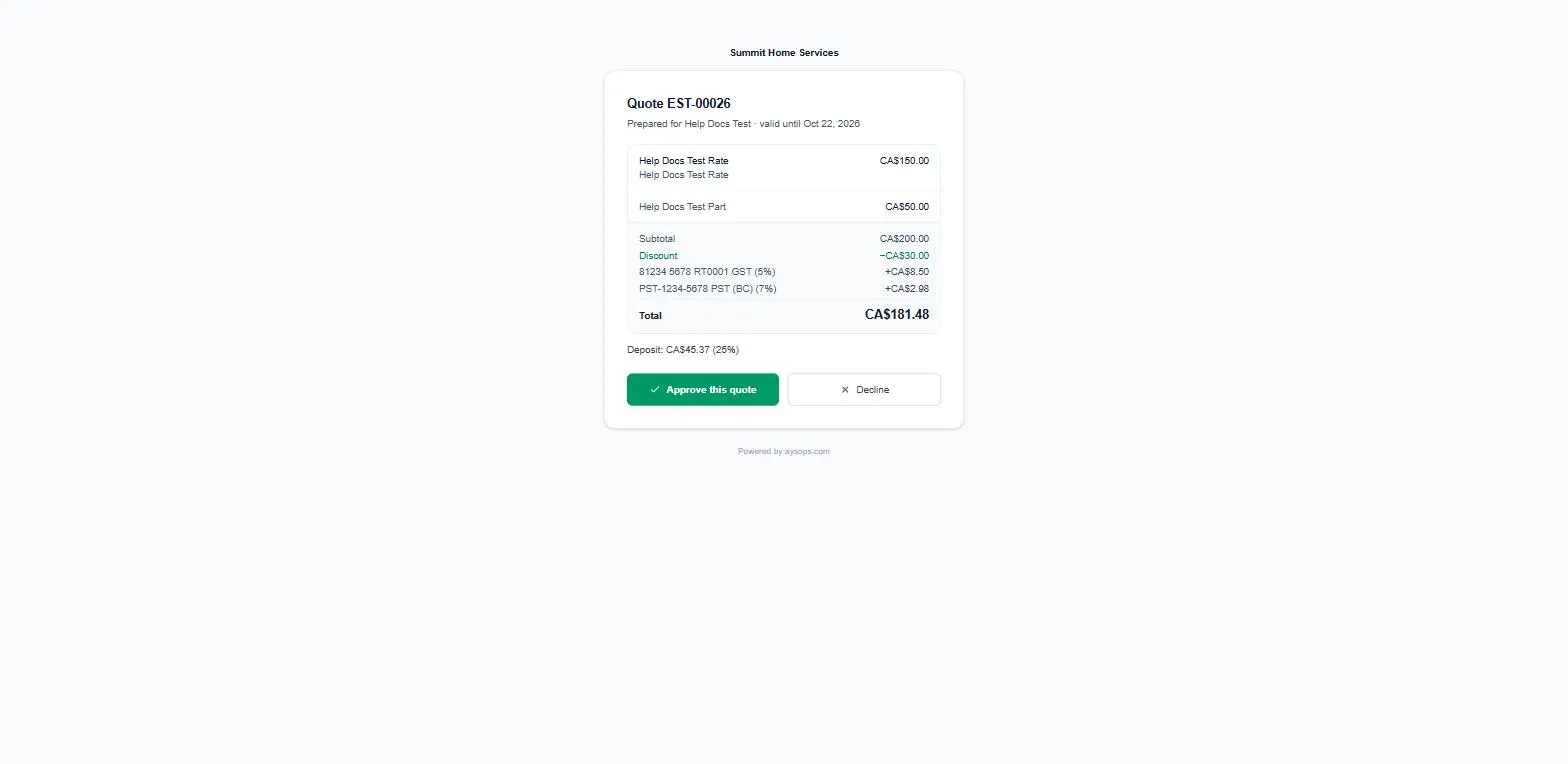
- Quote EST-…, who it was prepared for, and valid until [date].
- The Total in large type, with Download PDF (the whole quote as a PDF). On a phone there is also an Approve button that jumps straight to the signature.
- Each line with its amount, then Subtotal, Discount (if any), each tax and the Total. On a long quote (more than 25 lines) each section’s total is shown instead, and the lines are folded under View the full quote (N lines), which opens and closes them. On a shorter quote the lines show straight away, with Hide the full quote to fold them.
- The Deposit, if you asked for one, for example “Deposit: CA$45.37 (25%)”. A percentage deposit follows the total: when the customer ticks an extra or changes a quantity, the deposit changes with it. A fixed deposit stays the same.
- Files you sent with the quote, each with Download. See Send files with an estimate.
- Optional extras, if you offered any, each with a tick box and its price. Ticking one adds it to the total. See Choose what your customer sees, and offer optional extras.
- The sentence By approving, you accept quote EST-… for a total of …, which follows the extras ticked.
- Two buttons: Approve this quote and Decline.
If you chose Section totals or One total for the job, the customer sees those lines instead of every line.
If they approve
Section titled “If they approve”- They click Approve this quote.
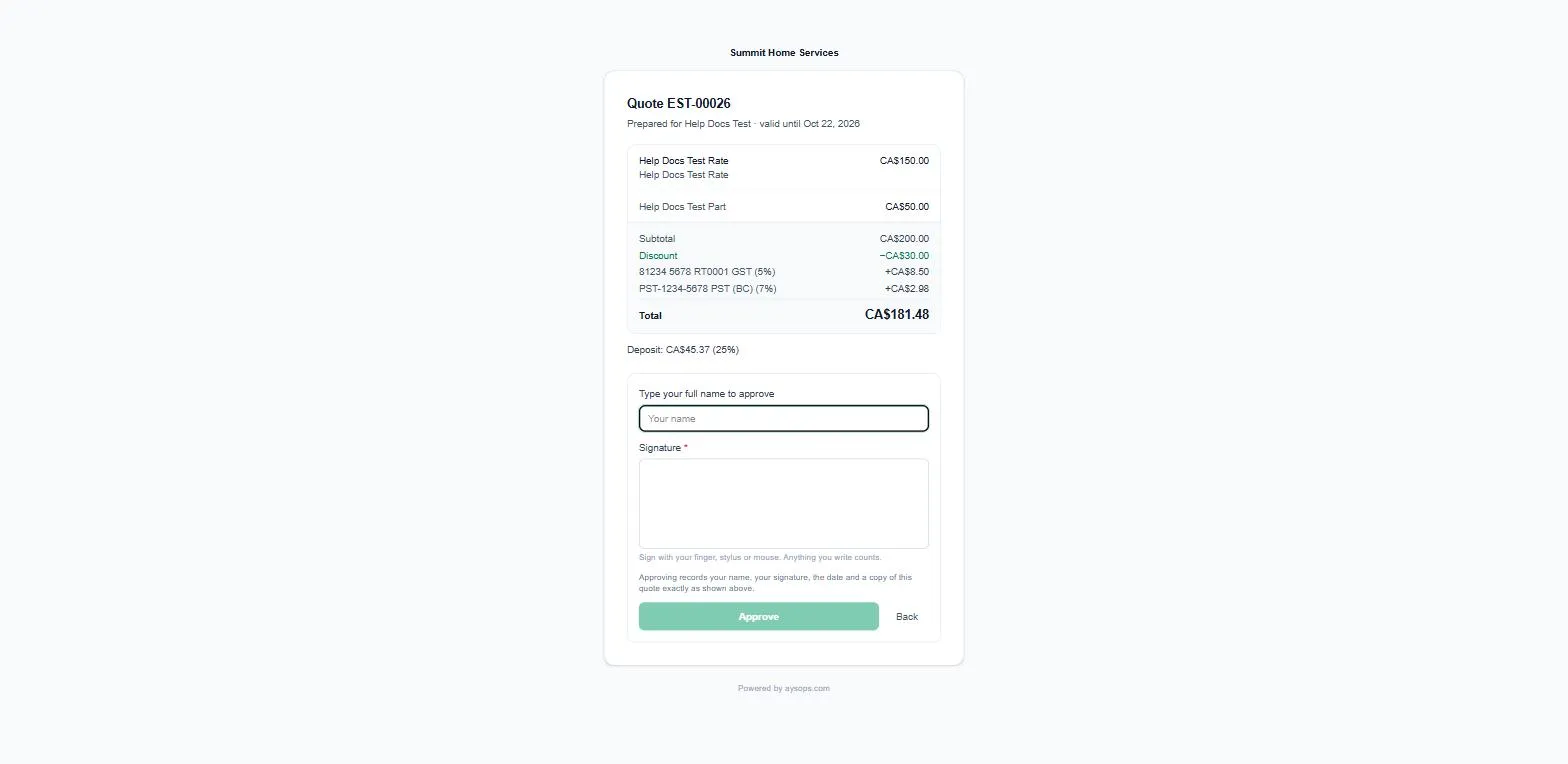
- They type their name under Type your full name to approve.
- They sign in the Signature box with a finger, stylus or mouse.
- They click Approve.
If the quote is a contract, they also read the terms, fill in the details you asked for and any quantities, and tick I have read and agree to the terms above before Approve works. As they change a quantity, the Total, the lines, the taxes and the amount above the signature update to match (the Approve button shows Updating the total… for a moment). See Contracts.
If the quote started as a request from your website, your customer also sees Changes since your request just above where they sign: everything you changed since they sent it, or a line saying the quote matches their request.
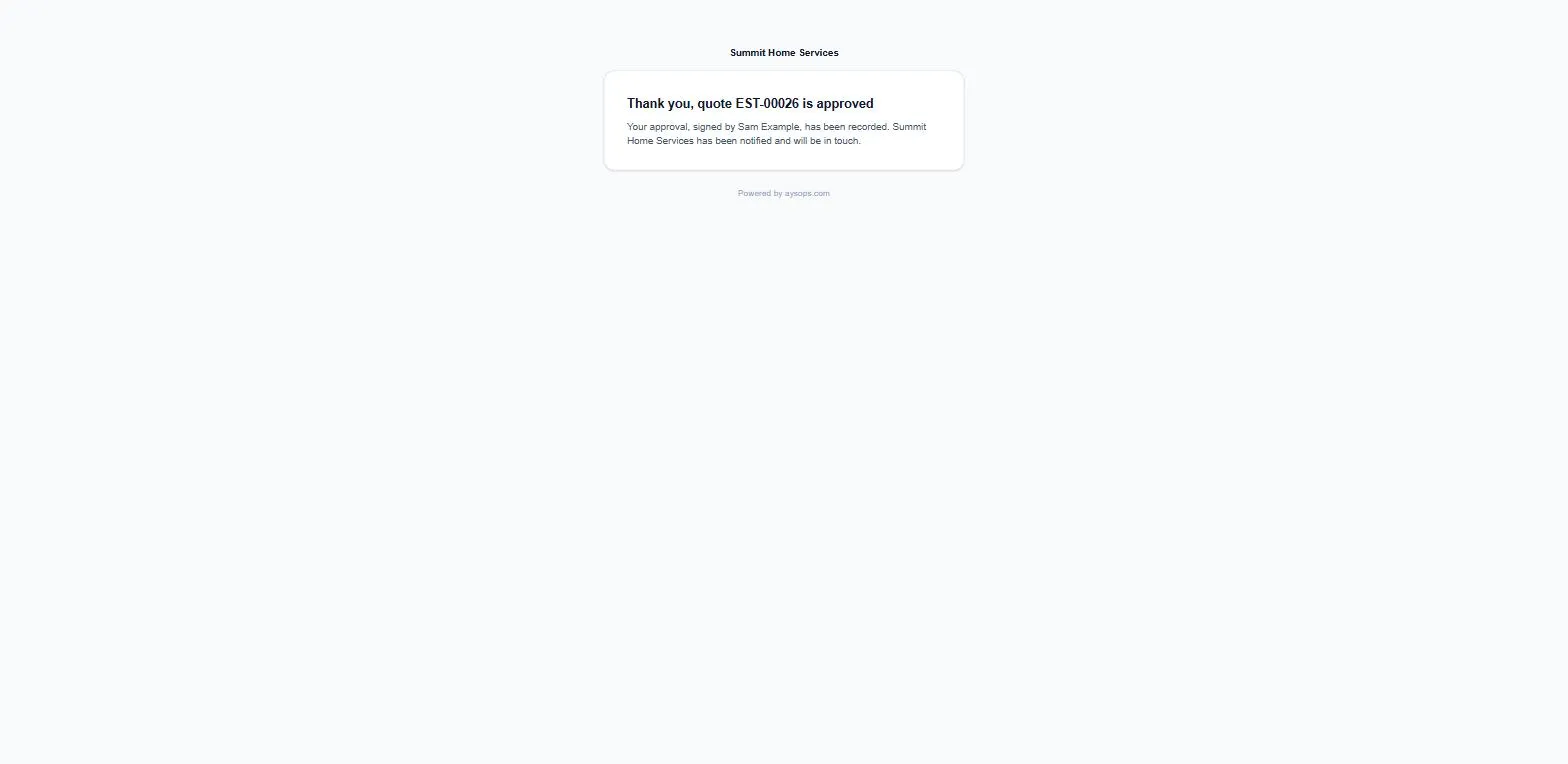
Right above the signature the page repeats the amount: “By approving, you accept quote EST-… for a total of …”. The page notes that approving records their name, signature, the date and a copy of the quote exactly as shown. They then see “Thank you, quote EST-… is approved”, saying you’ve been notified.
If they decline
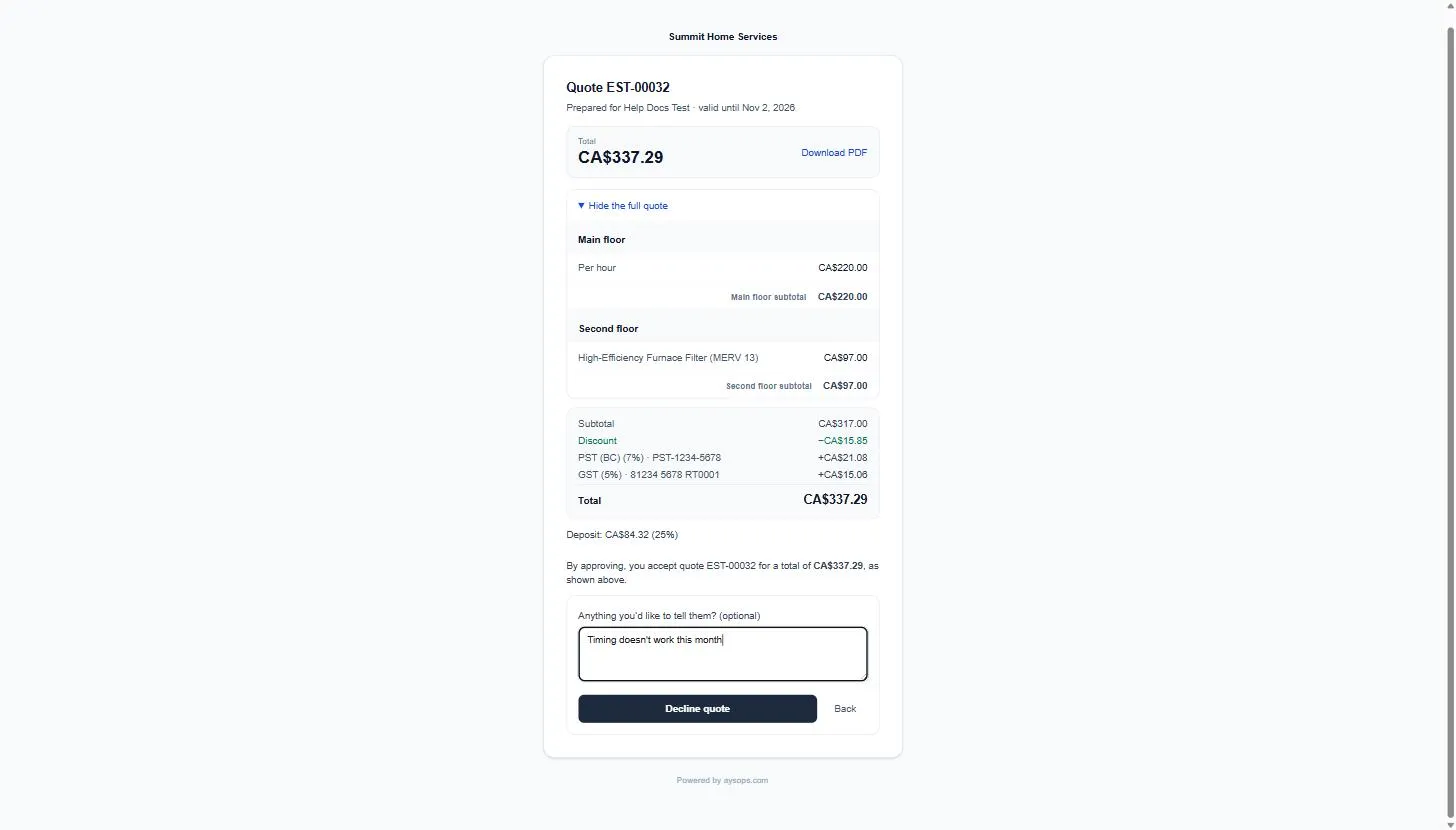
Section titled “If they decline”They click Decline, can add a note under Anything you’d like to tell them? (optional) (for example “Too expensive” or “Timing doesn’t work”), and click Decline quote. They see “Thanks for letting us know”.
On your side, the quote shows Declined online by the customer with their note, and it’s pinned on the Estimates page under Declined by your customer with View what they declined. You can change it and send it again.
Other things they might see
Section titled “Other things they might see”| Page says | Why |
|---|---|
| This link isn’t valid | The link was mistyped, or you recalled the quote (which replaces the link). |
| This quote has expired | The Valid until date passed. You’re told they tried. Send it again to give them a new date. |
| Quote EST-… is already approved / was declined | They (or someone) already decided. |
| This quote isn’t awaiting a decision | It’s archived or already converted. |
What you see
Section titled “What you see”- On the Estimates page, a green Approved by your customer bar lists newly approved quotes: who approved and when, with View what they approved and View signature. Click the × (or Dismiss all) once you’ve seen them.
- The estimate shows Approved [date] and “Approved online by [name] · [date]”, and a Signed online label in the list.
- A declined quote shows as Declined. You can edit it and send it again.
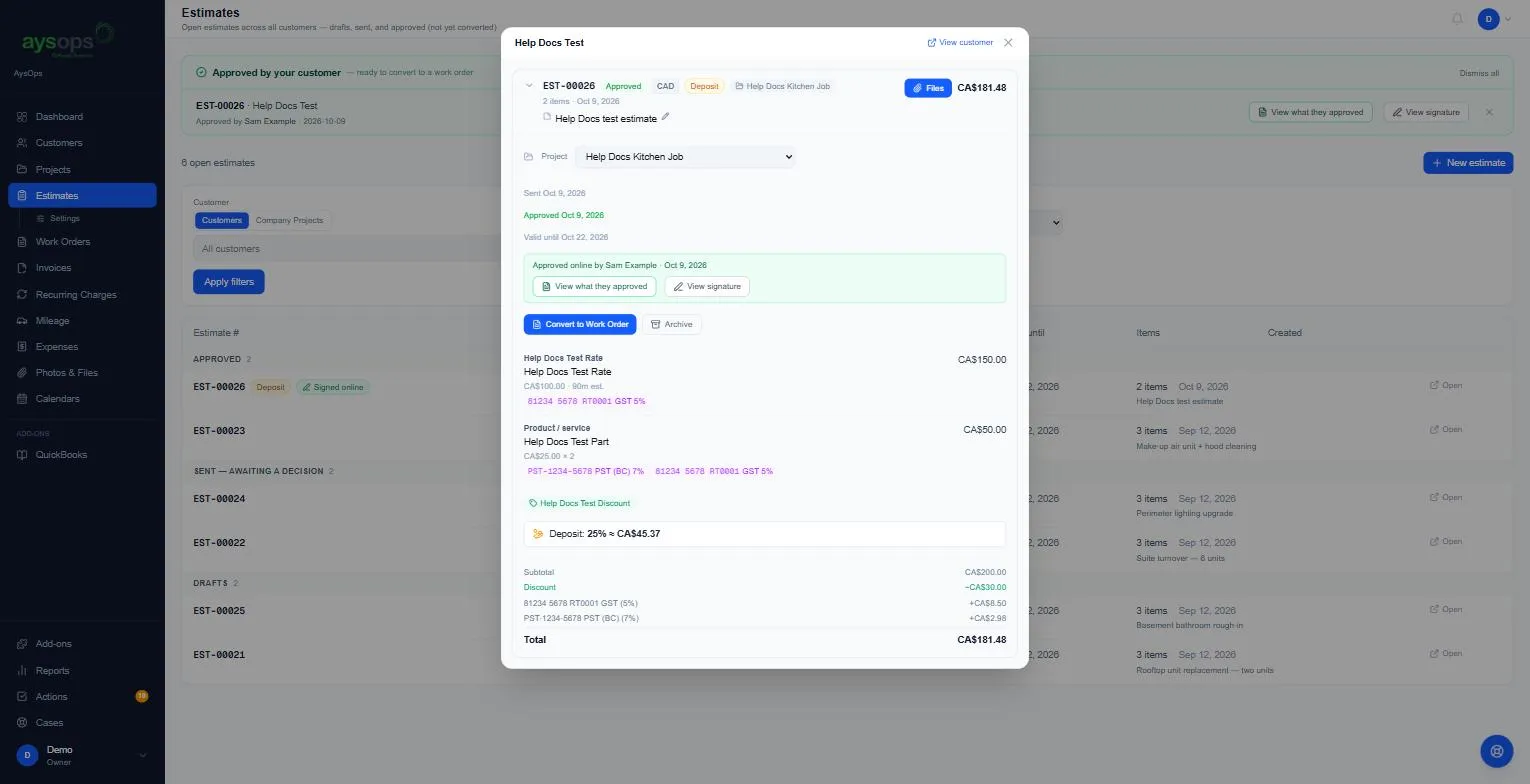
View what they approved shows the exact copy the customer approved, even if something changes later.
Related articles
Section titled “Related articles”- Send an estimate
- Contracts: terms, customer details and quantities the customer sets
- Convert an estimate to a work order