
Add lines to an estimate
What this does
Section titled “What this does”Adds the work, parts and charges you’re quoting for. The totals and taxes update as you go.
Before you start
Section titled “Before you start”- The estimate must be a Draft (or Declined or Expired). A sent quote is locked: see Send an estimate to recall it first.
- Each line must be in the same currency as the estimate.
- Open the estimate and click Add line item.
- Optional: type a Section (for example “Kitchen”), or pick one already on this estimate. See Organise lines into sections.
- Choose the Type, then fill it in as below.
- Click Add line item.
Rate / Time (labour)
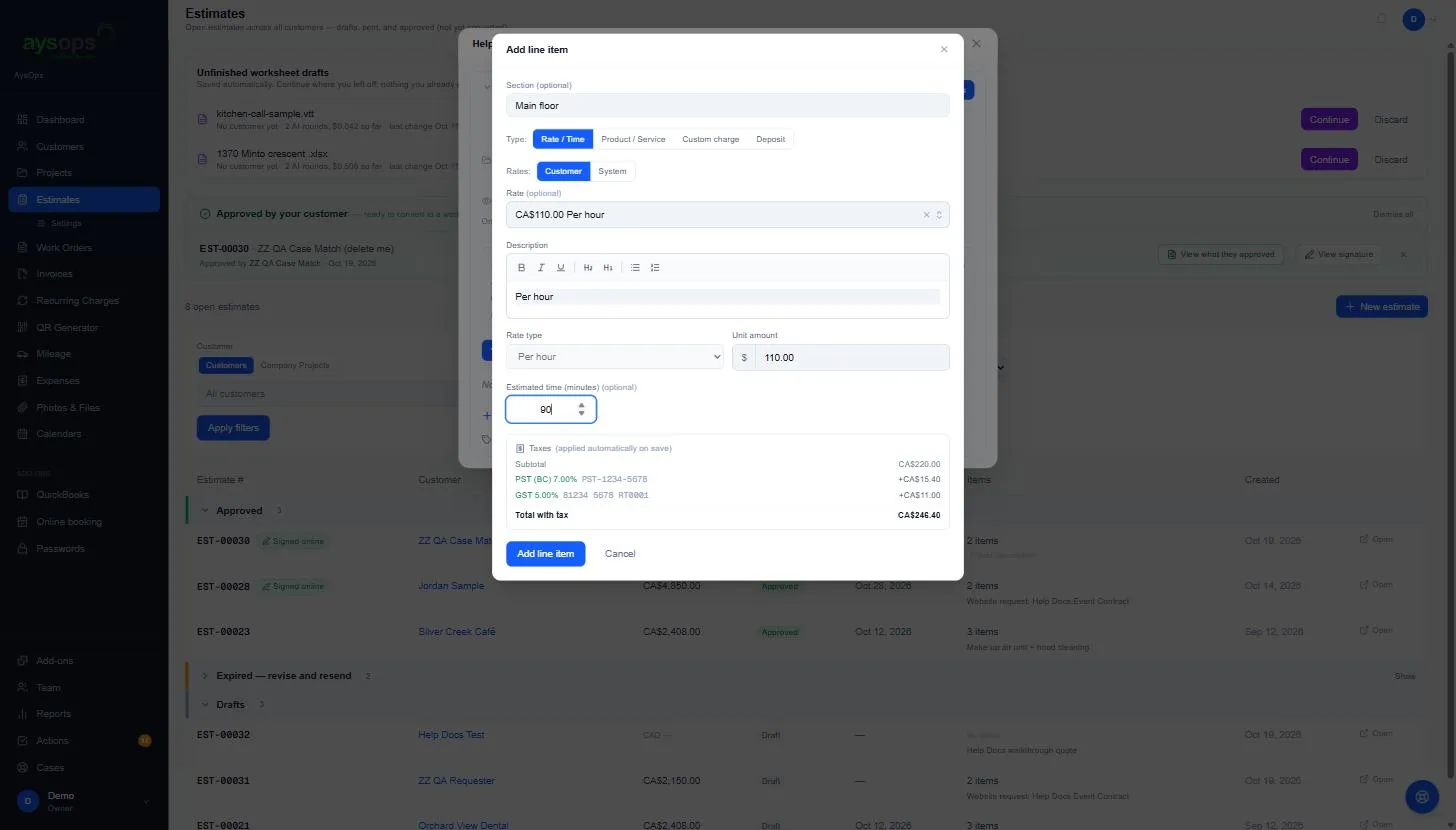
Section titled “Rate / Time (labour)”- Rates: Customer lists this customer’s own rates, System your company-wide ones.
- Rate (optional): pick one of your time rates. It fills in the description, the Rate type (for example Per hour) and the Unit amount. Leave it on Manual / no rate to type your own.
- Description: what the work is. You can use bold, lists and headings.
- Estimated time (minutes) (optional): for example 90. The line is priced from it: CA$100 per hour × 90 minutes = CA$150.00. The rate’s minimum and billing increments still apply: a rate billed in whole hours prices 90 minutes as 2 hours.
- The Taxes box shows the taxes that will be added from the rate, and the total with tax.
Product / Service
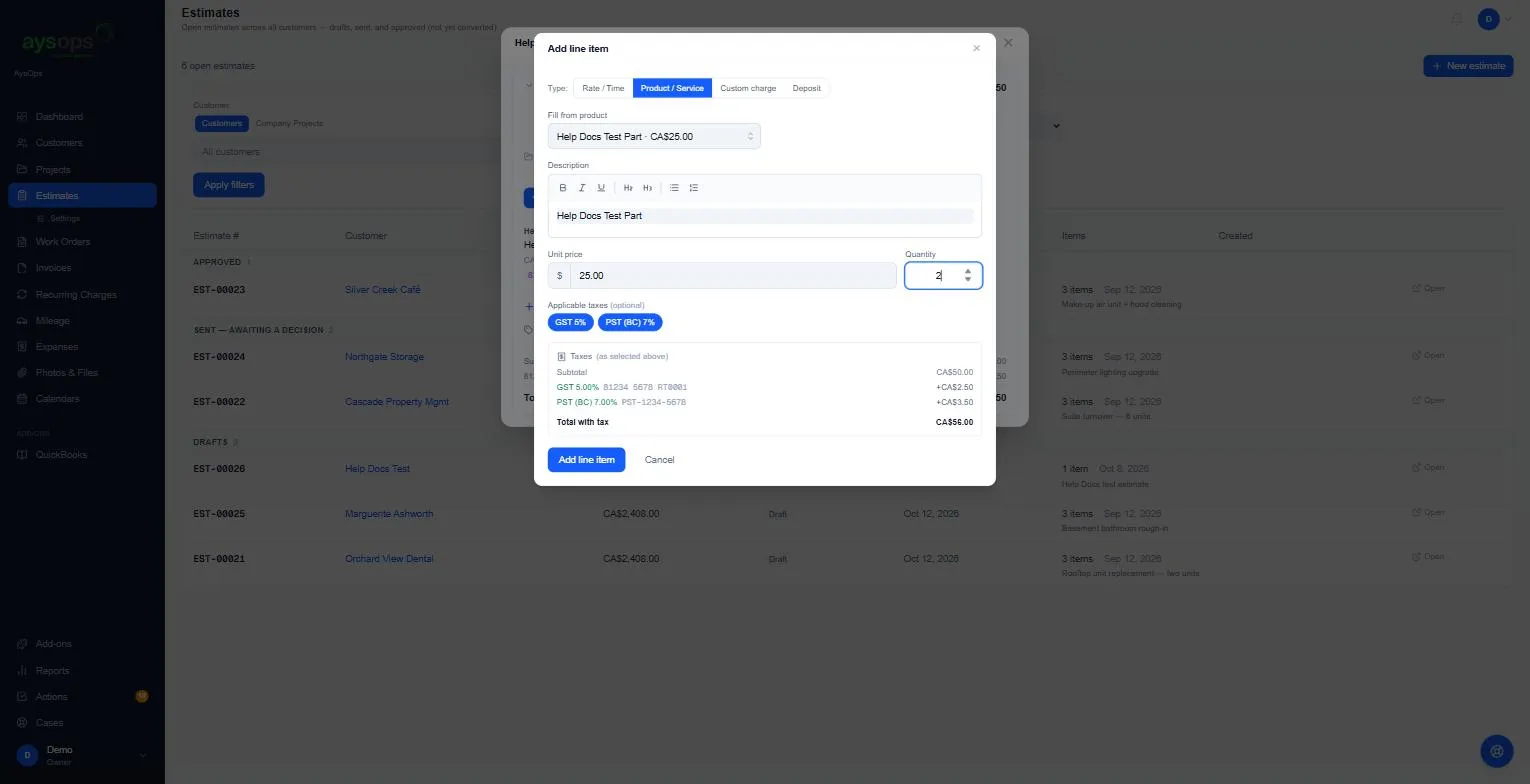
Section titled “Product / Service”- Fill from product: pick one of your products and services. It fills in the description and Unit price.
- Quantity: for example 2.
- Applicable taxes (optional): the product’s taxes are already selected. Click a tax to turn it on or off for this line.
Custom charge (a one-off)
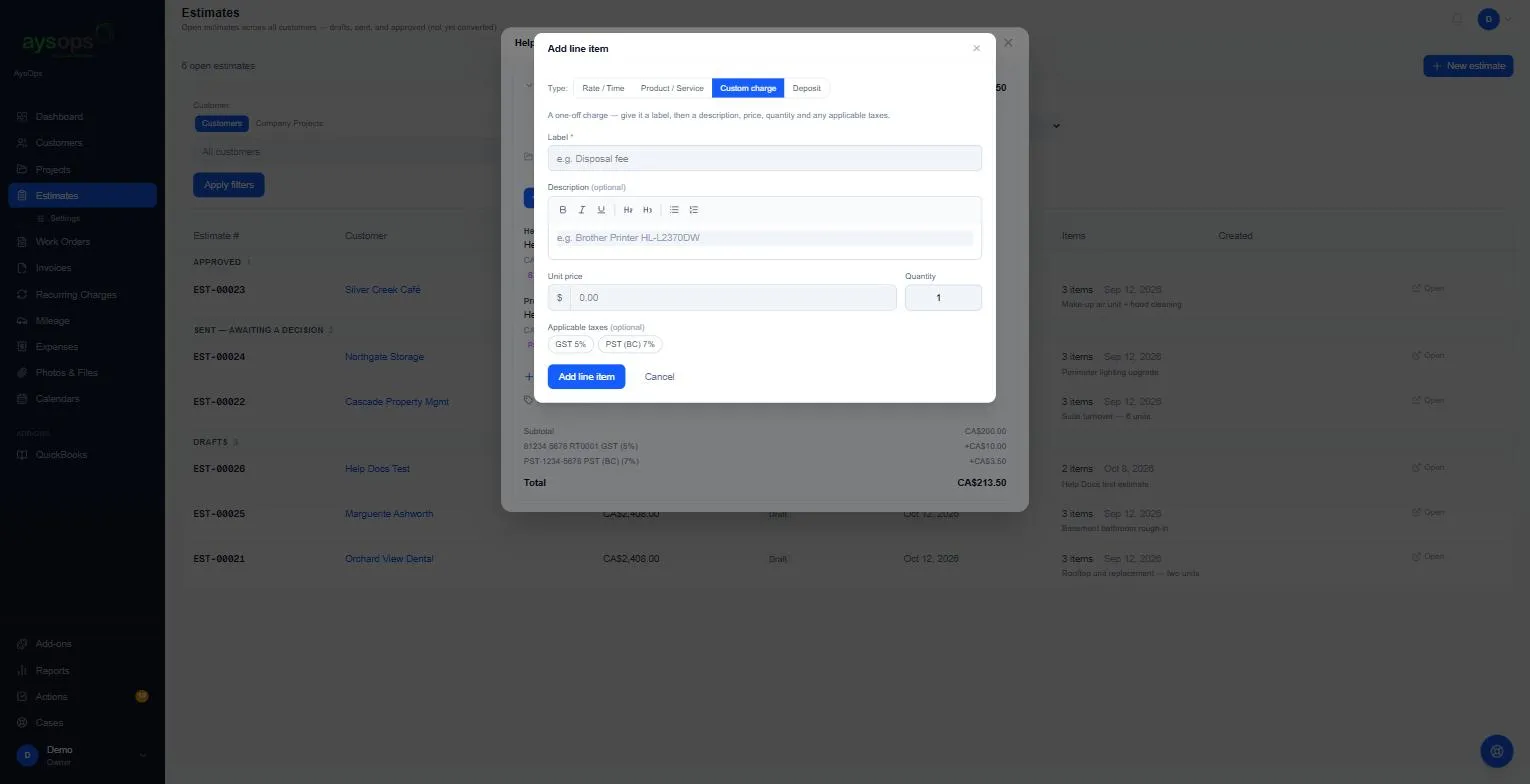
Section titled “Custom charge (a one-off)”For something you don’t sell often, for example a disposal fee.
- Label (required): for example “Disposal fee”.
- Description (optional), Unit price, Quantity.
- Applicable taxes (optional): click each tax that applies.
Deposit
Section titled “Deposit”Asks the customer to pay part of the total up front. See Request a deposit.
Change or remove a line
Section titled “Change or remove a line”- Change: click the line to open Edit line item, change it, and click Save.
- Remove: hover over the line and click the bin icon on the right.
What happens next
Section titled “What happens next”Each line shows its amount, and its taxes as coloured tags (with your tax number after the tax name, for example GST (5%) · 81234 5678 RT0001, if you show tax numbers on documents). The Subtotal, each tax and the Total are at the bottom.
If something goes wrong
Section titled “If something goes wrong”- “…is priced in CAD and this document is in USD…”: the item’s currency doesn’t match the estimate. Add a version of the item in the estimate’s currency. See Currencies.
- A tax is missing from a rate’s line: a rate’s taxes are fixed when the rate is created. See Tax rates.
- There’s no Add line item button: the estimate has been sent or approved, so it’s locked.
Make a line an optional extra
Section titled “Make a line an optional extra”Tick Optional extra under a line to offer it to the customer instead of including it. It leaves the total until the customer ticks it on their quote page. See Choose what your customer sees, and offer optional extras.
Related articles
Section titled “Related articles”line item, add line, add labour, add time, add product, add part, custom charge, one-off charge, quantity, estimated time, edit line, remove line, taxes on a line