
Autopay for recurring charges (saved card)
What this does
Section titled “What this does”Lets a customer save their card when they pay a recurring invoice, so later invoices for their recurring charges are charged to that card automatically. They still get every invoice first.
Before you start
Section titled “Before you start”- You need the AysOps Payments With Stripe add-on and a connected Stripe account, so customers can pay online. See Online payments.
- Autopay is only for invoices that contain a recurring charge. A one-off invoice is never charged automatically.
How the customer turns it on
Section titled “How the customer turns it on”When they open a recurring invoice’s pay link, the page shows a tick box: “Save my card and charge it automatically for future invoices from [your business]”, with the authorisation wording underneath. It’s ticked by default; the customer can untick it. They then pay as usual.
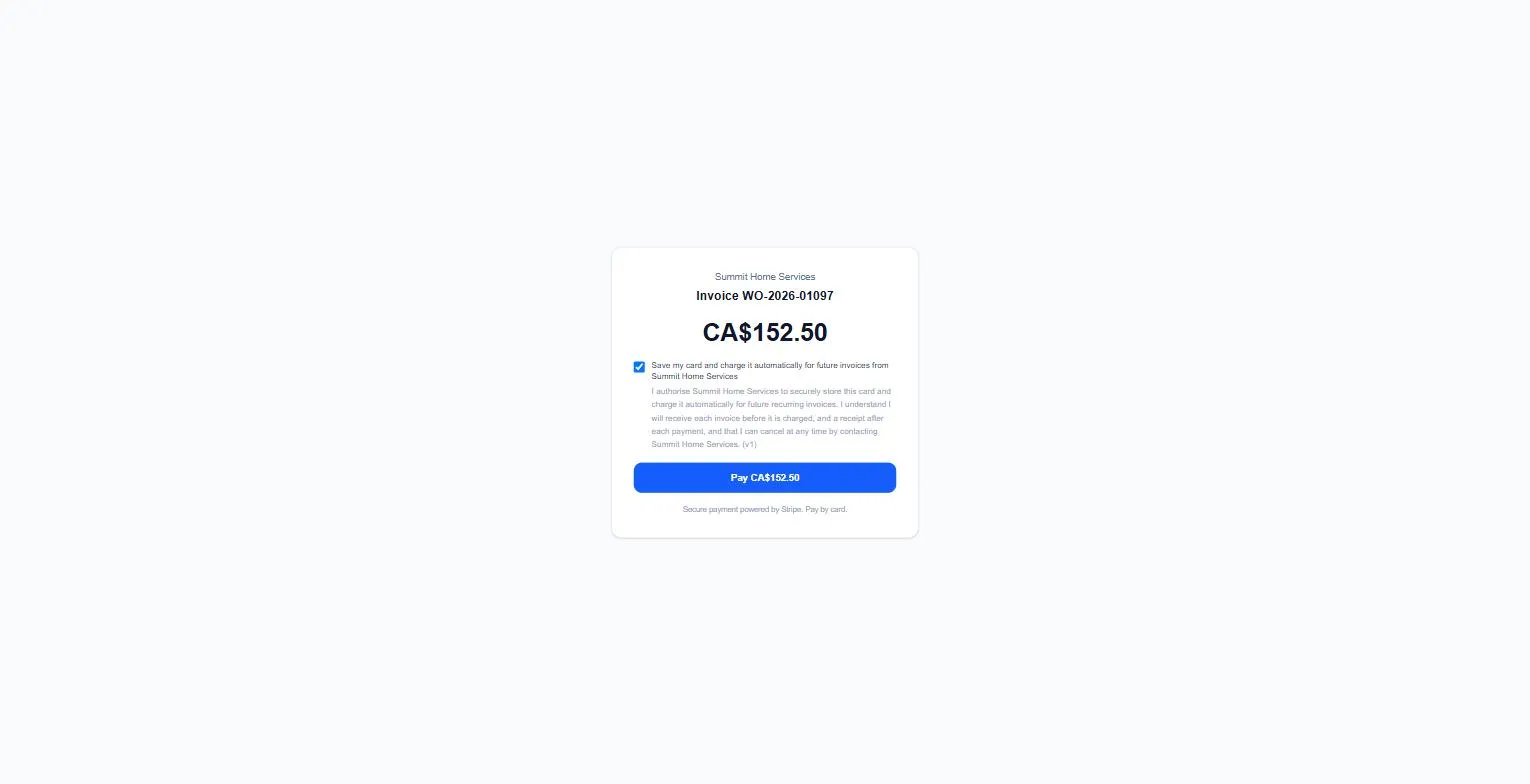
AysOps keeps a copy of the exact wording they agreed to, with the date, in case a charge is ever questioned.
What happens after that
Section titled “What happens after that”- On the next due date the invoice is created and emailed to the customer, as usual.
- 3 days later, their saved card is charged for the amount on that invoice (never more), and they’re emailed a receipt.
- If the card is declined or needs extra approval, AysOps tries again about a day later, up to 3 times. After that it stops, and the customer can still pay with the invoice’s pay link. A declined card shows as a red Card declined label on the invoice.
- Each time an automatic payment fails, you’re told too: the account owner gets an email with the reason (for example, the card was declined or the bank asked the customer to confirm it), and whoever looks after invoices gets an Automatic payment failed to-do under Actions. There is one to-do per invoice, updated with the latest reason. Nothing more is needed from you unless the customer doesn’t pay with their link.
A card is not charged automatically when the invoice is billed to someone else (a different bill-to), or when you’ve turned off online payment for that invoice.
If you turn off AysOps Payments
Section titled “If you turn off AysOps Payments”Turning off AysOps Payments With Stripe (Settings, then Add-ons, then Cancel on the add-on) also stops automatic payments. The popup tells you how many customers have automatic payments set up before you confirm.
While it’s off:
- saved cards are not charged, including invoices that were already due to be charged;
- invoices are still sent, but customers can’t pay them online;
- the saved cards stay saved.
When you turn it back on, each unpaid invoice that should have been charged while it was off gets a new email saying which card will be charged, how much, and on what date (3 days later). The card is charged on that new date, never the old one. If the invoice was paid another way in the meantime, or the customer no longer has a saved card, nothing is charged.
See and change autopay on a charge
Section titled “See and change autopay on a charge”Open the charge on the Recurring Charges page. Beside Monthly (or similar) you’ll see:
| Label | Means |
|---|---|
| Auto-charges Visa ••4242 (for example) | A card is saved; the next invoice will be charged. |
| Auto-charge when a card is saved | Autopay is on, but the customer hasn’t saved a card yet. |
| Auto-charge off | This charge is always invoiced for the customer to pay themselves. |
| Auto-charge on | Autopay is on. Shown instead of the card details to people who aren’t allowed to see invoices. |
- Click turn off to stop charging the card for this charge. The card stays saved for their other charges.
- Click turn on to allow it again.
- Click remove card (shown when a card is saved) and confirm to delete the customer’s saved card and their agreement altogether.
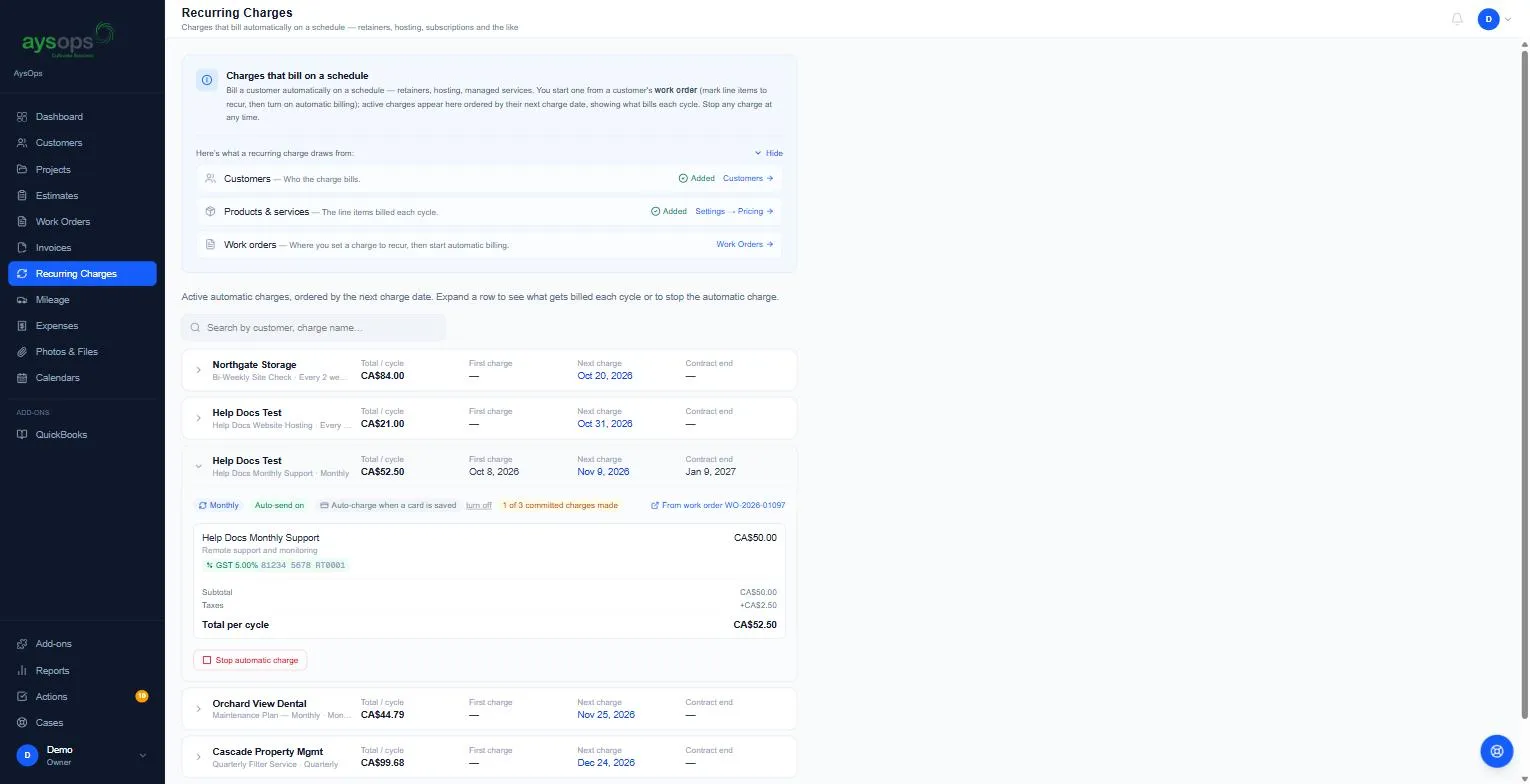
Autopay is on for new recurring charges unless you turn it off.