
Time rates (hourly, per-period and flat rates)
What this does
Section titled “What this does”A time rate is what you charge for your time: per hour, per 30 or 15 minutes, per day, per custom period, or a flat fee. You pick a rate when you add time to an estimate, work order or invoice, and AysOps works out the charge, including minimums, rounding and taxes.
There are two kinds:
- System rates: available for every customer.
- Customer rates: special pricing for one customer, added on that customer’s Pricing tab. They’re offered in addition to your system rates for that customer.
Before you start
Section titled “Before you start”- You need permission to manage rates (owners, admins and managers by default).
- Set up your tax rates first: a rate’s taxes are chosen when you create it and can’t be changed afterwards. See Tax rates.
Open your rates
Section titled “Open your rates”- Click your initial or photo → Settings → Pricing. You’re on Time Rates. Use Currency and Location to filter the list.
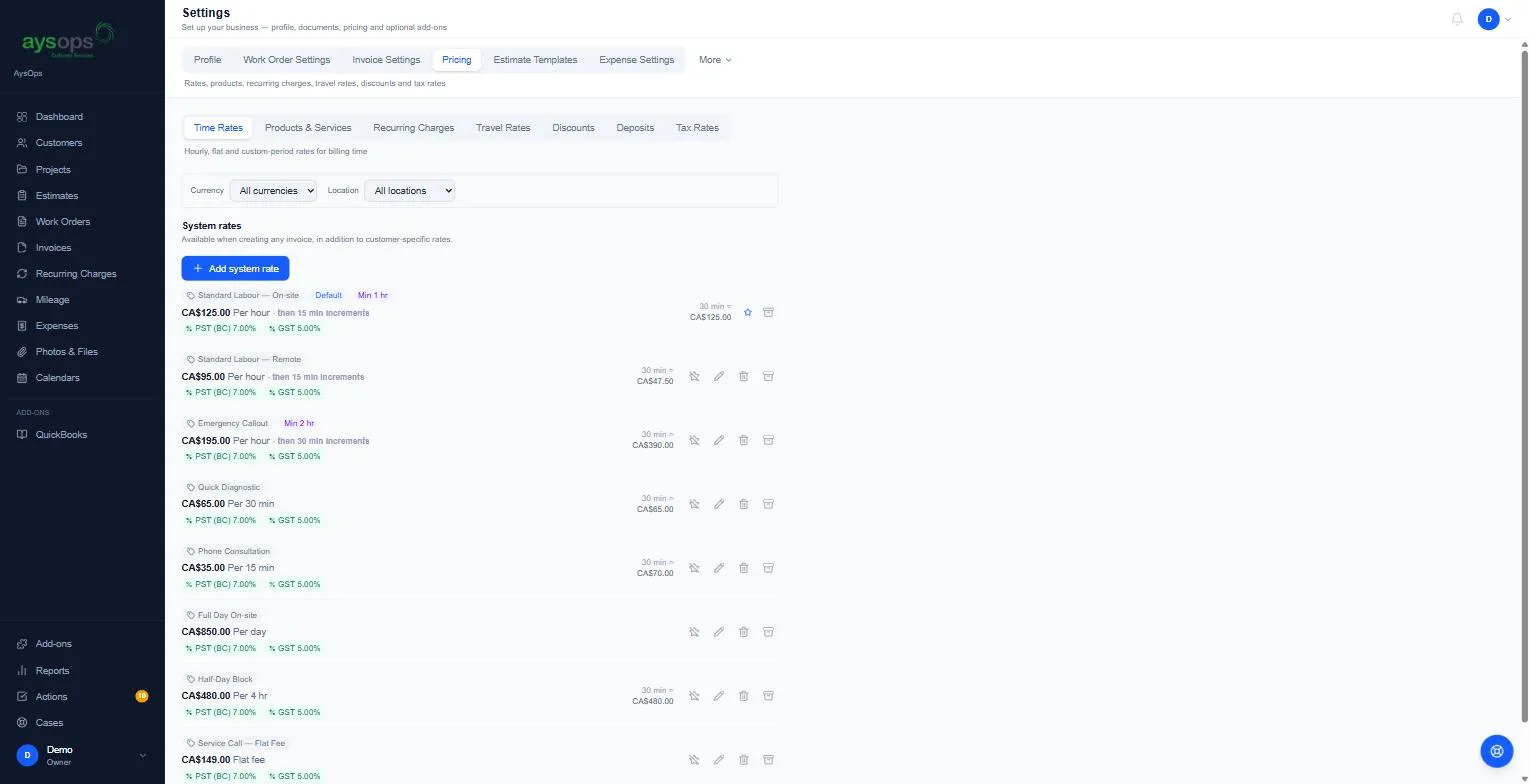
Each rate shows its label, price and period, its taxes, badges such as Default or Min 1 hr, and on the right an example (for example “30 min = CA$50.00”) so you can check the maths.
Add a rate
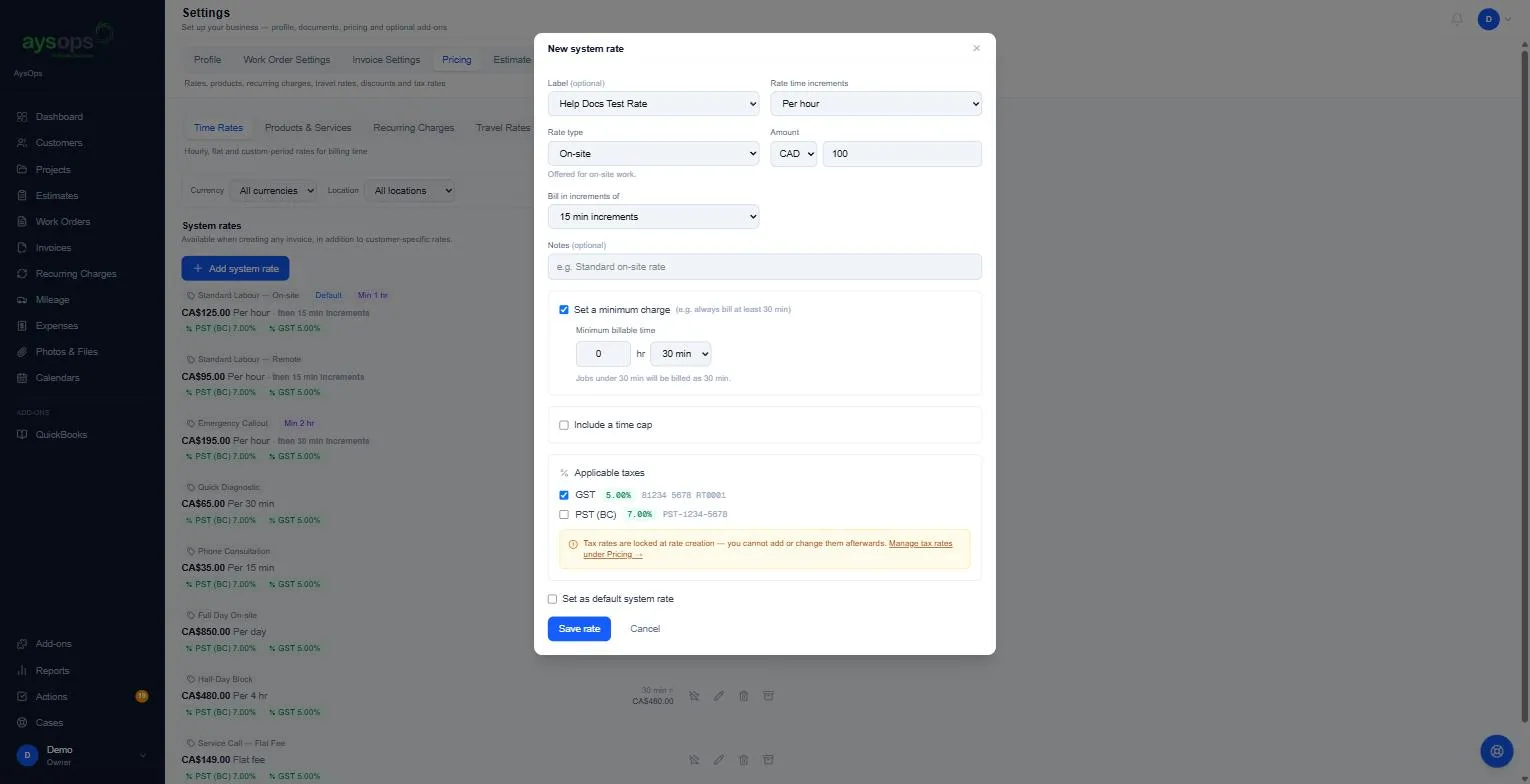
Section titled “Add a rate”- Click Add system rate (or, for one customer, open the customer → Pricing → Time Rates → Add rate).
- Fill in:
- Label (optional): the name shown on documents, for example “Standard Labour”. Choose an existing label, or + Create new label…, type the name and click Add.
- Rate time increments: Per hour, Per 30 min, Per 15 min, Per day, Custom period or Flat fee.
- Rate type: where the work happens: Any location, On-site, At our location or Remote. The rate is only offered for that kind of work (for example “Offered for on-site work”).
- Amount and its currency (CAD or USD).
- Bill in increments of: how time is rounded up: Same period (round up), 15 min, 30 min or 1 hour increments. For example, an hourly rate billed in 15-minute increments charges 1 h 10 min as 1 h 15 min.
- Notes (optional): for your own reference.
- Optional extras:
- Set a minimum charge: a Minimum billable time (hours and minutes). For example, 30 minutes means “Jobs under 30 min will be billed as 30 min.”
- Include a time cap: a maximum time to bill at this rate, and an optional Fallback rate when exceeded for time beyond the cap.
- Applicable taxes: tick the taxes this rate charges. ⚠️ “Tax rates are locked at rate creation — you cannot add or change them afterwards.”
- Optional: tick Set as default system rate to have it picked first.
- Click Save rate.
Edit, archive, restore or delete a rate
Section titled “Edit, archive, restore or delete a rate”Use the icons on the right of a rate: Set as default (star), Edit rate (pencil), Delete rate (bin) and Archive rate (box).
- Before a rate has been used, you can edit or delete it freely.
- Once a rate has been used on an estimate, work order or invoice, it’s part of your billing history: it can’t be edited or deleted, only archived. Archive it and create a new rate for the new price. You’ll see “This rate has billing history and can’t be edited. Archive it and create a new one instead.”
- Archive asks you to confirm on the row (Archive / Cancel). Archived rates are hidden from new documents; click [number] archived at the bottom of the list to see them, and Restore to bring one back.
- A rate used by an online booking service or a group session can’t be deleted until you switch that service to another rate.
Manage labels
Section titled “Manage labels”- Click Manage labels at the bottom to see all labels and Archive ones you no longer use. A label that’s still on a rate can’t be deleted.
Rates for one customer
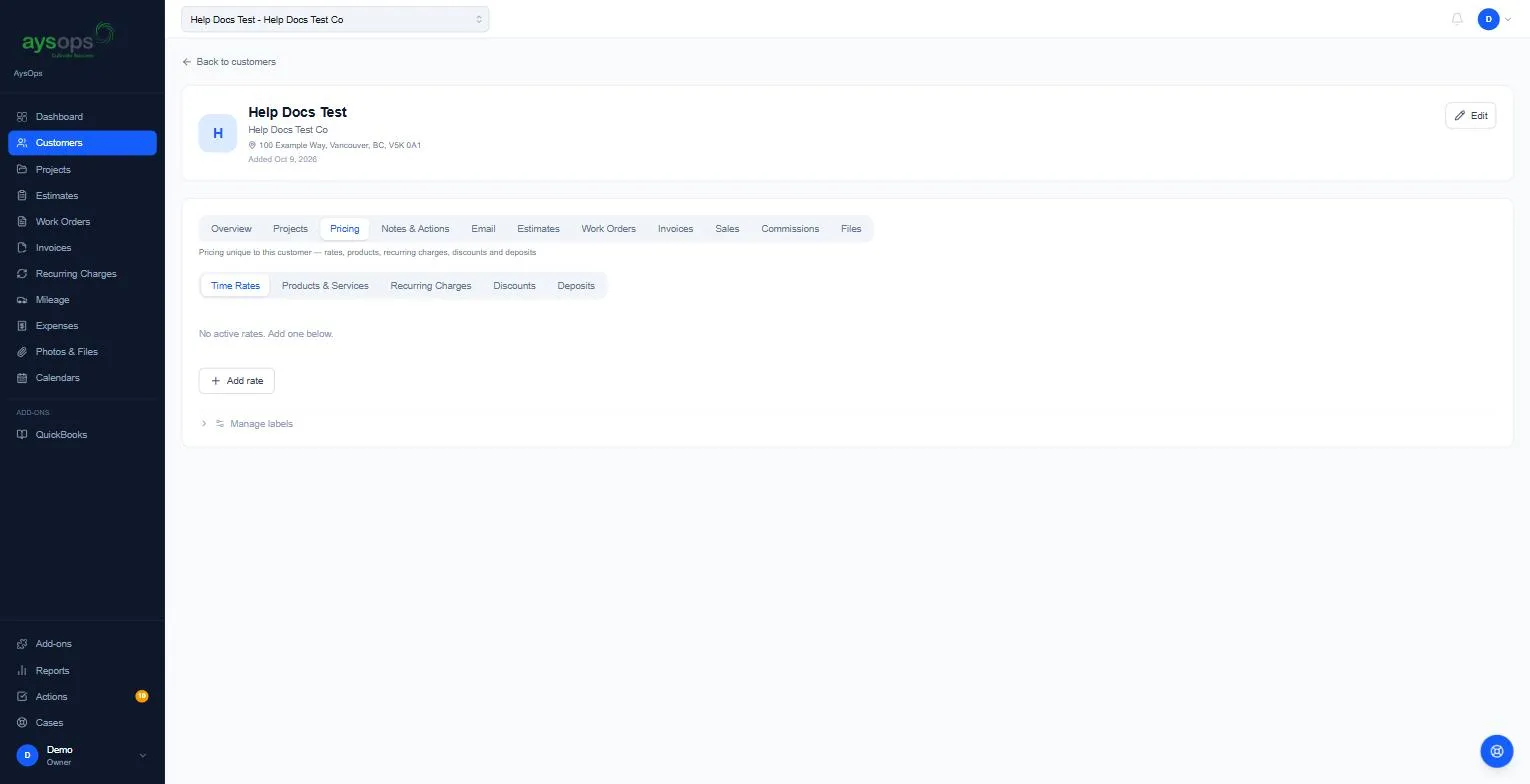
Section titled “Rates for one customer”- Open the customer → Pricing → Time Rates → Add rate. Same form as above. The customer’s Pricing tab also has its own Products & Services, Recurring Charges, Discounts and Deposits.
What happens next
Section titled “What happens next”The rate appears when you add time to an estimate, work order or invoice in the same currency. Documents keep the price they were created with, even if you later archive the rate.
If something goes wrong
Section titled “If something goes wrong”- A rate name can’t be deleted because of a membership or a prepaid pack: a membership includes hours of it, a prepaid pack product is for it, or customers have used or bought hours of it. Archive it instead (or change the membership or product first, if nothing was used or bought).
- I can’t change the taxes on a rate: taxes are fixed when a rate is created. Archive it and create a new one with the right taxes.
- A rate doesn’t appear on a document: it’s in a different currency from the document, it’s archived, or its Rate type doesn’t match the kind of work.
- “A label with that name already exists.”: pick the existing label from the list instead.
- “Restore the rate before making it the default.”: archived rates can’t be the default.