
Record a payment (cash, cheque, e-Transfer)
What this does
Section titled “What this does”Records money a customer paid you outside AysOps (cash, cheque, Interac e-Transfer, a card machine, a bank transfer) so the invoice shows as paid or partly paid. AysOps doesn’t move any money here; it keeps the record. Card payments made through your online pay link, or keyed in with Collect Payment, are recorded automatically (see Online payments).
Before you start
Section titled “Before you start”- The invoice must have been sent (it’s under Sent to Customer).
- You need permission to record payments (owners, admins and managers by default).
- Open the customer’s Invoices tab and click Record Payment on the invoice.
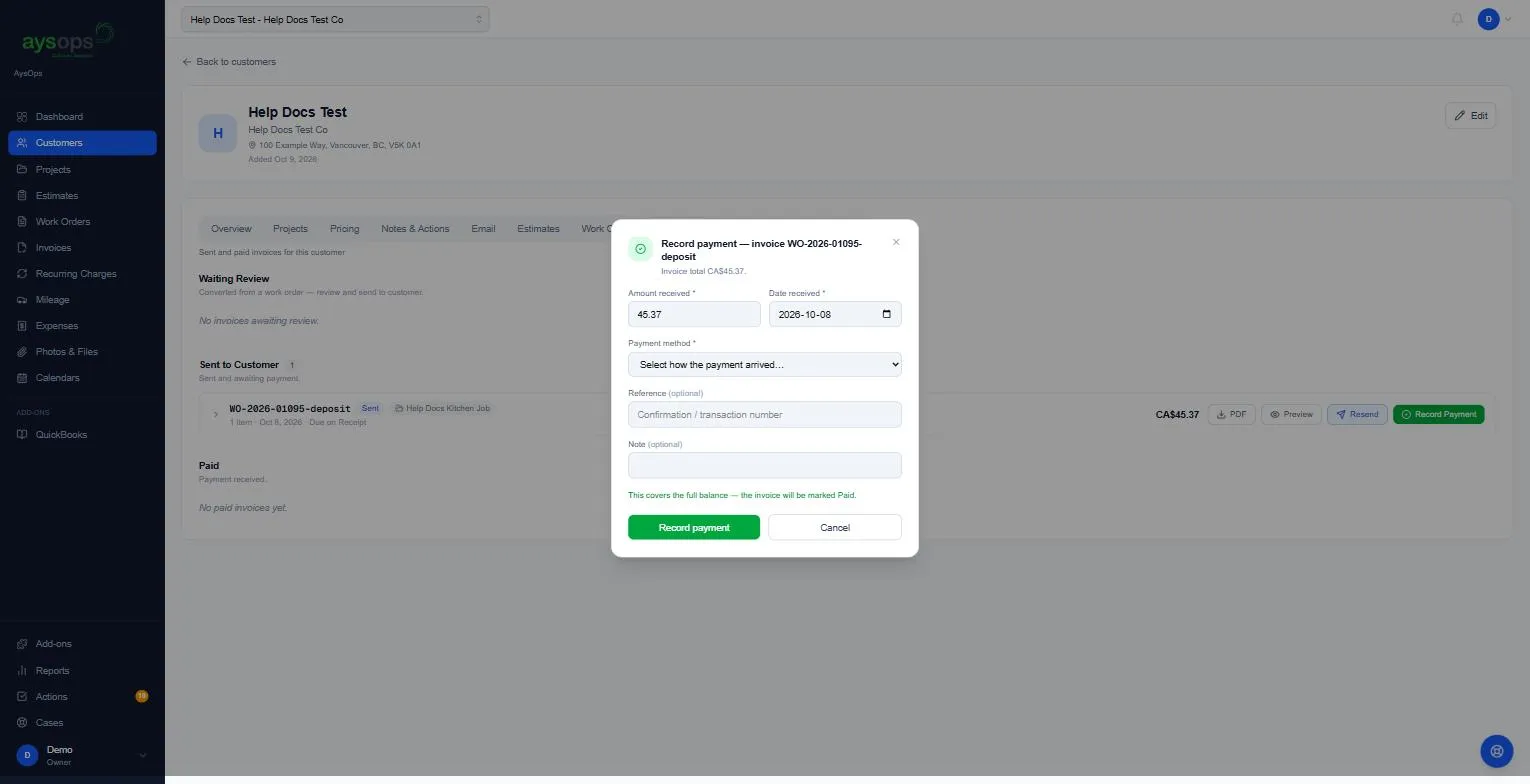
- Fill in Record payment for invoice WO-…:
- Amount received (required): starts at the full balance. Type less for a part payment.
- Date received (required).
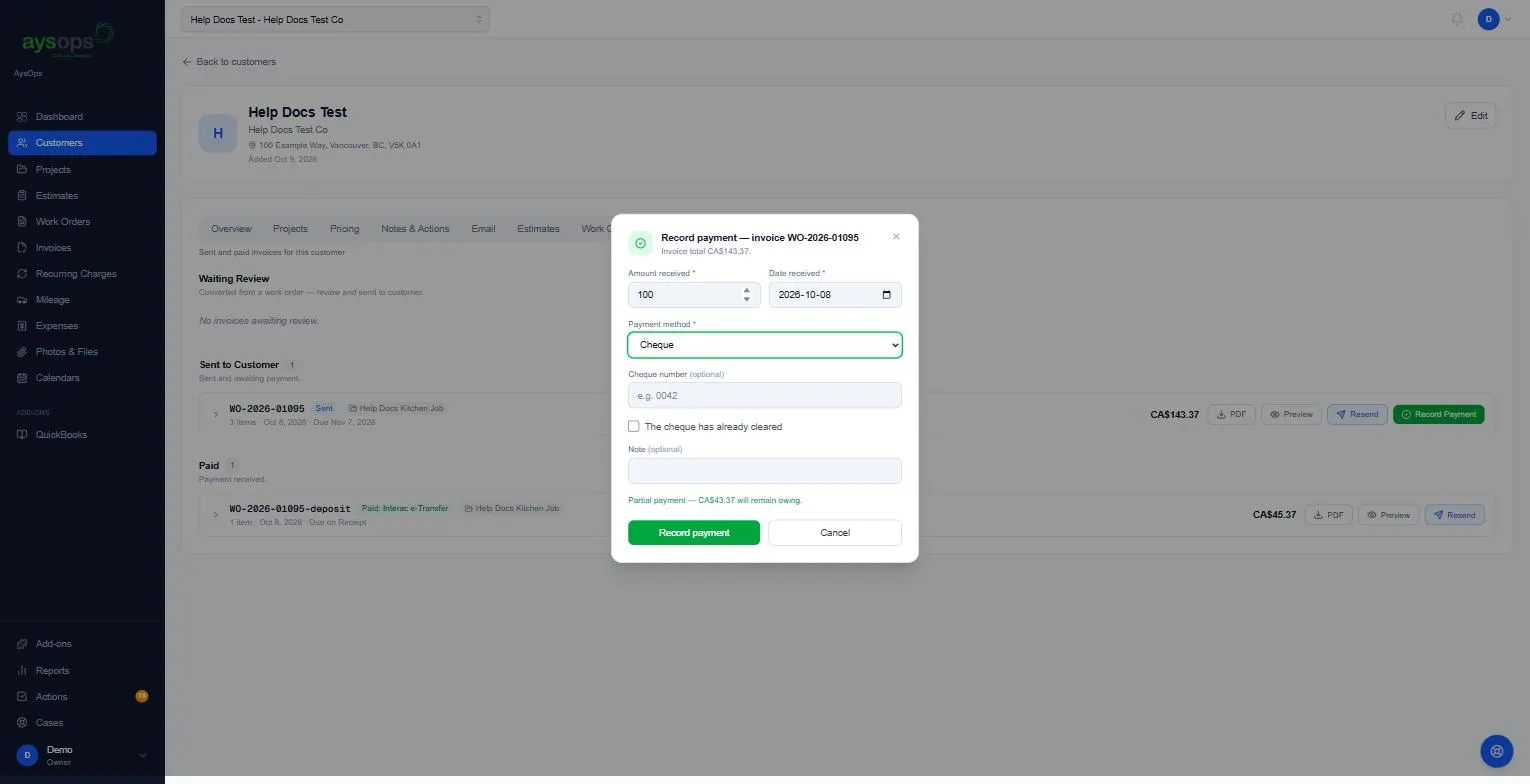
- Payment method (required): Interac e-Transfer, Cash, Cheque, Card, EFT / bank transfer or Other.
- Reference (optional): the transfer or confirmation number. It’s called Transfer reference for e-Transfer and Cheque number for a cheque.
- For a cheque: tick The cheque has already cleared if it has (you can tick it later).
- Note (optional).
- Under the form, check the message:
- “This covers the full balance. The invoice will be marked Paid.” or
- “Partial payment: CA$… will remain owing.”
- Click Record payment.
What happens next
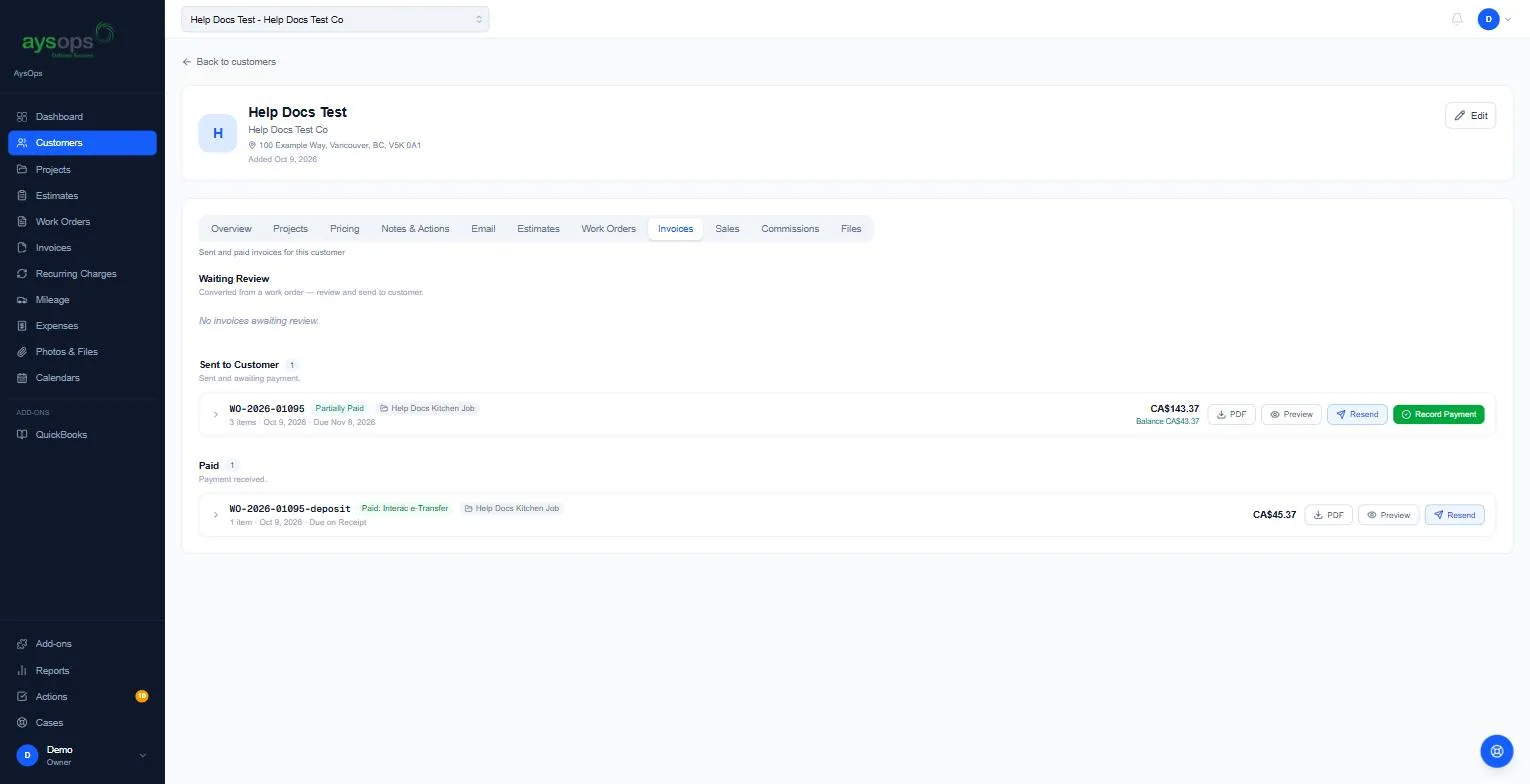
Section titled “What happens next”- Paid in full: the invoice moves to Paid, labelled with the method (for example Paid: Interac e-Transfer).
- Part paid: it stays under Sent to Customer as Partially Paid, with the Balance shown under the total.
- If Payment receipts are on (Settings → Invoice Settings), the customer is emailed a receipt straight away. See Invoice settings.
- The invoice moves to its new place on its own after a few seconds. If it hasn’t after that, reload the page: the payment has been saved, so don’t record it again.
See the payments on an invoice
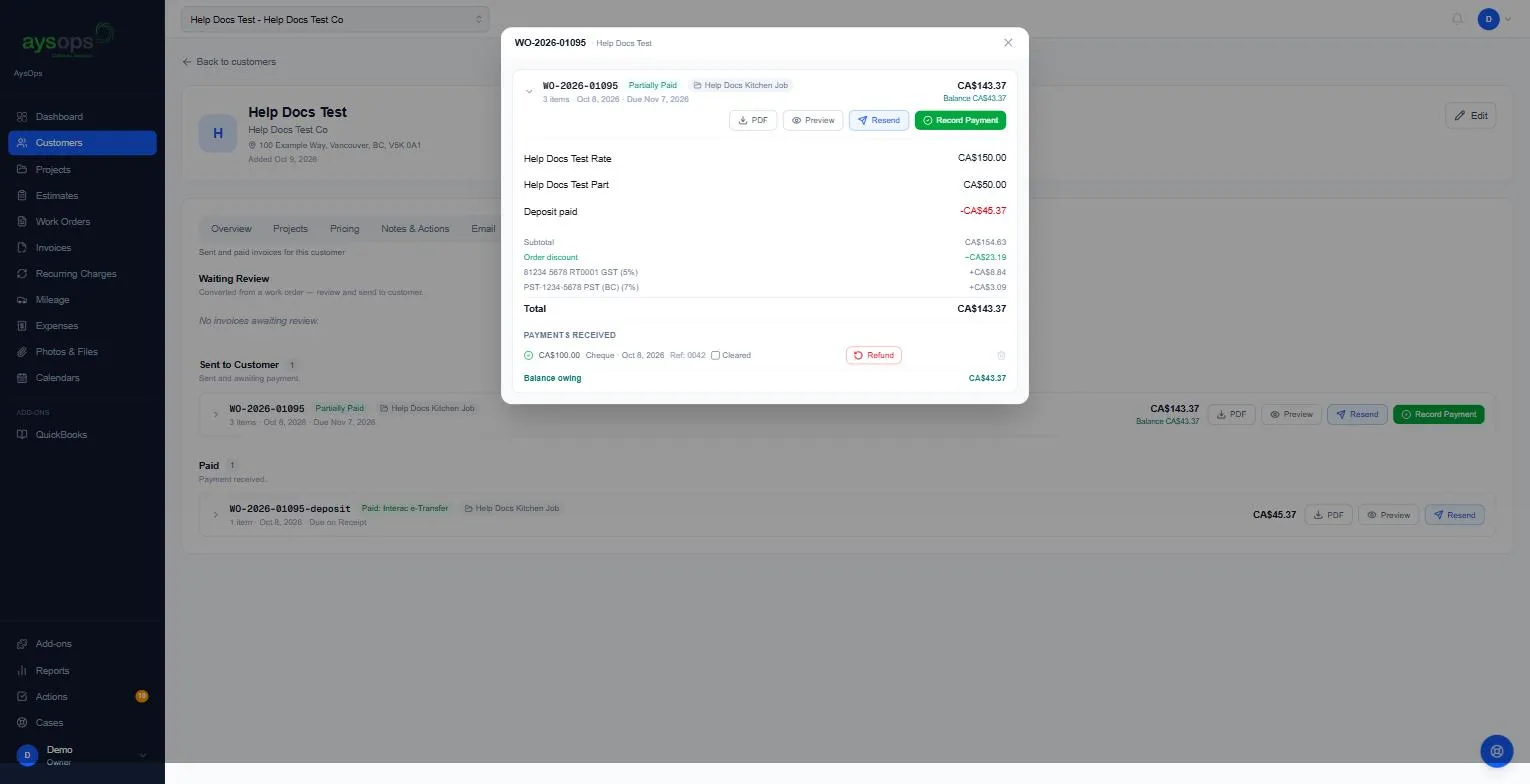
Section titled “See the payments on an invoice”Click the invoice to open it. Payments received lists each payment (amount, method, date, reference), with a Cleared tick box for cheques, a Refund button, and the Balance owing.
If something goes wrong
Section titled “If something goes wrong”- Record payment does nothing, or says the value must be less than or equal to …: you entered more than the balance. A payment can’t be more than what’s owed.
- I recorded a payment by mistake, or with the wrong amount: open the invoice, click the bin beside the payment (Remove this payment record) and confirm, then record it again correctly. The invoice’s status is worked out again from what’s left. If you really did give money back to the customer, use Refund instead, so there’s a record of it (see Refund a payment).
- “Online payments are recorded automatically and can’t be removed. To give money back, use Refund beside the payment.”: a card payment made through your pay link can’t be deleted. Use Refund (see Refund a payment).
- There’s no bin beside a payment: a payment with a refund recorded against it can’t be removed. The payment and the refund both stay on the invoice as a record.
Related articles
Section titled “Related articles”record payment, mark paid, paid, payment received, cash, cheque, check, e-transfer, interac, EFT, bank transfer, card, partial payment, balance owing, cheque cleared, receipt, delete payment