
Recurring charges explained
What this does
Section titled “What this does”A recurring charge bills a customer automatically on a schedule: weekly, every 2 weeks, monthly, quarterly, yearly or every so many days. Use it for retainers, support plans, hosting, monitoring, maintenance plans and the like. AysOps creates the invoice on each due date, and can email it and even charge the customer’s saved card for you.
How a recurring charge starts
Section titled “How a recurring charge starts”There are two ways, and you can use either:
- From a work order (most common): add the recurring item to a work order, convert it and send the invoice. Sending that first invoice starts the schedule. See Start recurring billing from a work order.
- With a first bill date: create the charge on the customer’s Pricing tab and give it a First bill date. The first invoice is created automatically on that date. See Create a recurring charge.
The Recurring Charges page
Section titled “The Recurring Charges page”Click Recurring Charges in the left menu. It lists every active charge, soonest first: the customer, the charge name and how often, the Total / cycle (with tax), the First charge, the Next charge and, if there’s a minimum commitment, the Contract end. Use the search box to find a customer or charge.
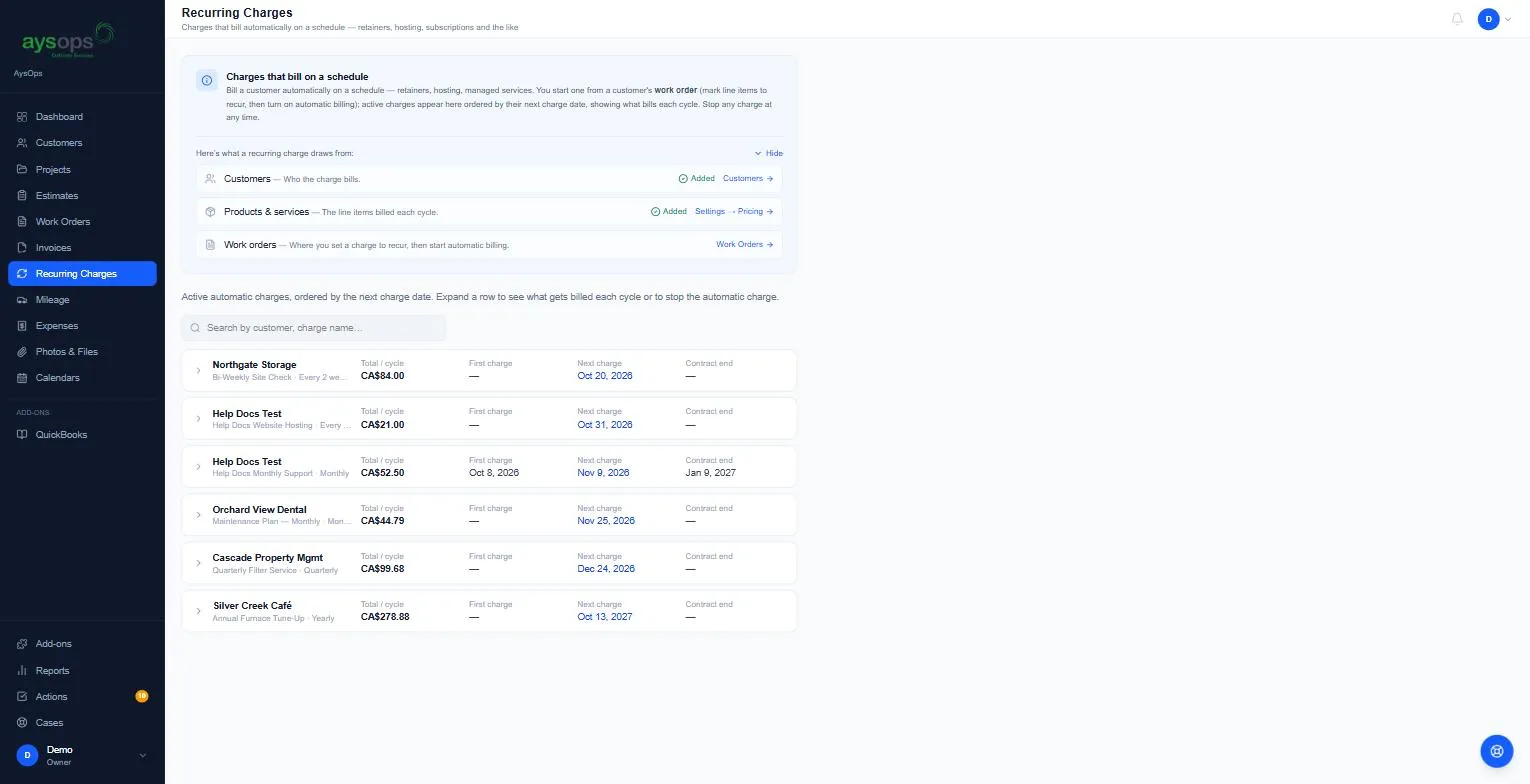
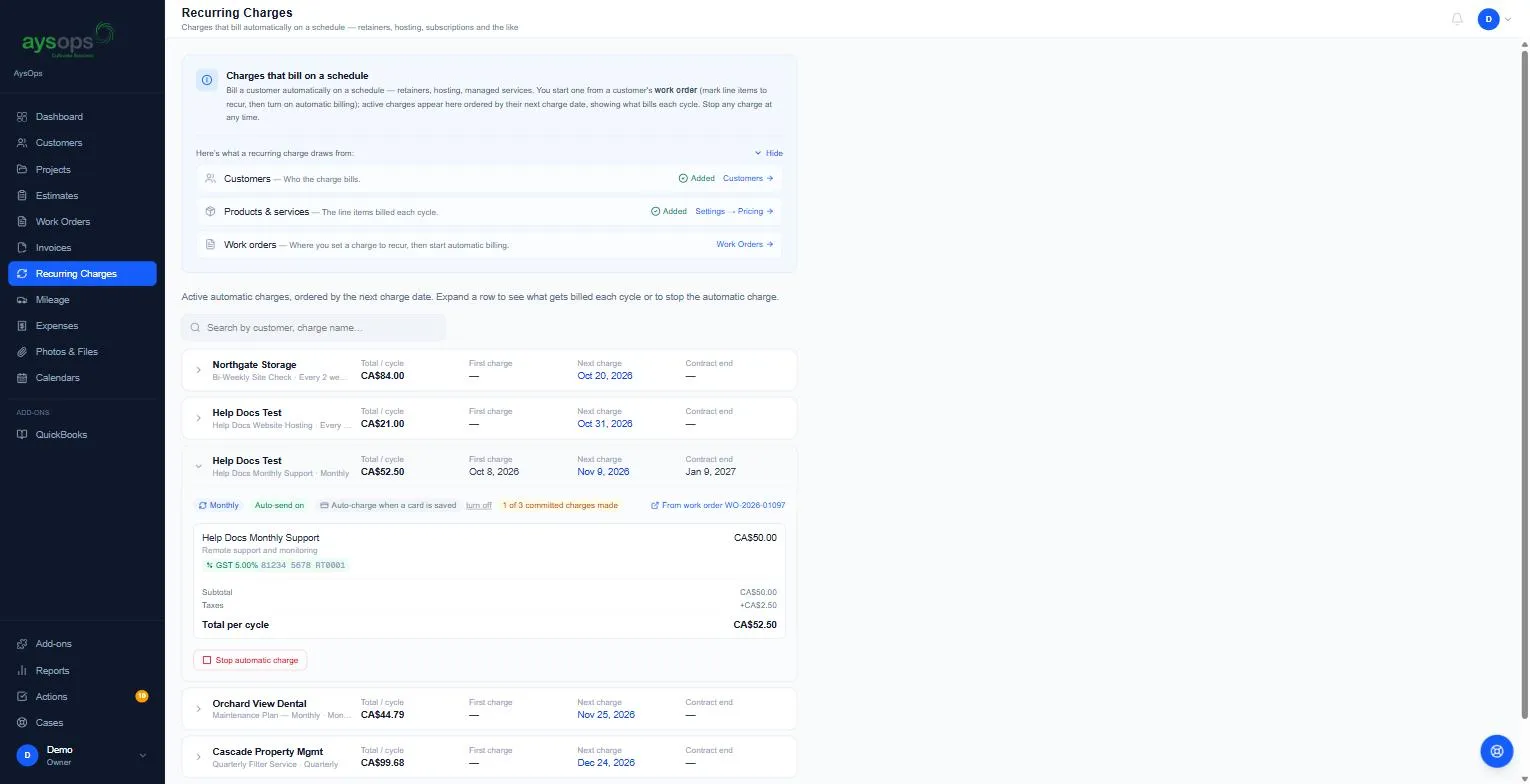
Click a row to open it. You’ll see:
- how often it bills (for example Monthly or Every 90 days),
- Auto-send on if each invoice is emailed automatically,
- the autopay state (for example Auto-charge off with turn on; see Autopay),
- progress, for example 1 of 3 committed charges made or 1 charge made · no minimum,
- a link back to the work order it started from,
- what’s billed each cycle with taxes and Total per cycle,
- Stop automatic charge. See Stop a recurring charge.
Who can do what
Section titled “Who can do what”Everyone with access can see recurring charges. Creating and stopping them needs the Create & stop recurring charges permission (owners, admins and managers by default). Turning autopay on or off needs permission to manage invoices.
Related articles
Section titled “Related articles”- Create a recurring charge
- Start recurring billing from a work order
- Autopay for recurring charges
- Stop a recurring charge