
Invoices explained
What this does
Section titled “What this does”An invoice is the bill you send when a job is done. In AysOps you don’t create an invoice from nothing: invoices are created by converting a work order (see Convert a work order to an invoice). Recurring charges also create invoices for you, shown as By: Automatic.
Before you start
Section titled “Before you start”Owners, admins, managers and staff can see invoices by default. Sending invoices and recording payments needs the Send invoices, record payments permission (owners, admins and managers by default).
Where to find them
Section titled “Where to find them”- Click Invoices in the left menu to see the invoices for all customers.
- Open a customer and click their Invoices tab to see only theirs.
The Invoices page
Section titled “The Invoices page”Invoices are grouped by status: Overdue, Ready to Send, Sent and Paid (click a group to open or close it). Each row shows the number, customer, project, total, status, the date it was issued and who created it. Click Open to see it.
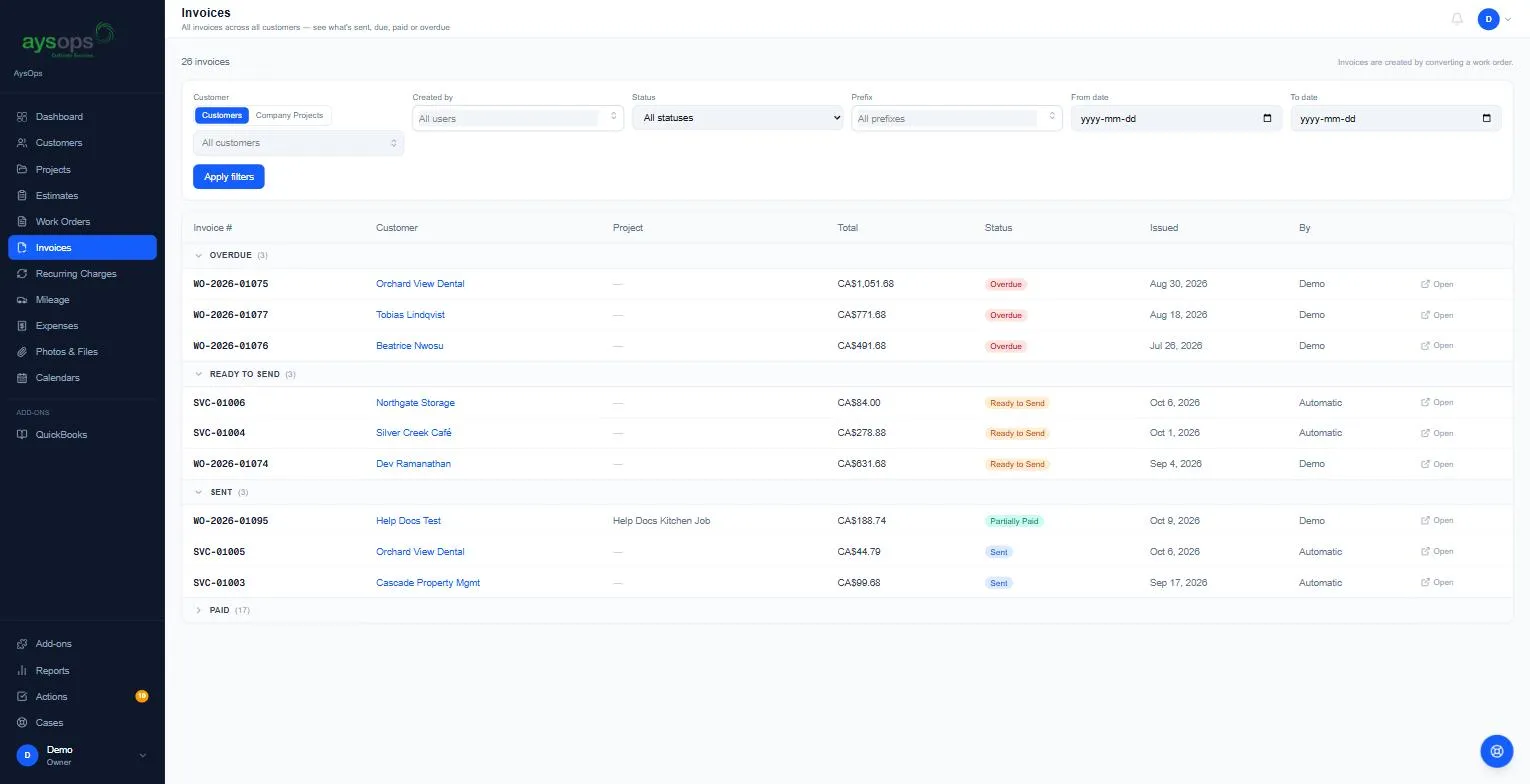
Filters: customer (or Company Projects), Created by, Status, Prefix, and a From date / To date. Click Apply filters.
On a phone or a tablet, invoices are cards in the same groups (tap a group’s name to open or close it), each with its number, status, customer, issue date and total. Tap a card to open the invoice. The filters are folded away: tap Filters to show them.
A customer’s Invoices tab
Section titled “A customer’s Invoices tab”Three sections:
- Waiting Review: converted from a work order, not sent yet. Check it and send it.
- Sent to Customer: sent and awaiting payment. Record Payment is here.
- Paid: payment received.
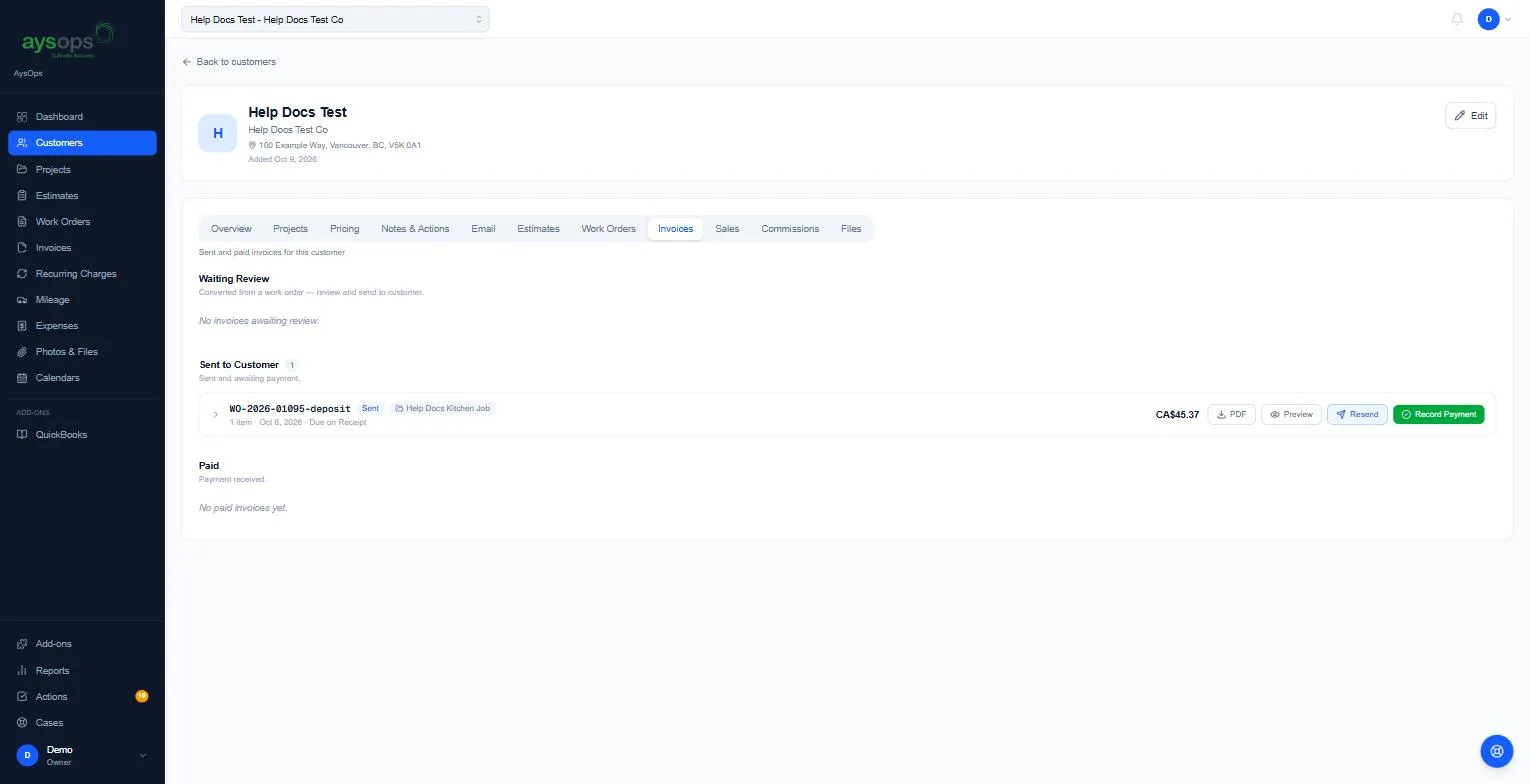
The statuses
Section titled “The statuses”| Status | Means |
|---|---|
| Ready to Send | Converted, not sent. You can still Revert it to a work order. |
| Sent | Emailed to the customer, nothing paid yet. |
| Partially Paid | Some money received. The row shows Balance owing. |
| Overdue | The due date has passed and it isn’t fully paid. |
| Paid: [method] | Fully paid, for example Paid: Interac e-Transfer or Paid: No charge. |
| Refunded / Partly refunded | Money was given back, followed by how much (for example Partly refunded: CA$20.00). See Refund a payment. |
Every invoice has PDF (download) and Preview (see it as the customer will).
Made with AI
Section titled “Made with AI”If the estimate an invoice came from was built with AI (from a worksheet or a conversation), you’ll see Made with AI from [file] with View the review history (every step, question and change) and Download review (PDF). It’s a record of how the prices were worked out. See Create an estimate from a worksheet.