
Tour of the dashboard and menu
What this does
Section titled “What this does”Explains what you see when you sign in: the dashboard (your business at a glance) and the menu on the left that takes you everywhere else.
Before you start
Section titled “Before you start”Everyone sees the dashboard, but managers and other team members don’t see the Money tiles. What appears in the menu also depends on your role and your add-ons: AysOps hides areas you can’t use, so a colleague may see a different menu from yours.
The dashboard
Section titled “The dashboard”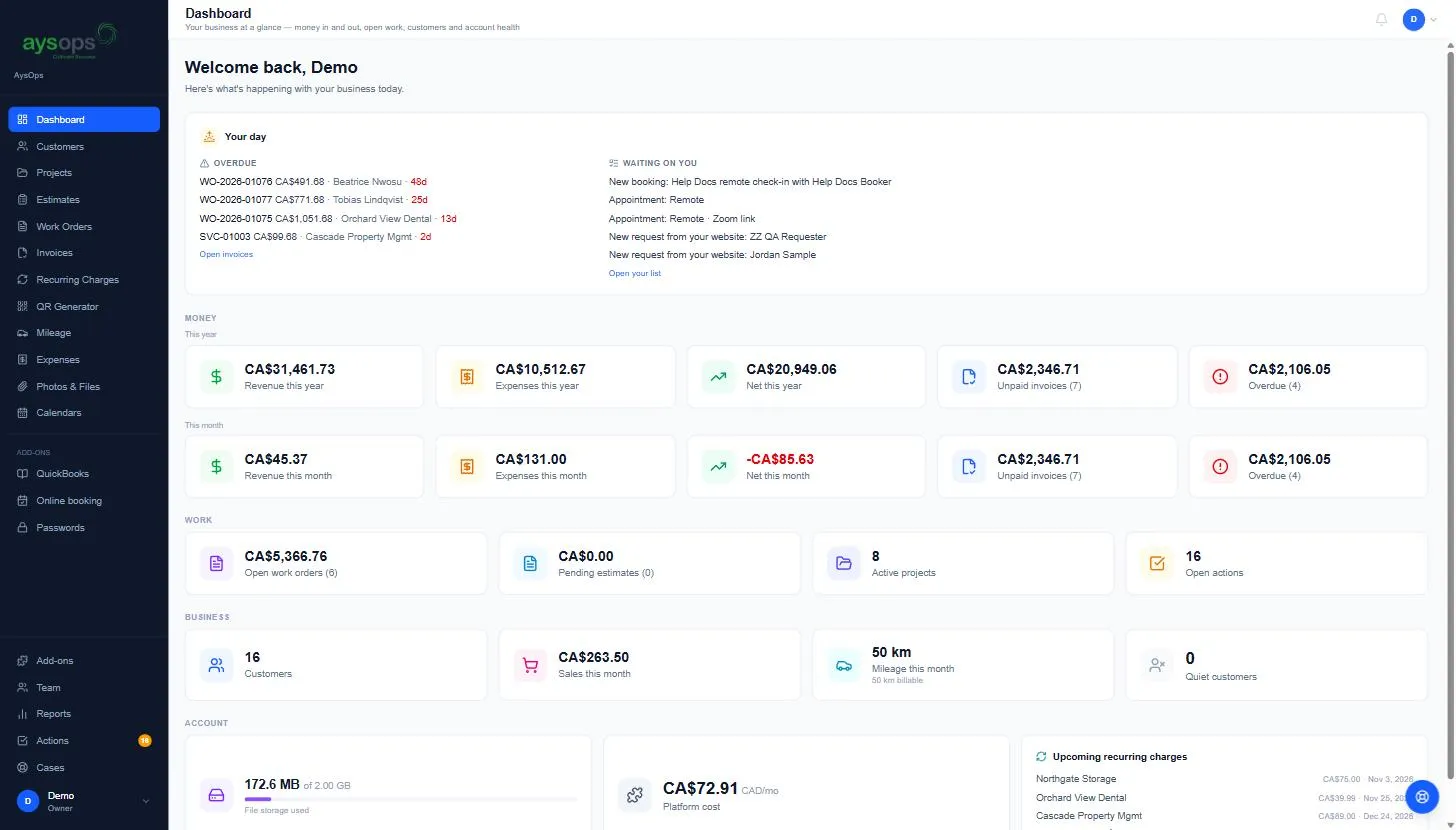
From top to bottom:
Your day: two short lists to act on first.
- Overdue: unpaid invoices past their due date, with the amount, the customer and how many days overdue (in red). Open invoices takes you to the full list.
- Waiting on you: your to-dos (new bookings, appointments, follow-ups). Open your list opens your full to-do list.
Money (owners and admins only): revenue, expenses and net (revenue minus expenses), plus Unpaid invoices and Overdue, shown for This year and This month. Amounts are in your currency (for example CA$). If you bill in more than one currency, each currency gets its own line.
Work: Open work orders, Pending estimates, Active projects and Open actions (to-dos).
Business: Customers, Sales this month, Mileage this month and Quiet customers (customers you haven’t been in touch with for a while; see Quiet customers).
Account: File storage used (with your limit), AI credits used this month (only when AysOps AI is on), Platform cost (what AysOps costs you per month) and Upcoming recurring charges (the next automatic charges, with customer, amount and date).
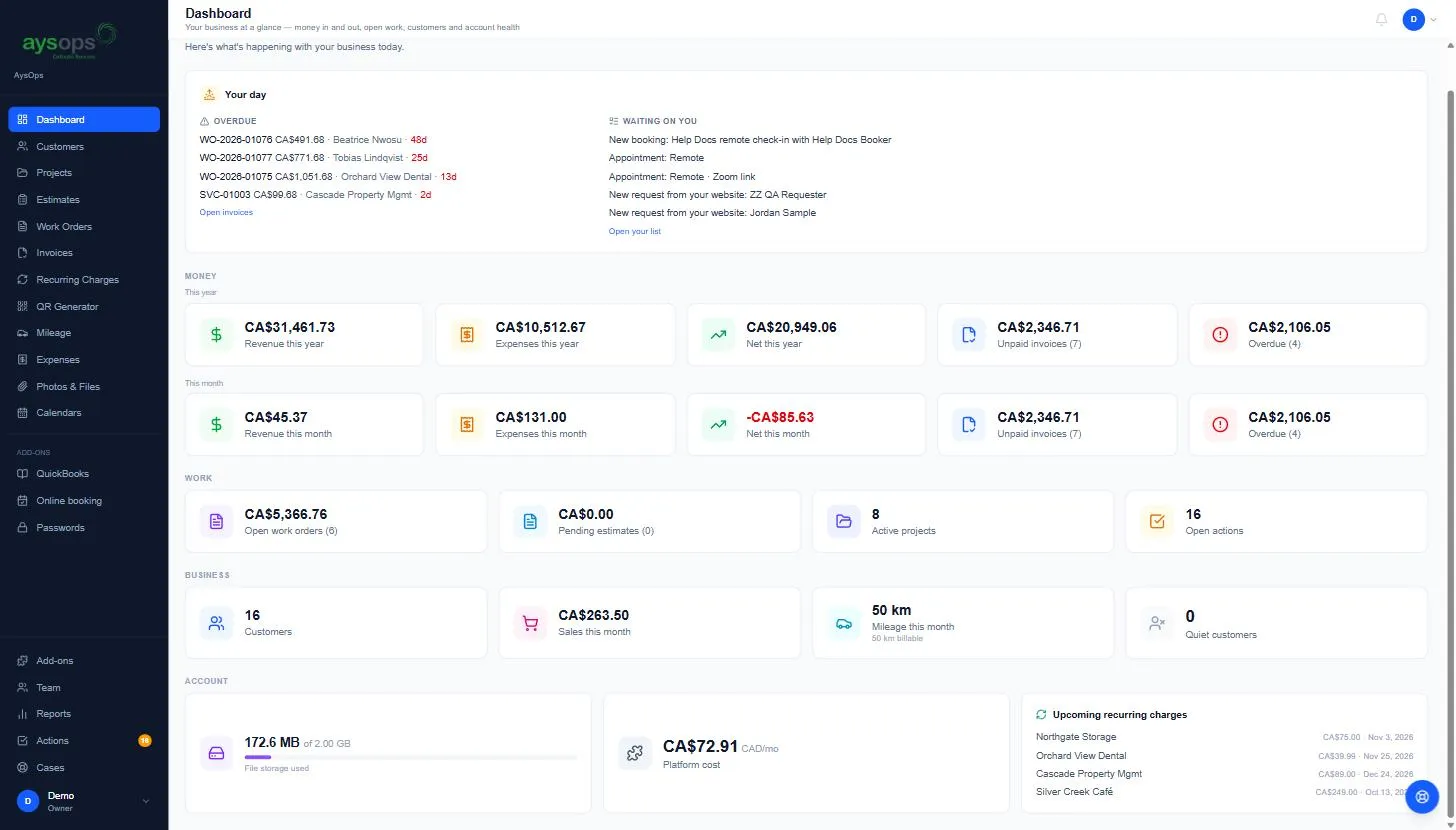
The menu on the left
Section titled “The menu on the left”On a tablet the menu shows only icons until you open it, and on a phone it’s behind the menu button at the top left, with a bar of shortcuts along the bottom. See Use AysOps on your phone or tablet.
| Menu item | What it’s for |
|---|---|
| Dashboard | Your business at a glance (this page). |
| Customers | Your customers and everything about each one: projects, documents, sales and history. |
| Projects | Company projects (your own ventures) and a directory of all customer projects. |
| Estimates | Quotes you send before the work. |
| Work Orders | Jobs in progress: time, products and costs, before they become invoices. |
| Invoices | Sent and paid invoices across all customers. |
| Recurring Charges | Automatic charges and their next billing dates. |
| QR Generator | Make and download QR codes for any web address. See Make QR codes with the QR Generator. |
| Mileage | Trips you drive for work, and your vehicles. |
| Expenses | Business expenses and receipts. |
| Photos & Files | Upload receipts, photos and files now; sort and assign them to expenses, jobs or customers later. |
| Calendars | Your appointments, with other calendars overlaid. |
Under Add-ons you’ll see a menu item for each add-on you use, for example Online booking, Passwords or QuickBooks.
At the bottom:
| Menu item | What it’s for |
|---|---|
| Add-ons | View add-ons: extra features and storage (only the owner can turn them on or off). |
| Team | Invite and manage team members (only with the Teams add-on, for people who manage the team). |
| Reports | Business reports. |
| Actions | Your to-do list, plus the account activity log. The orange number is how many to-dos are open. |
| Cases | Questions and problems you’ve reported to AysOps support. |
| Your name | Opens the account menu: Settings and Sign out. |
While you are in some areas, a short list of extra pages shows indented under that menu item, for example Vehicles under Mileage, or Settings under Estimates.
The top bar
Section titled “The top bar”- The page title and a one-line description of the page. (On a phone, only the title shows; the description, the bell and your photo are left out to save room.)
- A bell icon: notifications are coming soon; it does nothing yet.
- Your initial or photo: the account menu, the same as your name at the bottom left. See Account menu and signing out.
Other things you might see
Section titled “Other things you might see”- An orange TEST MODE bar at the very top: this account is a test or demo account. Nothing is sent to customers; their emails go to the account owner instead.
- A red bar at the top saying “Your subscription has ended, so this account is read-only.” (or “Your free trial has ended…”): you can still look at everything, but nothing can be changed until the company subscribes. Owners and admins see a Subscribe again (or Subscribe now) link in the bar; everyone else is asked to contact the account owner. See Billing and your subscription.
- A blue bar at the very top about AysOps AI (for example when its free trial has ended and it was turned off): Turn it back on takes you to it; the X at the right hides the bar.
- A round blue button at the bottom right: Help & feedback (on a phone it’s in the + menu instead). See Get help.