Accounting documents (card and bank statements)
What this does
Section titled “What this does”Stores a card or bank statement (or a payment processor’s invoice) once, and links it to every expense it covers. AysOps can read the statement and show you which charges are already in your expenses and which are missing from your books.
Before you start
Section titled “Before you start”- You need permission to upload accounting documents (owners and admins by default).
- A CSV or TSV export (the spreadsheet download most banks and card issuers offer) is always read, with or without AysOps AI. Reading a PDF or a photo of a statement uses AysOps AI; without it, the document is still stored and you link it to expenses yourself: see Without AysOps AI below.
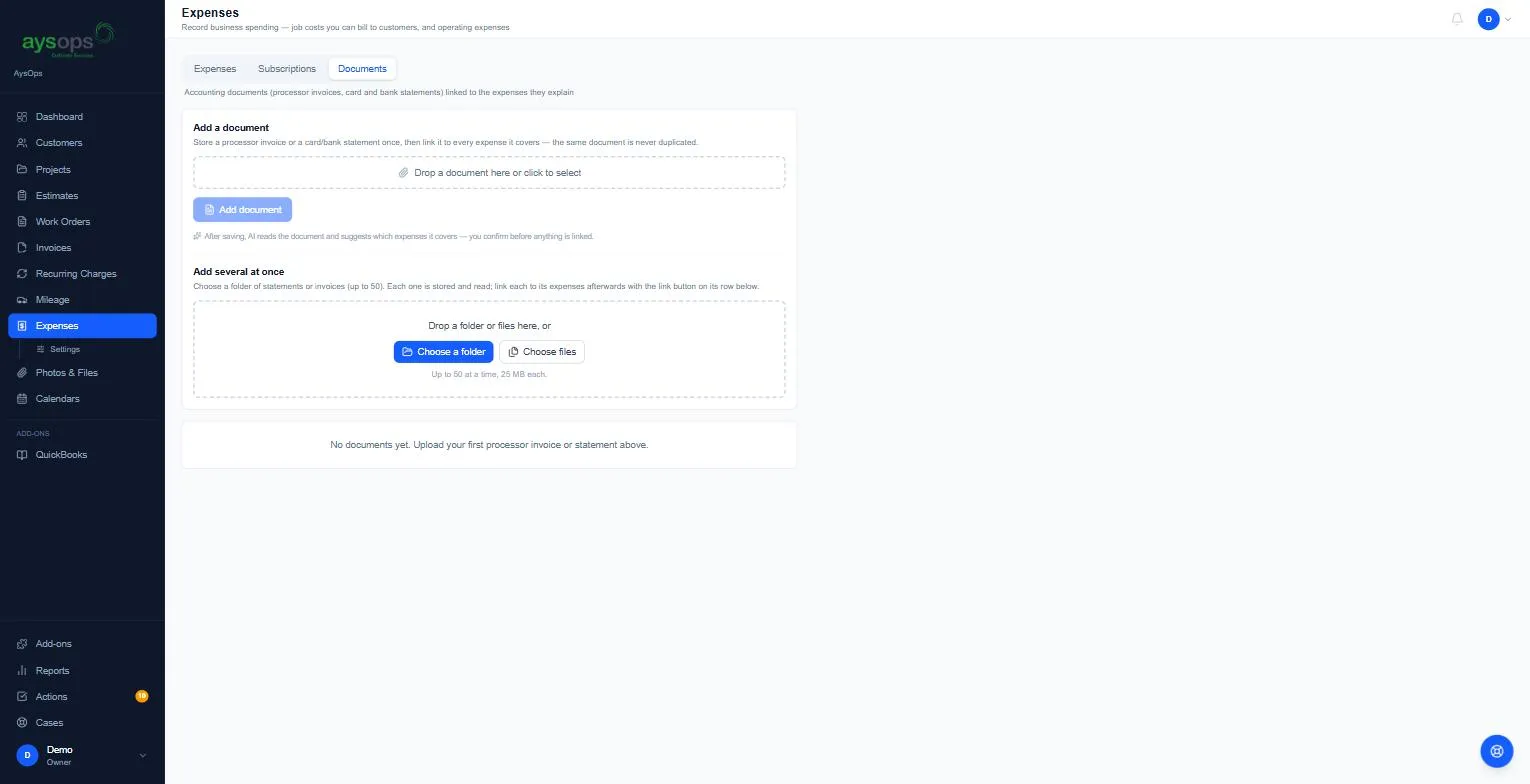
- Click Expenses → Documents.
- Under Add a document, drop the statement (or click to select it), then click Add document. To add many, use Add several at once (Choose a folder or Choose files, up to 50 at a time, 25 MB each). Add several at once needs AysOps AI; without it the box is greyed out and says “Enabled with the AysOps AI add-on”.
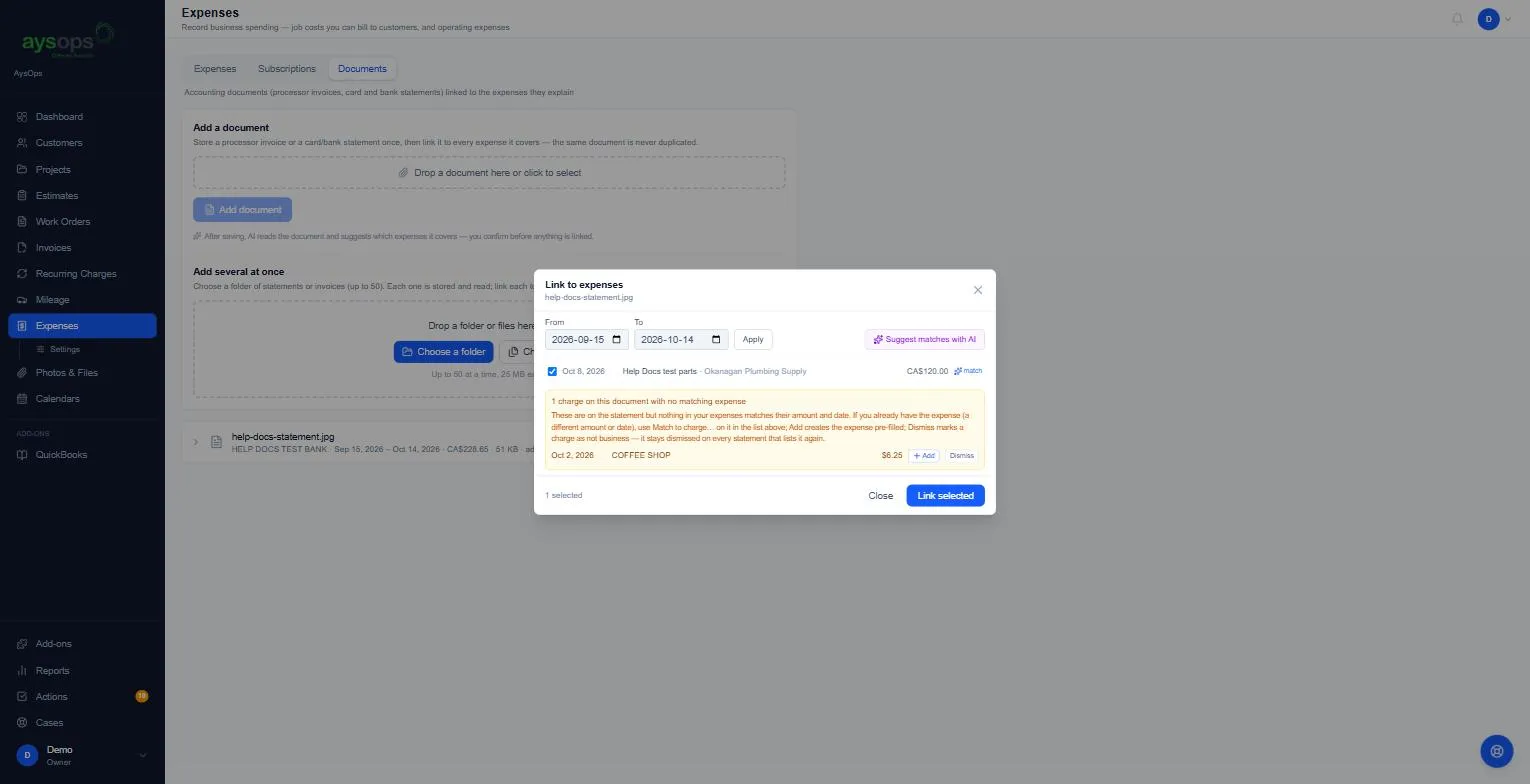
- The Link to expenses box opens, set to the statement’s period (From / To):
- Expenses that match a charge are listed and ticked, marked match.
- “… charge(s) on this document with no matching expense” lists what’s on the statement but not in your expenses. For each: Add opens a new expense filled in with the charge’s date, amount and description; pick a category and click Add expense. You come back to this box, where the new expense now shows as a match. Dismiss marks a charge as not business (it stays dismissed on any later statement that lists it).
- Suggest matches with AI looks harder for matches with a different amount or date.
- Click Link selected.
Without AysOps AI
Section titled “Without AysOps AI”A CSV or TSV file works as in step 3: its period, the match marks and the list of missing charges all appear. Only Suggest matches with AI is missing.
For a PDF or photo, the Link to expenses box still opens after Add document, but nothing is read from the statement, so there are no match marks and no list of missing charges. It shows your expenses from the start of this month: change From and To to the statement’s period and click Apply, tick each expense the statement covers, then click Link selected.
What happens next
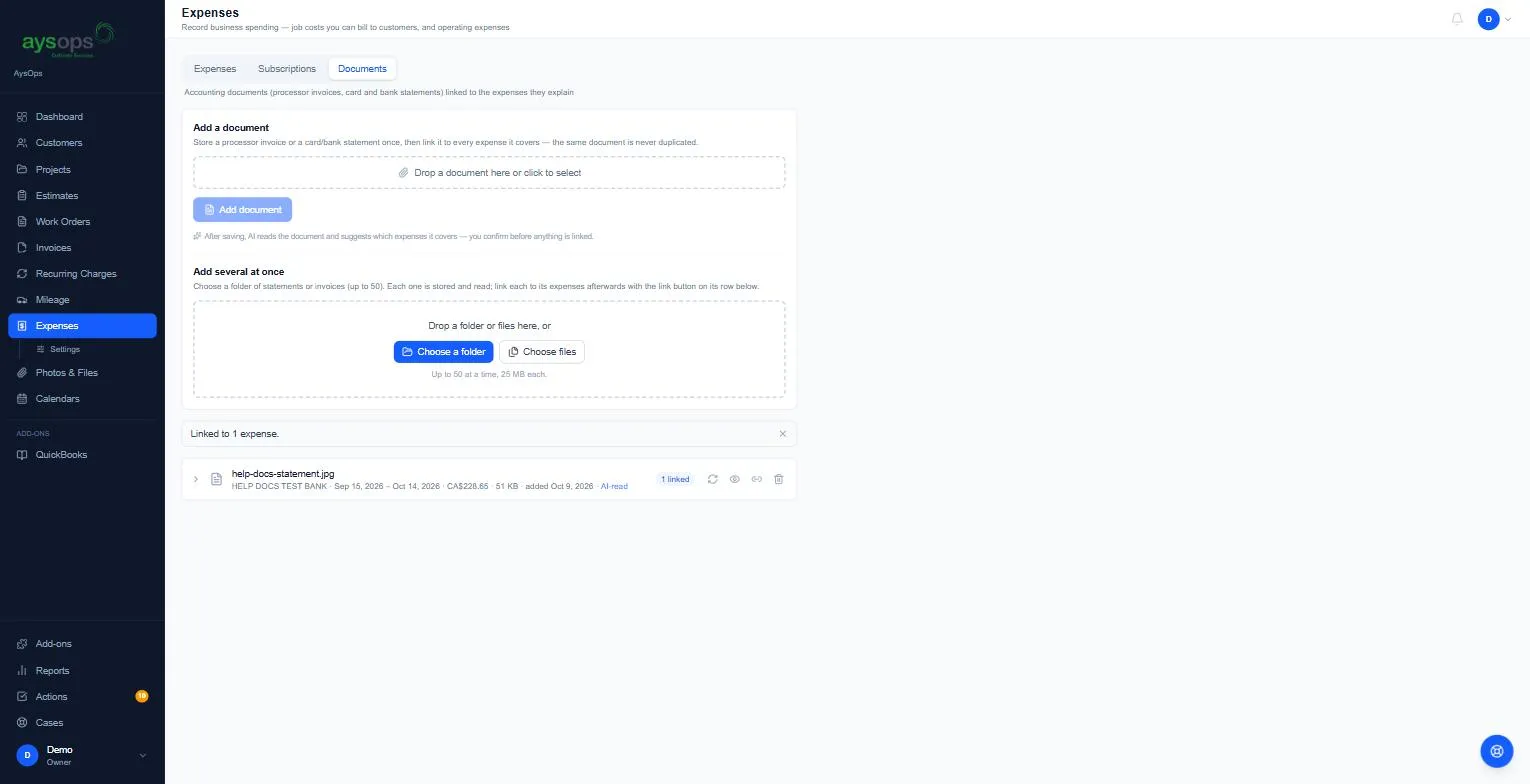
Section titled “What happens next”You’ll see “Linked to 1 expense.” The document row shows the bank, the period, the total, how many expenses are linked, and AI-read when AysOps AI read it (a CSV shows its period but no total and no AI-read; a PDF or photo added without AI shows only its size, the date it was added and how many are linked). Its icons let you View it, Link to expenses again, or Delete it. A Re-scan icon reads it again: on every document with AysOps AI, and on a CSV or TSV without it.
Delete asks “Delete this document?” first. The links to expenses are removed, the expenses themselves are not touched, and the file is permanently deleted.