
Set your working hours and days away
What this does
Section titled “What this does”Tells AysOps when you work and when you’re away, in your own time zone. Your hours decide when you can be booked. Leave them empty to simply follow your business’s hours.
Before you start
Section titled “Before you start”Everyone sets their own personal hours. If you never fill them in, the business hours apply to you.
- Click your initial or photo at the top right, then Settings. Stay on the Personal tab and scroll down to Personal hours.
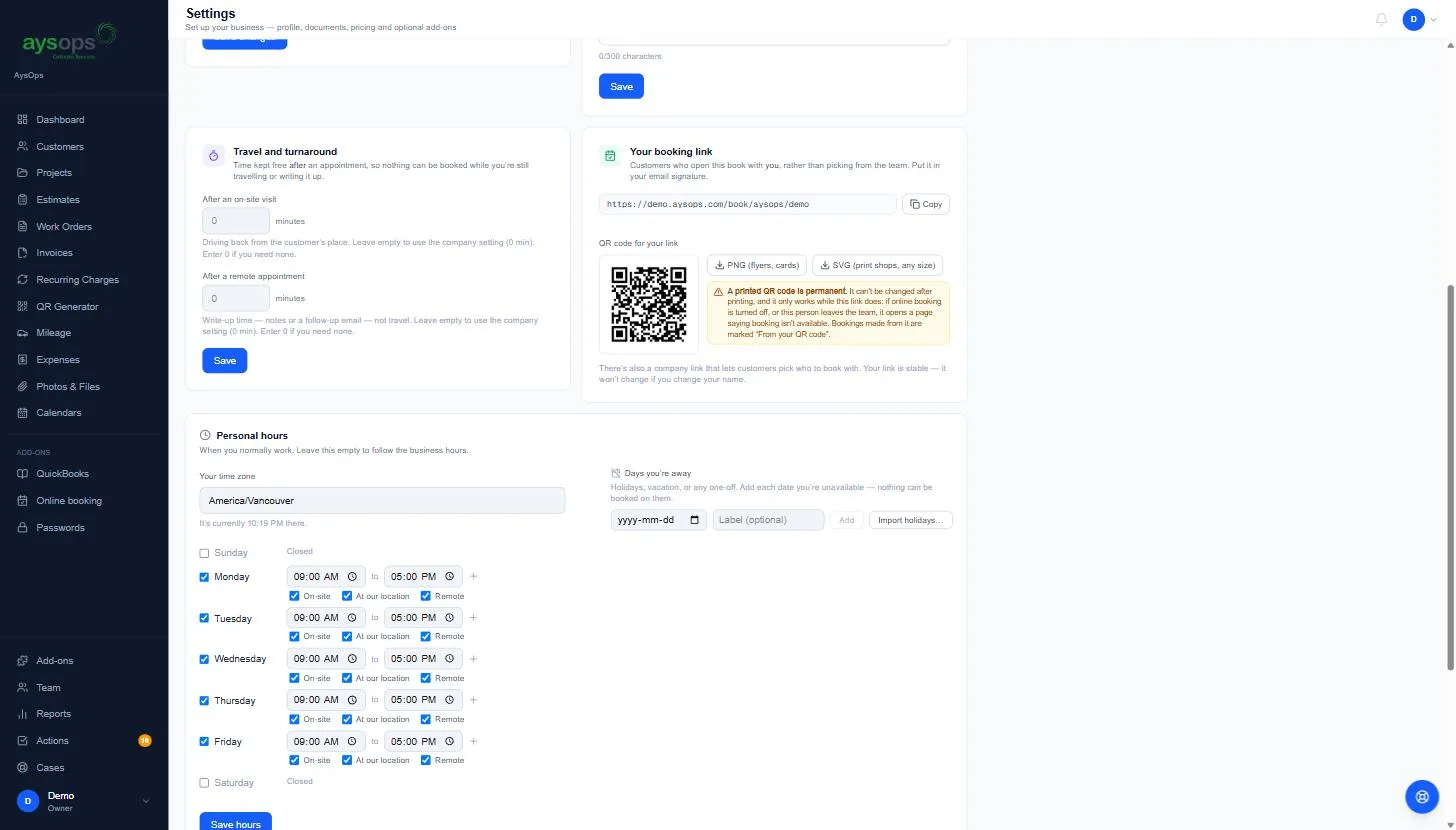
Your time zone
Section titled “Your time zone”- Check Your time zone (for example America/Vancouver). The line underneath shows the time it is there right now, so you can confirm it’s right.
Your weekly hours
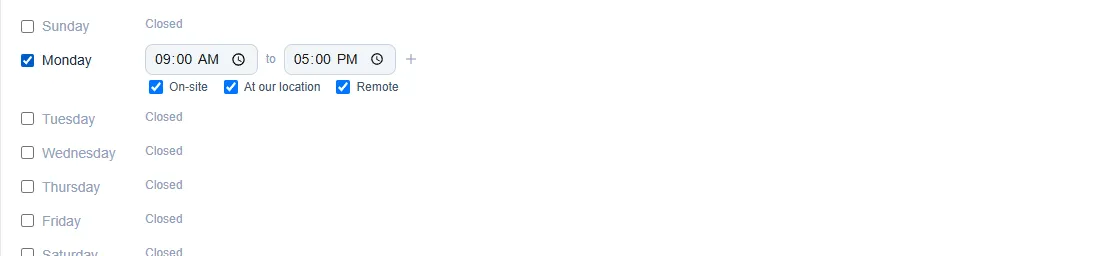
Section titled “Your weekly hours”- Tick each day you work. A ticked day shows a start and end time, 9:00 AM to 5:00 PM to begin with. Change them as needed. Days left unticked show Closed.
- Under the times, choose what kind of appointments can be booked then:
- On-site: you travel to the customer.
- At our location: the customer comes to you.
- Remote: a call.
- To split a day (for example a lunch break), click + beside the times. A second range appears (it starts at 1:00 PM to 5:00 PM): change the first range to end at your break, and the second to start after it. Click the bin next to a range to remove it.
- Click Save hours.
Days you’re away
Section titled “Days you’re away”- Under Days you’re away, pick a date, add an optional Label (for example “Vacation”), and click Add. Nothing can be booked on those days.
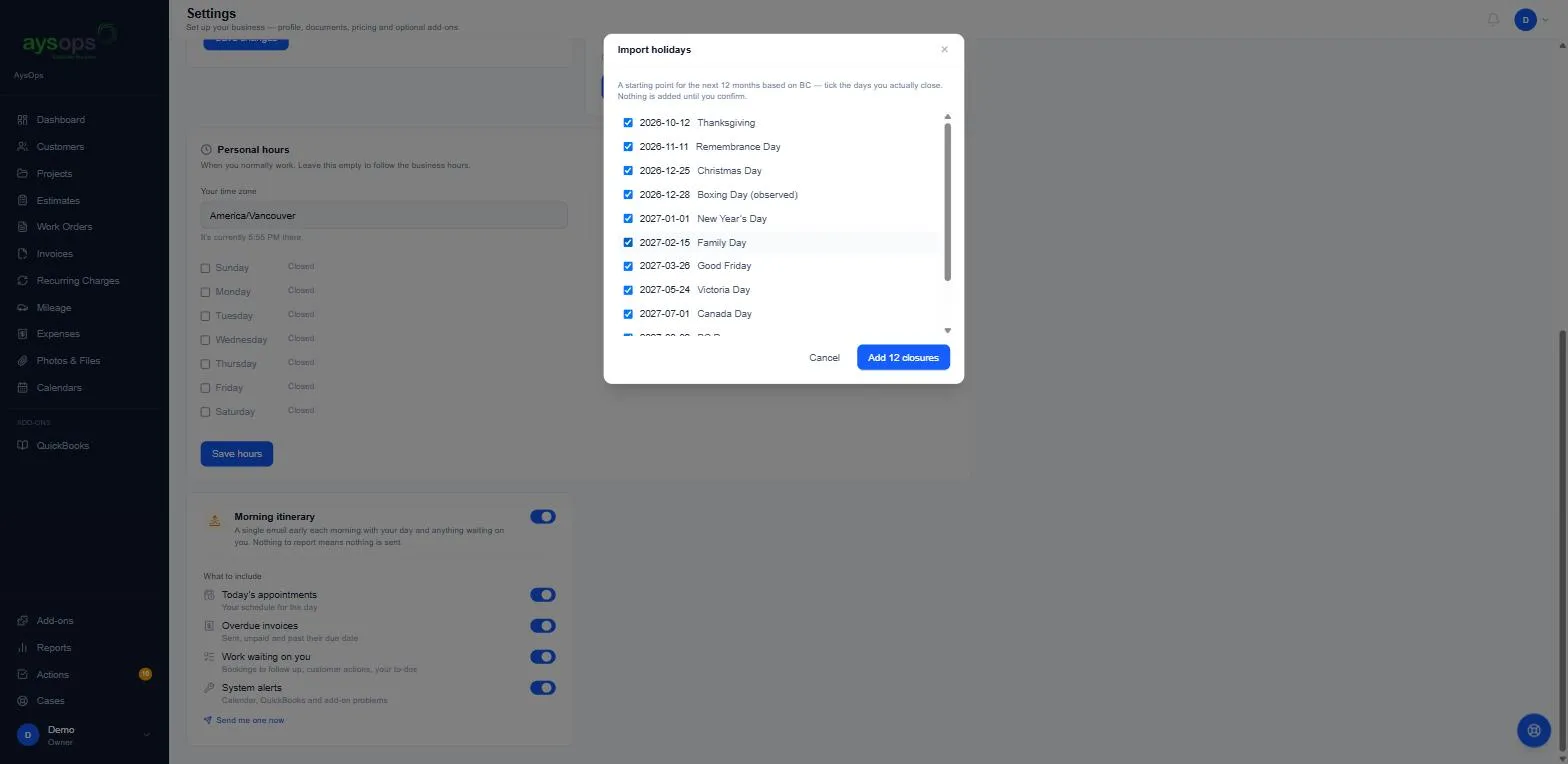
- To add public holidays quickly, click Import holidays…. AysOps lists the holidays for the next 12 months for your province or state. Untick any day you don’t close, then click Add [number] closures. Nothing is added until you click that button.
What happens next
Section titled “What happens next”- Online bookings and appointment suggestions only offer times inside your hours, for the visit types you allowed, and never on your days away.
- Times are always in your time zone, even when your business or customers are elsewhere.
If something goes wrong
Section titled “If something goes wrong”- A time range has no visit type ticked: tick at least one of On-site, At our location or Remote, otherwise nobody can book that time.
- Customers can book me when I’m not working: check that your hours are saved, and that the day is unticked (Closed) or added under Days you’re away.
- The times look an hour off: check Your time zone.
Related articles
Section titled “Related articles”working hours, hours, availability, schedule, time zone, timezone, vacation, holiday, days off, away, closed, lunch break, on-site, remote, at our location